

Identifying the specific hardware components inside your computer is a fundamental skill for any user, whether you are planning a future upgrade, troubleshooting a performance issue, or simply checking driver compatibility. Learning how to find out motherboard on pc doesn’t require specialized technical knowledge or expensive diagnostic tools. You can often uncover this information using nothing more than the built-in utilities already present in your operating system.
The motherboard acts as the backbone of your machine, connecting the central processing unit, memory, storage, and graphics card. Because it dictates which processors are compatible and how much RAM you can install, knowing your exact model is essential. Below, we explore the most effective ways to extract this information, ranging from simple software commands to physical inspection.
Using System Information for Quick Identification

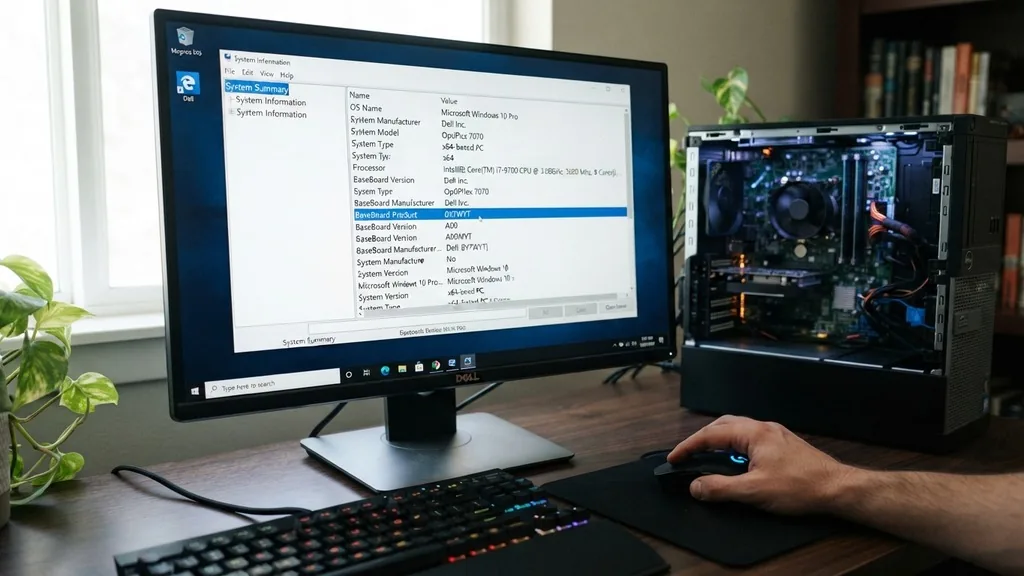
The easiest way to identify your hardware is by using the System Information tool, which is natively available in Windows. This built-in utility pulls data directly from the registry and hardware sensors to provide a snapshot of your PC’s configuration.
To get started, press the Windows key on your keyboard and type “System Information” into the search bar. Once the application opens, look for the “System Summary” category, which is usually selected by default.
In the right-hand panel, scroll down until you find the rows labeled “BaseBoard Manufacturer,” “BaseBoard Product,” and “BaseBoard Version.” These fields correspond to your motherboard’s brand, model name, and revision number.
This method is incredibly reliable because it queries the motherboard’s own firmware. It is particularly useful if you are trying to determine if your current board supports a newer CPU or if you need to download specific chipset drivers from the manufacturer’s website. If you see “Not Available” in these fields, it usually indicates that the motherboard manufacturer did not program the DMI (Desktop Management Interface) information into the firmware correctly, which is rare but possible on some budget or pre-built systems.
Leveraging the Command Prompt for Instant Data
For users who prefer a more direct approach, the Command Prompt provides a powerful way to retrieve hardware details without navigating through graphical menus. This is often faster than using the System Information tool, especially if you are comfortable with text-based interfaces.
Open the Command Prompt by typing “cmd” into the Windows search bar and pressing Enter. Once the black window appears, type the following command and press Enter: wmic baseboard get product,Manufacturer,version,serialnumber. This string tells the Windows Management Instrumentation Command-line to query the motherboard specifically.
The output will display the manufacturer and the exact product model. This command is a favorite among system administrators because it is scriptable and returns clean, unformatted text that can be copied and pasted into a document.
If you find yourself frequently checking hardware specs for multiple machines, keeping a notepad file with this command handy can save you significant time. Note that if the command returns nothing, it suggests the BIOS/UEFI was not configured by the OEM to broadcast this specific hardware string.
Analyzing Motherboard Details with CPU-Z
While built-in tools are excellent, they sometimes lack the depth required for advanced hardware enthusiasts. Third-party software like CPU-Z provides a more granular view of your internal components. This is a widely trusted, lightweight utility that is standard in the PC building community for verifying hardware configurations.
You can download CPU-Z from the official CPUID website to ensure you are getting a clean, safe version of the software. Once installed, launch the program and navigate to the “Mainboard” tab. Here, you will find detailed information about your motherboard, including the chipset, the BIOS version, and the current interface speed of your PCIe lanes.
Using this tool is particularly beneficial when you need to confirm the exact revision of your board. Different revisions of the same motherboard model can sometimes have different power phases or cooling capabilities.
CPU-Z displays this revision data clearly, allowing you to match your hardware precisely with the support pages on the manufacturer’s website. It is a vital step before updating your BIOS, as flashing the wrong firmware can render your system unusable.
Physically Inspecting the Motherboard
Sometimes, software might fail to report the motherboard model, or the PC might not even boot into the operating system. In these cases, a physical inspection is the only way to find out what you are working with. This involves opening the side panel of your desktop case and looking directly at the printed circuit board.
Most manufacturers print the model name in bold, white lettering on the PCB itself. You will usually find it near the PCIe slots, between the CPU socket and the RAM slots, or tucked away near the edge of the board. If the board is covered in dust or obscured by a large air cooler, use a flashlight to improve visibility.
If you are dealing with a pre-built machine from companies like Dell, HP, or Lenovo, the motherboard might not have a retail model name. Instead, you might see a long alphanumeric string that acts as a proprietary part number. Searching this specific part number on Google will often lead you to the manufacturer’s support documentation, which will tell you exactly which retail motherboard the unit is based on or what its specific upgrade limitations are.
Checking Motherboard Information via UEFI/BIOS
If you want to avoid loading into Windows entirely, you can check your motherboard model from within the UEFI or BIOS interface. This is the menu that loads immediately after you power on your computer, usually by pressing a specific key like Del, F2, or F10 during the initial boot sequence.
Once you are inside the BIOS, the model name is often displayed prominently on the main landing page or the “System Information” tab. This method is highly effective because it bypasses the operating system, meaning you don’t need to worry about driver issues or missing software utilities. It is the most reliable way to verify hardware before you even install an OS.
Many modern UEFI interfaces also provide a “System Health” or “Hardware Monitor” section, which can give you extra context about your board, such as current voltage levels and temperature sensors. If you are troubleshooting a hardware failure, checking this section can help you identify if the motherboard is failing to detect certain components like RAM sticks or storage drives.
Understanding Motherboard Form Factors and Compatibility
Knowing your motherboard model is just the first step in understanding your computer’s capabilities. Motherboards come in various form factors, which determine the physical size of the board and the number of expansion slots available. The most common sizes are ATX, Micro-ATX, and Mini-ITX.
| Form Factor | Typical Size | Best Use Case |
|---|---|---|
| ATX | 12 x 9.6 inches | High-end gaming and workstations |
| Micro-ATX | 9.6 x 9.6 inches | Balanced builds with moderate space |
| Mini-ITX | 6.7 x 6.7 inches | Small form factor / compact builds |
Understanding these differences is crucial when you look to upgrade. For example, if you have a case designed for a Mini-ITX board, you cannot fit an ATX motherboard into it. Furthermore, the chipset on your motherboard dictates which CPUs are supported.
An Intel B760 board, for instance, has a different socket and power delivery requirement compared to a Z790 board. When you look up your motherboard model, always check the “CPU Support List” on the manufacturer’s website to ensure your current or planned processor is compatible.
Troubleshooting Common Identification Issues
Occasionally, users encounter situations where the motherboard model is hidden or obscured. This is common in laptops, where the motherboard is tightly integrated with the chassis and often uses proprietary designs. In these cases, the “System Information” tool might only return the laptop model name (e.g., “Dell XPS 15 9520”) rather than a specific motherboard part number.
If you are trying to find the motherboard model for a laptop, your best bet is to use the manufacturer’s serial number or service tag. Visit the manufacturer’s support website, enter your unique service tag, and look for the “System Configuration” or “Parts List” section. This will provide a breakdown of every component installed in your device at the factory.
Another common issue occurs when users try to identify a motherboard that has been heavily modified or is part of a custom pre-built system. If the BIOS has been customized by the system integrator, the standard methods might return a generic string. In these scenarios, searching for the specific serial number of the PC on the manufacturer’s support portal is usually the most accurate way to trace the hardware specifications back to their source.
Addressing Topical Gaps: Why Information Might Be Missing
A frequent point of confusion is why some diagnostic tools fail to report motherboard information. This usually happens because of how the BIOS/UEFI firmware is flashed during manufacturing. If an OEM (Original Equipment Manufacturer) does not populate the SMBIOS (System Management BIOS) tables, the operating system has no “source of truth” to read from.
This is not necessarily a sign of a faulty board, but it can be frustrating. To fill this gap, you should rely on secondary indicators. For instance, if you cannot find the model name, look at the chipset driver version.
You can search for the chipset model name in Device Manager under “System Devices.” Once you know the chipset (e.g., Intel Z690 or AMD B650), you can narrow down your search significantly, as most motherboards are built around a specific chipset family.
Furthermore, if you are looking to replace a motherboard in a pre-built machine, you must be aware that these boards often use non-standard power connectors or front-panel headers. Even if you identify the motherboard model, swapping it into a different case might be impossible without custom adapters. Always check the physical layout of the board against standard ATX specifications before attempting a transplant or an upgrade in a pre-built chassis.
Frequently Asked Questions
- Do I need to turn on my computer to find the motherboard model? Yes, if you use software utilities. However, if the PC is broken, you can physically inspect the motherboard by opening the case and looking for the model number printed directly on the PCB, usually near the expansion slots or the CPU socket.
- Does Windows 11 show motherboard information differently than Windows 10? The methods for finding the motherboard model are identical in Windows 10 and Windows 11. You can use the same System Information tool, Command Prompt commands, or third-party software like CPU-Z to retrieve the exact hardware details regardless of your specific Windows version.
- Why does my motherboard show as ‘To be filled by O.E.M.’? This message appears when the manufacturer failed to program the motherboard information into the BIOS during production. It is common in budget pre-built PCs. You can often find the model by checking the manufacturer’s support website using your PC’s serial number or service tag.
- Can I check my motherboard model using Device Manager? While Device Manager shows many components, it rarely lists the motherboard model directly. It is better to use the System Information tool or the Command Prompt (wmic command) as these utilities are specifically designed to query the baseboard information from the system firmware.
In summary, finding your motherboard model is a straightforward process that can be accomplished through software tools like System Information or CPU-Z, or via physical inspection. By understanding the relationship between your BIOS, your chipset, and your hardware, you can make informed decisions about repairs, upgrades, and driver maintenance.
Whether you are a casual user or an aspiring hardware enthusiast, these techniques ensure you always have the right information to keep your machine running at its best. Always remember to check for the latest BIOS updates from the official manufacturer’s site once you have successfully identified your board model, as this can often resolve compatibility issues and improve overall system stability.


