

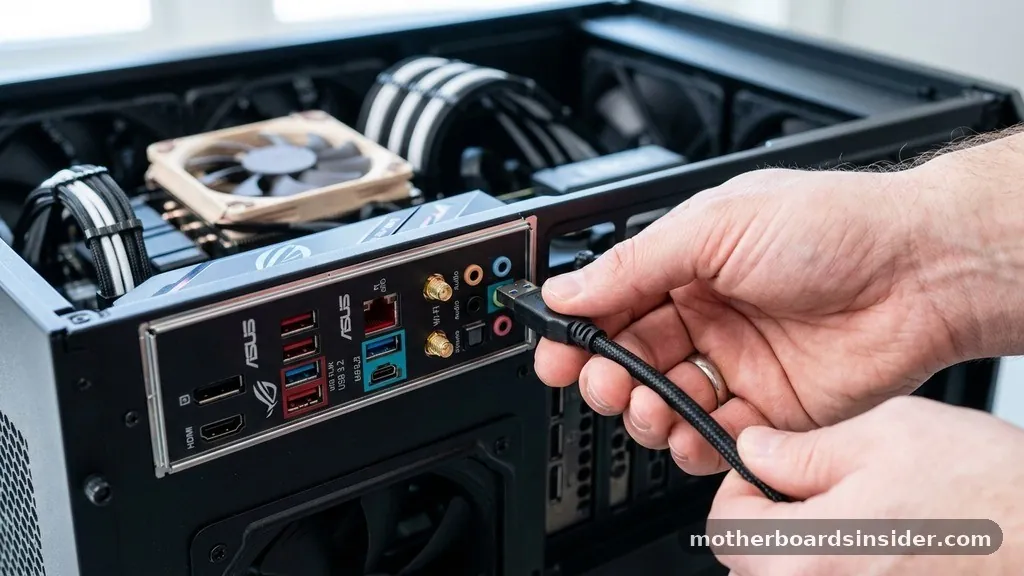
Determining exactly how many USB ports a motherboard has requires looking at both the rear I/O shield and the internal architecture of the printed circuit board. There is no single industry-standard number for these connections, as the count varies significantly depending on the chipset, the form factor of the board, and the target market.
While an entry-level office motherboard might feature only four or six ports, a high-end enthusiast board designed for content creators or gamers might boast a dozen or more. Understanding the difference between the physical ports found on the back panel and the internal headers used for front-panel expansion is essential for anyone building or upgrading a PC.
Anatomy of Motherboard Connectivity
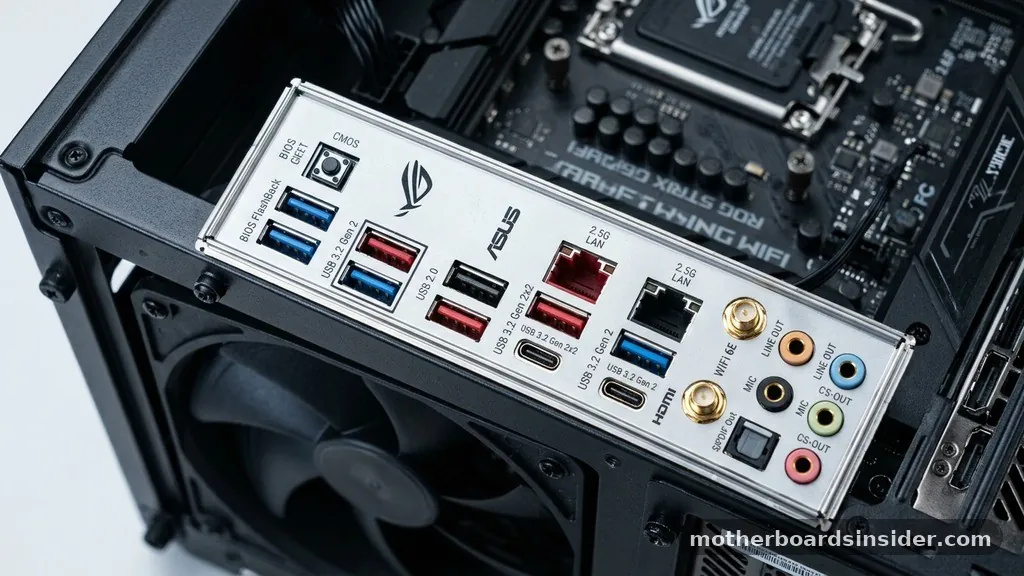
When you look at the rear of a computer, the array of ports you see is known as the back panel. This area is where the motherboard provides direct access to the chipset’s data pathways.
The number of USB ports here is largely determined by the physical space available and the controller capabilities of the motherboard. ATX motherboards, being larger, naturally offer more surface area for these connections compared to Mini-ITX boards.
The connectivity options on the back panel typically include a mix of standards, such as USB 2.0 for keyboards and mice, and faster USB 3.2 Gen 1 or Gen 2 ports for storage devices and high-speed peripherals. Manufacturers often color-code these ports—blue, red, or teal—to help users identify the generation and speed of each connection.
It is important to note that the motherboard chipset often has a limit on how many high-speed lanes it can dedicate to these ports. If a board has a massive number of high-speed USB ports, it may be using third-party controllers to supplement the native support provided by the CPU and chipset.
Internal USB Headers and Front Panel Expansion
Beyond the ports you can see on the back, internal USB headers are hidden inside the case. These are the pins on the motherboard that allow you to connect the USB ports located on the front or top of your PC chassis. This is a critical distinction when asking how many USB ports a motherboard has, as your total usable port count is actually the sum of rear ports plus the potential front-panel ports provided by these headers.
A standard motherboard usually contains a few different types of internal headers:
- USB 2.0 Headers: These are nine-pin connectors, usually used for AIO cooler controls, internal lighting hubs, or legacy front-panel ports.
- USB 3.2 Gen 1 Headers: These 19-pin connectors are standard for most modern front-panel USB ports on PC cases.
- USB-C Headers: These are specialized, smaller connectors designed to support the high-speed data and power delivery requirements of front-panel USB-C ports.
Each internal header can typically support two USB ports. Therefore, if your motherboard has two USB 3.2 headers, you have the potential to add four additional ports to your case’s front panel. Always check your motherboard manual to confirm the specific pinout and the number of headers available before purchasing a new case or internal expansion hub.
Comparing Motherboard Form Factors and Port Density
The physical size of the motherboard dictates how much hardware can be integrated onto the PCB. The following table provides a general overview of how different form factors typically handle USB port density.
| Form Factor | Typical Rear Ports | Typical Internal Headers |
|---|---|---|
| Mini-ITX | 4 to 6 | 1 to 2 |
| Micro-ATX | 6 to 8 | 2 to 3 |
| ATX | 8 to 12+ | 3 to 5 |
| E-ATX | 10 to 14+ | 4 to 6 |
As shown in the table, the ATX and E-ATX form factors offer the most flexibility. If you are building a workstation that requires many peripherals—such as audio interfaces, external drives, and specialized controllers—opting for a larger motherboard is almost always the right choice. Micro-ATX and Mini-ITX boards are excellent for space-saving builds, but they force you to rely more heavily on external USB hubs if you run out of ports.
The Role of USB Standards and Generations
Not all USB ports are created equal. The total number of ports is only half the story; the performance of those ports is governed by the specific USB generation supported by the motherboard.
When you see labels like USB 3.2 Gen 2×2, it refers to the bandwidth capability of that specific port. Modern motherboards are increasingly integrating USB-C ports, which have become a universal standard for smartphones, laptops, and high-speed external SSDs.
Supporting these high-speed standards requires significant “lanes” from the CPU and the chipset. Because there is a finite amount of bandwidth, motherboard manufacturers sometimes have to make trade-offs. For instance, a motherboard might have many physical ports, but if you plug high-bandwidth devices into all of them simultaneously, you might experience a drop in speed.
This is because the controller must share the total bandwidth across all connected devices. Understanding this helps when deciding which devices to plug into the rear panel (which usually offers the most direct connection) versus those that can be placed on a front-panel hub.
Managing Connectivity with External Hubs
If you find that your motherboard simply does not have enough USB ports, you are not alone. Many users eventually reach a point where they have more peripherals than the motherboard can handle.
Fortunately, this is easily solved with an external USB hub. A powered USB hub is a device that connects to one of your motherboard’s ports and splits it into several more, providing its own dedicated power supply to ensure stability.
When using a hub, it is best practice to connect it to the fastest port on your motherboard—usually a USB 3.2 Gen 2 or higher port on the rear I/O. This ensures that the hub has enough bandwidth to share among the connected devices.
You should avoid daisy-chaining multiple hubs together, as this can lead to data transmission errors and potential power issues for your peripherals. For those interested in the technical specifications and standards of these connections, the USB Implementers Forum provides the official documentation on how these protocols operate.
Internal Expansion Cards for More Ports
For users who need even more connectivity without the clutter of an external hub, PCIe expansion cards are an ideal solution. These cards plug directly into the PCIe slots on your motherboard and provide additional ports that behave exactly like native motherboard ports. This is a highly effective way to increase your total port count if you have spare expansion slots.
These cards are particularly useful for professional setups, such as video editing stations or recording studios, where you might need multiple high-speed ports for external storage or audio equipment. By using a PCIe card, you bypass the limitations of the internal headers and the rear I/O, effectively adding a new controller to your system. Some high-end cards even offer internal headers, allowing you to add more front-panel ports if your case supports them.
Troubleshooting Port Issues
Sometimes, you might find that while your motherboard has plenty of ports, some of them are not working as expected. This usually stems from driver issues, BIOS settings, or physical damage. If a port is not recognizing a device, the first step is to check the Device Manager in your operating system to ensure the USB controllers are properly installed and active.
In some cases, the BIOS settings might have certain USB ports disabled to save power or improve boot times. Entering the BIOS and navigating to the “Advanced” or “Onboard Devices” section can often reveal settings that allow you to toggle specific ports on or off.
Additionally, if the front-panel ports are not working, ensure the internal cable is firmly seated in the correct header. It is surprisingly common for these cables to become loose during transport or system maintenance.
Future-Proofing Your Build
When selecting a motherboard, it is wise to consider your future needs. Even if you only have a mouse and keyboard today, you might eventually add a webcam, a microphone, a printer, and external drives. Choosing a motherboard with a generous number of rear ports and multiple internal headers provides you with the flexibility to grow your setup without needing to swap out core components.
Pay close attention to the inclusion of USB-C ports. As the industry moves toward this connector, having at least one USB-C port on the rear of your motherboard is becoming a necessity.
If you are building a new PC, prioritize boards that offer a mix of USB 2.0 (for HID devices), USB 3.2 Gen 1 (for general storage), and USB 3.2 Gen 2/USB-C (for high-speed transfers). This balanced approach ensures that your system remains compatible with both legacy peripherals and the latest high-performance technology for years to come.
Frequently Asked Questions
Do all USB ports on a motherboard run at the same speed?
No, they do not. Motherboards feature a mix of USB standards, such as USB 2.0, 3.2 Gen 1, and Gen 2. Each generation has different bandwidth limits, and ports are often color-coded or labeled to indicate which standard they support for the devices you connect.
Can I add more USB ports if I run out?
Yes, you can easily expand your connectivity using either an external powered USB hub for desk-level access or a PCIe expansion card. PCIe cards are generally faster and more stable, as they connect directly to the motherboard’s data lanes rather than sharing a single port’s bandwidth.
Why do some ports work better than others?
Ports directly soldered to the rear I/O panel are usually linked directly to the CPU or chipset, providing the most stable and fastest connection. Front-panel ports, which rely on internal headers and case cables, can sometimes suffer from signal degradation if the cables are low-quality or too long.
What is an internal USB header?
An internal USB header is a group of pins on the motherboard used to connect the USB ports located on the front or top of your PC case. These headers allow you to bridge the connection between the motherboard’s circuitry and the physical ports on your computer chassis.
The total number of USB ports available to you is a combination of the fixed ports on the back panel and the expandability offered by internal headers. By understanding how these components work together, you can better plan your PC build, troubleshoot connectivity issues, and choose the right accessories to keep your peripherals running smoothly. Whether you are a casual user or a power user, knowing your motherboard’s capabilities is the first step toward a more efficient and versatile computing experience.


