

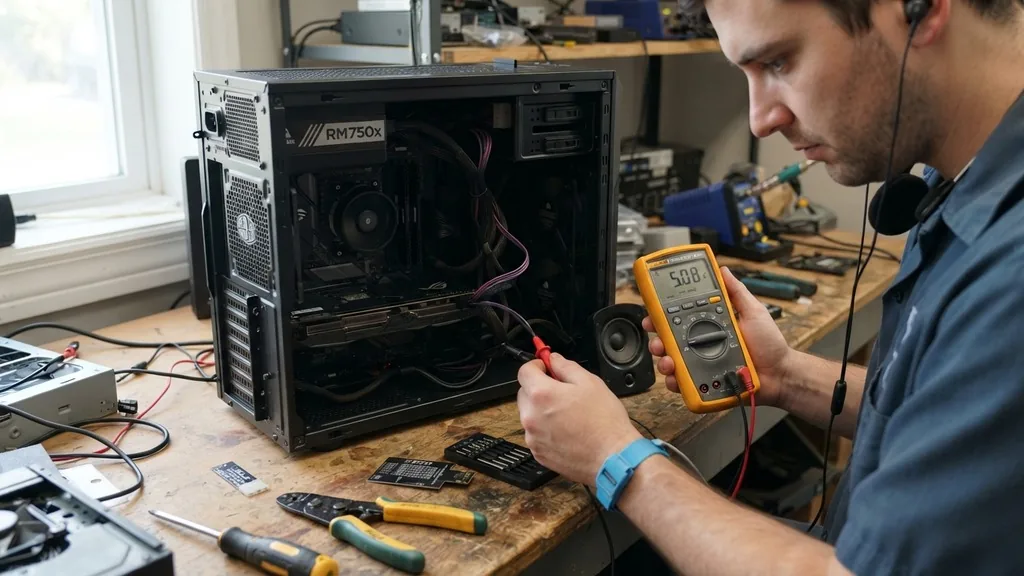
When your computer refuses to turn on, the immediate panic is rarely about the specific component; it is about the silence of the machine. You press the power button, and nothing happens. No hum of fans, no glow of LEDs, and no flicker of life on the monitor.
This is the moment you must determine whether you are dealing with a failing PSU or a dead motherboard. Distinguishing between these two critical pieces of hardware is the foundation of effective troubleshooting.
Without a systematic approach, you risk replacing perfectly functional parts, wasting both time and money. By analyzing the behavior of your system, you can isolate the culprit with surprising accuracy.
Initial Visual and Auditory Diagnostics
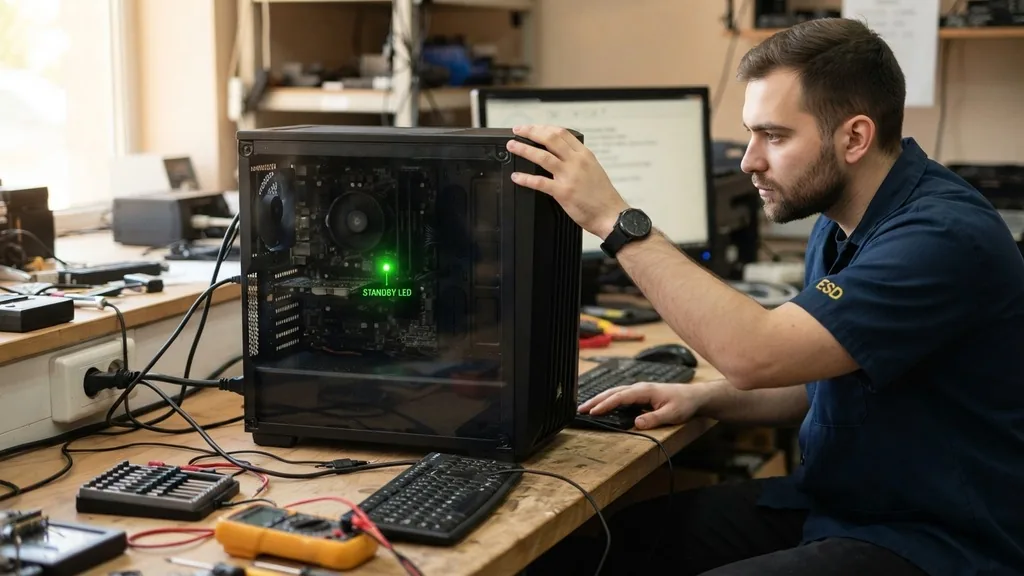
The first step in knowing how to tell if power supply is bad or motherboard is to conduct a sensory check of the system. Before you open the case, observe the environment. Are there any lights on the chassis or the keyboard?
Even if the machine won’t boot, a tiny standby LED on the motherboard can tell you that the power supply is delivering at least some electricity. If the motherboard has an onboard light, yet the system shows zero response when pressing the power button, the power supply might be providing standby power, but failing to signal the “power good” state required for the rest of the components to wake up.
Listen closely as you toggle the switch. Do you hear a faint clicking sound? That noise often indicates a short circuit.
If you hear a click and then silence, the power supply’s protection circuitry might be triggering because it detects an electrical fault on the motherboard or a connected device. Conversely, if there is absolutely no sound—no clicking, no whirring of the fan—the issue is likely upstream.
A completely dead power supply is often the simplest explanation for a silent machine, but you must verify that the cable is firmly plugged into the wall and the rear of the unit. A loose connection or a tripped surge protector is a common, frustratingly simple cause of a silent PC.
Testing the Power Supply with the Paperclip Method
A definitive way to check the health of your power unit involves bypassing the motherboard entirely. The PSU is designed to provide power when it receives a signal from the motherboard, but you can manually trigger this signal. By using a small metal paperclip to bridge the green wire (the power-on pin) to any black wire (ground) on the 24-pin ATX connector, you can force the unit to start.
If the fan in the power supply begins to spin, the unit is at least capable of turning on. This is a classic diagnostic technique, but it must be done with caution to avoid damaging pins.
However, keep in mind that a unit spinning up does not mean it is healthy. It only confirms the power supply can initiate a start sequence. A failing unit might pass this “jump start” test but fail to provide the correct voltage under actual load.
If the fan spins, you know the power supply is not completely dead, but you still cannot rule it out as the source of your instability. If the fan does not spin at all, you have found your problem: the power supply is faulty and requires replacement. Before attempting this, always ensure the power cable is disconnected from the wall while you insert the paperclip, and only plug it in once the connection is secure.
Evaluating Motherboard Failure Symptoms
When the power supply works but the computer remains unresponsive, the focus shifts to the motherboard. Motherboard failure is often more subtle than a power supply failure. Look for physical signs of damage on the board, such as swollen capacitors or burnt traces.
Capacitors are small, cylindrical components that store energy; if they appear domed or are leaking a brown substance, they have failed, and the motherboard is likely beyond repair. This is a common issue in older systems or those that have experienced significant heat stress over time.
Another indicator of a problematic motherboard is a lack of POST (Power-On Self-Test) signals. If your computer turns on—fans spin, lights glow—but you receive no video signal and no beep codes, the motherboard is failing to communicate with your CPU or memory. Sometimes, this is just a loose RAM stick.
Try reseating your memory modules one by one. If the system still refuses to boot or provide any diagnostic beeps, the motherboard’s BIOS chip or integrated circuitry may be compromised. A healthy motherboard should at least attempt to initialize the hardware; if it sits there “idling” with no activity, the main logic board is the prime suspect.
The Role of Voltage and Stability
Even if a system turns on, it might be plagued by random restarts or blue screens, which complicates the diagnosis. This is where voltage stability becomes critical. A failing power supply can experience “ripple,” where the output voltage fluctuates wildly.
Modern motherboards have built-in protection that will shut the system down if it detects voltages outside of safe tolerances to prevent CPU damage. If your computer shuts down during intensive tasks, like gaming or video editing, the power supply is likely failing to maintain a steady current under load.
You can monitor these fluctuations using software if you can get the computer to boot into the operating system. If you cannot reach the OS, you will need a digital multimeter to test the rails directly. By measuring the 12V, 5V, and 3.3V pins on the ATX connector while the system is under load, you can see if the power supply is dropping below acceptable thresholds.
A drop in the 12V rail during a high-intensity operation is a hallmark of a dying PSU. If your voltages remain steady but the system still crashes, the motherboard’s voltage regulator modules (VRMs) might be failing to deliver power to the processor correctly.
| Symptom | Likely Culprit | Action Required |
|---|---|---|
| No lights or fan movement | Power Supply | Test PSU with paperclip or multimeter |
| Fans spin, but no boot/screen | Motherboard/RAM | Reseat RAM, check BIOS/Beep codes |
| Random shutdowns under load | Power Supply | Replace PSU with higher wattage unit |
| Burnt smell or visible damage | Motherboard | Inspect board for physical defects |
Addressing Topical Gaps: Peripheral Interference
One area often overlooked in discussions on how to tell if power supply is bad or motherboard is the role of connected peripherals. Sometimes, a faulty USB device, a shorted front-panel header, or even a failing GPU can mimic a dead motherboard or power supply.
If a USB port has bent pins inside, it can cause a short that prevents the motherboard from initiating the startup sequence. This is a safety feature, but it can easily be mistaken for a hardware failure of the primary components.
To rule this out, perform a “barebones” boot. Disconnect everything from the motherboard except the 24-pin power cable, the CPU power cable, the CPU, the cooler, and one stick of RAM. Remove all hard drives, USB devices, sound cards, and secondary fans.
If the system now shows signs of life, one of the disconnected components was causing a short. If it still does nothing, you have successfully narrowed the fault down to the motherboard, the power supply, or the CPU itself. This isolation technique is the most effective way to prevent unnecessary hardware replacement.
Using Diagnostic Beep Codes and LEDs
If you are lucky, your motherboard will talk to you. Most boards come with a small speaker or a series of diagnostic LEDs designed to communicate errors. When you press the power button, if the motherboard detects an issue, it will output a specific sequence of beeps.
These codes are documented in your motherboard’s manual. For instance, a long beep followed by two short ones often points to a video card issue, while a continuous loop of beeps might suggest a memory problem.
If you have no speaker and no diagnostic LEDs, you are working blind. In this case, purchasing a cheap “POST code card” that plugs into a PCIe slot can provide a digital readout of the boot process.
If the card shows no activity, the motherboard is not even beginning the boot sequence, reinforcing the idea that the power supply is not sending the correct signals or the motherboard’s power delivery circuit is dead. Always consult the official hardware support documentation for your specific platform to interpret these signals accurately, as they vary significantly between manufacturers.
The Impact of Heat and Environmental Factors
Heat is the silent killer of both power supplies and motherboards. If your system has been running hot for years, the electrolytic capacitors inside the PSU and on the motherboard may have dried out. These components have a finite lifespan, and high temperatures accelerate their degradation.
If you notice your computer is increasingly prone to crashing as the room temperature rises, your power supply is likely struggling to maintain efficiency. Efficiency drops as heat rises, which leads to increased thermal output, creating a vicious cycle of failure.
Furthermore, dust accumulation can create conductive paths on the motherboard, leading to intermittent shorts. Before assuming a component is dead, clean your system thoroughly with compressed air. Ensure the cooler is firmly attached to the CPU and that the thermal paste hasn’t dried out into a crusty, ineffective layer.
A CPU that overheats instantly upon startup will trigger a thermal shutdown, which can look exactly like a motherboard failure. Always verify your cooling solution is functioning before condemning the core electrical components.
Final Troubleshooting and Replacement Decisions
After testing the power supply via the paperclip method, inspecting the motherboard for physical damage, performing a barebones boot, and checking for short circuits, you should have a clear answer. If the PSU passes the jump-start test but the system remains unresponsive, the motherboard is the most probable point of failure.
Conversely, if the PSU fails to start or shows unstable voltage under load, it is clearly the source of the problem. Replacing a power supply is generally cheaper and easier than replacing a motherboard, so if you are in doubt, swapping the PSU is a logical first step.
When replacing these parts, always match the specifications carefully. Ensure your new power supply has enough wattage to handle your specific system components and that your new motherboard supports your existing CPU and memory. Don’t be tempted to buy the cheapest possible power supply; a low-quality unit can surge and fry your motherboard, turning a simple fix into a total system loss.
Invest in reputable brands with verified safety certifications to ensure the long-term health of your build. By following this methodical approach, you move from guessing to knowing, saving yourself the frustration of replacing the wrong component.
Frequently Asked Questions
- Can a bad power supply damage a motherboard? Yes, a faulty power supply can deliver incorrect voltages or power surges, which can permanently damage the sensitive circuits on your motherboard. If your PSU is failing, it is best to stop using the computer immediately to prevent further damage.
- How do I know if my motherboard is dead or just the CPU? If the motherboard is dead, you usually get no lights, no fans, and no response. If the CPU is dead, the motherboard will often power on, fans will spin, but the system will fail to POST, often triggering specific error codes or beeps.
- Does a motherboard need a power supply to be tested? Yes, the motherboard requires a functional power supply to perform any diagnostic tests. Without power, the motherboard cannot initialize its BIOS or provide any feedback. You must have a working power source to begin any troubleshooting of the board’s internal logic.
- What if my fans spin but there is no display? This usually indicates the power supply is working, but a core component like the RAM, CPU, or motherboard is failing. Try reseating your RAM and checking your GPU connection. If that fails, the motherboard’s ability to initialize hardware is likely compromised.


