

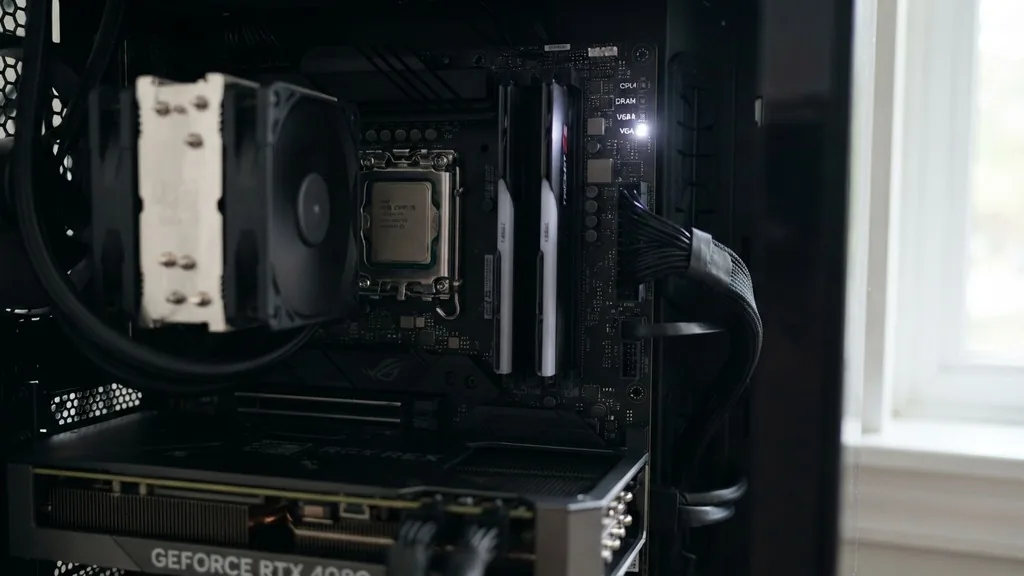
A white light appearing on your motherboard typically serves as a diagnostic indicator from the system’s Basic Input/Output System (BIOS) or Unified Extensible Firmware Interface (UEFI). When you press the power button and notice a persistent white LED, it is rarely a random design choice.
Instead, it is a specific signal meant to communicate that the motherboard has encountered a potential hurdle during the Power-On Self-Test (POST) sequence. Understanding this signal is the first step toward getting your computer back to a functional state, as the light often points directly toward a hardware component that failed to initialize correctly.
Decoding the Q-LED Diagnostic System
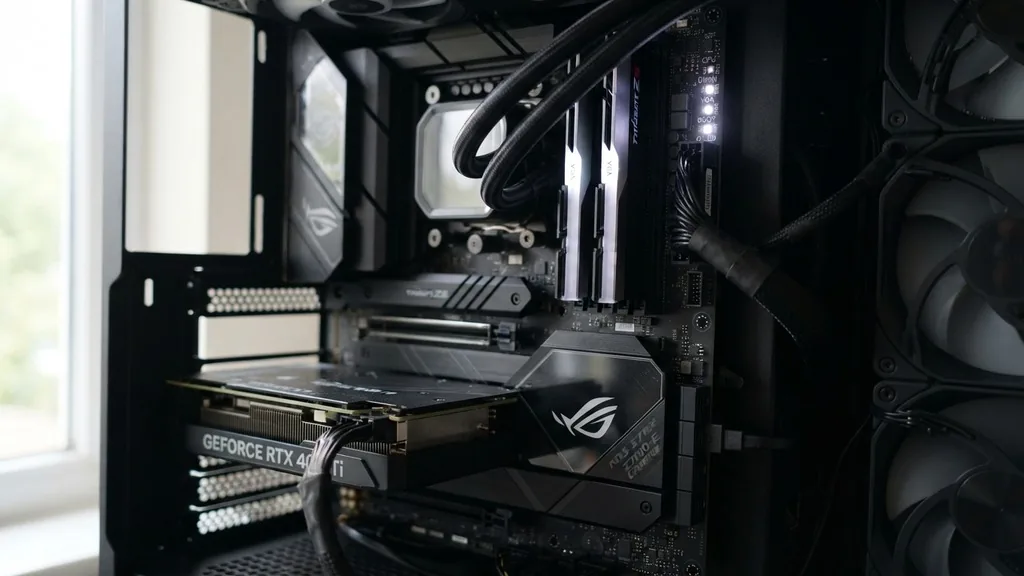
The white light you see is part of a diagnostic suite known as Q-LED or Debug LEDs. Motherboard manufacturers integrate these small lights to help users identify the exact origin of a boot failure.
When you power on your machine, the board cycles through checks for the CPU, DRAM (memory), GPU (graphics card), and Boot device. If the system hangs on a white light, it usually indicates that the motherboard has successfully passed the CPU and memory checks but hit a wall at the graphics initialization phase.
Most modern boards use a specific color coding system, though the exact meaning of “white” can vary slightly by brand. On many ASUS boards, a white light specifically denotes a VGA error.
This means the system cannot communicate with your graphics card or detect it properly. If you see this light, your computer is essentially saying it cannot display an image because the “eyes” of the system—the GPU—are not responding to the motherboard’s initial handshake request.
Investigating the GPU and PCIe Slot Connection
Since a white light is most frequently associated with a VGA or graphics error, the first component you should investigate is your graphics card. Start by ensuring the GPU is seated firmly in the primary PCIe slot.
It is surprisingly common for a card to sag slightly over time, causing the gold contacts to lose their perfect connection with the slot pins. Even a microscopic gap can lead to a failed handshake during the POST, triggering the error light on your board.
If reseating the card doesn’t work, inspect the PCIe slot itself. Dust buildup or debris can interfere with the electrical contact. Use a can of compressed air to clear the slot, and gently wipe the gold fingers on your graphics card with a clean, dry microfiber cloth.
Sometimes, the issue is not the card but the slot; if you have a secondary PCIe slot, try moving your graphics card there temporarily. If the system boots successfully in the second slot, your primary slot may have sustained physical damage or a controller failure.
Verifying Power Supply Cables and Connections
A graphics card requires significant power to initialize, and the motherboard light may remain white if the card isn’t receiving enough electricity. Check every power cable connected to your GPU.
These are typically 6-pin or 8-pin connectors coming directly from your power supply unit (PSU). If you are using a modular power supply, ensure the cables are pushed all the way into the PSU itself, not just the GPU side.
It is also worth noting that using “daisy-chained” cables—where one cable splits into two connectors—can sometimes cause power instability for high-end GPUs. If your card has multiple power inputs, try using separate, dedicated cables for each port.
This ensures each input receives a consistent, stable stream of power, which is essential during the high-draw moment when the computer first turns on. If you suspect your PSU is failing, you can consult the official hardware troubleshooting documentation provided by Intel for further guidance on power-related diagnostic steps.
The Role of DRAM and Memory Modules
While white lights are typically linked to the GPU, some motherboards use white LEDs to signal memory issues. If you notice the light is white but your graphics card is functioning perfectly in another system, you should pivot your focus to the DRAM.
Memory modules are notoriously sensitive to seating issues. Remove your RAM sticks, clear the dust from the slots, and click them back into place until you hear a definitive “snap” from the retention clips.
If you have multiple sticks of RAM, try booting with only one in the primary slot. This helps isolate whether one specific module has died or if a memory channel on the motherboard has failed.
If the computer boots with one stick but not another, you have successfully identified a faulty component. If it refuses to boot regardless of which stick is in the slot, the issue might be an incorrect XMP profile or a BIOS setting that is preventing the memory from training correctly at startup.
BIOS Settings and Firmware Compatibility
Sometimes, the white light is a symptom of a mismatch between your hardware and your BIOS version. This is particularly common if you recently upgraded your CPU or GPU. If your motherboard firmware is outdated, it might not recognize the newer graphics card, causing it to hang during the boot process.
To resolve this, you may need to perform a BIOS update. Many modern motherboards offer a “BIOS FlashBack” feature that allows you to update the firmware using a USB drive without needing a CPU or RAM installed.
Check the manufacturer’s website for your specific motherboard model and look for “BIOS updates.” Read the release notes carefully; look for phrases like “Improved system stability” or “Improved PCIe compatibility.” If your current BIOS version is several years old, updating it could solve the white light error by providing the necessary instructions for the motherboard to communicate with contemporary hardware, effectively clearing the obstacle that was preventing a successful POST.
Common Diagnostic Scenarios and Meanings
When troubleshooting a persistent white light, it helps to know how different components interact. The table below outlines how the Q-LED system typically maps to hardware components and what those signals imply for your system’s overall health.
| LED Color/Indicator | Associated Component | Likely Cause |
|---|---|---|
| White (or Red/White) | VGA / GPU | GPU not detected or power issues |
| Yellow / Amber | DRAM | Memory training failure or loose RAM |
| Red | CPU | Processor not seated or power delivery issue |
| Green / White | Boot Device | Drive not found or OS corruption |
Understanding this hierarchy allows you to troubleshoot systematically. If you see a white light, you know immediately to ignore the CPU and RAM and focus your efforts on the display and graphics subsystem. This reduces the time spent guessing and allows for a more targeted repair approach.
Addressing Topical Gaps: Why the Light Persists After Boot
A frequent question users ask is: “What does it mean if the white light stays on even after the computer boots into Windows?” In most cases, this is a minor BIOS bug.
If your system is fully functional, plays games, and renders video without crashing, the light is likely just a false positive from the diagnostic sensor. You can often clear this by entering the BIOS and ensuring your “Fast Boot” settings are configured correctly, or by performing a full CMOS reset.
To reset the CMOS, locate the small coin-shaped battery on your motherboard. With the power supply unplugged, remove the battery for about 30 seconds and then put it back in.
This clears the BIOS settings to their factory defaults, which can often resolve minor glitches where the motherboard “remembers” a previous hardware error that no longer exists. If the light remains on but the PC works, it is almost certainly a harmless firmware notification rather than a sign of impending hardware failure.
What to Do When Basic Troubleshooting Fails
If you have reseated the GPU, checked the power cables, updated the BIOS, and cleared the CMOS, but the white light remains, you are likely looking at a hardware defect. At this stage, it is useful to test your components in a different machine if you have access to one. Testing your graphics card in a friend’s PC is the fastest way to confirm if your GPU is actually dead or if the motherboard’s PCIe slot is the culprit.
If you have tested the GPU elsewhere and it works fine, the motherboard is the most probable point of failure. Motherboards can develop internal circuit breaks or controller malfunctions that are not visible to the naked eye.
In such instances, you may need to seek professional help or utilize your manufacturer’s warranty. Keep a record of your troubleshooting steps—this will be helpful if you need to explain the issue to technical support or initiate a return process.
Final Steps and System Maintenance
Once you have identified and fixed the cause of the white light, ensure your system is properly maintained to prevent a recurrence. Dust is the silent enemy of PC hardware; it acts as an insulator, trapping heat and potentially causing micro-shorts in the PCIe slots. A routine cleaning schedule, where you blow out your case with compressed air every few months, can go a long way in ensuring the longevity of your components.
Furthermore, keep your drivers updated, especially the chipset and GPU drivers. While drivers are usually loaded by the operating system, they play a crucial role in how the hardware communicates with the motherboard.
A stable system is one where the BIOS, firmware, and OS are all speaking the same language. By paying attention to these small details, you ensure that your motherboard remains a reliable foundation for your computing needs rather than a source of frustration.
Frequently Asked Questions
- Does a white light always mean my GPU is broken? No. While it usually points to a GPU error, it can also be caused by loose cables, a faulty PCIe slot, or an outdated BIOS. Always perform basic reseating and power checks before assuming the hardware is physically damaged.
- Can I ignore the white light if my PC works? If your computer boots into Windows and performs normally, the light is likely a false positive. You can try clearing the CMOS or updating the BIOS to see if the error light resets, but it generally doesn’t indicate a critical failure.
- Why does the light turn on only sometimes? Intermittent lights often suggest a loose connection or a component that is struggling to initialize due to heat or power fluctuations. Check your power supply cables and ensure your GPU is firmly pushed into the slot to see if the issue stabilizes.
- What if the white light is accompanied by no display? This is the classic sign of a failed GPU handshake. Focus entirely on the graphics card connection, the monitor cable, and the power delivery to the GPU. If possible, test the card in another system to confirm its status.


