

Modern computing security depends heavily on the integration of hardware and software, with firmware-level protections acting as the first line of defense against malicious code. If you are preparing your system for Windows 11 or simply looking to harden your PC against rootkits and boot-level threats, learning how to enable Secure Boot on a Gigabyte motherboard is a critical task. This process ensures that only trusted, digitally signed code is allowed to execute during the startup sequence, effectively establishing a hardware root of trust that protects your operating system from the moment you press the power button.
Understanding the Role of UEFI and Secure Boot
Before diving into the technical steps, it is essential to understand why Secure Boot exists. Modern motherboards utilize UEFI (Unified Extensible Firmware Interface) rather than the legacy BIOS system. While legacy BIOS was limited and lacked robust security features, UEFI provides a more flexible and secure environment for loading an operating system. Secure Boot is a specific security standard developed by members of the PC industry to ensure that a device boots using only software that is trusted by the Original Equipment Manufacturer (OEM).
When you enable this feature, the motherboard firmware checks the digital signature of each piece of boot software, including UEFI drivers, EFI applications, and the operating system itself. If the signature matches a trusted authority stored in the firmware’s database, the boot process proceeds.
If the signature is missing or altered, the system will block the boot to prevent unauthorized software from compromising your system integrity. For users upgrading to Windows 11, this is not just a recommendation; it is a mandatory requirement to ensure the platform meets the latest security benchmarks.
Preparing Your System for Secure Boot
You cannot simply toggle a switch in most cases without ensuring your drive configuration is correct. The most significant hurdle users face when attempting to enable this security feature is the disk partition style.
Secure Boot requires that your primary boot drive be formatted using the GUID Partition Table (GPT) rather than the older Master Boot Record (MBR) scheme. If your Windows installation is currently running on an MBR disk, the system will likely fail to boot or throw a secure boot violation error once the feature is enabled.
To check your partition style, you can right-click the Start button, select Disk Management, right-click your system disk, and choose Properties. Under the Volumes tab, look for the Partition style. If it says MBR, you will need to convert the disk to GPT using the mbr2gpt tool provided by Microsoft or perform a clean install.
Furthermore, you must ensure that your CSM (Compatibility Support Module) is disabled. CSM is designed to provide backward compatibility for legacy hardware and operating systems; however, it inherently conflicts with the requirements of UEFI-based security features like Secure Boot and TPM 2.0.
Navigating the Gigabyte BIOS Interface
Accessing the Gigabyte BIOS setup is the first physical step in the process. When you restart your computer, repeatedly press the “Delete” key on your keyboard until the BIOS menu appears.
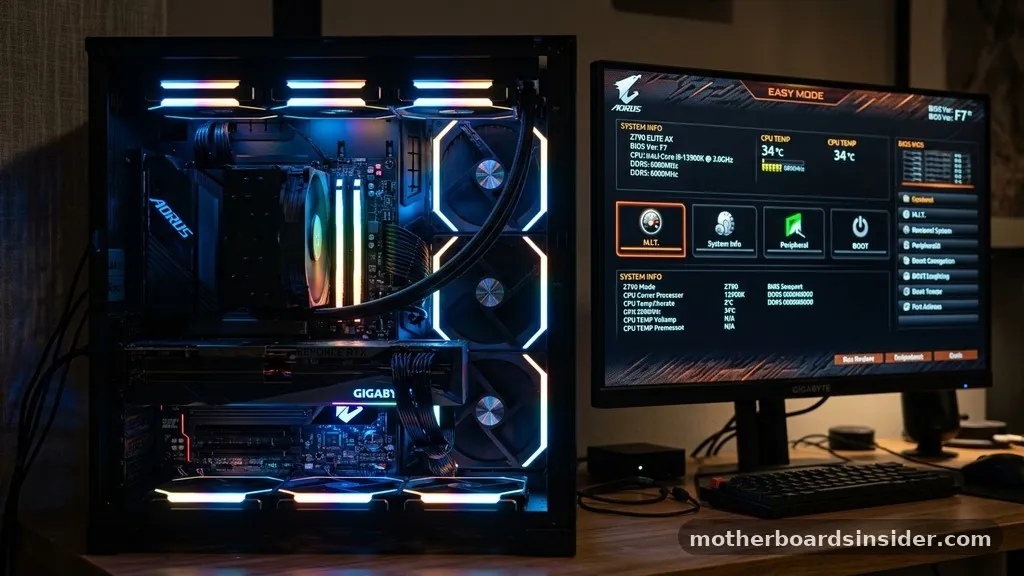
Gigabyte motherboards typically use a visual interface that allows for both Easy Mode and Advanced Mode. For this procedure, you should enter Advanced Mode by pressing F2 if you are currently in the simplified view.
Once inside the Advanced Mode, you will see a series of tabs across the top or side of the screen. You are looking for the “BIOS” or “System” tab, depending on your specific motherboard model and firmware version. Within this menu, you will find settings related to the boot configuration, including the status of the CSM and the Secure Boot toggle.
Keep in mind that Gigabyte’s interface varies slightly between the Aorus, Gaming, and UD series, but the fundamental logic remains consistent across the motherboard firmware. If you are having trouble locating these settings, ensure your BIOS is fully updated via the Q-Flash utility, as older versions may lack the necessary support for modern Windows security requirements.
Disabling CSM and Enabling UEFI Mode
As mentioned previously, the Compatibility Support Module is the primary obstacle to enabling secure boot protocols. To disable CSM, navigate to the BIOS/System tab in your BIOS interface.
Locate the “CSM Support” option and set it to “Disabled.” Once you disable this, the system will force the UEFI mode for all connected hardware.
After disabling CSM, you should save your changes and restart the computer, re-entering the BIOS immediately. This step is crucial because disabling CSM often unlocks the hidden or greyed-out options related to Secure Boot.
By forcing the system into a pure UEFI environment, you clear the path for the firmware to verify the digital signatures of your hardware and software. If you find that your system fails to post after disabling CSM, it is a definitive sign that your boot drive is currently MBR-formatted and requires a conversion to GPT before you can proceed with a secure configuration.
Configuring Secure Boot and System Mode
With CSM disabled, you can now focus on the Secure Boot settings. In the same BIOS menu where you managed CSM, you should see an option labeled “Secure Boot.”
You may notice that the “Secure Boot State” is listed as “Disabled” or “Setup.” In many cases, you must change the System Mode from “Setup” to “User Mode” to activate the feature fully.
If the toggle is greyed out, check the “Secure Boot Mode” setting. Setting this to “Standard” is usually sufficient for most users. If you are an advanced user or have specific hardware requirements, you might see options to reset secure boot keys.
These keys, often referred to as the Platform Key (PK), are the cryptographic foundations that verify the signatures of the bootloader. For the vast majority of users, simply ensuring the state is “Enabled” is all that is required. If the status remains “Disabled” despite your efforts, ensure that you have installed the default factory keys, which can usually be done by clicking an option like “Install Default Secure Boot Keys” within the secure boot menu.
Troubleshooting Common Issues
It is common to encounter scenarios where the setting appears to be enabled but remains inactive. This often happens due to a mismatch between the firmware’s expected environment and the actual state of the operating system bootloader. If your Secure Boot state shows “Enabled” but Windows reports it is not active, verify the following:
- Ensure that the Windows Boot Manager is set as the primary boot priority in your BIOS.
- Check if your motherboard firmware requires a restart after enabling the keys to finalize the transition to User Mode.
- Confirm that you have not accidentally re-enabled CSM, which can happen automatically on some motherboards if a legacy device is detected during boot.
- Check for a firmware update, as older BIOS versions sometimes have bugs that prevent the Secure Boot status from reporting correctly to the operating system.
If you are still experiencing issues, consider using the official Microsoft documentation on secure boot key management to understand how your system interacts with these security protocols.
Comparing Secure Boot Configurations
To help you understand the relationship between different BIOS settings, the following table outlines the required states for a successful Secure Boot deployment.
| Setting | Required Status | Reasoning |
|---|---|---|
| CSM Support | Disabled | Allows UEFI-only boot processes. |
| Secure Boot | Enabled | Activates signature verification. |
| System Mode | User Mode | Finalizes the security handshake. |
| Partition Style | GPT | Required for UEFI boot compatibility. |
Managing BIOS Settings via Gigabyte App Center
While modifying settings directly in the BIOS is the most reliable method, some users prefer managing their system from within the operating system. The Gigabyte App Center is a suite of utilities that allows you to manage various aspects of your motherboard, including BIOS updates and system configurations, without needing to reboot repeatedly.
However, be aware that while the App Center can perform a firmware update or provide information about your system, it rarely allows you to toggle core security settings like Secure Boot directly. These settings are restricted to the pre-boot environment to ensure that they cannot be tampered with by an active operating system.
Treat the App Center as a tool for monitoring and updating, but rely on the native BIOS interface for the actual configuration of your hardware security. Always ensure that you are downloading the App Center and associated utilities from the official Gigabyte support pages to avoid software-based security risks.
Ensuring Long-Term System Integrity
Once you have successfully enabled Secure Boot, you have completed a major step in hardening your PC. This configuration, paired with TPM 2.0, creates a robust defense against unauthorized firmware modifications. However, security is not a “set it and forget it” process.
As you continue to use your system, ensure that your BIOS remains up to date. Gigabyte frequently releases updates that improve hardware security, patch vulnerabilities, and enhance compatibility with the latest versions of Windows.
Periodically enter your BIOS to verify that the Secure Boot state remains active, especially after major hardware changes or significant Windows updates. If you ever find that your system fails to boot after an update, it could be a sign that the boot configuration has been altered. By understanding the relationship between the AMI BIOS (which powers many Gigabyte boards), your partition style, and your security settings, you can maintain a stable and secure computing environment for years to come.
Frequently Asked Questions
Why is my Secure Boot option greyed out in the Gigabyte BIOS?
The option is likely greyed out because CSM (Compatibility Support Module) is currently enabled. You must disable CSM and save your settings. After a reboot, the BIOS will fully transition to UEFI mode, which typically unlocks the Secure Boot menu options for configuration.
Do I need to reinstall Windows to enable Secure Boot?
Not necessarily, but you may need to convert your drive from MBR to GPT. If your drive is formatted as MBR, Windows will not boot with Secure Boot enabled. You can use the MBR2GPT tool in Windows to convert it without losing data, though backups are recommended.
How do I know if Secure Boot is actually working?
Open the “System Information” app in Windows by typing “msinfo32” into the search bar. Look for “Secure Boot State” in the System Summary. If it says “On,” your system is correctly configured and the hardware root of trust is active for your OS.
Can I enable Secure Boot on an older Gigabyte motherboard?
It depends on the chipset and BIOS version. If your motherboard was released during the transition to UEFI, it likely supports Secure Boot. You may need to perform a firmware update via Q-Flash to ensure the latest security keys and compatibility features are present.
In summary, enabling Secure Boot on a Gigabyte motherboard is a straightforward but precise process that requires careful attention to your drive’s partition style and the status of your legacy compatibility settings. By disabling CSM, ensuring your disk is GPT-formatted, and setting the system to User Mode, you provide your PC with the essential security foundation required for modern software. This proactive approach to system configuration not only satisfies the requirements for Windows 11 but also significantly improves your computer’s resilience against boot-level threats, ensuring your data remains protected from the ground up.


