

Enabling Secure Boot on an ASUS motherboard is a critical step for modern computing, particularly if you are preparing your system for Windows 11 or looking to enhance your overall platform security. This security standard, integrated into the UEFI (Unified Extensible Firmware Interface) firmware, ensures that your computer boots using only software that is trusted by the Original Equipment Manufacturer (OEM). By verifying the digital signature of each piece of boot software—including firmware drivers, EFI applications, and the operating system—it effectively mitigates the risk of rootkits and boot-level malware infecting your system before the OS even loads.
Understanding the Role of UEFI and Secure Boot
To grasp how to manage these settings, one must first appreciate the evolution from legacy BIOS to UEFI. Modern ASUS motherboards utilize the UEFI interface, which provides a more robust, graphical, and feature-rich environment than the primitive text-based BIOS of the past. Secure Boot acts as a gatekeeper within this environment.
When you power on your PC, the firmware checks the boot state against a database of authorized signatures stored in the NVRAM (Non-Volatile RAM). If a component lacks a valid signature or has been tampered with, the system will refuse to execute that code.
This protection is vital for maintaining the integrity of your device. Without it, malicious actors could potentially intercept the boot process, gaining administrative control that survives even a complete reinstallation of your operating system. For gaming enthusiasts and power users, keeping these security features active is a standard best practice.
It ensures that your high-performance hardware remains shielded from low-level threats that target the early stages of the boot sequence. While some older configurations might require you to disable secure boot to run specific legacy hardware or unsigned drivers, the vast majority of modern setups should maintain this feature in an enabled state for optimal protection.
Preparation Before Accessing ASUS BIOS
Before you attempt to modify your firmware settings, it is important to understand the current state of your system. You can easily check if your system is already utilizing this feature by typing “System Information” into the Windows search bar. Within the resulting screen, look for the item labeled “Secure Boot State.”
If it says “Off” or “Unsupported,” you have work to do. If it says “On,” your system is already protected. Before restarting, ensure that your BIOS is updated to the latest version provided by the manufacturer, as newer updates often include critical security patches and improved compatibility with Windows 11 requirements.
You should also be aware that making changes to the boot keys or switching modes can sometimes cause issues with legacy storage drives formatted with MBR (Master Boot Record) instead of GPT (GUID Partition Table). If your drive is still using the older MBR format, you may need to convert it to GPT to successfully boot with Secure Boot active.
Always back up your critical data before making significant changes to your storage configuration or firmware settings. Taking these precautions ensures that your transition to a more secure system is smooth and free from unexpected data loss or boot failures.
Entering the ASUS UEFI BIOS Interface
The first physical step to enable secure boot is accessing the firmware interface. Power on your computer and immediately begin tapping the “Delete” or “F2” key keyboard repeatedly.
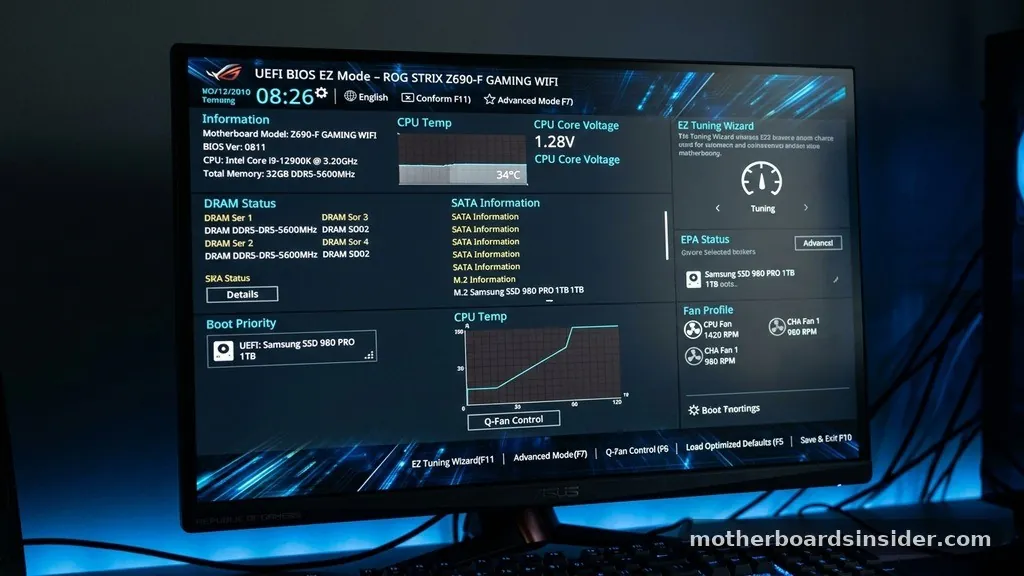
You should see the splash screen appear quickly; if you miss the window, the computer will proceed to load Windows, and you will need to restart the process. Once you successfully enter the BIOS, you will likely be greeted by the “EZ Mode” interface, which provides a simplified overview of your system temperatures, fan speeds, and drive configurations.
To reach the advanced controls, you must press the “F7” key or manually click the “Advanced Mode” button on the interface. Once inside Advanced Mode, the interface will reveal a comprehensive set of menus, usually organized along the top or side of the screen.
The specific layout can vary slightly depending on whether you are using a gaming-oriented ROG motherboard, a TUF series board, or a standard Prime model. Regardless of the specific visual theme, the underlying logic for navigating these menus remains consistent across the entire product line.
Navigating to the Boot and Security Menus
Once you are in Advanced Mode, navigate to the “Boot” tab using your arrow keys or mouse. This menu contains critical options that dictate how your computer initializes hardware and identifies the operating system. Look for a section labeled “Secure Boot.”
In many ASUS layouts, this is often nested within a submenu specifically for “Secure Boot” or “Key Management.” If you do not see it immediately, look for a “Key Management” or “Secure Boot” entry under the “Boot” menu heading.
It is important to note that if the option appears greyed out or inaccessible, you may need to adjust other parameters first. For example, ensuring that CSM (Compatibility Support Module) is disabled is often a prerequisite.
CSM is designed to support legacy operating systems and hardware; because it bypasses modern security protocols, the firmware will often prevent you from enabling Secure Boot while CSM is active. You will need to choose the “Disable” setting for CSM, save your changes, and then re-enter the BIOS to find that the Secure Boot settings have become available for adjustment.
| Setting Category | Standard Requirement | Impact on Security |
|---|---|---|
| CSM (Compatibility Support Module) | Disabled | High (Enables UEFI mode) |
| Secure Boot Mode | Standard | High (Enforces signing) |
| Secure Boot State | Enabled | Maximum (Verified boot) |
| Key Management | Default (PK/KEK/db/dbx) | High (Standard keys) |
Configuring Secure Boot Mode: Standard vs. Custom
Within the Secure Boot menu, you will encounter the “OS Type” or “Secure Boot Mode” setting. Generally, you have two primary choices: “Windows UEFI Mode” (sometimes labeled as “Standard”) or “Other OS” (sometimes labeled as “Custom”). For the vast majority of users, “Windows UEFI Mode” is the correct selection.
This setting instructs the system to verify that the OS loader and all boot-time drivers are signed with the appropriate Microsoft keys. This is the mode required for Windows 11 and provides the highest level of security for standard user environments.
If you select “Custom,” you are essentially opening the door to manual key management. This is reserved for advanced power users, developers, or those using custom Linux distributions that require specific, non-standard keys to boot.
For the average user, selecting “Custom” is unnecessary and can potentially lead to a system that refuses to boot if the keys are not correctly configured. Unless you are specifically performing advanced development or testing, stick to the “Standard” or “Windows UEFI” mode to maintain a stable and secure boot state.
Saving Changes and Exiting the BIOS
After you have configured the settings to your requirements, you must save your changes to the NVRAM. Simply closing the window will not apply the modifications. Look for the “Exit” menu, which is usually located at the top right of the screen or under the “Exit” tab.
You will be presented with several choices, including “Save Changes & Reset” or “Discard Changes & Exit.” Always select “Save Changes & Reset” to ensure the new configuration is written to the firmware.
The system will then prompt you with a confirmation window, listing all the changes you have made. This is your final chance to review the modifications. Once you confirm, the computer will reboot.
As it initializes, it will perform the new boot sequence under the strict protocols you have just enabled. If the system fails to boot, it may indicate that your storage drive is still in MBR format or that a specific hardware component lacks the necessary signatures. In such cases, you may need to re-enter the BIOS and revert your changes while you troubleshoot the specific conflict.
Troubleshooting Common Issues
One of the most frequent challenges users face is the “Secure Boot option greyed out” scenario. As mentioned previously, this is almost always tied to the CSM setting. By design, UEFI cannot verify boot signatures if it is operating in a legacy compatibility mode.
Disabling CSM is the most common fix. However, if that does not work, you should check for a BIOS update.
ASUS frequently releases firmware updates to improve the stability of these security features. You can download the latest firmware from the official ASUS support center, which provides the most reliable source for verified driver and BIOS files.
Another issue involves “Secure Boot Violation” errors upon startup. This usually happens if a piece of hardware—such as a graphics card or a network adapter—has an outdated VBIOS (Video BIOS) that does not support UEFI signing. If you encounter this, you might need to update the firmware of that specific component.
In some rare cases, you may have to disable secure boot temporarily to perform these updates. Always ensure that your hardware is modern enough to comply with these industry-standard security practices to avoid being forced to run your system in a less-secure state.
Addressing Topical Gaps and Advanced Concepts
A common question is whether enabling these security features impacts system performance. The answer is effectively no. The verification process occurs in a fraction of a second during the initialization phase, and it does not affect the performance of your CPU, GPU, or RAM once the operating system is fully loaded.
Another gap in common knowledge involves the “Key Management” sub-menu. Many users fear touching it, thinking they might “brick” their motherboard. While you should avoid clearing the factory keys (PK, KEK, db, dbx) unless you have a specific reason, simply viewing these settings is perfectly safe.
Furthermore, it is worth noting the distinction between Secure Boot and BitLocker encryption. While both are security features, they serve different purposes. Secure Boot protects the boot path, whereas BitLocker protects the data on your storage drive.
They work together to provide a layered defense. By having both active, you are ensuring that not only is your boot process verified, but your data remains encrypted and inaccessible even if the physical drive is removed from your computer. This combination represents the modern standard for personal and professional data security.
Frequently Asked Questions
- Do I need to reinstall Windows after enabling Secure Boot? In most cases, no. If your drive is already partitioned as GPT, you can enable it without issue. However, if your drive is MBR, you will need to convert it to GPT first, which often requires a full reinstallation of the operating system.
- What happens if I cannot find the Secure Boot option? If the option is missing, ensure you are in “Advanced Mode” (press F7) and that CSM (Compatibility Support Module) is disabled. If it is still missing, check your ASUS support page to see if a BIOS update is available for your specific motherboard model.
- Is Secure Boot mandatory for Windows 11? Yes, Windows 11 requires a system that supports and has Secure Boot enabled. It is a fundamental part of the platform’s security requirements, designed to ensure that the operating system remains protected against sophisticated, low-level malware that targets the boot process.
- Will enabling this feature slow down my computer? No, it will not impact your computer’s speed. The security checks occur only during the initial power-on phase. Once the operating system has finished loading, the feature does not consume system resources or affect the performance of your games or applications in any way.
In conclusion, managing your ASUS firmware settings is a straightforward process that provides a significant boost to your system’s overall security posture. By navigating the UEFI interface, ensuring that CSM is disabled, and correctly setting your boot state, you can ensure that your computer is protected against unauthorized code execution.
While the interface may seem intimidating at first, following the steps outlined above—from accessing the BIOS to saving your final settings—will help you achieve a more robust and secure computing experience. Always remember to keep your firmware updated and maintain a recent backup of your data, as these practices are the foundation of a healthy and secure PC environment.


