

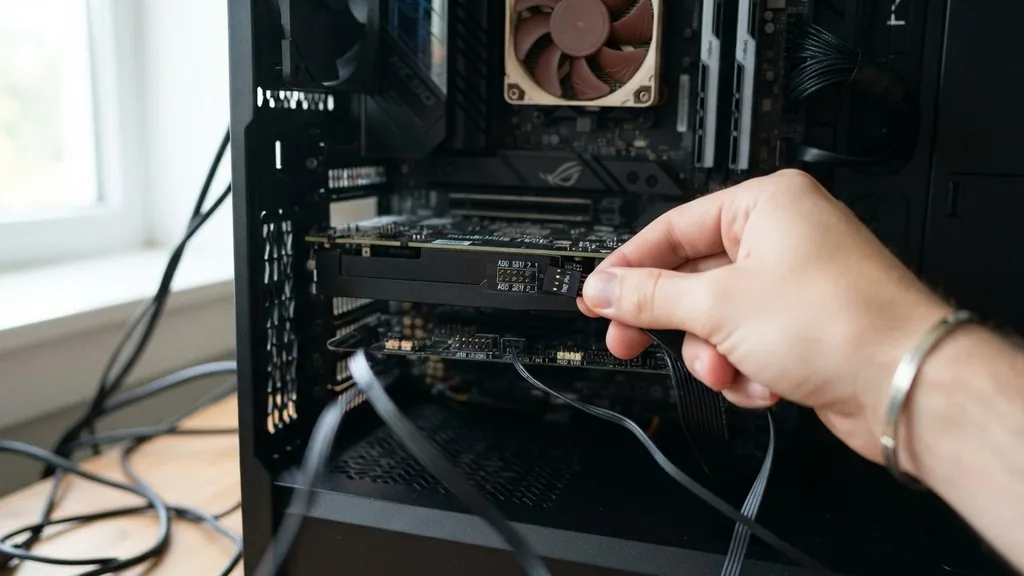
Adding lighting to your computer case is one of the most rewarding parts of a custom build. Learning how to connect RGB fans to motherboard headers allows you to synchronize your lighting effects, create custom color profiles, and manage thermal performance through a centralized interface.
While the process might seem intimidating at first, it essentially boils down to managing two distinct types of cables: the fan power cable and the lighting control cable. By understanding the difference between these connections, you can transform your desktop into a visually stunning centerpiece for your desk.
Identifying Your RGB Header Type
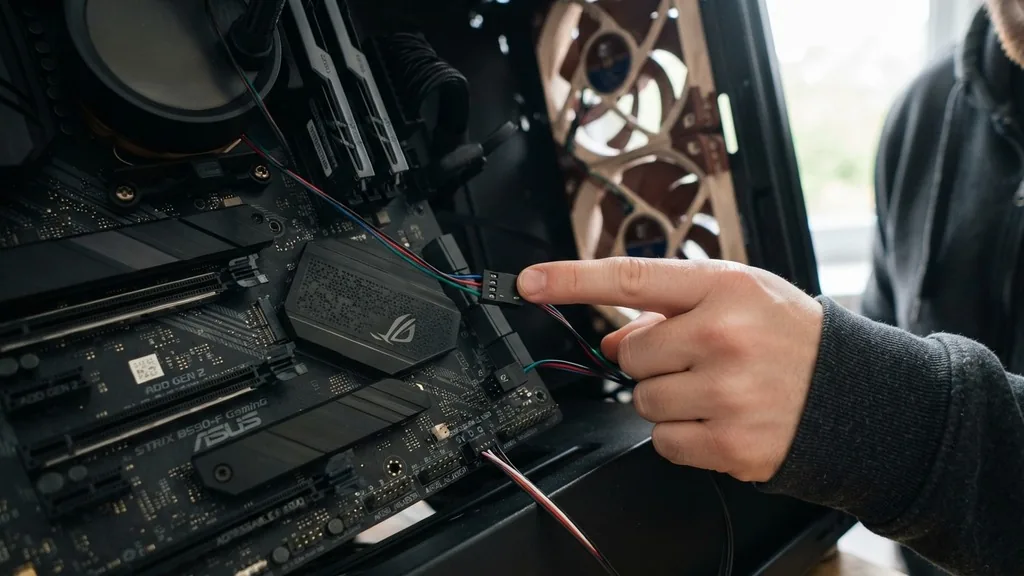
To successfully connect your lighting, you must identify whether your motherboard uses 12V 4-pin RGB headers or 5V 3-pin ARGB headers. These two standards are electrically incompatible. If you force a 5V device into a 12V header, you will likely fry the LEDs on your fan immediately.
The 12V 4-pin connector uses a standard 12V-G-R-B layout, meaning it can only display one color across the entire fan at once. This is often referred to as standard RGB.
The 5V 3-pin connector, known as Addressable RGB or ARGB, uses a 5V-D-G layout with a missing pin. This header allows for individual LED control, enabling complex rainbow effects and animations where each diode on the fan can be a different color. Always check your motherboard manual to confirm which headers are available on your specific model.
Most modern motherboards include at least one 5V ARGB header, as this has become the industry standard for enthusiast builds. If you are unsure, look at the plastic housing of the header on your board; the pin configuration will tell you exactly what you are working with before you start.
Connecting Fan Power Cables
Every fan requires a power source to spin, regardless of whether it has lights. This is separate from the RGB signal.
Most fans use a 3-pin or 4-pin PWM connector. A 4-pin PWM header is preferred because it allows the motherboard to dynamically adjust the fan speed based on internal temperatures, keeping your computer quiet during light tasks and cool during heavy gaming or rendering sessions.
Plug your fan power cables into the headers labeled CHA_FAN or SYS_FAN on your motherboard. If you have more fans than available headers, you can use a fan splitter or a powered fan hub. A splitter allows two or three fans to run off a single header, but be mindful of the total amperage.
Most motherboard fan headers are rated for 1A, so check the power draw of your fans before daisy-chaining too many together. If you are running a water cooling radiator with high-static pressure fans, it is often safer to use a dedicated powered hub that draws electricity directly from your power supply unit rather than straining the motherboard’s circuitry.
Managing RGB Signal Cables
Once the power is handled, it is time to connect the lighting cables. If your fans have a proprietary connector, you will likely need to use a controller box included with your specific brand of fans.
However, if your fans use standard 3-pin 5V ARGB connectors, they can often be plugged directly into the motherboard. These connectors are usually female, allowing you to slide them onto the male pins on the motherboard.
When connecting multiple fans, many manufacturers provide daisy-chainable cables. You can plug the first fan into the motherboard and then connect the second fan to the tail end of the first. This creates a single chain of signals.
Be careful not to exceed the maximum LED count for a single motherboard header. Consult your motherboard manual to see the limit, which is typically around 60 to 120 LEDs per header depending on the manufacturer. Overloading a header can result in flickering lights or, in extreme cases, damage to the motherboard’s RGB controller chip.
Using Software for Lighting Control
After the hardware is seated, software is the final piece of the puzzle. Most major motherboard manufacturers provide their own proprietary lighting suites, such as ASUS Aura Sync, MSI Mystic Light, or Gigabyte RGB Fusion. These applications detect the devices connected to the onboard headers and allow you to customize colors, brightness, and lighting patterns.
For a more unified experience, you might want to look into open-source alternatives like OpenRGB, which aims to provide a single interface for hardware from different manufacturers. These tools communicate with the motherboard via the SMBus to send data to the lighting controllers.
If the software does not immediately recognize your fans, ensure your motherboard BIOS is up to date, as manufacturers frequently push updates that improve compatibility with new hardware components and lighting accessories. Keep in mind that software-based control only works if the fans are physically connected to the motherboard headers; if you are using a standalone physical controller, you will be stuck with the remote or button-based effects provided by that specific unit.
Differences Between RGB and ARGB
Understanding the technical disparity between standard RGB and ARGB is critical for a safe installation. Standard RGB (12V) is a simpler technology.
The motherboard sends a single voltage signal to the red, green, and blue channels, which dictates the color of all LEDs in the chain simultaneously. It is effective for static colors or simple breathing effects, but it lacks the visual depth of addressable systems.
ARGB (5V) uses a data line to send digital instructions to each individual LED. This is why you can have a “moving” rainbow effect or specific color zones on a single fan blade. Because the voltage is lower, you must be extremely diligent about not mixing them.
The physical headers are keyed differently, but some cheaper cables might not have the correct plastic blocks to prevent a user from inserting them into the wrong port. Always double-check your connections before hitting the power button. If you are building a high-end system, prioritize ARGB components, as they offer significantly more flexibility and future-proofing for your aesthetic setup.
Common Troubleshooting Steps
If your fans spin but the lights do not turn on, start by checking the orientation of the connector. RGB plugs often have a small arrow indicating the 5V or 12V pin. If this is misaligned, the circuit will not close, and the lights will remain dark.
Next, verify that the lighting software is installed and running. Sometimes, the lighting control is disabled by default in the motherboard BIOS settings, so you may need to enter the UEFI and ensure the RGB headers are set to “On” or “Auto.”
Another common issue is flickering, which usually indicates a power delivery problem. If you have daisy-chained too many fans, the signal can degrade as it travels down the line. Try disconnecting all but one fan to see if the lighting stabilizes.
If it does, you know the issue is related to current draw or signal interference. Additionally, check for loose connections; the pins on motherboard headers are quite thin and can bend easily. If a pin is bent, the data or power signal will not reach the fan, resulting in dead sections of your lighting array.
Table: Comparing RGB Header Specifications
| Feature | 12V 4-Pin RGB | 5V 3-Pin ARGB |
|---|---|---|
| Voltage | 12 Volts | 5 Volts |
| Control | Global (All LEDs same color) | Individual (Each LED unique) |
| Pin Layout | 12V – G – R – B | 5V – Data – Empty – Ground |
| Complexity | Low (Simple cycles) | High (Complex animations) |
| Safety Risk | High if forced into 5V | High if forced into 12V |
Filling the Gaps: Frequently Asked Questions
- Can I connect RGB fans to a motherboard that lacks headers? Yes, you can purchase a third-party USB-powered controller. This device plugs into an internal USB 2.0 header on your motherboard, allowing you to control the lighting through the manufacturer’s software without needing an actual RGB header on the board itself.
- Do I need to install specific drivers for my RGB fans? Usually, no. The motherboard controls the lighting through its own chipset. However, you must install the motherboard manufacturer’s lighting utility software to actually change the colors or patterns, as the hardware requires a software interface to process the lighting commands.
- Why is my fan lighting a different color than the rest of the system? This often happens if the fans are from different brands or have different LED chip orders (RGB vs. GRB). Most lighting software allows you to calibrate the color order or set the number of LEDs per header to fix these synchronization issues.
- Is it safe to leave RGB lights on all the time? Yes, LEDs are designed for long-term operation. However, they do generate a small amount of heat and consume a tiny bit of power. If you want to extend their lifespan, you can set them to turn off when the computer enters sleep mode via your software settings.
Planning Your Cable Management
Effective cable management is the hallmark of a professional-looking build. When connecting your fans, route the wires behind the motherboard tray before bringing them through the nearest grommet to the fan location.
Use zip ties or velcro straps to bundle the excess cable length, keeping the main chamber of your case clear for optimal airflow. If you have a large number of fans, consider using a dedicated cable management channel or a hidden hub mounted behind the motherboard tray.
Keep your data cables away from high-heat components like the GPU backplate or the CPU cooler pipes. While the cables are insulated, excessive heat over time can degrade the plastic shielding. When connecting the fan power cables, ensure they are not pulled taut, as this puts stress on the motherboard headers.
A little bit of slack is always better. By planning your pathing before you start plugging things in, you ensure that your build is not only functional but also visually clean, making future upgrades or maintenance much easier to perform. Remember that the goal is to create a build that you are proud of, and taking the time to hide those extra wires will make a massive difference in the final aesthetic of your desktop.


