

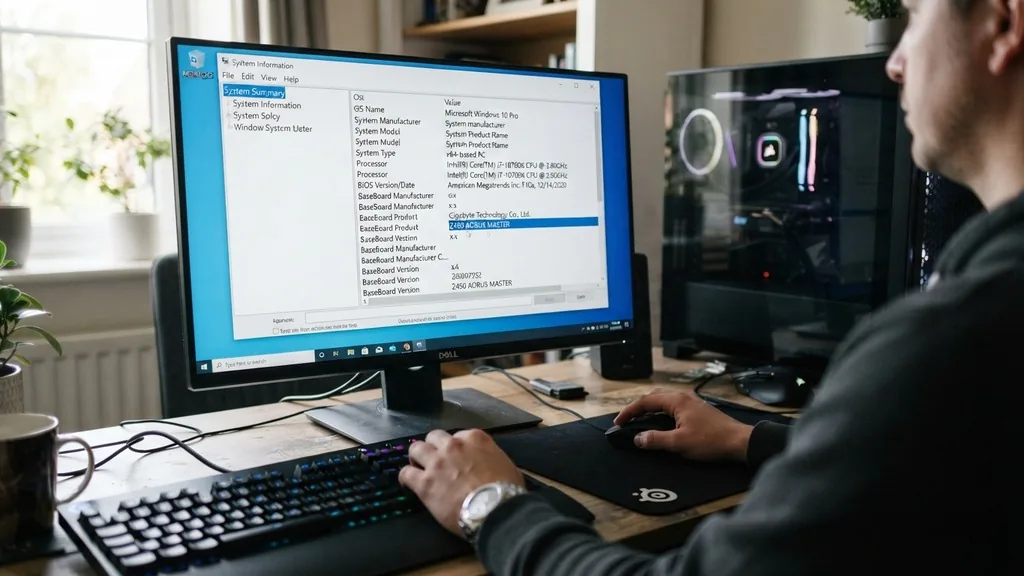
Identifying the specific hardware components inside your computer is a fundamental skill for any user looking to upgrade their system, troubleshoot performance issues, or install the correct drivers. When someone asks, “what is my motherboard model,” they are usually seeking the precise manufacturer and product designation of the primary printed circuit board that acts as the backbone of their system. Knowing this information is critical because the motherboard model dictates everything from the type of CPU socket you have to the maximum amount of RAM you can install, and even which graphics cards are compatible with your PCI Express slots.
Using Windows System Information for Quick Identification
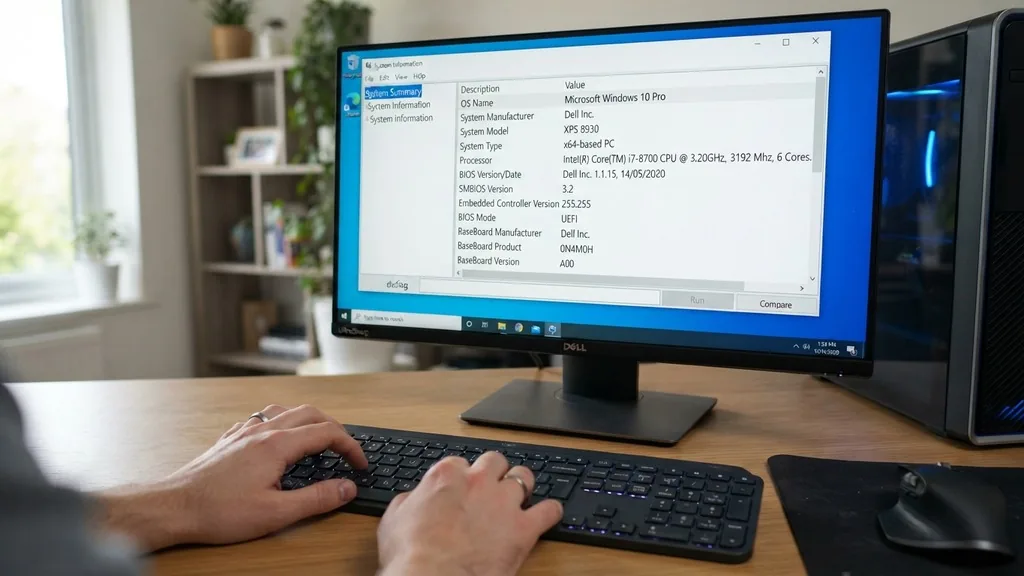
The fastest way to answer the question of what is my motherboard model is by using the built-in Windows System Information tool. This utility is pre-installed on every version of the operating system, making it an accessible method for both novice and advanced users.
To access this, you simply press the Windows key, type “msinfo32,” and hit enter. The resulting window displays a comprehensive list of system data including your processor, BIOS version, and, most importantly, your baseboard manufacturer and product name.
Within this list, look specifically for the fields labeled “BaseBoard Manufacturer” and “BaseBoard Product.” These two lines provide the exact details you need. In many cases, the “BaseBoard Product” is the specific model name you are looking for.
If you are using a pre-built computer from a major manufacturer like Dell or HP, this field might show a proprietary model number rather than a standard retail board name. This distinction is vital because manufacturer-specific boards often have different BIOS update procedures compared to off-the-shelf boards purchased from retailers.
Command Prompt Techniques for System Diagnostics
If you prefer using the command line or need a faster way to extract this information for scripting or remote troubleshooting, the Command Prompt provides a direct route. You can find your motherboard model by typing a simple command into the terminal.
Open the Command Prompt by searching for “cmd” in your start menu, then type “wmic baseboard get product,Manufacturer,version,serialnumber” and press enter. This command queries the system management instrumentation directly.
The beauty of this method is its precision. By requesting specific fields, you strip away the clutter of the standard System Information window. You will see columns for the manufacturer and the product name clearly laid out.
If the output returns “To be filled by O.E.M.,” it typically means the motherboard was installed by a system builder who did not program the DMI information into the firmware. In such a scenario, you might need to turn to physical inspection or third-party software, which we will discuss later in this article. This approach is highly effective for IT professionals managing multiple machines who need to document hardware configurations quickly without navigating through graphical menus.
Checking Through the UEFI BIOS Interface
When you cannot boot into Windows or you want to verify your hardware before installing an operating system, the UEFI BIOS is your best source of truth. By restarting your computer and repeatedly pressing the specific key designated for BIOS entry—usually Delete, F2, or F12 depending on your machine—you can access the firmware settings. Once inside, the main landing page or the “System Information” tab almost always lists the model name of the motherboard alongside the CPU and memory frequency.
This method is particularly useful if you suspect your operating system is corrupted or if you are performing a fresh build and need to verify that your motherboard supports your specific CPU generation. Many modern boards also allow you to update the BIOS directly from this screen, provided you have a USB drive with the correct firmware file.
Since the BIOS is stored on the motherboard itself, it is the most reliable way to identify the hardware regardless of what software is running on top of it. Always remember to exit without saving changes unless you specifically intended to modify your hardware settings, as accidental changes can lead to boot failures.
Third-Party Diagnostic Software
Sometimes, built-in tools provide vague information, especially with custom-built gaming rigs or obscure OEM boards. In these cases, dedicated third-party software like CPU-Z is the gold standard. CPU-Z is a lightweight, free utility that performs an in-depth scan of your hardware components.
Once you run the application, navigate to the “Mainboard” tab. Here, you will see fields for the manufacturer, the chipset, and the specific model name of your board.
Using specialized software is often better than manual inspection because these tools can read the SPD data from your RAM and the specific stepping of your CPU, giving you a complete picture of your computer’s capabilities. If you are planning an upgrade, knowing the chipset—such as Intel Z790 or AMD X670—is arguably as important as knowing the board name itself, as this tells you which generations of processors are compatible. You can find more details on how these components interact at the official Intel support website, which offers extensive documentation on chipset and motherboard compatibility standards.
Physical Inspection of the Motherboard
If your computer won’t power on or you are working with a machine that has no operating system installed, physical inspection is your only option. You will need to open your computer case and look directly at the surface of the motherboard. Manufacturers almost always silk-screen the model name onto the PCB, usually near the CPU socket, between the PCIe slots, or along the edge of the memory DIMM slots.
When performing a physical check, ensure the power cable is unplugged. It is helpful to use a flashlight, as the text is often printed in a color that matches the board, making it difficult to read in low light. If you have a large CPU cooler blocking your view, you might need to remove it to reveal the text, though this is rarely necessary.
Keep a notepad handy to write down the exact text, as there are often multiple strings of characters, including revision numbers and serial numbers. The model name is usually the boldest or most prominent text on the board.
| Method | Ease of Use | Requires Power | Best For |
|---|---|---|---|
| System Information | Very High | Yes | Quick checks |
| Command Prompt | High | Yes | Scripting/Pro users |
| UEFI BIOS | Medium | Yes | Pre-OS verification |
| Physical Inspection | Low | No | Dead systems |
Why Knowing Your Motherboard Model Matters
You might wonder why you should care about the specific board inside your machine. The motherboard model determines the physical footprint of your system, which is vital if you ever want to swap your case or add more expansion cards.
For example, an ATX motherboard will not fit in a case designed specifically for Mini-ITX boards. Furthermore, the board model dictates your storage options; some boards have multiple M.2 slots for high-speed NVMe drives, while others are limited to older SATA connections.
Another major factor is driver support. If you reinstall Windows, you will need to download specific drivers for your audio, network, and chipset. Using the wrong drivers can lead to system instability, audio glitches, or slow internet speeds.
By knowing your exact model, you can visit the manufacturer’s website—such as Asus, Gigabyte, or MSI—and download the latest, stable drivers directly. This ensures that your system runs at peak performance and remains secure against potential vulnerabilities that are often patched through firmware and driver updates.
Addressing Common Identification Gaps
Many users struggle when they encounter “generic” or “pre-built” motherboard names. If you search for your model and find nothing, it is likely because your computer is a pre-built unit from a company like Lenovo or Acer.
These companies often commission custom motherboards that are not sold to the public. In these instances, you should not search for the motherboard model on Google; instead, search for your computer’s model number, which is usually found on a sticker on the bottom or back of the chassis.
Another gap occurs when users mistake the chipset for the model name. For instance, you might see “B650” reported by a tool, but that is only the chipset series, not the specific board model. To find the true product name, you need the manufacturer’s prefix, such as “Asus Prime B650-Plus.”
Always verify the full string to avoid purchasing incompatible hardware or downloading the wrong BIOS files. If you find yourself stuck, look for a QR code on the motherboard itself; many modern boards include these, and scanning them with a smartphone will often take you directly to the product support page.
Troubleshooting and Maintenance Tips
Once you have identified your motherboard, you can better maintain your system. Periodically checking the manufacturer’s support page for BIOS updates is a great way to improve system stability and compatibility with newer hardware.
If you are experiencing random crashes, a BIOS update might resolve issues related to power delivery or memory training. Always read the release notes carefully before updating, as these processes carry a small risk if the power is interrupted during the flash.
- Keep a digital record of your motherboard model, serial number, and BIOS version in a secure text file.
- Always check for the latest chipset drivers after performing a fresh Windows installation.
- If you are upgrading your CPU, verify that your current motherboard BIOS version supports the new chip before making the purchase.
- Check the manufacturer’s website for “Qualified Vendor Lists” (QVL) to see which RAM kits are guaranteed to work with your specific board.
- Use compressed air to clean your motherboard periodically to prevent dust buildup, which can cause overheating and intermittent connection issues.
By following these best practices, you ensure that your computer remains reliable. Understanding the relationship between your motherboard and other components like the CPU, RAM, and GPU allows you to make informed decisions when it comes time to upgrade.
Whether you are a casual user or a power user, having this knowledge at your fingertips saves time and prevents costly mistakes. Remember that your motherboard is the foundation of your digital experience; treat it with the care that such a critical component deserves, and it will serve you well for many years to come.
Frequently Asked Questions
How can I find my motherboard model if my computer won’t turn on?
You must perform a physical inspection. Open the computer case and look for a model name or series number printed directly onto the surface of the motherboard.
This is typically located near the CPU socket or the PCIe expansion slots. You may need a flashlight to read the labels clearly.
Does the motherboard model name include the brand?
Yes, the full identification usually includes both the manufacturer (such as Asus, Gigabyte, MSI, or ASRock) and the specific model designation (such as B760-A or Z790-E). When looking for drivers or support, you need the complete string, including the manufacturer name, to ensure you find the correct documentation.
Can I use third-party tools to check my motherboard model?
Yes, tools like CPU-Z or Speccy are excellent for this purpose. They provide a user-friendly interface that pulls the motherboard information directly from the system BIOS. These utilities are generally safer and more reliable than guessing based on visual inspection or incomplete system information reports from the operating system.
Why does my motherboard show as ‘To be filled by O.E.M.’?
This occurs when the system builder, such as a laptop manufacturer or custom PC shop, failed to program the motherboard’s DMI information into the BIOS. In this case, the software cannot report the model automatically, and you will need to check the manufacturer’s support sticker on the device chassis instead.


