


Identifying your computer’s central nervous system—the motherboard—is a foundational skill for any PC user. Whether you are looking to upgrade your RAM, replace a failing component, or install the correct drivers, you must know the exact make and model of your hardware.
Without this information, you risk purchasing incompatible parts or installing software that could cause system instability. Fortunately, modern operating systems and hardware interfaces provide several effective ways to retrieve this data without needing to open your computer case.
Using Windows System Information for Quick Identification
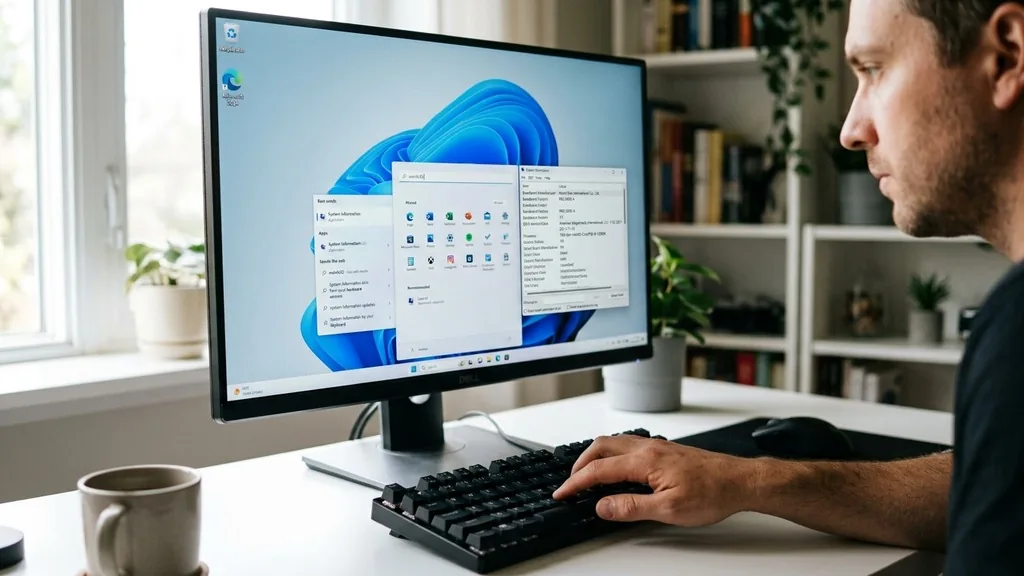
The most direct way to get your motherboard details on a Windows machine is through the built-in System Information tool. This utility aggregates data from your hardware sensors and firmware to provide a snapshot of your system configuration. To access it, press the Windows key on your keyboard, type “msinfo32” into the search bar, and hit Enter.
Once the window opens, ensure you are on the “System Summary” tab in the left-hand navigation pane. Look for the rows labeled “BaseBoard Manufacturer,” “BaseBoard Product,” and “BaseBoard Version.”
These entries provide the essential details you need. The “BaseBoard Product” is your specific motherboard model, while the “BaseBoard Manufacturer” identifies the company that built the board, such as ASUS, MSI, Gigabyte, or ASRock.
If you are planning to update your BIOS or install new chipset drivers, navigating to the official Intel support website or your specific manufacturer’s portal is the next logical step. Having these exact strings ensures that you download the correct software, as even a single character difference in a model number can represent a different hardware revision with distinct electrical requirements.
Command Prompt Methods for Power Users
If you prefer using the command line or need to retrieve this information as part of a script, the Windows Management Instrumentation Command-line (WMIC) is a powerful ally. Open the Command Prompt by typing “cmd” into your search bar, then right-click and select “Run as administrator.”
Once the terminal window is active, you can query the hardware directly. Type the following command and press Enter: wmic baseboard get product,Manufacturer,version,serialnumber.
The system will instantly return the exact details stored in the hardware’s DMI (Desktop Management Interface). This method is highly effective because it bypasses the graphical user interface, making it immune to issues where the System Information tool might fail to load or display incomplete data.
It is also a favorite among IT professionals who need to inventory hundreds of machines simultaneously. If you are troubleshooting a specific board, this command provides a clean, text-based output that you can easily copy and paste into a support ticket or a manufacturer’s inquiry form.
Navigating the UEFI and BIOS Interface
When Windows fails to boot or you are setting up a fresh machine, the BIOS or UEFI interface is your primary source of truth. To access this, restart your computer and repeatedly press the designated key—usually F2, Del, F10, or F12—immediately as the machine powers on. Once you are inside the graphical interface, the motherboard model is typically displayed prominently on the “Main” or “System Information” screen.
The UEFI environment is particularly useful because it offers a hardware-level view of the system. Unlike software tools that rely on the operating system to interpret hardware data, the BIOS/UEFI reads the information directly from the board’s firmware chip. If you do not see the model name immediately, look for a tab labeled “Board Information” or “System Settings.”
In some modern gaming motherboards, the model name might even be displayed as a large graphic on the front page of the BIOS, reflecting the manufacturer’s branding efforts. This is the most reliable way to verify your hardware if you suspect that your OS might be misreporting device information due to driver conflicts.
Physically Inspecting the Motherboard Components
Sometimes, software and firmware tools are not enough. If your computer is non-functional or the BIOS chip is corrupted, a physical inspection is the only way to find out your motherboard model.
Before opening your case, always power down the system, unplug it from the wall, and touch a grounded metal object to discharge any static electricity. Once the side panel is removed, look for the model name printed directly onto the printed circuit board (PCB).
Manufacturers often print the model name in a large, clear font near the CPU socket, between the PCIe slots, or along the edge of the board. If the board is covered by a large heatsink or an “armor” plate, you might need to look for a small sticker. This sticker usually contains the model name, a revision number, and a serial number.
If you have trouble reading the text, take a clear, well-lit photograph with your smartphone. You can then zoom in on the image to identify the specific letters and numbers. This physical verification is the absolute gold standard for accuracy when you are preparing for a major hardware overhaul.
Third-Party Software Alternatives
If you want a more user-friendly experience than the built-in Windows tools, several third-party applications provide a detailed breakdown of your hardware. Tools like CPU-Z are industry standards for enthusiasts and technicians alike.
Once installed, these programs scan your system and present the information in a clean, organized tabbed interface. The “Mainboard” tab in CPU-Z, for example, will show you the manufacturer, the model, the chipset, and even the current BIOS version.
These programs are particularly useful because they often provide additional context that Windows might omit, such as the current bus speed, socket type, and memory channel configuration. If you are trying to determine if your current motherboard supports a specific CPU upgrade, these tools give you the necessary data points—like the chipset name—to check compatibility lists on the manufacturer’s website. Always ensure you download these utilities from the official developer websites to avoid bundled bloatware or security risks.
Understanding Motherboard Revisions and Versions
A common trap for users is ignoring the “Revision” or “Version” number of the motherboard. A single model, such as the “GA-B450M-DS3H,” might have several revisions (e.g., Rev 1.0, 1.2, 2.0).
These revisions often feature different power delivery components, updated audio chips, or slight changes to the physical layout. If you download a BIOS update for the wrong revision, you can effectively “brick” your board, rendering it unusable.
When you check your motherboard model, always look for the version number printed on the board itself—usually near the bottom left corner—or listed in the System Information tool under “BaseBoard Version.” If you are downloading drivers, the manufacturer’s website will typically ask you to confirm the revision before presenting the download list.
Ignoring this step is the most common cause of failed driver installations and system crashes. Treat the revision number as an essential part of the model name, just as critical as the primary brand and series identifier.
| Method | Best For | Ease of Use |
|---|---|---|
| System Information (msinfo32) | Quick checks in Windows | Very Easy |
| Command Prompt (WMIC) | Advanced users/Scripting | Moderate |
| BIOS/UEFI Interface | Non-booting systems | Moderate |
| Physical Inspection | Hardware failure/Dead PCs | Hard |
| Third-Party Tools (CPU-Z) | Deep technical analysis | Easy |
Resolving Common Identification Gaps
One frequent issue users encounter is seeing “To be filled by O.E.M.” or “System Product Name” when checking system info. This typically happens with pre-built computers from companies like Dell, HP, or Lenovo.
These manufacturers use custom-designed motherboards that do not follow standard retail naming conventions. In these cases, the “BaseBoard Product” string in Windows will not help you find a manual or drivers on the internet.
To solve this, you must search for the serial number or the “Service Tag” found on the exterior of the computer case. Inputting this tag into the manufacturer’s support portal is the only way to get accurate, model-specific information for proprietary hardware.
Do not try to guess the motherboard model by looking for similar-looking retail boards; proprietary boards often have different pin layouts for power buttons, front panel audio, and cooling fans. Using the manufacturer’s specific support page is the safest path to finding the correct drivers and technical documentation for these unique systems.
Best Practices for Future-Proofing Hardware Records
Once you have successfully identified your motherboard, it is a smart move to create a digital or physical record of your system specifications. Keeping a simple text file on your desktop or a note in your phone containing your motherboard model, CPU type, RAM capacity, and power supply wattage can save you hours of frustration in the future. Whenever you decide to upgrade a part, you will have the necessary information at your fingertips to confirm compatibility without having to open the case or run diagnostic tools again.
If you are an enthusiast who changes hardware frequently, consider keeping a folder with the original PDF manuals for your components. These manuals are often removed from manufacturer websites after a few years, making them difficult to find when you need to check a jumper setting or a pin-out diagram.
By maintaining an organized record of your hardware, you ensure that your system remains manageable and that you can perform maintenance with confidence and precision. This simple organizational step is what separates casual users from those who effectively manage their computing hardware over the long term.
Frequently Asked Questions
- Will the BIOS show my motherboard model? Yes, the BIOS or UEFI interface is one of the most reliable places to find your motherboard model, especially if your operating system is not loading or if you need to confirm the hardware revision before performing a firmware update.
- Can I find my motherboard model without opening the PC? Absolutely. You can use the Windows System Information tool (msinfo32), the Command Prompt (WMIC), or third-party software like CPU-Z to retrieve the motherboard model and manufacturer details without ever needing to touch a screwdriver or open your computer case.
- What if my motherboard says “To be filled by O.E.M.”? This means your PC is likely a pre-built model from a company like Dell or HP. Instead of searching for the motherboard model, look for the “Service Tag” or serial number on the outside of your computer case and search for that on the manufacturer’s support website.
- How do I know which motherboard version I have? The version number is often printed directly on the PCB, usually near the bottom edge or the model name. You can also see this in the System Information tool under the “BaseBoard Version” field, which is crucial for downloading the correct BIOS and chipset drivers.


