

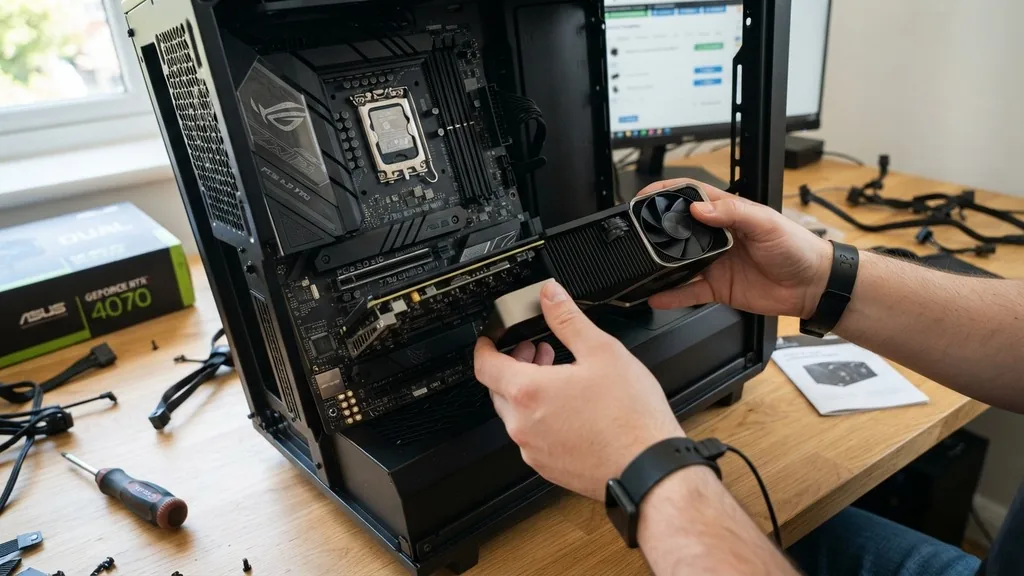
Determining what GPUs are compatible with my motherboard is a common hurdle for anyone looking to upgrade their gaming rig or workstation. You might assume that any graphics card fits into any board, but the reality involves a mix of physical dimensions, electrical standards, and software requirements. While the interface for modern graphics cards has remained remarkably consistent, the nuances of your specific build can lead to performance bottlenecks or, in rare cases, total system failure.
Understanding the PCIe Interface Standard
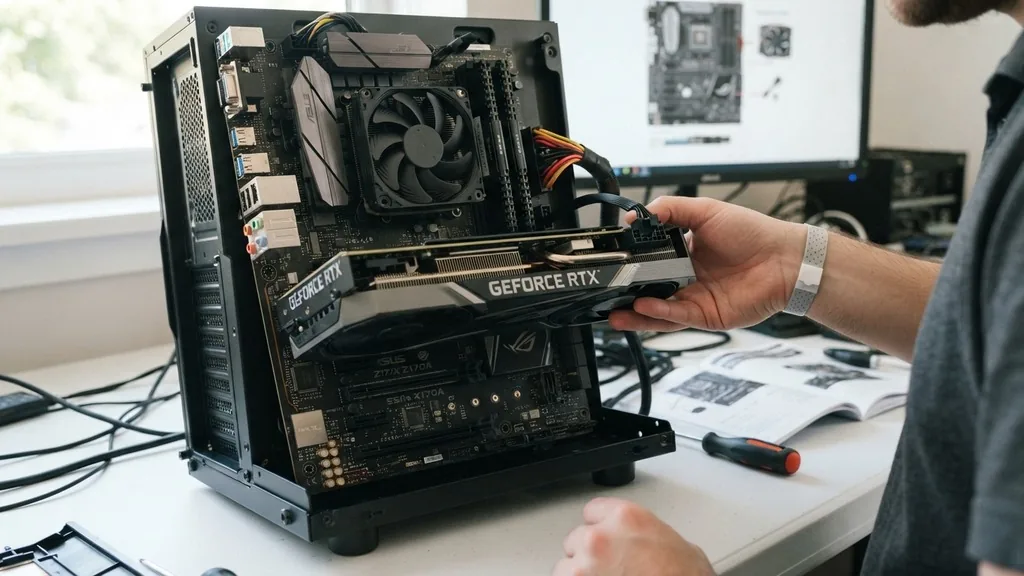
The primary factor determining if a graphics card will work is the PCIe (Peripheral Component Interconnect Express) slot. Almost every dedicated GPU manufactured in the last two decades uses this interface, which is standardized across the industry.
This means that a PCIe x16 slot on a motherboard built in 2015 is physically compatible with a brand-new graphics card released today. The interface is backward and forward compatible, so you don’t need to worry about the version number—such as PCIe 3.0 versus 4.0 or 5.0—preventing the card from fitting or functioning.
However, while they are physically compatible, version differences can influence speed. A PCIe 4.0 card plugged into a PCIe 3.0 slot will work perfectly fine, but it will operate at the slower PCIe 3.0 bandwidth. For most users, this difference is negligible, especially with mid-range cards.
If you are using a high-end card like an RTX 4090, you might see a slight performance hit in specific scenarios, but the system will still boot and play games without issue. The key takeaway is that the slot type itself is rarely the reason for incompatibility.
Physical Clearance and Case Constraints
The most frequent cause for installation failure isn’t the motherboard interface, but the physical space within your computer case. Modern GPUs have grown significantly in size, often occupying three or even four expansion slots of width.
Before buying a card, you must measure the internal length of your chassis. If your motherboard has a secondary component, such as a large SATA port cluster or a bulky heat sink, it might physically obstruct a long graphics card.
You should also check for “slot interference.” Some motherboards place the primary PCIe x16 slot very close to the CPU cooler or the RAM slots.
If you have an oversized air cooler, it might prevent the GPU from locking into the slot properly. Always check your motherboard manual to identify which slot is the primary x16 slot; sometimes, the lower slots on a board are only wired for x4 or x8 speeds, which can severely throttle your graphics performance.
Power Supply Unit Capacity and Connectors
Your motherboard provides some power through the PCIe slot, but high-performance GPUs require dedicated power directly from your power supply unit (PSU). This is where many users run into trouble.
If your PSU lacks the necessary 8-pin or 12VHPWR connectors, you won’t be able to power your new card. Adapters exist, but they are often discouraged due to fire risks and stability issues.
Beyond the physical cables, you must ensure your PSU has enough wattage to handle the total system load. A common mistake is calculating the power draw of the GPU alone and ignoring the CPU, fans, and storage drives.
You can find detailed power requirements for most components on the official Intel support pages regarding system power management. If your PSU is underpowered, the system may crash during intense gaming sessions when the GPU tries to draw peak power.
CPU Bottlenecking and System Balance
Even if a GPU is physically compatible and has enough power, it might be a poor match for your system’s processor. This is known as a bottleneck.
If you pair a top-tier, modern graphics card with a CPU that is five or six years old, the CPU will struggle to keep up with the data the GPU is processing. This results in stuttering, low frame rates, and an overall poor experience, even though the hardware is technically “compatible.”
You should aim for a balanced build. If you have an entry-level processor, it is generally better to invest in a mid-range GPU that matches your CPU’s output capabilities rather than buying the most expensive card on the market.
You can often find calculators online that estimate potential bottlenecks, but these are just estimates. In practice, look at benchmarks for your specific CPU and GPU combination to see if they are commonly paired together by other users.
BIOS and Firmware Compatibility
Occasionally, a motherboard might require a BIOS update to recognize a newer graphics card. This is particularly common when moving to a brand-new generation of GPUs on an older motherboard platform. If you install the card and your computer fails to output a signal to your monitor, the first step should be to check the manufacturer’s website for the latest BIOS version for your specific motherboard model.
Updating the BIOS is a delicate process that carries a small risk of bricking your board if the power cuts out, so follow the instructions precisely. Once updated, the motherboard’s firmware should be able to communicate effectively with the newer hardware. If you are unsure about your current BIOS version, you can check it in the system information menu within Windows.
Common Motherboard and GPU Compatibility Data
To help visualize how different generations and form factors interact, the following table outlines the general compatibility expectations for various hardware configurations.
| Component | Compatibility Consideration | Impact Level |
|---|---|---|
| PCIe Slot | Backward/Forward Compatible | Low (Speed potential only) |
| Physical Length | Case clearance required | High (Will not fit) |
| PSU Connectors | Must match GPU power needs | High (System won’t boot) |
| BIOS Version | May need update for new cards | Medium (Potential black screen) |
| CPU Speed | Must not bottleneck GPU | Medium (Performance loss) |
Verification Steps Before Purchasing
Before you commit to a new product, follow a systematic verification process to ensure the GPU will work. Start by identifying your motherboard model.
You can find this in your system settings or by using a tool like CPU-Z. Once you have the model name, look it up on the manufacturer’s website to see the specifications, specifically the PCIe version and the available expansion slots.
Next, identify the physical dimensions of the GPU you want to buy. Manufacturers list the length, width, and height of their cards on their product pages.
Compare these numbers against the specifications of your computer case. It is also wise to look at your power supply and verify it has the correct connectors—either the traditional 6+2 pin PCIe cables or the newer 12VHPWR connector found on some high-end cards.
- Check the motherboard manual for primary PCIe x16 slot location.
- Measure the available length inside your case from the back panel to the front drive cages.
- Verify the total wattage of your power supply exceeds the combined TDP of your CPU and GPU.
- Confirm that your case has enough ventilation to handle the thermal output of the new card.
- Ensure your operating system is updated to support the latest GPU driver versions.
Addressing Topical Gaps and Common Misconceptions
Many users wonder if they can use two different brands of GPUs, like an NVIDIA card and an AMD card, in the same system. While it is technically possible to have two cards plugged in, they generally will not work together to increase graphics performance.
Modern Windows drivers are robust, but they don’t support multi-GPU rendering for mismatched brands. If you are looking to add a second card, it should be identical to the first, and even then, multi-GPU setups are largely obsolete for gaming.
Another common gap in knowledge is the difference between integrated graphics and dedicated GPUs. If your motherboard has video outputs like HDMI or DisplayPort, those are connected to your CPU’s integrated graphics.
When you install a dedicated GPU, you must plug your monitor into the GPU’s ports, not the motherboard’s ports. If you leave the cable in the motherboard, you will be using the slower integrated graphics, completely bypassing your new, powerful hardware.
Troubleshooting Installation Issues
If you have installed the card and the system refuses to boot, don’t panic. Start by double-checking the power cables. It is common for a cable to feel seated when it is not fully clicked into place.
If you have a modular power supply, make sure the cables are also fully plugged into the PSU side. If the system boots but you have no display, reset your CMOS by removing the small coin-sized battery on the motherboard for a few seconds. This resets the BIOS to default settings and often resolves communication errors between the board and a new card.
Finally, ensure you have uninstalled any old graphics drivers before installing the new card. Using a tool to clean up old driver remnants can prevent conflicts that lead to system instability.
Once you have a clean slate, download the latest drivers directly from the GPU manufacturer’s website. Keeping your software current is just as important as the hardware itself when it comes to maintaining a reliable and high-performing system.
Frequently Asked Questions
- How do I check if my GPU is compatible with my motherboard? Check your motherboard’s manual for a PCIe x16 slot. Then, verify your case has enough physical space for the card’s length and ensure your power supply provides enough wattage and the correct connectors for the GPU.
- Do all GPUs fit in motherboards? Yes, almost all modern GPUs use the PCIe standard, which is physically compatible with nearly every motherboard built in the last two decades. The main limitations are the physical size of the card within your case and the power supply capacity.
- Can my GPU be incompatible with my motherboard? It is extremely rare for a GPU to be electronically incompatible. The main issues are physical fitment, insufficient power supply wattage, or an outdated BIOS version that prevents the motherboard from recognizing the newer graphics card during the boot process.


