

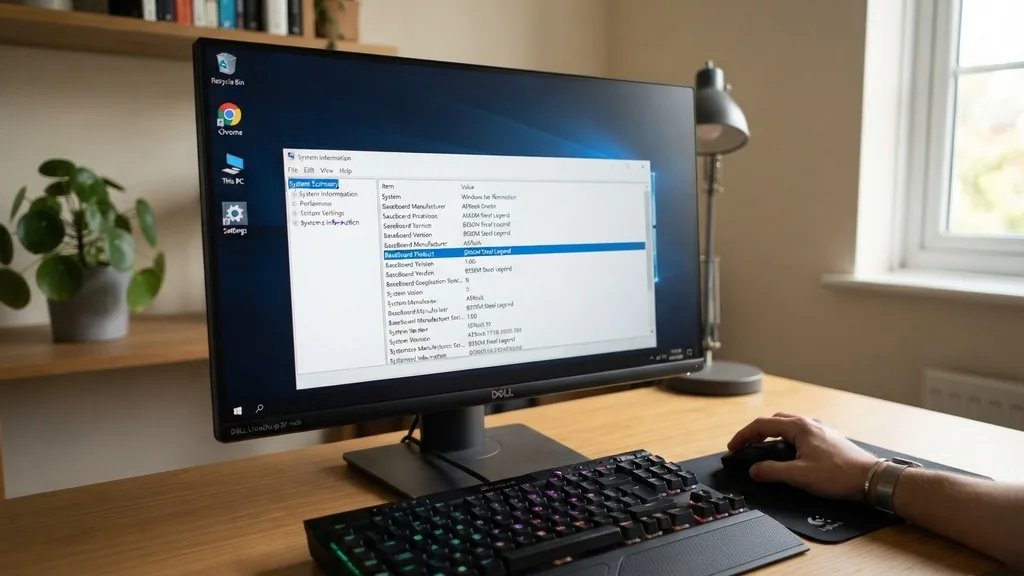
Knowing how to check motherboard specs is a fundamental skill for anyone looking to upgrade their PC, troubleshoot performance issues, or simply understand the hardware foundation of their system. Whether you are adding more RAM, installing a new graphics card, or checking for BIOS updates, the motherboard acts as the central hub connecting all your components. If you do not know the exact board model installed in your chassis, you risk incompatibility issues that can lead to system crashes or, at worst, physical damage to your hardware components.
Using Windows System Information to Identify Your Board

To check motherboard specs directly within Windows, the most straightforward method is using the System Information tool, which pulls data directly from the OS registry. You can access this by pressing the Windows key, typing “msinfo32,” and hitting Enter.
Once the window opens, ensure “System Summary” is selected in the left-hand pane. Look for the entries labeled “BaseBoard Manufacturer,” “BaseBoard Product,” and “BaseBoard Version.”
These three lines provide the core identity of your hardware. The “BaseBoard Product” is your specific motherboard model, while the manufacturer tells you if you are running an ASUS, MSI, Gigabyte, or ASRock board.
This tool is excellent for a quick snapshot, but it sometimes fails to provide granular details like the specific revision number or the current BIOS version if the manufacturer did not properly populate the DMI (Desktop Management Interface) tables. If you find that the information appears as “To be filled by O.E.M.” or “Not Available,” you may need to rely on third-party software or BIOS inspection.
Extracting Motherboard Details via Command Prompt
For power users or those who prefer a keyboard-centric workflow, the Command Prompt (CMD) offers a faster way to query the hardware. You can find your motherboard model without navigating through graphical menus by using the Windows Management Instrumentation Command-line (WMIC) utility. Open the Command Prompt by typing “cmd” in the Windows search bar, then enter the following command: “wmic baseboard get product,Manufacturer,version,serialnumber”.
This command instructs the system to pull the exact strings stored in the motherboard’s firmware. The beauty of this method is its precision. It bypasses the potential clutter of the System Information GUI and gives you raw text that you can easily copy and paste into a search engine.
If you are troubleshooting a recurring error, having the exact serial number and product string is vital for checking warranty status or downloading the correct drivers from the official hardware support documentation. Note that if the serial number returns as a blank or generic string, it often indicates a pre-built system where the manufacturer did not register the board’s unique identifier correctly in the firmware.
Accessing Motherboard Specs Through the BIOS or UEFI
When your operating system fails to boot or you want to verify hardware settings before installing a new operating system, checking your motherboard specs through the BIOS (Basic Input/Output System) or UEFI (Unified Extensible Firmware Interface) is the most reliable method. To enter this environment, restart your computer and repeatedly press the designated key—usually F2, F12, Del, or Esc—during the initial startup sequence.
Once inside the UEFI interface, you will typically find a “System Information” or “Main” tab. This screen displays not only the model name but also the current BIOS version, the amount of installed memory, and the CPU temperature.
This is the only place where you can see the actual firmware version currently running on the board, which is essential if you are planning a CPU upgrade that requires a specific BIOS update to support newer processor generations. Always ensure you are looking for the “Board ID” or “Model Name” rather than the “BIOS Date,” as the latter is merely the date the firmware was compiled.
Using Third-Party Hardware Monitoring Tools
Sometimes, built-in Windows tools lack the depth required for advanced diagnostics. Third-party utilities offer a more comprehensive view of your motherboard specs, including chipsets, socket types, and PCIe lane configurations.
CPU-Z is the industry standard for this task. It is a lightweight, free application that scans your hardware and presents it in a clean, tabbed interface.
The “Mainboard” tab in CPU-Z is where you will find the manufacturer, model, chipset, and even the Southbridge information. This is particularly useful if you are trying to determine if your motherboard supports specific RAM speeds or advanced storage protocols like NVMe. Unlike the basic Windows tools, these utilities often provide a “Validation” feature, allowing you to upload your hardware specs to an online database.
This is helpful if you are comparing your system performance against others with the same motherboard model. Other reputable tools include HWInfo and Speccy, both of which provide similar depth but with different UI layouts depending on your preference.
Checking Your Motherboard Physically Inside the Chassis
If software methods are unavailable—perhaps because the computer does not power on or the operating system is corrupted—you must physically inspect the motherboard. This requires opening the computer case. Before touching any internal components, ensure the power cable is disconnected and discharge any static electricity by touching a metal part of the case.
Most modern motherboards have the model name printed in large, clear text directly on the PCB (Printed Circuit Board). Look near the CPU socket, the RAM slots, or the PCIe expansion slots. You will often see a silk-screened label indicating the brand and the specific model number (e.g., “ROG STRIX B550-F GAMING”).
If the text is obscured by a large air cooler or a graphics card, you might need a flashlight or a small mirror to see behind the components. Always check for a sticker on the back of the board or near the I/O shield, as these often contain the serial number and the exact revision of the board, which can differ slightly from the base model name.
Comparing Methods for Identifying Hardware
Choosing the right method depends on your current situation and the level of detail you require. The following table summarizes the most common ways to retrieve this information and the pros and cons associated with each approach.
| Method | Best For | Pros | Cons |
|---|---|---|---|
| System Information | Quick checks | Native to Windows; no installation | Can be incomplete |
| Command Prompt | Power users | Fast; extractable text | Requires exact syntax |
| BIOS/UEFI | Pre-boot issues | Most accurate firmware data | Requires system restart |
| Physical Inspection | Dead systems | Absolute truth; no software required | Risk of physical damage |
Addressing Topical Gaps: Motherboard Revisions and OEM Systems
One common frustration when checking motherboard specs is dealing with “revisions.” A manufacturer might release a “Version 1.0” and a “Version 2.0” of the same motherboard model, which may use different power delivery components or audio controllers.
If you download drivers for the wrong revision, your system might become unstable. Always check for the revision number printed on the board itself—usually near the model name—and cross-reference it with the manufacturer’s support page.
Another gap involves pre-built systems (OEM). If you own a desktop from a major manufacturer like HP, Dell, or Lenovo, the motherboard model provided by Windows might be a proprietary string that does not exist on the motherboard manufacturer’s website. In these cases, you must search for the serial number of the computer on the manufacturer’s official support site.
They often provide a “Parts List” or “Specification Sheet” specifically tied to your machine’s unique service tag. Do not attempt to flash a generic BIOS from a retail version of the board onto an OEM board, as this will almost certainly “brick” your system and void your warranty.
Interpreting the Data You Have Found
Once you have successfully identified your motherboard, you need to understand what the specs actually mean for your daily usage. The “Chipset” is perhaps the most important spec after the model name.
It dictates which CPU generations are supported and how many high-speed lanes are available for your storage and graphics. For example, an Intel Z-series chipset typically offers more overclocking potential and connectivity than an H-series chipset.
When reviewing your board’s specs, pay close attention to the following:
- Socket Type: This determines the physical interface for your processor (e.g., LGA 1700 or AM5).
- Form Factor: This dictates the physical size (ATX, Micro-ATX, Mini-ITX) and which cases it will fit into.
- Memory Support: Check the generation (DDR4 vs DDR5) and the maximum frequency supported.
- Expansion Slots: Note the number of PCIe x16 slots for GPUs and M.2 slots for NVMe SSDs.
- VRM Cooling: High-end boards feature better heatsinks, which are vital if you plan to push your CPU beyond its base clock speeds.
Understanding these specs allows you to make informed decisions. If your motherboard only supports DDR4, buying DDR5 RAM would be a wasted investment.
If your board lacks a Gen4 PCIe slot, your latest high-speed NVMe drive will be throttled to Gen3 speeds. Always verify these core constraints before purchasing new parts.
Managing Motherboard Software and Drivers
After you have checked your motherboard specs, the next logical step is to ensure your drivers are up to date. The motherboard acts as the bridge between your CPU, RAM, and storage. If the chipset drivers are outdated, your system might experience performance bottlenecks or intermittent USB connectivity issues.
While Windows Update handles many basic drivers, it is often better to download the latest chipset, audio, and network drivers directly from the manufacturer’s website. To do this, use the motherboard model you identified earlier to navigate to the official support page. Look for the “Downloads” or “Drivers” section.
It is generally best to prioritize the “Chipset” and “LAN/Wi-Fi” drivers, as these have the most direct impact on system stability and internet performance. Avoid installing “bloatware” utilities that many manufacturers bundle with their drivers unless you specifically need them for fan control or RGB lighting management. A clean system is a stable system, and keeping your board’s firmware and drivers in check is the best way to ensure longevity.
FAQ: Common Questions on Motherboard Identification
- How do I check my motherboard specs if I am using a Mac? Apple does not use traditional motherboards in the same way as PCs; they use custom logic boards. You can find your model information by clicking the Apple Menu, selecting “About This Mac,” and viewing the System Report under the Hardware section.
- Will the motherboard model change if I update the BIOS? No, the motherboard model name is a physical identifier and will not change. However, the BIOS version string will update. Always check your specific model number on the manufacturer’s website to ensure you are downloading the correct BIOS update for your specific board revision.
- Why does my motherboard show as “To be filled by O.E.M.”? This usually happens in pre-built systems from companies like Dell or HP. The manufacturer did not program the DMI information into the BIOS. You must use the computer’s serial number or service tag on the manufacturer’s support website to find the correct specifications.
- Can I check my motherboard model using the Device Manager? Device Manager is generally not the best place for this. It lists individual components like your disk drives and graphics card, but it often groups the motherboard under generic “System Devices.” Use the System Information tool or a third-party utility like CPU-Z for more accurate results.


