

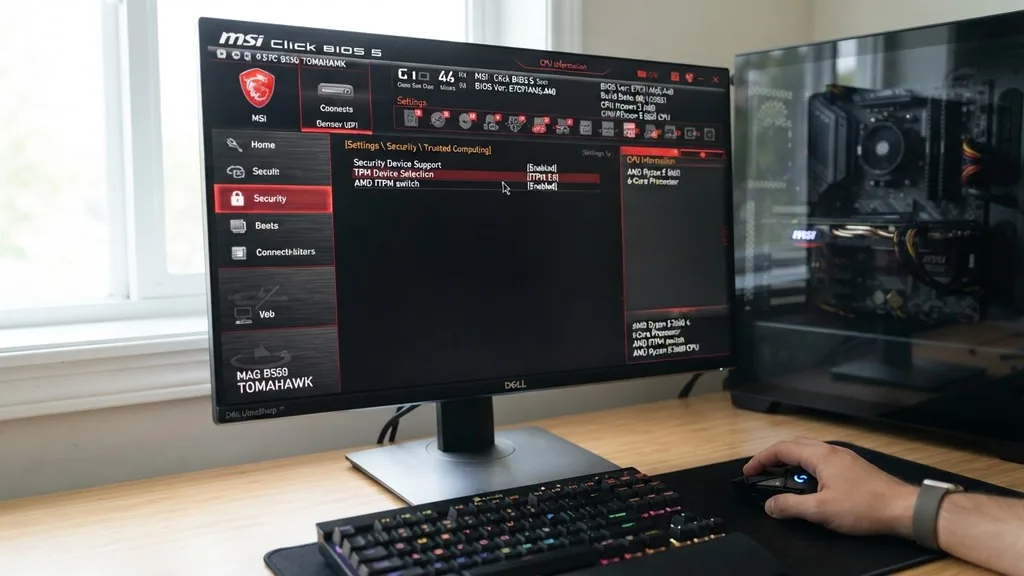
If you have recently attempted to install the latest Microsoft operating system, you likely encountered a prompt regarding Windows 11 system requirements. Specifically, your computer must support a Trusted Platform Module (TPM) version 2.0 to ensure a secure environment.
For users utilizing an MSI motherboard, this feature is often built directly into the processor firmware, yet it remains disabled by default. Enabling this setting is not as intimidating as it sounds, but it does require navigating your system’s firmware interface.
Understanding the Role of Trusted Platform Module 2.0
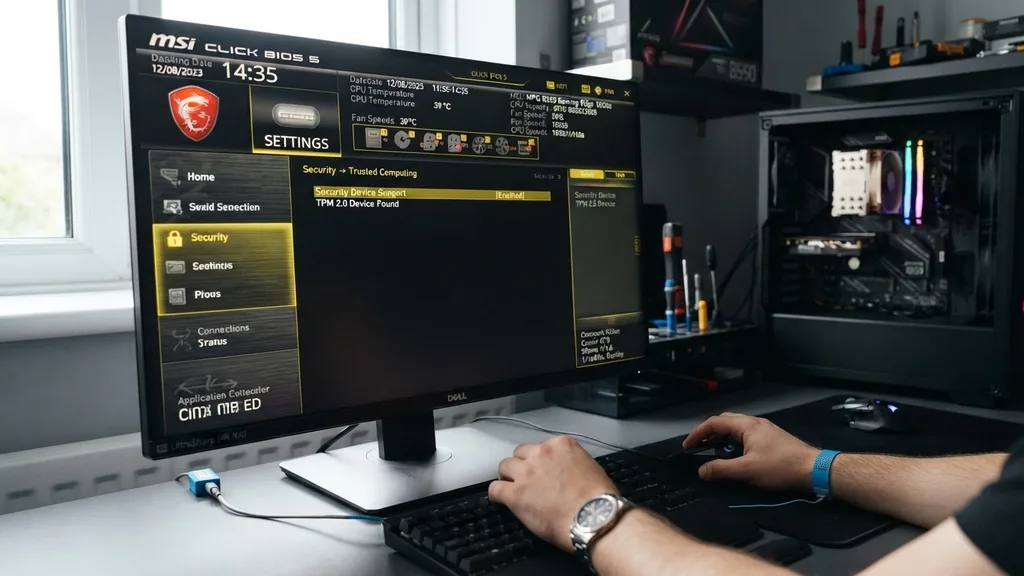
The Trusted Platform Module is a specialized chip or firmware-based solution designed to provide hardware security functions. At its core, it acts as a digital vault for sensitive information, such as encryption keys, user passwords, and digital certificates. By offloading these critical tasks to a dedicated environment, the TPM prevents unauthorized software or malicious actors from accessing your data, even if they manage to compromise the operating system itself.
When you transition to newer versions of Windows, the OS utilizes this module to verify the integrity of your boot process. This is why you cannot bypass the requirement easily; the OS is designed to rely on the TPM to establish a “root of trust.” Without it, features like BitLocker drive encryption, Windows Hello, and various credential protection services may not function as intended.
For most modern MSI users, you do not need to buy a separate physical chip. Instead, you will use fTPM (for AMD) or Intel PTT (for Intel), which are firmware-based implementations that meet the exact same security standards as a discrete hardware module.
Accessing the MSI Click BIOS 5 Interface
To modify any settings related to your motherboard firmware, you must enter the BIOS (or more accurately, the UEFI environment). The MSI Click BIOS 5 interface is the graphical environment used by almost all modern MSI boards. To enter this menu, you need to be quick during the startup process.
As soon as you press the power button, repeatedly tap the “Delete” key on your keyboard. Do not hold it down; tapping it rhythmically is more effective.
If your computer boots into Windows too quickly, you can use the built-in Windows recovery settings to force a reboot into the firmware. Navigate to Settings > System > Recovery, and then look for the “Advanced startup” option. Click “Restart now.”
Once the computer restarts into a blue menu, select Troubleshoot > Advanced options > UEFI Firmware Settings. This will force the system to reboot directly into your MSI Click BIOS 5, saving you the frustration of timing the “Delete” key press correctly.
Locating Security Settings for AMD Processors
If you are running an AMD Ryzen processor, the feature you are looking for is called fTPM. This stands for firmware-based Trusted Platform Module. Because AMD integrates this security directly into the Ryzen architecture, it is almost certainly present on your board.
Once you are inside the BIOS, you will likely see a simplified “EZ Mode” screen. Press “F7” to enter the Advanced Mode, which provides the granular control necessary to modify security parameters.
In Advanced Mode, look for the “Settings” tab on the left-hand side of the screen. Click on it, then navigate to “Security” or “Advanced” depending on your specific board’s layout. You should find a sub-menu labeled “Trusted Computing.”
Inside this menu, you will see an option for “Security Device Support.” Ensure this is set to “Enabled.” Below that, you should see “AMD fTPM switch.”
Set this to “AMD CPU fTPM.” Once these are set, press “F10” to save your changes and exit the BIOS. Your system will restart, and the TPM should now be recognized by Windows.
Configuring Intel PTT on MSI Motherboards
For users with Intel-based systems, the equivalent feature is called Intel PTT (Platform Trust Technology). While the naming convention differs from AMD, the underlying process in the MSI Click BIOS 5 remains very similar.
Enter the Advanced Mode by pressing “F7,” then head to the “Settings” tab. Look for “Advanced” and then find “Integrated Peripherals” or sometimes “Trusted Computing” directly under the “Security” header.
In the Intel configuration, you are looking for “Intel PTT” or “PTT.” By enabling this setting, you are activating the firmware-based TPM that Intel has built into its chipsets. Just like the AMD process, you must ensure that “Security Device Support” is also set to “Enabled.”
It is common for users to enable PTT but forget the primary “Security Device Support” toggle, which results in the TPM remaining invisible to the operating system. Always double-check that both are active before saving and exiting.
Verifying Status with the PC Health Check Tool
After you have adjusted your settings and rebooted into Windows, you need to confirm that your changes have taken effect. The most reliable way to do this is by using the official Microsoft Windows 11 resources to verify compatibility.
Microsoft provides a utility called the PC Health Check tool. Download and install this application, then run it to see if your system meets the requirements.
If the tool still reports that your PC cannot run Windows 11, there are a few things to investigate. First, check your Windows Device Manager. Expand the “Security devices” section.
You should see “Trusted Platform Module 2.0” listed there. If it is missing, your BIOS changes did not save correctly, or you enabled the wrong setting. If the device appears but the tool still fails, ensure that Secure Boot is also enabled in the BIOS, as this is a secondary requirement that often goes hand-in-hand with TPM 2.0.
Troubleshooting Common BIOS Detection Issues
Sometimes, even after you have enabled the correct settings, the TPM remains hidden. This is a common frustration, but it is rarely a sign of hardware failure. One frequent culprit is a stale configuration state within the motherboard firmware.
If you have recently updated your BIOS, settings can sometimes get stuck in a “ghost” state. Try clearing your CMOS by removing the small coin-shaped battery on the motherboard for thirty seconds, then re-inserting it. This forces the BIOS to reset to factory defaults, allowing you to re-enable the TPM cleanly.
Another issue involves the boot menu configuration. If your system is running in “Legacy” or “CSM” (Compatibility Support Module) mode, the TPM may not initialize properly. Modern Windows 11 requirements mandate that your system runs in UEFI mode with Secure Boot enabled.
If your drive is formatted with an MBR partition table rather than GPT, you may need to convert the drive or reinstall Windows to get the full benefits of these security features. Always ensure your motherboard is using the latest firmware version, as manufacturers frequently release updates that improve compatibility with newer security standards.
Comparing Security Implementation Methods
Many users wonder if a physical TPM chip is superior to the firmware-based solutions like fTPM or Intel PTT. While a discrete module is technically separate from the CPU, firmware solutions are widely considered sufficient for consumer-grade security. The following table highlights the differences between these approaches to help you understand what your system is doing.
| Feature | Firmware TPM (fTPM/PTT) | Discrete TPM Chip |
|---|---|---|
| Implementation | Integrated into CPU/Chipset | Physical module on motherboard |
| Cost | Free (Included) | Requires purchase/installation |
| Performance | High (Processor speed) | Slower (Bus communication) |
| Availability | Standard on modern PCs | Rarely included in pre-builts |
As the table demonstrates, firmware-based TPMs are actually faster because they reside within the processor’s execution environment. They do not require the overhead of communicating across the motherboard’s buses, which is why most modern manufacturers have moved toward this standard. You are not losing security by using fTPM; you are simply utilizing a modern, more efficient integration method.
Best Practices for Maintaining System Security
Once you have successfully enabled TPM 2.0, your responsibility for maintaining hardware security does not end. A TPM is only as strong as the policies you enforce around it. Always ensure that your BIOS is protected by a strong administrator password.
If someone can access your BIOS, they can disable the TPM just as easily as you enabled it. Furthermore, keep your Windows installation updated regularly. Microsoft frequently pushes security patches that leverage the TPM to protect against emerging vulnerabilities.
Consider the following list of best practices to keep your system protected:
- Keep your BIOS update cycle current to ensure the latest security patches are installed.
- Always enable Secure Boot alongside TPM 2.0 to ensure a verified boot chain.
- Utilize BitLocker drive encryption to tie your disk security directly to the TPM.
- Use a strong, unique password for your Windows account to prevent unauthorized access.
- Regularly check for firmware updates via the MSI Center or the official support website.
By following these steps, you create a layered defense that makes it significantly harder for malicious software to gain persistence on your machine. The TPM acts as the anchor for these defenses, but your own habits are the final line of protection. Staying informed about the state of your system is the best way to leverage the technology you have just enabled.
Frequently Asked Questions
Is TPM 2.0 strictly necessary for Windows 11?
Yes, Microsoft requires TPM 2.0 for Windows 11 to ensure a secure, verified boot environment. While there are unofficial workarounds to bypass this, they are not recommended as they may prevent you from receiving critical security updates and could lead to system instability.
Why is my TPM 2.0 not appearing in the BIOS?
If you cannot find the TPM settings, ensure you are in “Advanced Mode” (press F7 in MSI Click BIOS 5). If it is still missing, your BIOS version may be outdated, or you may be running in CSM mode rather than UEFI mode, which hides security options.
Will enabling TPM 2.0 delete my files?
Enabling TPM 2.0 in the BIOS does not delete your files or change your data. However, if you use BitLocker, ensure you have your recovery key backed up. Occasionally, changing security settings can trigger a BitLocker recovery prompt, requiring your key to unlock the drive.
Can I use a physical TPM chip on an MSI board?
Yes, many MSI motherboards include a dedicated TPM header. If you prefer a discrete module, you can purchase a compatible TPM 2.0 module, install it on the header, and enable it in the BIOS. However, for most users, fTPM or Intel PTT is perfectly adequate.


