

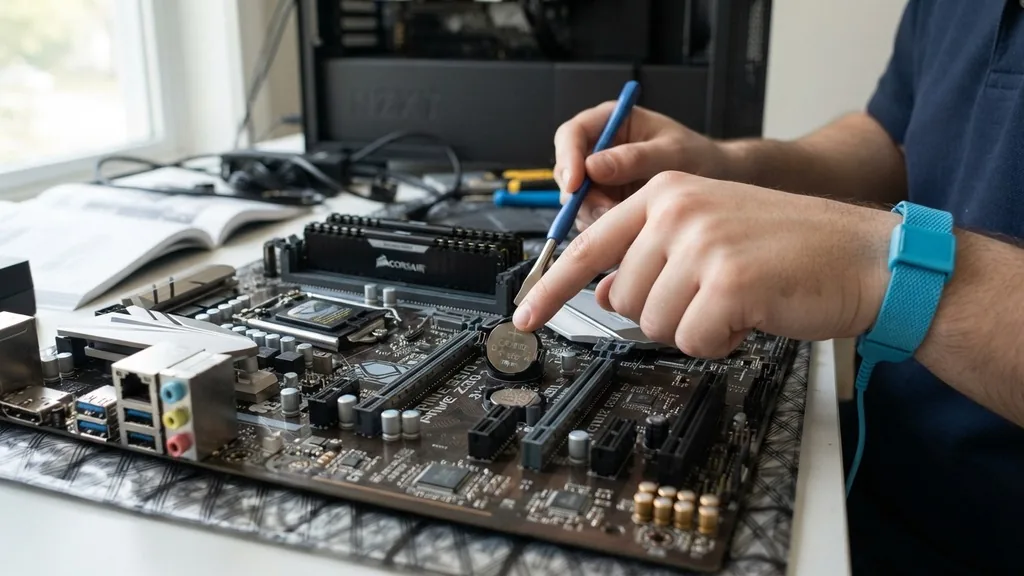
If your computer is failing to keep the correct time, or if you are dealing with persistent boot errors, you might need to know how to remove motherboard battery components to reset your system. This small, coin-shaped cell, technically known as the CMOS battery, serves a vital purpose in maintaining your computer’s low-level configuration data.
When it fails, your motherboard loses its ability to remember essential instructions required to start the hardware properly. Removing it is a straightforward process, but it requires a steady hand and a basic understanding of your internal hardware layout.
Why You Need to Remove the CMOS Battery
You remove the CMOS battery primarily to reset your BIOS settings to their factory defaults. This is often the first troubleshooting step when a system experiences recurring hardware conflicts, incorrect system time, or an forgotten BIOS password that prevents you from entering the setup utility. The battery provides a constant, trickle charge to the volatile memory on the motherboard, ensuring that the settings you choose—such as boot order, fan profiles, and overclocking parameters—remain intact even when the power plug is pulled from the wall.
When this battery reaches the end of its lifespan, usually after five to seven years, you will notice symptoms like a “CMOS Checksum Error” during startup or a clock that resets every time the power is disconnected. By removing the battery, you effectively cut off that power supply, forcing the volatile memory to clear.
This clears out corrupted configurations that might be preventing your machine from posting. It is a non-destructive way to force your hardware back to a known-good state.
Locating the Battery on Your Motherboard
The CMOS battery is almost always a CR2032 lithium coin cell. You will find this battery motherboard component located on the surface of your main circuit board, typically in the bottom half or near the PCIe slots.
On most desktop boards, it stands out as a shiny, silver disc about the size of a quarter. If you are using a compact motherboard, such as a Mini-ITX form factor, the battery might be mounted vertically in a plastic holder or even taped to the side of the board with a short wire lead connecting it to a small header.
Before you begin, ensure your computer is powered off completely. It is not enough to just shut down the operating system; you must flip the switch on your power supply unit to the “off” position and unplug the power cable from the wall.
Press the power button on your case for a few seconds to drain any residual electricity stored in the capacitors. This step is crucial for your safety and to prevent accidental electrical shorts while you are working inside the chassis.
Safety Precautions Before You Begin
Working inside a computer case involves delicate electronics that are sensitive to electrostatic discharge. Before you touch any internal components, ground yourself by touching a bare metal part of the computer case.
This equalizes the electrical potential between your body and the hardware, preventing a static spark from damaging sensitive chips. Do not work on a carpeted floor, as this is a prime environment for generating static electricity.
If you are unsure about identifying the battery, consult your motherboard manual. You can find digital copies of these manuals on the manufacturer’s website.
For example, if you are using an ASUS motherboard, you can check the official ASUS support documentation to see the exact layout of your specific model. Identifying the battery correctly prevents you from accidentally removing or loosening the wrong component, such as a jumper or a heatsink fastener.
Step-by-Step: Removing the Battery Safely
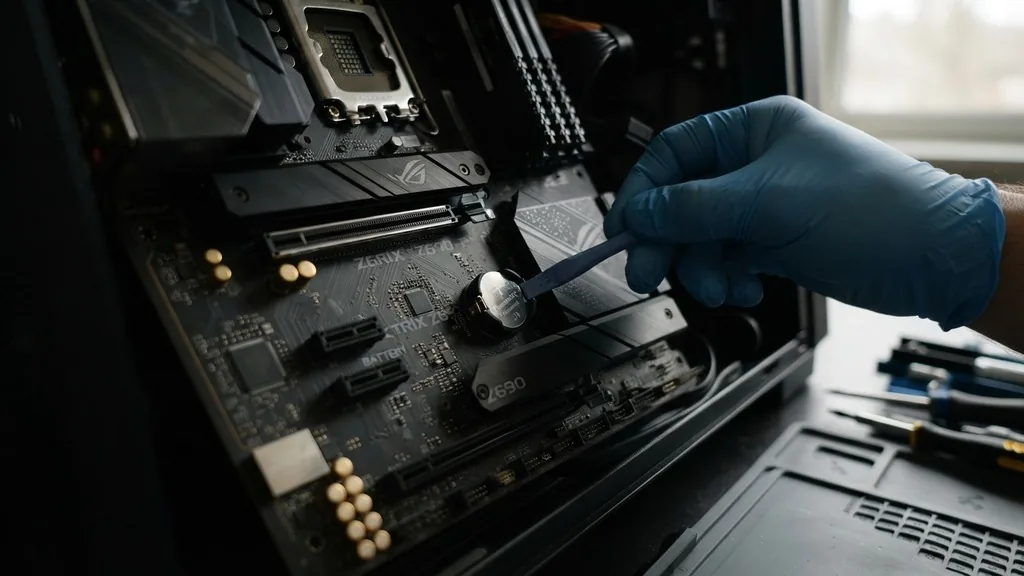
Once you have identified the battery, you will notice a small metal tab or latch holding it in place. You need to gently push this tab outward, away from the center of the battery, using a non-conductive tool like a plastic spudger or a small flathead screwdriver. As soon as the tension is released, the battery will typically pop up on one side, allowing you to easily grip it with your fingers and remove it from the socket.
Avoid using excessive force. If the battery does not move, check to ensure you are pressing the correct latch. Some motherboards have a spring-loaded mechanism that requires you to push the tab down rather than out.
Never use metal tools if you can avoid it, as a slip could scratch the motherboard traces or cause a short circuit. Once the battery is removed, keep it in a safe place, away from children and pets, as these cells are toxic if ingested.
How Long to Leave the Battery Out
Many users wonder how long they need to leave the battery out to fully clear the CMOS. While some sources suggest just a few seconds, it is best practice to leave the battery out for at least five to ten minutes. This ensures that any large capacitors on the motherboard have fully discharged and that the memory holding your settings has completely lost its charge.
If you are in a rush, you can shorten this time by holding down the power button on your computer case while the battery is removed. This helps drain the remaining power from the system capacitors faster. After waiting, you can reinsert the battery or install a new one.
If you are replacing an old battery, ensure the text side is facing up so that the positive terminal makes proper contact with the top clip. You should hear a soft click as it locks into the holder.
Common Scenarios and Challenges
Sometimes, removing the battery is not enough to fix your issue. If you have a password-protected BIOS, some high-end motherboards are designed to retain that information even after a battery pull. In these cases, you may need to use a physical “Clear CMOS” jumper located on the motherboard.
This jumper acts as a manual reset switch. You bridge the two pins with a metal object or a plastic-capped jumper for a few seconds to achieve a complete reset.
Another challenge involves the battery placement. In some modern builds, the CMOS battery might be hidden behind a large GPU or a massive air cooler. If this is the case, you will have to remove those components first to get clear access.
Do not try to reach around them at awkward angles, as you risk bending pins or damaging fragile connectors. Taking the extra ten minutes to remove a GPU is always better than risking a damaged motherboard.
Comparing Methods for Resetting BIOS
There are multiple ways to approach a BIOS reset, and each has its own context. The table below outlines the common methods and when you should use them.
| Method | Difficulty | Best Use Case |
|---|---|---|
| Battery Removal | Easy | Clearing general configuration errors |
| Clear CMOS Jumper | Medium | Resetting forgotten BIOS passwords |
| BIOS Menu Reset | Very Easy | When the system still boots to BIOS |
| CMOS Reset Button | Easy | High-end boards with dedicated hardware |
Each method is effective, but they serve different purposes. If your system can still access the BIOS menu, always try the “Load Optimized Defaults” option within the software interface first.
It is the safest and fastest way to fix configuration issues without physical intervention. If the system is completely unresponsive, the physical removal of the battery or using the jumper becomes necessary.
What Happens After You Replace the Battery
Once you have reinserted the battery and powered the computer back on, you will likely see a message on your screen during the initial boot sequence. This message usually informs you that the BIOS settings have been reset or that the CMOS checksum is invalid.
This is completely normal and expected. It is the system’s way of telling you that it has successfully cleared the old, potentially corrupt data.
You must now enter the BIOS setup utility. You can do this by pressing the designated key—usually Delete, F2, or F12—immediately after turning on the power. Once inside, check the system date and time, as these will have reverted to the factory default.
Make sure your boot order is set correctly, especially if you have multiple drives. After you set your preferences, save the changes and exit. The computer will reboot, and your system should now function as intended.
Troubleshooting Persistent Issues
If you have replaced the battery and performed a reset but the computer still fails to boot or keeps losing its time, the issue might lie elsewhere. A common culprit is a faulty power supply that is not delivering a stable signal, or potentially a failing motherboard. In rare cases, the battery holder itself might have loose contacts or corrosion.
Inspect the contact points inside the battery socket for any white, powdery residue. If you find any, use a tiny amount of isopropyl alcohol on a cotton swab to clean the area gently.
If you are using a laptop, the process is significantly more complex. Many modern laptops use a specialized, wrapped battery pack that connects to the motherboard via a small plug. You should never attempt to peel back the plastic wrapping on these batteries, as it can cause a short or even a fire.
If you suspect your laptop’s CMOS battery is dead, consult the manufacturer’s service manual or seek professional repair services. Laptop components are packed much tighter than desktop parts, and the risk of physical damage is much higher.
Frequently Asked Questions
- Is it bad to remove the CMOS battery? No, it is a standard maintenance procedure. It does not damage your hardware, but you will need to reconfigure your BIOS settings afterward. Ensure your computer is fully powered down and unplugged before you begin to avoid any electrical hazards.
- Can a PC run without a CMOS battery? Yes, a computer can technically function without the battery. However, you will lose your system time and BIOS settings every time you unplug the power cord from the wall. You will need to manually set the time and settings at every boot.
- What if I cannot remove the CMOS battery? If the battery is stuck, do not force it. Ensure the retention clip is fully disengaged. If you are using a laptop, the battery might be a soldered unit or a proprietary pack that requires specific disassembly steps found only in the manufacturer’s technical manual.
- How long does a CMOS battery typically last? Most coin-cell batteries on motherboards last between five and seven years. If your computer is older than this and starts exhibiting issues with the system clock or boot errors, replacing the battery is usually the most effective and affordable first step to take.
By following these steps, you can effectively resolve many common motherboard-related issues. Remember that patience is your best tool.
If you feel resistance while working with the hardware, stop and re-evaluate your approach rather than forcing the component. With the right care, you can keep your system running reliably for years to come.


