


Identifying the hardware inside your computer is a fundamental skill for any user looking to upgrade their system, troubleshoot performance issues, or simply keep their drivers up to date. Knowing exactly how to tell what kind of motherboard you have allows you to determine compatibility for new components like processors, graphics cards, or memory modules.
While many users rely on the exterior of the chassis, the most accurate information resides within the digital architecture of your machine. Whether you are running a modern Windows 11 setup or a legacy system, there are several reliable methods to extract this data without needing to reach for a screwdriver.
Using the Windows System Information Tool
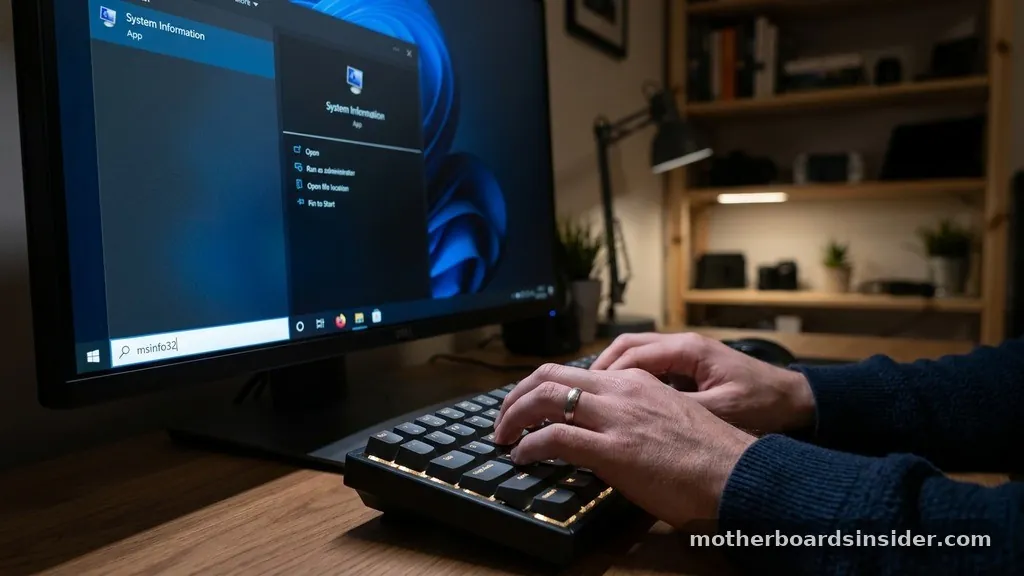
The most straightforward way to find your hardware details is by using the built-in Windows utility known as System Information. This tool provides a comprehensive snapshot of your computer’s specifications, including the baseboard manufacturer and product name.
To access this, simply open the Start menu and type “msinfo32” or “System Information” into the search bar. Once the application opens, ensure you are on the “System Summary” tab.
Look through the list of items in the right-hand pane for “BaseBoard Manufacturer,” “BaseBoard Product,” and “BaseBoard Version.” The “BaseBoard Product” is the specific model name you are looking for. This is often the most reliable method for casual users because it pulls data directly from the motherboard’s firmware.
If you are ever curious about the official documentation for your hardware, you can take that model number and search for it on the official support website of the manufacturer. This ensures you are getting the correct drivers and compatibility lists directly from the source rather than relying on third-party aggregators.
Command Prompt and PowerShell Techniques
For those who prefer a more technical approach or find themselves unable to navigate the graphical user interface, the command line offers an instant solution. Both Command Prompt and Windows PowerShell can query the Windows Management Instrumentation (WMI) to retrieve your motherboard model. This method is incredibly fast and leaves no room for ambiguity.
To use this, open the Command Prompt by typing “cmd” in your search bar. Once the window appears, type the following command and press Enter: wmic baseboard get product,Manufacturer,version,serialnumber. The system will instantly return the exact make and model of your board.
If you prefer PowerShell, the logic is similar. You can use Get-CimInstance Win32_BaseBoard to pull even more granular details.
This method is particularly useful if you are managing multiple machines or need to export your hardware specs to a text file for support purposes. It strips away the visual clutter and provides the raw data needed to verify your hardware configuration.
Leveraging BIOS and UEFI Firmware
If your operating system is failing to boot or if you are in the middle of a fresh build, you can check your motherboard information directly from the BIOS or UEFI interface. This is the “source of truth” for your hardware because the data is stored on the non-volatile memory of the board itself. To enter the BIOS, you typically need to restart your machine and press a specific key—usually Delete, F2, F10, or F12—during the initial boot sequence, right before the Windows logo appears.
Once inside the interface, look for a tab labeled “Main,” “System Information,” or “About.” The motherboard model number is almost always listed prominently here. Some modern UEFI interfaces also display the CPU temperature, RAM frequency, and firmware version on this same screen.
The advantage of checking via the BIOS is that it confirms the board is functioning at a hardware level, independent of any software drivers that might be corrupted or missing within your operating system. If you cannot find the model here, it is possible your board is an OEM-specific model, often found in pre-built systems from companies like Dell or HP.
Third-Party Diagnostic Software
Sometimes, Windows System Information or the command line might return generic labels like “To be filled by O.E.M.” especially on pre-built computers. In these scenarios, dedicated diagnostic software can be a lifesaver.
Tools like CPU-Z are industry standards for hardware enthusiasts. These programs scan your machine at a deep level and present the information in a clean, organized dashboard.
When you run CPU-Z, navigate to the “Mainboard” tab. It will display the manufacturer, model, chipset, and even the BIOS version. This is particularly helpful when you need to know the specific revision of a motherboard, as different revisions might support different CPU generations despite having the same name.
Using these tools is generally safe, provided you download them from the developer’s official site. They are an essential part of any technician’s toolkit, especially when you are looking to upgrade your RAM or troubleshoot a specific component that requires a firmware update.
Physical Inspection of the Motherboard
If software methods fail or if the computer is completely non-functional, the only remaining option is a physical inspection. This requires opening your computer case.
Before doing this, ensure you have completely powered down the machine and unplugged it from the wall. It is also wise to touch a grounded metal object to discharge any static electricity before touching the internal components.
Once the side panel is removed, look directly at the surface of the motherboard. Manufacturers almost always print the model name and number in large, clear text on the board itself. You might need to move cables aside or use a flashlight to spot it, but it is typically located near the CPU socket, between the PCIe slots, or near the RAM DIMM slots.
If you see a series of numbers that look like a serial number, that is likely your board’s identifier. Taking a clear photo of the board can also help, as you can later zoom in on the text or run a reverse image search if the model number is obscured by a large cooling fan.
Understanding Board Form Factors
A common question users have is how to determine the form factor of their motherboard, such as ATX, Micro-ATX, or Mini-ITX. The form factor dictates the physical size of the board and the number of expansion slots available.
While software might tell you the model number, it does not always explicitly state “ATX.” You can determine this by looking at the physical dimensions or the mounting holes.
| Form Factor | Typical Dimensions | Primary Use Case |
|---|---|---|
| ATX | 12 x 9.6 inches | Standard desktop towers with multiple PCIe slots. |
| Micro-ATX | 9.6 x 9.6 inches | Compact builds with moderate expansion needs. |
| Mini-ITX | 6.7 x 6.7 inches | Small form factor (SFF) or HTPC builds. |
Knowing your form factor is critical if you are planning to change your computer case or upgrade to a larger cooler. If your motherboard is a standard ATX, it will not fit in a case designed exclusively for Mini-ITX. Conversely, a Mini-ITX board will look quite small inside a full-tower ATX case, though it will technically function without issue.
Troubleshooting Common Identification Issues
Sometimes, you might find that the motherboard model returned by Windows is generic or seemingly incorrect. This often happens with “pre-built” systems.
Large companies like Lenovo, HP, or Dell often commission custom motherboards from manufacturers like Foxconn or Pegatron. These boards are built to specific proprietary standards, meaning they may not have a public-facing retail model name.
If you encounter this, do not panic. Instead of searching for the motherboard model, search for your computer’s serial number or service tag on the manufacturer’s support website. This will lead you directly to the hardware specifications for your exact machine.
This is often more effective than trying to identify the motherboard in isolation. If you are building a custom PC and you simply cannot find the model name, it is possible that the BIOS has not been updated, or the drivers for the board are missing. Ensuring your chipset drivers are up to date via your PC manufacturer’s website can often resolve these reporting errors.
Why You Need to Know Your Motherboard Details
Understanding your hardware is more than just a curiosity; it is a vital part of system maintenance. Knowing your motherboard model allows you to check for BIOS updates, which can improve system stability, fix memory compatibility issues, and add support for newer processors. Without this knowledge, you are flying blind when it comes to upgrades.
For instance, if you want to add more RAM, you need to know the maximum capacity and the speed supported by your board. If you want to upgrade your CPU, you must ensure the motherboard socket matches the processor you intend to buy.
Furthermore, if you are experiencing crashes, checking the motherboard model is the first step in identifying whether a driver update or a firmware patch is required. By mastering these identification methods, you empower yourself to manage your technology effectively, saving money on unnecessary components and avoiding the frustration of incompatible hardware.
Frequently Asked Questions
Will BIOS tell me what motherboard I have?
Yes, the BIOS or UEFI interface is the most reliable place to find your motherboard information. When you enter the BIOS, look for the “System Information” or “Main” tab. It will display the exact model name and manufacturer, which is independent of any Windows software or drivers.
How do I find out what motherboard I have without turning it on?
If you cannot turn on the computer, you must perform a physical inspection. Open the side panel of your computer case and look for the model name printed directly onto the surface of the motherboard. It is often located near the CPU socket, RAM slots, or PCIe expansion slots.
How to know if a motherboard is ATX?
You can determine if your motherboard is ATX by measuring its dimensions. A standard ATX board is 12 by 9.6 inches. You can also check the model name in your system information and look it up online; the manufacturer’s specifications page will explicitly list the form factor for that specific board model.
Does every PC have a motherboard model name?
Yes, every motherboard has a unique model identifier. However, in pre-built systems from manufacturers like Dell or HP, the motherboard might be a proprietary design. In these cases, it is often easier to search for your computer’s service tag or serial number on the manufacturer’s website to find hardware details.
Conclusion:
Identifying your motherboard is a straightforward process that grants you full control over your computing experience. By utilizing built-in tools like System Information, command-line queries, or even a simple visual inspection, you can gather the necessary data to make informed decisions about repairs and upgrades.
Whether you are a casual user or a power enthusiast, having this information at your fingertips ensures that your machine remains compatible, updated, and performing at its peak. Remember that for proprietary pre-built systems, your manufacturer’s support site remains your best resource for accurate hardware specifications.


