

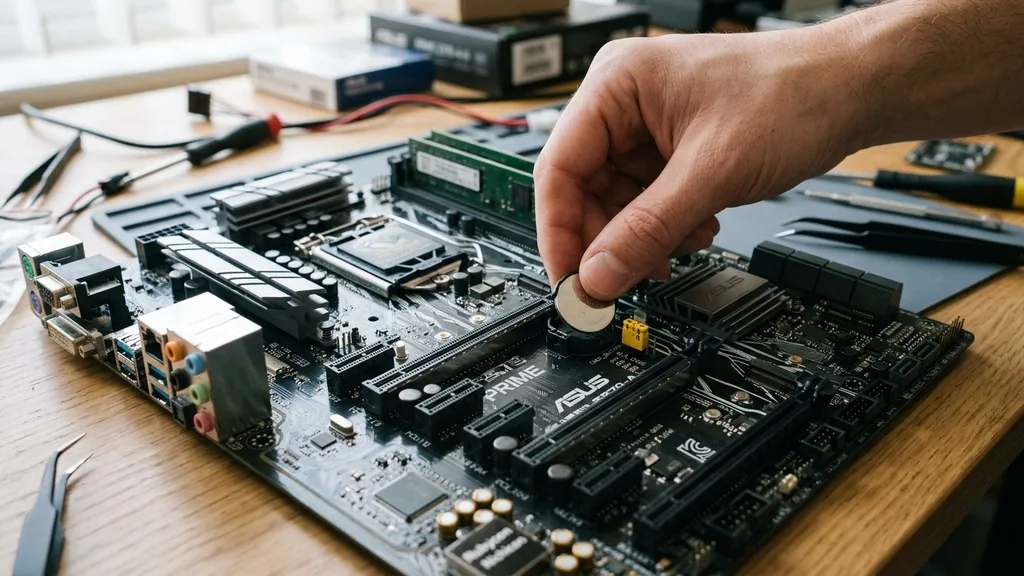
Resetting a motherboard—often referred to as clearing the CMOS—is a fundamental troubleshooting procedure for resolving hardware conflicts, boot errors, and unstable overclocking profiles. When your computer refuses to post or displays persistent configuration errors, the motherboard’s non-volatile memory often holds onto corrupted data that prevents the system from initializing correctly.
By returning the Basic Input/Output System (BIOS) to its factory default state, you effectively wipe out incorrect configurations that might be causing hardware incompatibility or boot loops. This process is safe when performed correctly and is often the final step before considering hardware replacement or professional repair.
Understanding the Role of CMOS Memory
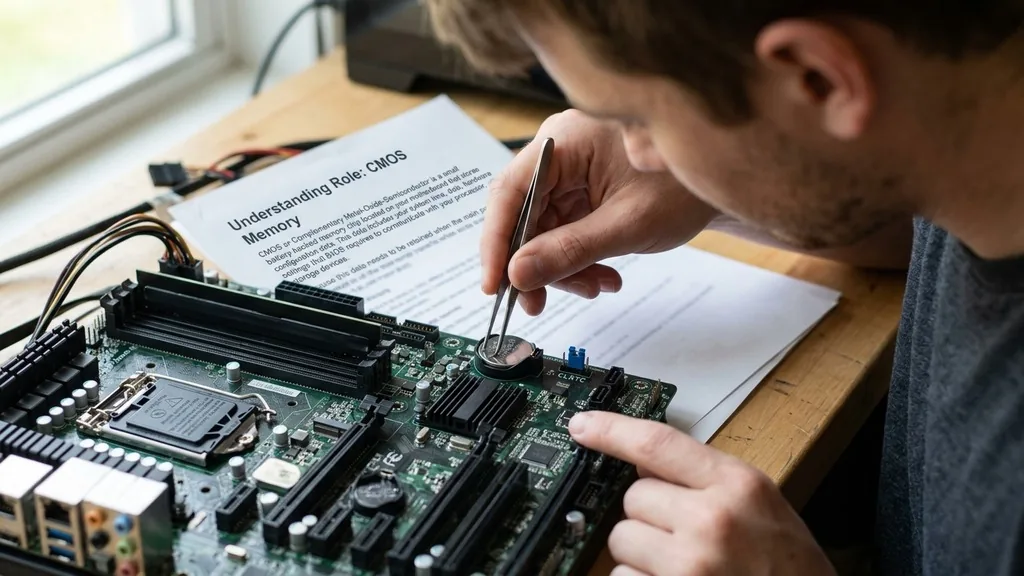
The CMOS, or Complementary Metal-Oxide-Semiconductor, is a small, battery-backed memory chip located on your motherboard that stores vital configuration data. This data includes your system time, date, and hardware settings that the BIOS requires to communicate with your processor, RAM, and storage devices.
Because this information is volatile, it requires a constant trickle of power to remain saved; this power is provided by the small, circular CMOS battery. When you experience a system crash or change hardware components, the settings stored in this memory can occasionally become corrupted, leading to a situation where the computer cannot find a bootable device or fails to recognize connected peripherals.
When you perform a reset, you are essentially interrupting the power supply to this memory or triggering a physical switch that tells the BIOS to reload the default manufacturer values. It is important to note that resetting the CMOS does not damage your hardware or delete data from your hard drive or solid-state storage.
Instead, it merely forces the motherboard to re-detect all connected devices from scratch during the next power-on self-test (POST). This refresh is why many technicians recommend clearing the CMOS as the first step when a machine fails to boot into Windows or exhibits erratic behavior after a power surge or a failed firmware update.
Safety Precautions Before You Begin
Before touching the interior of your computer, you must prioritize static electricity safety and complete power isolation. Static discharge can destroy sensitive electronic components on the motherboard in a fraction of a second. Always touch a grounded metal object before reaching inside the case to discharge any static electricity built up on your body.
Furthermore, you must disconnect the power cord from the wall outlet to ensure the motherboard is completely de-energized. Simply turning off the computer via the power button is insufficient, as modern power supply units often maintain a standby voltage that keeps the motherboard circuitry active.
Once the power is disconnected, press and hold the computer’s power button for at least 15 to 30 seconds. This action drains any remaining energy stored in the capacitors on the motherboard and power supply. If you skip this step, you might find that the CMOS does not actually reset because the capacitors continue to provide enough electricity to keep the memory alive.
After you have successfully drained the system, you can safely proceed to open the side panel and locate the battery or the reset pins. Keep a flashlight nearby, as the internal components of a computer case are often poorly lit and difficult to navigate.
The CMOS Battery Removal Method
The most common and universally applicable way to reset a motherboard is by removing the CMOS battery. This battery is typically a CR2032 coin-cell, which is easily identifiable by its silver, circular appearance. On most desktop motherboards, you will find this battery held in place by a small metal clip.
To remove it, you simply need to press the small lever on the side of the battery socket, which will cause the battery to pop up slightly, allowing you to pull it out with your fingers. Leave the battery out for at least five minutes; this duration ensures that all capacitors have discharged and the memory has been completely cleared.
While the battery is removed, you can re-insert it, ensuring that the positive side (usually marked with a plus sign) is facing upward. Once the battery is back in its cradle, reconnect your power cord and attempt to boot the machine. You will likely see a message on your screen indicating that the BIOS settings have been reset or that the CMOS checksum is invalid.
This is normal. You will need to enter the BIOS setup menu—usually by pressing the Delete, F2, or F12 key during startup—to set your system time and re-enable any specific configurations, such as XMP profiles for your RAM or RAID settings for your storage arrays.
Utilizing the CLR_CMOS Jumper Pins
Many modern motherboards include a dedicated set of pins designed specifically for clearing the CMOS, which is often faster and more convenient than removing the battery. These pins are usually labeled “CLR_CMOS,” “JBAT1,” or “RESET” on the motherboard surface.
You should consult your motherboard’s official hardware manual to verify the exact location and pin layout, as every manufacturer uses slightly different configurations. If you are unable to locate the manual, look for two small metal pins situated near the CMOS battery; these are almost always the correct ones.
To use this method, ensure the computer is powered down and the power cord is disconnected. Place a small jumper cap—a tiny plastic piece with a metal insert—across the two pins. If you do not have a spare jumper cap, you can briefly bridge the connection by touching the two pins simultaneously with the tip of a flathead screwdriver for about 10 seconds.
After you remove the screwdriver or the jumper cap, the motherboard will have registered the reset signal. Reconnect your power cord, turn on the computer, and the system should boot with factory settings. This method is particularly useful in compact builds where the battery is obstructed by a large graphics card or air cooler.
Identifying the Reset Button
High-end and enthusiast-grade motherboards often feature a physical button on the rear I/O panel or the motherboard itself that triggers a CMOS reset. This is the most user-friendly method, as it requires no tools and minimal effort. The button is usually labeled “Clear CMOS” or denoted by a small circular arrow icon.
In some cases, the button is recessed to prevent accidental presses, requiring you to use a paperclip or a thin tool to engage the switch. If you possess a high-performance motherboard, check the rear panel near the USB ports; if you see a button that does not look like a standard power or reset switch, it is likely your CMOS clear control.
When you press this button, it sends an electrical signal to the BIOS chip to revert to default parameters. This action is instantaneous, but you should still ensure the power cord is disconnected before pressing it to avoid any electrical anomalies. Some boards may require you to hold the button for several seconds to confirm the command.
Once pressed, you can reconnect the power and boot the system. This feature is a hallmark of boards designed for overclocking, as enthusiasts frequently need to reset their settings after pushing their CPU or memory beyond stable limits.
Common Scenarios Requiring a Reset
Knowing when to perform a reset is just as important as knowing how to perform one. While users often jump to this step during any troubleshooting, it is specifically indicated in a few scenarios.
- Failed Overclocking: If you have adjusted voltages or clock speeds and the computer now fails to reach the BIOS screen, a reset is necessary.
- Hardware Upgrades: Sometimes, installing a new CPU or a different generation of RAM requires the BIOS to re-train the memory controller, which a reset facilitates.
- Firmware Glitches: If you experience “ghost” errors—such as the computer failing to detect a boot drive that is clearly plugged in—the CMOS may be holding onto a legacy configuration that conflicts with current hardware.
- Security Lockouts: If you have forgotten a BIOS administrator password, a physical CMOS reset is often the only way to bypass the security lock, although some motherboards are designed to retain password security even after a reset.
Comparing Methods for Resetting Your BIOS
To help you decide which method is best for your situation, refer to the table below. Each method achieves the same goal but varies in terms of physical access and tool requirements.
| Method | Ease of Use | Tools Required | Best For |
|---|---|---|---|
| Battery Removal | Moderate | None | Older systems or when pins are missing |
| Jumper Pins | High | Jumper cap or screwdriver | Standard desktop motherboards |
| Reset Button | Very High | None (or paperclip) | Enthusiast and gaming motherboards |
| Software/BIOS Menu | High | None (must access BIOS) | General settings revert |
Troubleshooting Common Reset Issues
Even after following the steps correctly, some users find that the motherboard does not seem to reset. This is often due to residual power or a faulty battery. If the system still displays old settings after you have cleared the CMOS, check the CMOS battery voltage with a multimeter.
A battery that has dropped below 3.0 volts may not be able to maintain the BIOS settings even when the computer is off, leading to frequent resets or date/time errors. If the battery is old, replacing it with a fresh CR2032 is a low-cost fix that solves many persistent boot issues.
Another possibility is that the jumper pins were not bridged long enough. While a few seconds is usually sufficient, some motherboards require a slightly longer duration to ensure the electrical circuit is fully broken. Additionally, ensure that you are not accidentally bridging the wrong pins.
If you bridge the “Chassis Intrusion” pins or “BIOS Flashback” pins instead of the “Clear CMOS” pins, the motherboard may behave unexpectedly. Always verify the labels on the PCB (printed circuit board) before making contact with any metal pins. If you are still having trouble, re-check your cable connections; sometimes the act of opening the case can slightly dislodge the 24-pin power connector or the CPU power cable, which can mimic a failed reset.
Addressing Topical Gaps and Advanced BIOS Recovery
A frequently overlooked aspect of this process involves the “BIOS Flashback” feature found on modern boards. Some users confuse clearing the CMOS with flashing the BIOS firmware. While a reset reverts settings to factory defaults, a flash updates the underlying code.
If your motherboard supports BIOS Flashback, you can recover from a corrupted BIOS update by placing a renamed file on a USB stick and pressing a dedicated button. This is different from a CMOS reset, as it replaces the firmware entirely rather than just clearing the user-defined variables. If your board is completely dead and a CMOS reset does not work, check if your manufacturer supports this advanced recovery method.
Another gap involves the impact of “Fast Boot” settings. Many modern systems enable Fast Boot, which skips certain hardware checks during startup to reduce boot times. If you are trying to enter the BIOS to perform a software-based reset but the system is too fast to catch the key press, you may need to enter the BIOS through the Windows Recovery Environment.
Hold the Shift key while clicking “Restart” in Windows, then navigate to Troubleshoot > Advanced Options > UEFI Firmware Settings. This allows you to reset your settings from within the operating system, provided the board is still functional enough to reach the OS.
Frequently Asked Questions
- Does resetting the motherboard delete my files? No, resetting the BIOS only clears hardware configuration settings like memory timings and boot order. Your personal files, operating system, and installed applications on your storage drives remain completely untouched and safe during the process.
- Is it dangerous to clear the CMOS? It is generally very safe. The worst-case scenario is that you lose custom BIOS settings, which you would need to reconfigure. As long as the computer is completely disconnected from power, there is no risk of electrical damage to the components.
- How long should I leave the battery out? For most systems, leaving the battery out for 5 to 10 minutes is sufficient. This duration allows the capacitors on the motherboard to discharge completely, ensuring that the CMOS memory is fully cleared of any lingering electrical charge that might hold onto old data.
- Why does my PC ask for a date and time after reset? This is normal behavior. The BIOS reset wipes the system clock along with other settings. Upon your next boot, you must enter the BIOS to set the correct date and time so that your operating system and security certificates function correctly.


