


Identifying the hardware inside your computer is a vital skill for anyone looking to upgrade their components, troubleshoot performance issues, or simply keep their system drivers up to date. When you need to find out what motherboard you have, you don’t necessarily need to crack open your computer case and hunt for tiny labels.
Modern operating systems and firmware interfaces provide several efficient ways to extract this information quickly. Whether you are running a custom-built desktop or a pre-built machine, the motherboard acts as the central nervous system of your PC, and knowing its exact model name is the first step in ensuring compatibility for future hardware additions.
Using the Command Prompt to Identify Your Motherboard
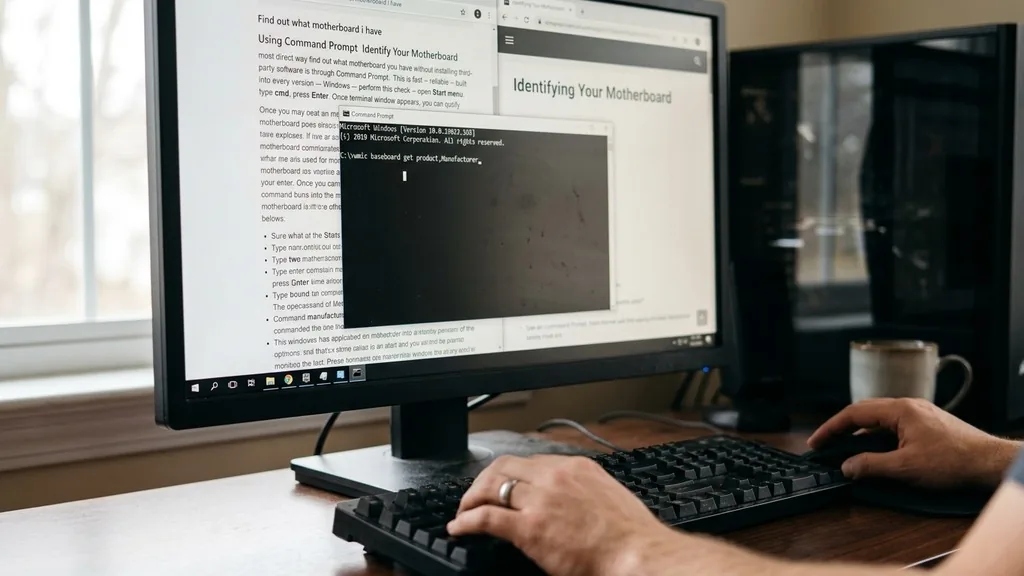
The most direct way to find out what motherboard you have without installing third-party software is through the Command Prompt. This method is fast, reliable, and built into every version of Windows.
To perform this check, open the Start menu, type “cmd,” and press Enter. Once the terminal window appears, you can query the Windows Management Instrumentation Command-line (WMIC) to pull specific hardware data directly from the system registry.
Type the following command into the prompt and press Enter: wmic baseboard get product,Manufacturer,version,serialnumber. This string tells the system to retrieve the manufacturer, the specific model name of the board, the version, and the serial number. You will see the results printed immediately below the command.
This is often the most efficient method because it bypasses the need for graphical interfaces that might be cluttered with irrelevant data. If the output shows “To be filled by O.E.M.” or generic placeholders, it usually indicates that you are using a pre-built system from a company like Dell, HP, or Lenovo, which may use proprietary naming conventions.
Leveraging System Information for Hardware Details
If you prefer a graphical user interface over a text-based terminal, the System Information utility is an excellent tool. This built-in Windows application aggregates a vast amount of data about your hardware and software environment.
To access it, press the Windows key + R on your keyboard, type “msinfo32” in the run box, and press Enter. A window will pop up displaying a comprehensive list of system components.
Within the “System Summary” section, look for the fields labeled “BaseBoard Manufacturer,” “BaseBoard Product,” and “BaseBoard Version.” These fields provide the exact information you need to identify your hardware. If you are struggling to find these, you can use the “Find” search bar at the bottom of the window and type “BaseBoard” to filter the results.
This utility is particularly useful because it provides a clean, readable format that you can easily export or screenshot if you need to share your specs with a technical support representative or a community forum. It is a reliable way to get an accurate reading of your internal components without needing to reboot your computer.
Accessing the UEFI BIOS to View Hardware Specifications
Entering the UEFI BIOS is the definitive way to find out what motherboard you have because you are querying the hardware directly at the firmware level. This method is immune to software-related reporting errors that might occur within Windows.
To access your BIOS, you typically need to restart your computer and repeatedly press a specific key—usually Delete, F2, F10, or F12—immediately after the power-on self-test (POST) screen appears. Once inside the BIOS, the motherboard model name is almost always displayed on the main “System Information” or “Easy Mode” dashboard.
This is also the best time to check if your firmware is up to date. Many modern boards, particularly from manufacturers like ASUS, feature an integrated utility within the BIOS that allows you to update the firmware directly from a USB drive. If you are planning to upgrade your CPU, knowing the exact motherboard model and the current BIOS version is crucial.
If the motherboard model is too old, it may not support newer processors, even if the physical socket matches. Always check the official support page for your board to confirm compatibility before purchasing a new processor.
Checking the Motherboard Model Physically
Sometimes, software and firmware might report vague information, especially if the board is part of a proprietary pre-built system. In these cases, the only way to find out what motherboard you have is to look at the physical circuit board itself.
This requires turning off your computer, unplugging the power cable, and opening the side panel of your case. Once inside, use a flashlight to scan the surface of the motherboard.
Manufacturers almost always silkscreen the model name directly onto the PCB (printed circuit board). Look near the CPU socket, the RAM slots, or the area between the PCIe expansion slots. You might see names like “ROG Strix,” “Prime,” or a specific alphanumeric code like “Z790-A.”
If you cannot find the name, look for a sticker on the board that lists the serial number. You can often type this serial number into the manufacturer’s support website to retrieve the exact specifications and manual for your hardware. Be careful not to touch the sensitive components or static-sensitive areas while inspecting the board.
Identifying Motherboards in Apple Systems
It is important to note that if you are using an Apple Mac, the concept of a “motherboard” is slightly different, as Apple refers to it as a “logic board.” You cannot simply swap out components like you can on a standard PC.
To find out what system board you have, click the Apple icon in the top-left corner of your screen and select “About This Mac.” This will give you the model name and year of your device.
While you cannot upgrade the motherboard in a Mac, knowing the exact model identifier (e.g., MacBookPro18,1) is essential if you are looking for specific repair guides or replacement parts. Unlike Windows machines, where third-party software can easily extract specific motherboard model numbers, Apple keeps this information tied to the system’s model identifier. You can use the “System Report” found under the “More Info” button to see detailed information about your internal components, including the storage, memory, and graphics hardware, which are all integrated into the logic board architecture.
Topical Gaps: What About Laptops and Pre-builts?
A common point of confusion arises when users try to find out what motherboard they have on a laptop or a pre-built desktop from a major manufacturer. Often, the motherboard model shown in Windows is a generic string like “0K45Y2.”
This happens because large companies often commission custom-designed boards from manufacturers like Foxconn or Pegatron. These boards are not sold at retail, meaning you won’t find a consumer-facing product page for them on the manufacturer’s website.
In these instances, the best approach is to search for the model of your entire computer rather than the motherboard itself. For example, if you have a Dell Inspiron, searching for the “Dell Inspiron service manual” will lead you to the exact specs of your proprietary motherboard.
This is a critical distinction to make; while a retail motherboard from an aftermarket vendor will have extensive documentation and driver support, a proprietary board will rely entirely on the computer manufacturer for BIOS updates and driver releases. Understanding this relationship helps you avoid the mistake of trying to install generic drivers that might conflict with your specific system configuration.
Comparative Table of Identification Methods
The following table summarizes the different ways you can identify your motherboard depending on your current system state and technical comfort level.
| Method | Ease of Use | Best For |
|---|---|---|
| Command Prompt (WMIC) | High | Quick checks without extra software. |
| System Information | High | Non-technical users needing a GUI. |
| UEFI BIOS | Medium | Verifying hardware before OS installation. |
| Physical Inspection | Low | Proprietary boards or failed systems. |
| Third-Party Tools | Very High | Detailed technical diagnostics. |
Using Third-Party Diagnostic Software
If you want the most detailed information possible, third-party software is the way to go. Tools like CPU-Z are industry standards for hardware identification.
These programs scan your system and present an organized view of your motherboard, including the chipset, the BIOS version, and the specific socket type. Using a specialized utility is often safer than digging through the Windows registry manually, as it provides a clean, formatted report that is easy to read.
When you launch a program like CPU-Z, navigate to the “Mainboard” tab. Here, you will find the manufacturer, model, and chipset information clearly labeled. This is particularly helpful when you are planning an upgrade, as it tells you exactly what kind of RAM or CPU socket you are working with.
Many enthusiasts also use these tools to monitor real-time voltages and temperatures, which can be useful if you suspect your motherboard is overheating or failing. These applications are generally free, lightweight, and do not require complex installation procedures, making them a staple in any PC builder’s toolkit.
Common Troubleshooting and Identifying Hardware
Sometimes, the information returned by your system might be incomplete or inaccurate due to outdated drivers or a corrupted BIOS. If you find that the system is failing to report a model name, the first step is to ensure that your chipset drivers are up to date. The chipset driver acts as the bridge between your operating system and the hardware; without it, Windows may struggle to correctly identify the components on the motherboard.
Another common issue is that the “System Information” tool might only report the manufacturer’s name (like Gigabyte or MSI) without the specific model (like B650 Aorus Elite). In this case, you should look for the “BaseBoard Version” field, which sometimes contains the specific model number. If you are still having trouble, consider checking the “Device Manager.”
While it doesn’t always list the motherboard explicitly, it does list the system devices. By looking at the “System devices” category, you can sometimes find clues about the chipset or the specific controller being used, which can point you toward the correct motherboard model through a simple web search. Remember that when in doubt, the physical label on the board remains the ultimate source of truth.
Frequently Asked Questions
- Will the BIOS always tell me what motherboard I have? Yes, the BIOS or UEFI screen is the most reliable place to find your motherboard information. It displays the manufacturer and model directly from the firmware, ensuring that you get the correct data regardless of any software-level reporting issues in Windows or other operating systems.
- Can I find my motherboard model without opening the PC? Absolutely. You can use the Command Prompt by typing “wmic baseboard get product” or by using the Windows System Information tool (msinfo32). These methods pull data directly from the system registry, allowing you to identify your hardware without ever needing to touch a screwdriver or open the case.
- Is it necessary to know my motherboard model for updates? Yes, it is essential. Knowing your exact model name is critical for finding the correct drivers, BIOS updates, and compatibility information. Installing the wrong driver or BIOS file can lead to system instability, hardware conflicts, or even prevent your computer from booting properly, so always verify your model first.
- Does the motherboard model change if I update my CPU? No, the motherboard model remains the same regardless of your CPU. However, updating your CPU might require a BIOS update on your existing motherboard to ensure compatibility. Always check your motherboard’s support page to see which processors are supported by your current firmware version before making hardware changes.
Understanding your hardware is the foundation of effective PC maintenance. Whether you are performing a simple driver update, troubleshooting a mysterious crash, or planning a major upgrade, knowing exactly what is under the hood prevents costly mistakes. By using the built-in Windows utilities, checking the BIOS, or performing a careful physical inspection, you can easily identify your components.
Always prioritize the information provided by the BIOS or the manufacturer’s official support page when making decisions about your system’s future. With these methods, you are well-equipped to manage your computer’s health and performance with confidence, ensuring your system continues to run smoothly for years to come.
The process of identification may seem daunting at first, but with a bit of practice, it becomes a routine part of your technical toolkit. Keep your system specs documented in a safe place, and you will never have to scramble to find this information again when the need arises.


