


Identifying the specific hardware components inside your computer is a vital skill for any user, particularly when you need to troubleshoot technical issues, upgrade your components, or install the correct drivers. Knowing exactly how to see what motherboard you have in Windows 11 saves you from guesswork when you are looking to enhance your system’s performance or ensure compatibility with new hardware. Whether you are a casual user or a PC enthusiast, Windows 11 provides several built-in utilities that allow you to extract this information without needing to physically open your computer case or inspect the circuit board directly.
Using System Information for Quick Hardware Identification
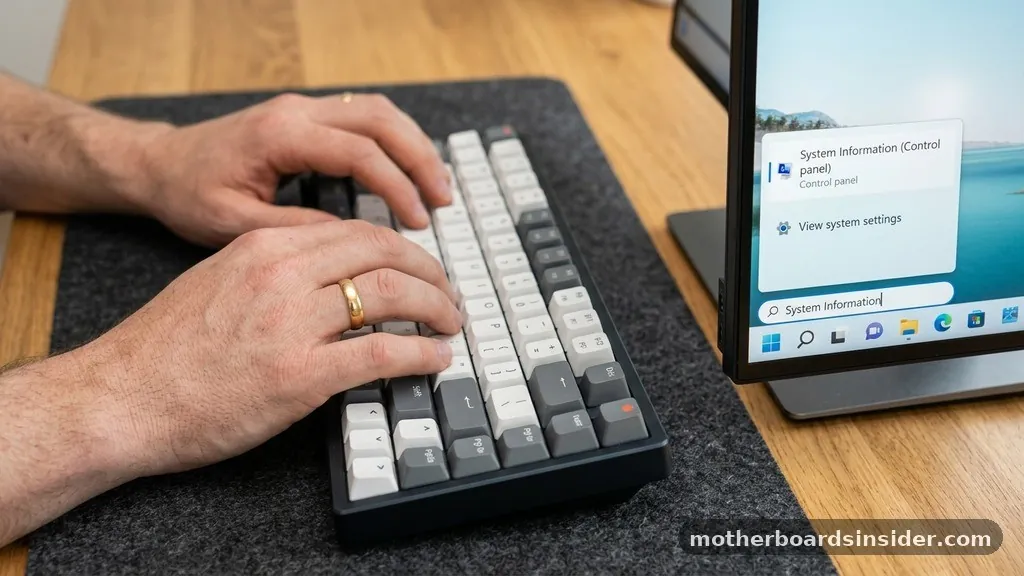
The most straightforward method to identify your motherboard is through the built-in System Information tool. This utility is designed to aggregate data about your computer’s hardware, software, and environment settings.
To access this, simply click on the search bar in your taskbar, type “System Information,” and press Enter. Once the window opens, ensure you are on the “System Summary” tab, which is selected by default.
Within the right-hand pane, scroll down until you locate the fields labeled “BaseBoard Manufacturer,” “BaseBoard Product,” and “BaseBoard Version.” In technical terminology, the motherboard is often referred to as the baseboard because it serves as the foundation for every other component in your machine.
The “BaseBoard Product” field will display the specific model name of your board, while the “BaseBoard Manufacturer” will tell you which company produced it, such as ASUS, MSI, Gigabyte, or ASRock. This method is the fastest way to get the information you need without installing third-party software or navigating complex menus.
Leveraging the Command Prompt for Technical Details
For users who prefer a more direct approach or want to avoid graphical user interfaces, the Command Prompt is an incredibly powerful tool. It allows you to query the Windows Management Instrumentation (WMI) database directly.
To use this, press the Windows key, type “cmd,” and open the Command Prompt application. You do not need administrative privileges for this specific command.
Once the black console window appears, type the following command and press Enter:
wmic baseboard get product,Manufacturer,version,serialnumber
This command instructs your machine to pull the baseboard product, manufacturer, and serial number directly from the firmware. The output will be displayed clearly in the terminal window.
This technique is particularly useful if you are trying to find the motherboard serial number for warranty registration or support tickets. By utilizing the command line, you bypass the overhead of the Windows GUI, making it a favorite method for IT professionals and power users who want to verify hardware specifications rapidly.
Exploring Motherboard Details via PowerShell
If the standard Command Prompt feels too archaic, Windows 11 offers the more robust PowerShell environment. PowerShell is built on the .NET framework and provides more readable output for those who are comfortable with scripting or advanced terminal commands. To get started, right-click the Start button and select “Terminal” or “PowerShell.”
In the terminal, type the following command to retrieve your motherboard details:
Get-CimInstance Win32_BaseBoard | Select-Object Product, Manufacturer, SerialNumber, Version
The advantage of using PowerShell is that it returns the data in a cleaner, formatted object structure. If you are looking to export this data to a text file for later reference, you can easily append | Out-File C:\MotherboardInfo.txt to the end of the command.
This is an efficient way to keep a record of your hardware specifications, especially if you are managing multiple machines or performing a system audit. Understanding how to use these command-line tools gives you a much deeper insight into how your computer manages its internal hardware communication.
Identifying Motherboard Hardware Using CPU-Z
While built-in tools are excellent, they sometimes fail to display granular details, especially if the manufacturer did not properly populate the BIOS fields during assembly. In such cases, third-party software like CPU-Z becomes essential.
CPU-Z is a lightweight, widely trusted utility that provides comprehensive information about your CPU, memory, and motherboard. You can download CPU-Z from the official developer website to ensure you are getting a clean, secure version of the software.
Once you install and run the application, navigate to the “Mainboard” tab. Here, you will find detailed information including the manufacturer, model, chipset, and even the current BIOS version.
This is particularly helpful when you are planning to install new RAM or a new CPU, as it allows you to verify the exact socket type and motherboard revision. Third-party utilities often tap into deeper levels of the hardware stack, providing information that the standard Windows system tools might miss or mislabel.
Checking Motherboard Information Inside the BIOS/UEFI
If your computer is failing to boot into Windows, or if you simply want to verify your hardware before the operating system even loads, you can access the BIOS or UEFI directly. To do this, restart your computer and repeatedly press the designated function key (usually F2, F12, Del, or Esc) during the startup sequence. The specific key varies by manufacturer, but it is typically displayed on the screen for a few seconds during the initial POST (Power-On Self-Test).
Once you enter the BIOS/UEFI utility, the motherboard model and manufacturer are usually listed on the main information or “System Summary” page. This method is the most reliable because it reads the information directly from the firmware chip on the board itself.
It is the best way to verify your hardware if you suspect that Windows is reporting incorrect information or if your system is experiencing driver-related stability issues. Knowing how to navigate the BIOS is a critical step in troubleshooting hardware conflicts that reside at the lowest level of your computer’s architecture.
Comparing Hardware Identification Methods
Choosing the right method depends on your technical comfort level and the specific situation you are facing. Some methods are better for quick lookups, while others are better for deep diagnostic work. The following table outlines the pros and cons of the most common ways to identify your motherboard hardware.
| Method | Pros | Cons |
|---|---|---|
| System Information | Easy, no setup required, built-in | Limited detail in some cases |
| Command Prompt | Fast, scriptable, no GUI required | Requires memorizing commands |
| Third-Party Tools | Most detailed, user-friendly | Requires download and installation |
| BIOS/UEFI | Always accurate, works without OS | Requires system reboot |
Why Knowing Your Motherboard Model Matters
Understanding your motherboard’s identity is not just for curiosity; it is a fundamental part of maintaining a healthy computer. Your motherboard dictates every other component you can use in your build.
For instance, if you are looking to upgrade your processor, you need to know the socket type, which is exclusively defined by the motherboard. Similarly, when you are looking to update your drivers, you must visit the manufacturer’s website and select the correct model to ensure compatibility.
Furthermore, if you are experiencing system crashes or unexpected behavior, the BIOS version of your motherboard might be the culprit. Manufacturers frequently release BIOS updates to improve stability, security, and performance.
By identifying your exact board model, you can check if you are running the latest firmware and perform an update if necessary. This proactive approach to system maintenance can significantly extend the lifespan of your machine and save you from the headache of incompatible hardware upgrades.
Addressing Topical Gaps: Troubleshooting Common Issues
A common issue users face is when the “BaseBoard” fields return “To Be Filled by O.E.M.” or simply remain blank. This happens when the manufacturer fails to program the DMI (Desktop Management Interface) tables correctly in the factory.
In these instances, the software methods described above will not work. If you find yourself in this situation, you have two options: check the physical markings on the motherboard or use advanced diagnostic tools.
- Physical Inspection: If you are comfortable, open the side panel of your computer case. The model name and version number are almost always printed directly on the PCB (printed circuit board). Look near the RAM slots or the CPU socket for white lettering.
- Advanced Diagnostics: Tools like HWiNFO or AIDA64 can sometimes probe deeper into the hardware registers than standard Windows tools. They often interpret vendor-specific data that the Windows System Information tool ignores.
- Manufacturer Stickers: Check the back of your computer tower or the bottom of your laptop; many manufacturers place a small sticker with the serial number and model information near the barcode.
- System Documentation: If you purchased a pre-built computer, the original invoice or the manufacturer’s product page for your specific serial number will contain the exact motherboard specifications.
By following these alternative steps, you can bridge the gap when standard software utilities fail to provide the necessary data. Remember that when dealing with hardware, especially when opening your computer, it is important to take precautions against static electricity and ensure the system is completely powered down.
Conclusion and Best Practices
Learning how to see what motherboard you have in Windows 11 is an essential skill that empowers you to manage your PC with confidence. Whether you use the simple System Information tool, the precision of the Command Prompt, or the deep-dive capabilities of third-party software, you now have the knowledge to identify your hardware accurately. Keeping track of this information allows for smoother upgrades, more effective troubleshooting, and a better overall understanding of the machine you use every day.
As a final recommendation, if you ever perform a major upgrade, such as a new CPU or a significant RAM increase, always document your motherboard model and current BIOS version in a secure digital note. This small step can save you hours of frustration in the future. By maintaining a clear record of your system’s specifications, you ensure that your computer remains optimized, compatible, and ready for whatever tasks you throw at it.
Frequently Asked Questions
Does Windows 11 show the motherboard model in Settings?
No, the standard Windows 11 Settings app does not display the motherboard model. You must use the System Information tool, the Command Prompt, or third-party diagnostic software to retrieve this specific hardware information. These utilities are designed to provide the technical details that the basic Settings menu hides.
Can I find my motherboard model without opening the PC?
Yes, you can easily find your motherboard model without opening your computer. Using the System Information utility (msinfo32) or the command wmic baseboard get product in the Command Prompt will provide the exact model name and manufacturer of your motherboard directly from your computer’s internal firmware.
Is it safe to use third-party tools to check hardware?
Yes, it is generally safe to use reputable third-party tools like CPU-Z or HWiNFO to check your hardware. Always ensure you download these utilities from their official, verified websites to avoid potential security risks, such as malware or unwanted bundled software that can come from unofficial download mirrors.
Why does my motherboard show as ‘Unknown’?
If your motherboard shows as ‘Unknown’ or ‘To Be Filled by O.E.M.’, it means the manufacturer did not properly program the DMI information into the BIOS during production. In this case, you will need to check the physical markings on the motherboard itself or use advanced hardware-scanning software.


