

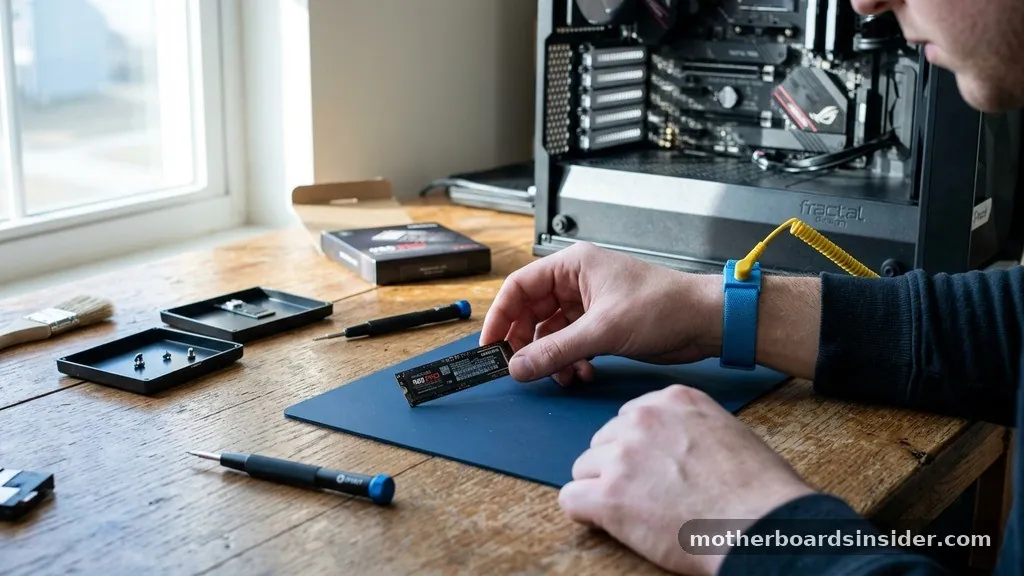
Upgrading your computer with a Solid State Drive is one of the most effective ways to boost system performance, reduce boot times, and accelerate file transfers. Whether you are moving from a traditional mechanical hard drive or simply adding extra storage space to your gaming rig, learning how to connect an SSD to a motherboard is a foundational skill for any PC enthusiast. While the process may seem intimidating due to the delicate nature of hardware components, it is a straightforward procedure if you follow the correct safety protocols and technical steps.
Preparing for Hardware Installation and Safety
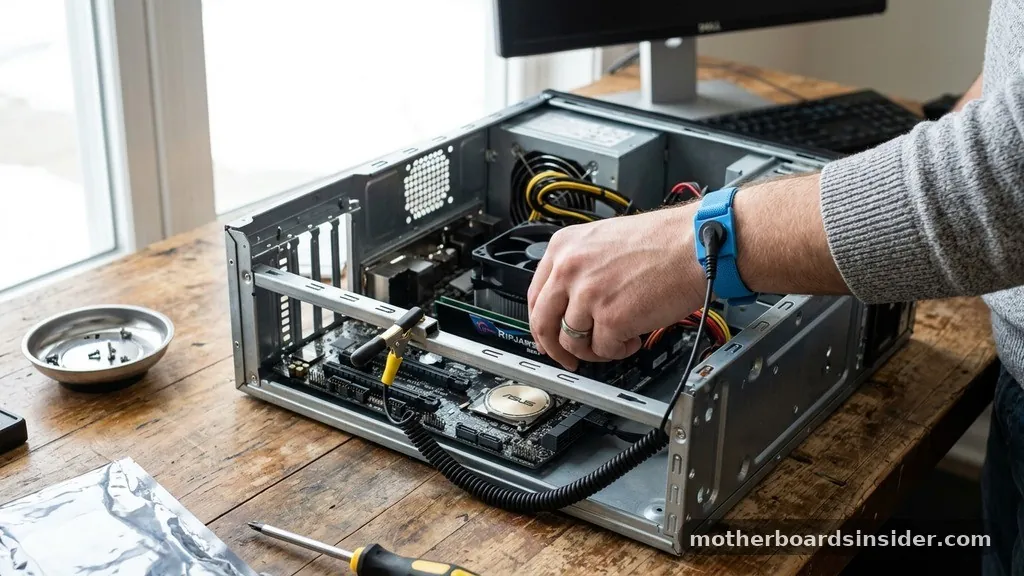
Before you touch any internal components, safety must be your priority. The most significant threat to your computer’s hardware during an upgrade is electrostatic discharge (ESD). Even a tiny, imperceptible spark can permanently damage sensitive electronic circuits on your motherboard or the SSD itself.
To mitigate this risk, you should always work on a non-conductive surface, such as a wooden desk, and avoid working on carpeted floors. Using an anti-static wrist strap is the industry-standard way to ensure you remain grounded; simply clip the alligator end to an unpainted metal part of your PC case.
Beyond static protection, ensure you have the right tools. A standard Phillips head screwdriver is usually all you need to open your case and secure the drive. If you are installing an M.2 drive, verify that your motherboard standoff and tiny mounting screw are available.
If you bought an OEM drive without a retail package, you might find that you are missing the necessary screw kit, which is a common point of frustration. Check your motherboard box for spare hardware before starting. Finally, always shut down your computer completely and flip the power switch on the back of your power supply unit (PSU) to the “off” position, then unplug the power cord from the wall.
Understanding the Different SSD Form Factors
Modern computers typically support two primary types of SSDs: the 2.5-inch SATA drive and the M.2 NVMe drive. Knowing which one you have is essential because they connect to the motherboard in entirely different ways.
A SATA interface drive looks like a small, flat box and requires two cables: one for data and one for power. These are excellent for mass storage, though they are limited by the speed of the SATA protocol.
In contrast, an NVMe M.2 slot drive looks like a stick of gum. These drives plug directly into the motherboard, utilizing high-speed PCIe lanes to achieve significantly faster read and write speeds than their SATA counterparts.
Many modern motherboards come with multiple M.2 slots, some of which may be covered by a heatsink to manage temperatures. If your drive comes with a thermal pad, ensure you peel off the protective plastic film before installing the heatsink, as this is critical for heat dissipation during heavy workloads.
| Feature | 2.5-inch SATA SSD | M.2 NVMe SSD |
|---|---|---|
| Connection Method | Cables (Data + Power) | Directly into M.2 Slot |
| Interface Speed | Up to 600 MB/s | Up to 7,000+ MB/s |
| Physical Size | 2.5-inch rectangular | Small, thin stick |
| Installation Difficulty | Moderate (requires cabling) | Simple (screw-in) |
Installing an M.2 NVMe Drive
Connecting an M.2 drive is often the cleanest installation because it requires no external wiring. First, locate the NVMe M.2 slot on your motherboard.
It is usually situated near the CPU socket or below the primary PCIe slot for graphics cards. If your motherboard has a pre-installed heatsink, use your screwdriver to remove the screws holding it in place.
Once the slot is exposed, look for the motherboard standoff. If it is already in place, you are ready to go. Insert the SSD into the slot at a 30-degree angle; you will notice a keyed notch on the drive that must align with the notch in the slot.
Once seated, gently push the drive down so it lies flat against the standoff. Place the tiny screw from your screw kit through the notch at the end of the drive and secure it into the standoff.
Be careful not to overtighten, as the circuit board is delicate. If your drive has a heatsink, peel the film off the thermal pad and reattach the heatsink over the drive to ensure optimal cooling.
Connecting a 2.5-inch SATA SSD
If you are using a 2.5-inch drive, you will need to mount it within your chassis first. Most modern cases have designated inch drive bays or mounting trays behind the motherboard tray or near the power supply.
Use the provided screws to secure the drive to the tray. Once the drive is physically mounted, you must connect the cabling.
The first cable is the SATA data cable, which connects the drive to the motherboard. One end goes into the SSD, and the other plugs into an available SATA port on the motherboard. Ensure you hear a “click” for a secure connection.
Next, you need power. Locate a SATA power connector coming from your power supply unit (PSU).
This is a flat, L-shaped connector that fits only one way into the back of your SSD. If you are using a modular power supply, you may need to attach a peripheral power cable to the PSU itself before connecting the other end to the drive.
Navigating BIOS Settings and Drive Initialization
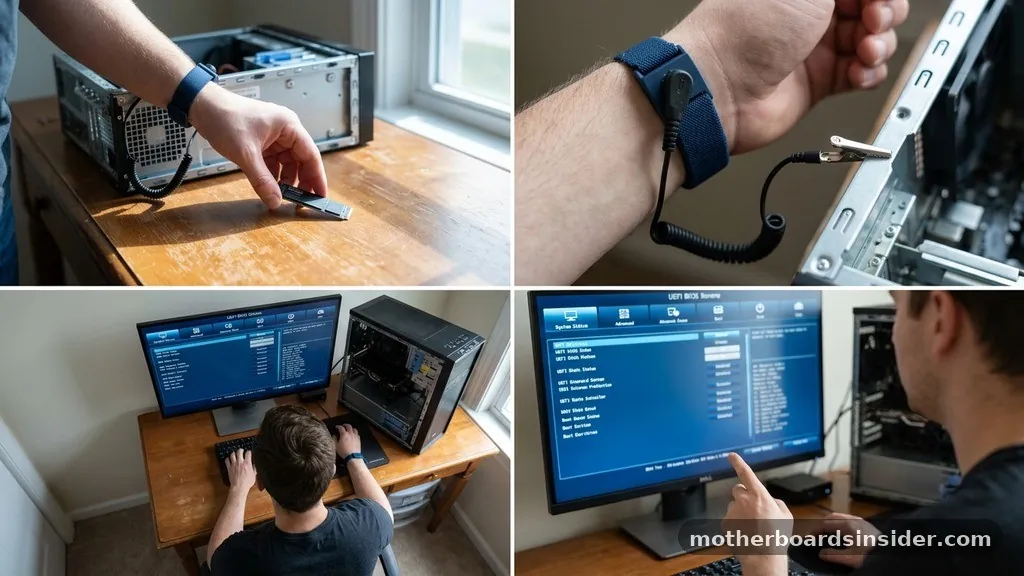
After hardware installation, the computer might not immediately show your new drive in File Explorer. This is normal, as you often need to configure the storage controller settings in the firmware. Restart your computer and repeatedly press the designated key (usually Del, F2, or F12) to enter the UEFI or BIOS.
Inside the BIOS, navigate to the storage configuration menu. Ensure that the SATA mode is set to AHCI mode, which is the standard for modern SSDs. If you have installed a new drive as your primary boot device, you must adjust the boot priority so that the motherboard looks for the operating system on the new SSD before any other connected drives.
Always remember to save your changes and exit the BIOS. Once back in your operating system, right-click the Start button and select “Disk Management.”
You will likely be prompted to perform a drive initialization. Choose the partition style that suits your needs; for modern systems, GPT is highly recommended over the older MBR format, as it supports larger drives and faster boot times.
Troubleshooting Common Recognition Issues
If your drive does not appear in the system, do not panic. Start by checking the physical connections. A loose SATA data cable is the most common culprit for SATA-based SSDs.
Ensure the cable is pushed all the way in on both the drive and the motherboard. For M.2 drives, ensure the drive is fully seated in the slot; sometimes, a drive that looks flat is actually slightly elevated and not making proper contact with the pins.
You should also check the BIOS settings to see if the motherboard recognizes the hardware at a low level. If the BIOS doesn’t see it, try a different M.2 slot or a different SATA port on the motherboard. Some motherboards disable certain SATA ports if an M.2 drive is installed; consult your motherboard manual to understand these shared bandwidth limitations.
If everything looks correct in the hardware, check your firmware update status. Manufacturers often release updates for their SSDs that improve compatibility and stability. You can usually find these tools on the manufacturer’s support website.
Software Preparation: Cloning or Clean Installation
The decision to perform a disk cloning operation versus a fresh Windows installation depends on your goals. If you are simply adding extra storage, you don’t need to do anything other than initialize the drive in Windows. However, if you are moving your operating system to a faster SSD to act as your primary boot drive, cloning is a common path.
Cloning copies your entire existing setup, including your files, settings, and programs, onto the new drive. This allows you to replace your old drive without the hassle of reinstalling software. Alternatively, a clean installation is often better for system health.
It clears out years of “digital clutter” and ensures a perfectly optimized environment. If you decide to clone, ensure you use reputable software provided by the SSD manufacturer. For more information on maintaining your drive’s health and longevity, you can consult the official technical resources provided by the National Institute of Standards and Technology regarding storage standards.
Optimizing SSD Performance
Once your SSD is installed and functional, there are a few final steps to ensure it runs at peak performance. Modern operating systems like Windows 10 and 11 are generally good at recognizing SSDs and automatically enabling the “Trim” command.
This command helps the SSD manage its data blocks efficiently, preventing performance degradation over time. You can verify this by checking the “Optimize Drives” tool in the Windows search bar.
Avoid filling your SSD to 100% capacity. SSDs require a small amount of “free space” to perform background maintenance tasks like garbage collection. Keeping at least 10% to 15% of the drive empty will significantly extend its lifespan and maintain its speed.
Additionally, if you are using an M.2 drive, keep an eye on your system temperatures. If you notice your speeds dropping during long file transfers, it might indicate that the drive is “throttling” due to heat. In this case, adding an aftermarket heatsink or improving your case’s airflow can make a noticeable difference.
Frequently Asked Questions
- Why won’t my motherboard recognize my SSD? The most common reasons include a loose connection, a disabled port in the BIOS, or a missing driver. Ensure the drive is fully seated and check the BIOS to confirm the controller is enabled and set to AHCI mode.
- Do I need to plug the SSD into a power supply? Only 2.5-inch SATA SSDs require a power cable from the PSU. M.2 NVMe drives receive all the necessary power directly through the motherboard’s M.2 slot, making them much easier to install in compact builds.
- Can I just plug my SSD into a new motherboard? Yes, but if the SSD contains your operating system, you may need to adjust the boot priority in the BIOS or perform a fresh Windows installation to ensure all drivers are correctly configured for the new hardware components.
- What is the difference between MBR and GPT? GPT is the modern standard for partition styles. It supports larger drive sizes and is required for UEFI-based booting, which is standard on all modern PCs. MBR is an older legacy format that is generally not recommended for new installations.
In summary, connecting an SSD to a motherboard is a manageable process that provides a significant performance upgrade. By paying attention to the physical form factor of your drive—whether it’s an M.2 NVMe or a 2.5-inch SATA unit—and following the necessary safety and configuration steps, you can successfully expand your storage or speed up your system.
Always prioritize safety by grounding yourself, verify your cable connections, and ensure your BIOS settings are optimized for the new hardware. With these steps completed, your computer will benefit from the increased speed and efficiency that modern solid-state technology offers.


