Knowing the specific hardware inside your computer is essential for troubleshooting, upgrading, or simply keeping your drivers up to date. Whether you are planning to add more RAM, swap out your processor, or resolve a persistent driver conflict, you need to identify the exact motherboard model powering your system. Many users find themselves stuck when they see generic labels in their settings, but finding this information is usually straightforward if you know where to look.
Using the Windows System Information Utility
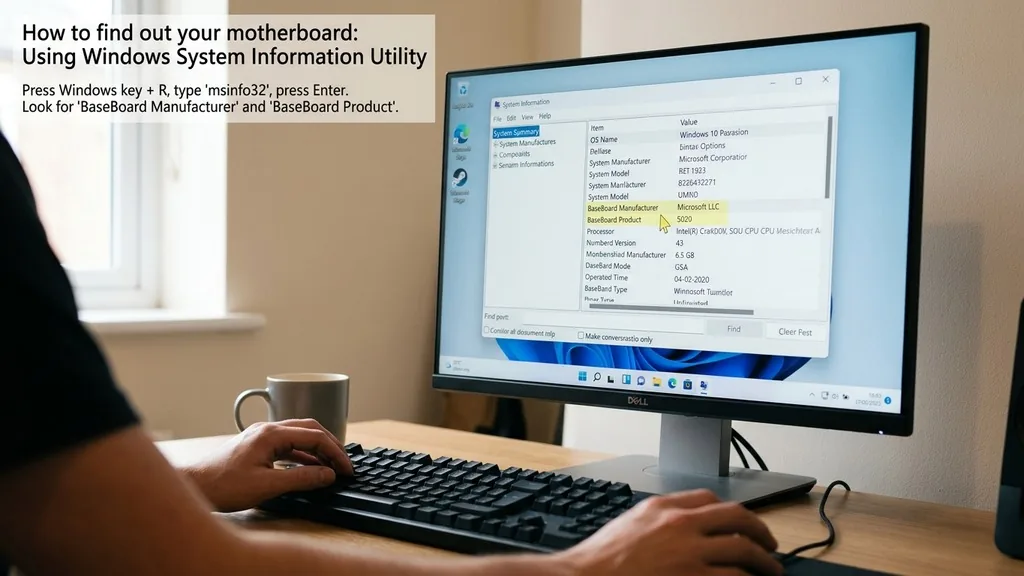
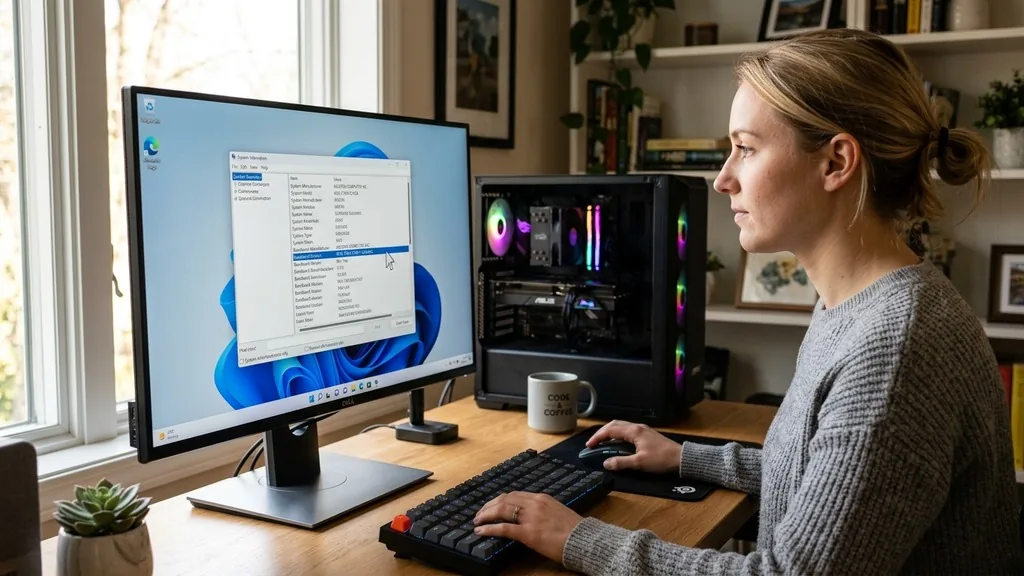
The most direct way to identify your hardware without downloading third-party software is through the built-in System Information tool. This utility is pre-installed on every modern version of the operating system and provides a comprehensive overview of your core components. To access it, press the Windows key on your keyboard, type “msinfo32” into the search bar, and press Enter.
Once the window opens, look for the “System Summary” section at the top of the left-hand pane. In the right-hand pane, scroll down until you locate the entries labeled “BaseBoard Manufacturer,” “BaseBoard Product,” and “BaseBoard Version.” The “BaseBoard Product” line is exactly what you need; it displays the specific model name of your board.
This method is highly reliable because it pulls data directly from the ACPI tables of the firmware. If the fields appear blank or display “To be filled by O.E.M.,” it often means you are using a pre-built machine from a manufacturer like Dell or HP, who may have customized the board specifically for their chassis.
Running Commands via Command Prompt
For power users who prefer the command line, Windows offers a powerful way to retrieve hardware details using the WMI (Windows Management Instrumentation) command-line interface. This method is faster than clicking through menus and is particularly useful if you are scripting or need to copy-paste the information into a support ticket. Open the Command Prompt by typing “cmd” into the Windows search bar and pressing Enter.
Once the black terminal window appears, type the following command exactly as shown: “wmic baseboard get product,Manufacturer,version,serialnumber” and press Enter. The system will return a clean, text-based output showing the manufacturer and product name. If you want to see just the model, you can shorten the command to “wmic baseboard get product.”
This technique is effective because it bypasses the GUI entirely, interacting directly with the system’s underlying reporting architecture. It is an excellent way to check your board’s identity when the graphical interface is unresponsive or if you are working over a remote desktop connection.
Accessing Hardware Details Through the BIOS or UEFI
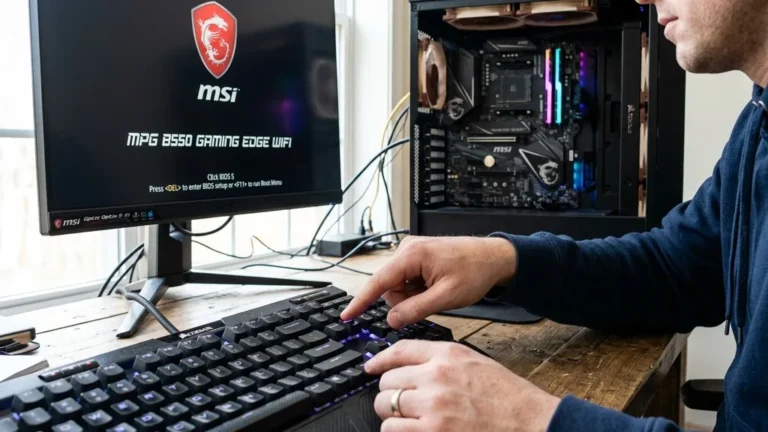
When you cannot boot into your operating system, or if you suspect your OS is reporting incorrect information, the BIOS or UEFI menu is the ultimate source of truth. This firmware environment sits below the software layer, meaning it has direct access to the physical hardware. To reach it, restart your computer and immediately begin tapping the designated key—usually F2, F12, Del, or Esc—before the Windows logo appears.
Once you are inside the interface, look for a “System Information,” “Main,” or “About” tab. Most modern UEFI interfaces will display the motherboard model, the BIOS version, and the CPU type prominently on the home screen. This is also the best place to find your board’s serial number, which is often required if you need to contact the manufacturer for a warranty claim or technical support.
Because the firmware is the first thing to initialize during the boot process, it provides an unfiltered view of the hardware configuration. If you are building a custom PC, you can find the official Intel support pages for additional guidance on identifying chipset compatibility.
Identifying Your Motherboard Physically
Sometimes, software diagnostics are not enough, especially if you have a dead motherboard that refuses to boot. In these scenarios, the only way to find the information is to open the computer case and inspect the board with your own eyes. Before you start, ensure the power cable is disconnected and you are properly grounded to avoid static discharge.
Once you have removed the side panel, look directly at the surface of the circuit board. Manufacturers almost always print the model name in bold, white, or silver lettering on the PCB itself. This is typically located between the PCIe slots or near the CPU socket.
If you cannot see it immediately, look for a sticker on the back of the I/O shield area or near the RAM slots. The model name is usually a combination of letters and numbers, such as “B550 AORUS ELITE” or “Z690-A PRO.” If you find a long string of characters but aren’t sure which one is the model, type it into a search engine; the results will quickly confirm if you have identified the correct component.
Comparing Methods for Hardware Identification
Choosing the right method depends on your current situation and the state of your computer. The following table summarizes which approach works best under different circumstances.
| Method | Best For | OS Required |
|---|---|---|
| System Information | Quick checks while using Windows | Yes |
| Command Prompt | Scripting or fast text retrieval | Yes |
| BIOS/UEFI | Verified hardware data without OS boot | No |
| Physical Inspection | Dead or non-functional hardware | No |
Each of these methods provides a slightly different level of detail. While the software-based tools are convenient, they rely on drivers and ACPI reporting, which can occasionally be misinterpreted by the operating system. Physical inspection remains the gold standard for accuracy because it relies on the manufacturer’s own labeling.
Third-Party Diagnostic Software
If you need more than just the model name—for example, if you need to see the chipset revision, the current voltage, or the specific BIOS version—third-party utilities are the best choice. Programs like CPU-Z are industry standards for hardware enthusiasts. These tools are lightweight, free, and designed specifically to poll the hardware registers to give you an accurate system information readout.
When you launch these programs, navigate to the “Mainboard” tab. You will find detailed fields for the manufacturer, the chipset, and the Southbridge. This is particularly helpful when you are trying to determine if your current board supports a specific processor upgrade.
Many motherboards share similar naming conventions, so having the exact chipset data helps you avoid buying incompatible parts. Always download these tools from the official developer sites to ensure you are not installing bundled adware.
Handling Pre-Built Systems vs. Custom Builds
Understanding the difference between a retail board and an OEM board is crucial. If you bought a computer from a company like Dell, HP, or Lenovo, your motherboard model is often a proprietary part designed specifically for that system’s chassis and power supply. In these cases, searching for the model number might lead you to a generic support page or a dead end on the manufacturer’s website.
For custom builds, you are likely using a board from companies like ASUS, MSI, Gigabyte, or ASRock. These boards follow standard ATX, Micro-ATX, or Mini-ITX form factors and have universal support pages. When you look up your board, you will find clear documentation, driver downloads, and manual updates.
If you have an OEM board, your best bet for support is to use the serial number of the computer itself on the manufacturer’s support site, rather than trying to find the motherboard model separately. This is a common point of confusion for users trying to update their BIOS, as OEM boards often use custom BIOS versions that are not compatible with standard retail firmware.
Filling the Gaps: Why Some Methods Fail
Users frequently ask why their windows tools sometimes fail to display a clear model name. This usually happens because of how the manufacturer programmed the DMI (Desktop Management Interface) strings at the factory. If the manufacturer didn’t populate these fields correctly, the operating system simply reports “To be filled by O.E.M.” or “System Product Name.”
Another issue arises when drivers are missing. If you have recently reinstalled Windows and have not yet installed the chipset drivers, the operating system may not know how to query the hardware correctly.
In this case, simply installing the motherboard’s official chipset drivers from the manufacturer’s site will often resolve the issue and allow tools like System Information to display the correct data. Furthermore, some older hardware might not fully support the ACPI standards that modern Windows tools rely on, making the physical inspection method the only reliable way to confirm the identity of the board.
Frequently Asked Questions
- Does the BIOS show the exact motherboard model? Yes, the BIOS or UEFI menu is the most reliable place to see your hardware. It is independent of the operating system and displays the official name and version directly from the board’s firmware, making it perfect for troubleshooting boot or hardware issues.
- Can I check my motherboard without opening the PC? Yes, you can use the Windows System Information tool (msinfo32) or the Command Prompt (wmic) to retrieve the model name without ever opening your computer case. These software methods are safe, fast, and effective for almost all modern computers.
- Why does my motherboard say “To be filled by O.E.M.”? This occurs because the manufacturer of your pre-built computer did not program the DMI information into the BIOS. It is common in systems from companies like Dell or HP. You should check their support site using your computer’s service tag instead.
- How do I find my motherboard if the computer won’t turn on? You must perform a physical inspection. Open the case and look for the model name printed directly on the circuit board, usually near the CPU socket or the PCIe slots. This is the definitive way to identify your hardware when software is unavailable.
Identifying your motherboard is a fundamental skill for any computer user. By utilizing the built-in Windows utilities, relying on the firmware interface, or performing a manual inspection, you can easily gather the information needed to maintain your system.
Whether you are performing a simple driver update or a complex hardware upgrade, knowing exactly what is under the hood ensures that you can make informed decisions and keep your machine running smoothly for years to come. Take the time to record these details in a safe place, as you never know when you might need to reference them again for future technical support or component compatibility checks.