

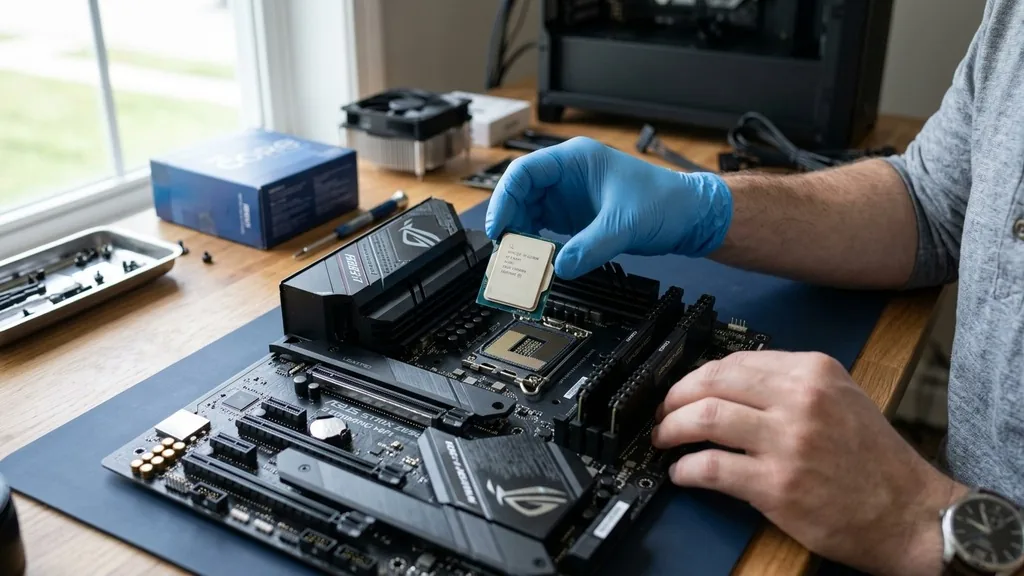
Selecting a motherboard is often the most confusing part of building a computer because it serves as the central nervous system for every other component. You aren’t just buying a piece of hardware; you are establishing the foundation for your processor, memory, and expansion cards. If you choose the wrong board, you might find yourself unable to upgrade your storage later or locked out of overclocking features you actually want.
The process requires balancing your current budget against your future upgrade path. By focusing on compatibility, physical size, and the specific connectivity needs of your peripherals, you can avoid common pitfalls and ensure your system runs stable for years to come.
Matching Your CPU to the Correct Socket
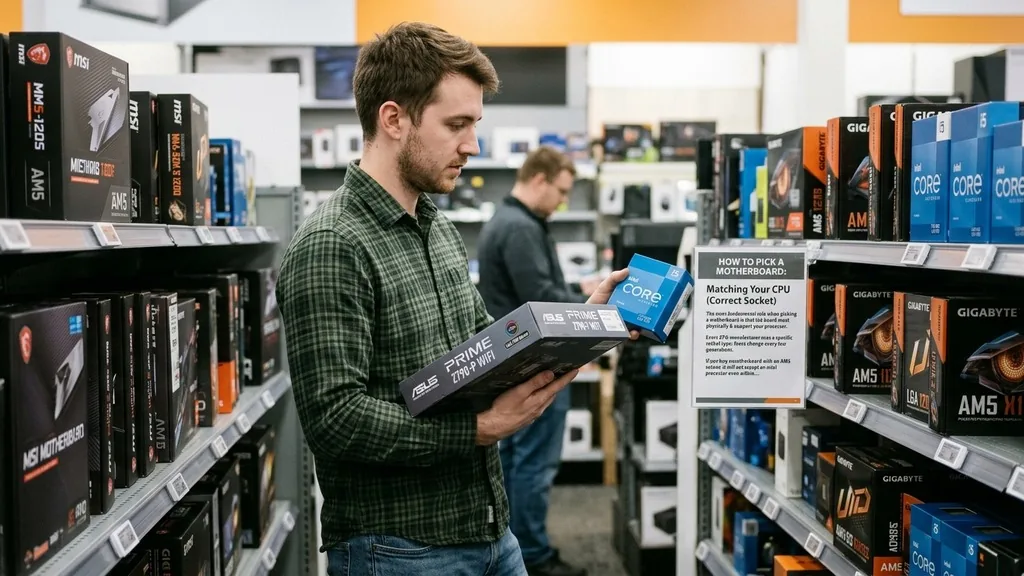
The most fundamental rule when picking a motherboard is that the board must physically and electrically support your processor. Every CPU manufacturer uses a specific socket type, and these change every few generations. If you buy a motherboard with an AM5 socket, it will not accept an Intel processor, and even within the same brand, generations are often incompatible.
Before you look at any other features, identify the specific generation of the CPU you plan to buy. For example, modern Intel chips usually require LGA 1700 or the newer LGA 1851 sockets, while AMD currently focuses on the AM5 platform. You can verify this by checking the official specifications on the manufacturer’s website.
Always ensure the board’s chipset is compatible with your specific CPU model. Some boards might require a BIOS update to support the latest chips, so look for features like “BIOS Flashback” that allow you to update the firmware using a USB drive without needing a functional CPU installed.
Determining the Right Form Factor
The physical size of your motherboard is known as the form factor, and this dictates what kind of case you can use. The three most common sizes are ATX, Micro-ATX, and Mini-ITX. ATX is the standard full-size board, offering the most space for expansion cards and extra cooling features.
Micro-ATX is slightly smaller, cutting off a few expansion slots while remaining compatible with most mid-tower cases. Mini-ITX is the smallest standard, designed for compact builds where space is at a premium.
If you are building a high-performance system with multiple GPUs or capture cards, you will want the extra space provided by an ATX board. However, if you are building a minimalist workstation, a Micro-ATX board often provides the best balance between price and utility.
Mini-ITX boards are excellent for portability but often come at a premium price because of the complex engineering required to pack so many components into a small footprint. Always check your PC case specifications to confirm the maximum size it can accommodate before you finalize your purchase.
Understanding Chipsets and Performance Tiers
Motherboard chipsets act as the traffic controller for your system, determining how data flows between the CPU, memory, and storage devices. Manufacturers typically offer entry-level, mid-range, and high-end chipsets.
Entry-level boards, such as those in the A-series for AMD or H-series for Intel, are designed for basic office tasks and budget gaming. They often lack advanced features like robust power delivery systems or extensive overclocking support.
Mid-range chipsets, such as the B-series for both major brands, provide the best value for most users. They usually include enough PCIe lanes for a modern graphics card and one or two fast NVMe drives. High-end chipsets, like the Z-series for Intel or X-series for AMD, are intended for enthusiasts.
These boards include heavy-duty heat sinks, better power regulation for overclocking, and additional connectivity options like extra USB ports or advanced networking controllers. If you aren’t planning to push your CPU to its absolute thermal limits, a mid-range board is almost always the smarter financial choice.
Evaluating PCIe Slots and Expansion Needs
PCIe slots determine how many add-in cards you can install in your machine. Today, most users only need one primary slot for their graphics card, but you might need others for Wi-Fi cards, sound cards, or high-speed storage expansion.
It is vital to check the version of PCIe supported by the board. PCIe 4.0 and 5.0 are significantly faster than older versions and are becoming standard for high-end gaming and professional video editing workflows.
When you look at the board, check how the PCIe lanes are shared. Sometimes, using an extra M.2 storage slot will disable one of your PCIe slots. This is a common trade-off in cheaper motherboards.
If you plan on running a multi-GPU setup or high-bandwidth capture cards, ensure the motherboard layout provides enough physical clearance so that your graphics card doesn’t block access to other essential ports. You can find detailed technical specifications for every board on the official Intel support page or the equivalent manufacturer site for AMD platforms to see how these lanes are distributed.
Memory Support and RAM Configuration
Your motherboard dictates both the speed and the capacity of the memory you can use. Modern systems have transitioned from DDR4 to the faster DDR5 standard. You cannot install DDR5 RAM into a DDR4-only motherboard slot.
Check the motherboard’s QVL (Qualified Vendor List) to see which memory kits have been tested for stability with that specific board. While most RAM will work, sticking to the QVL ensures you don’t run into random crashes or boot loops.
Most motherboards have four RAM slots, but some compact boards only have two. If you only have two slots, you are limited in how much you can upgrade in the future without replacing your existing sticks. Higher-end boards often support faster memory clock speeds, which can provide a slight edge in gaming performance.
However, ensure that the speed you buy is supported by the board’s BIOS settings, often enabled via an XMP or EXPO profile. Without enabling this profile, your high-speed RAM will run at a much slower default frequency.
Connectivity and Integrated Features
The number and type of ports on your motherboard determine how many devices you can plug into your system. Think about your current setup: Do you use a wired ethernet connection? If so, look for a board with a 2.5Gbps LAN port rather than the standard 1Gbps.
Do you need a lot of USB ports for controllers, microphones, and external drives? Some boards come with a dozen rear-facing ports, while others might only have four or five.
Internal headers are just as important. These are the connectors on the board that link to your case’s front-panel USB ports, audio jacks, and power buttons. If you have a case with a USB-C port on the front, make sure your motherboard has an internal USB-C header.
Additionally, check for integrated Wi-Fi and Bluetooth. While you can add these via a PCIe card later, getting a board with them pre-installed is usually cheaper and more reliable than buying separate adapters.
| Feature | Budget Board | High-End Board |
|---|---|---|
| VRM Cooling | Minimal | Heatsink-covered |
| PCIe Lanes | Limited | Maximum (x16/x8) |
| Networking | 1Gbps LAN | 2.5Gbps/10Gbps + Wi-Fi 7 |
| Audio | Standard Codec | Premium DAC |
Addressing Common Topical Gaps
Many builders overlook the importance of the VRM (Voltage Regulator Module) when choosing a board. The VRM is responsible for converting the power from your power supply into a stable voltage for your CPU.
If you are using a high-wattage processor, a cheap motherboard with a weak VRM will overheat under load, causing the CPU to throttle its speed to prevent damage. This is why you see large metal heat sinks on the top and left side of the CPU socket on better boards.
Another often ignored detail is the physical layout of the fan headers. A well-designed motherboard will have fan connectors spread around the board, making it easy to reach your exhaust fans, CPU cooler, and front intake fans without needing long, messy extension cables. Finally, consider the aesthetic of the board if you care about the appearance of your build.
Some boards are purely functional with drab colors, while others feature RGB lighting and matching shrouds that hide the internal circuitry. While aesthetics don’t affect performance, they do impact the long-term enjoyment of a build you look at every day.
Final Checklist for Your Purchase
Before you click the buy button, run through this quick list to ensure you haven’t missed any vital details. It is easy to get caught up in the marketing hype of “gaming” branding, but the technical specifications are what actually matter for your computer’s health and longevity.
- Verify the socket matches your specific CPU model exactly.
- Confirm the form factor fits inside your chosen computer case.
- Ensure the chipset supports the features you need, such as overclocking or extra M.2 slots.
- Check that your RAM type (DDR4 vs DDR5) matches the board’s slots.
- Count the internal headers to ensure they support your case’s front-panel USB and audio.
- Look for an integrated back I/O shield, which makes installation much easier.
- Check the number of fan headers to ensure you can power all your cooling fans.
Taking these steps helps you avoid the frustration of a build that won’t post or a system that requires a complete teardown to add a simple expansion card later. A motherboard is the one component you really don’t want to replace, so spend the extra time to get the right one during your initial research phase.
Frequently Asked Questions
- Does it matter what motherboard I get for my PC? Yes, it matters significantly. The motherboard determines your CPU compatibility, how many storage drives you can add, and the total speed of your memory. A poor-quality board can limit your processor’s performance and restrict your ability to upgrade components in the future.
- What size motherboard should I get? Choose the size based on your case. If you have a large tower, an ATX board offers the most features and expansion. If you are building a small-form-factor PC, you must use a Mini-ITX board. Always check your case’s manual to see which sizes it supports.
- Which motherboard should I choose for gaming? For gaming, look for a mid-range board (B-series) with robust VRM cooling and at least one high-speed PCIe slot for your graphics card. Ensure it has enough M.2 slots for your game library and reliable networking capabilities like a 2.5Gbps LAN port for low-latency connections.
- Do I need to update the BIOS on a new motherboard? You often don’t need to update the BIOS if the board was manufactured after your CPU was released. However, if you are using a very new processor on an older board model, you might need to use a USB flash drive to update the firmware before the system will boot.


