

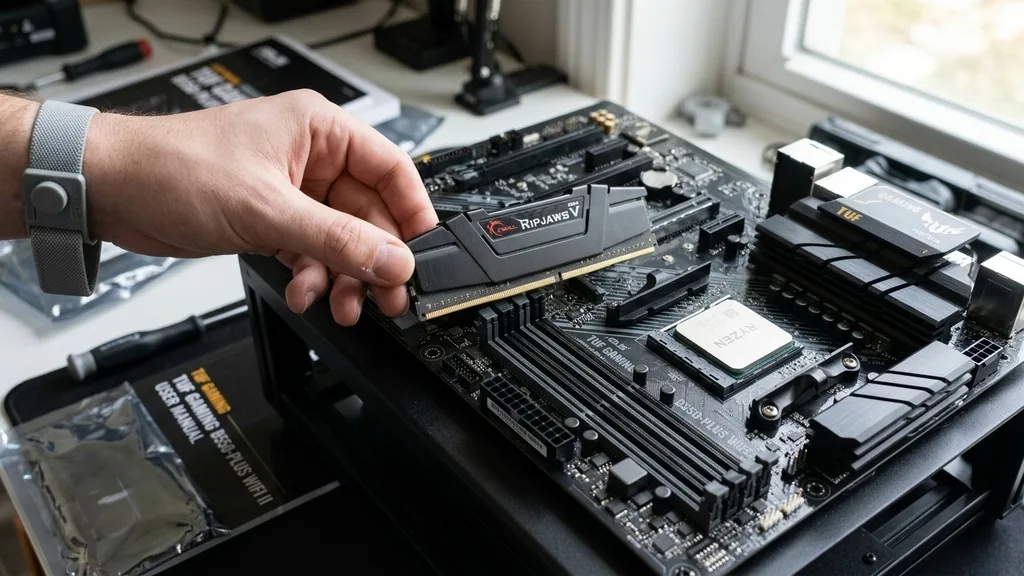
Determining if your RAM is compatible with your motherboard is a fundamental step in any system upgrade or custom computer build. Many users assume that if a memory stick physically fits into a slot, it will work, but the reality involves complex standards, voltage requirements, and chipset limitations.
If you are wondering, “is my ram compatible with my motherboard,” you need to look beyond the physical dimensions to understand the technical specifications that govern how your system processes data. Mismatched hardware can lead to boot failures, system instability, or performance degradation, so taking the time to verify compatibility before purchasing new components saves both money and frustration.
Understanding Memory Form Factors and Slots
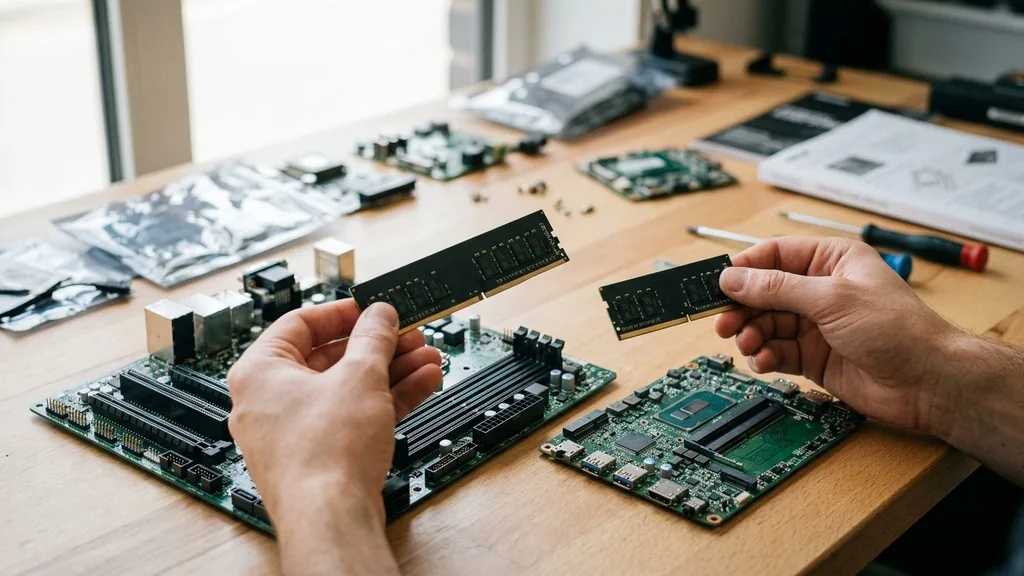
The most immediate check for RAM compatibility involves the physical form factor of the memory module and the corresponding slot on your motherboard. Desktop computers typically use DIMM (Dual In-line Memory Module) slots, while laptops and small form factor systems utilize the smaller SO-DIMM (Small Outline Dual In-line Memory Module) standard.
You cannot interchange these; a DIMM stick will not fit into an SO-DIMM slot, and vice-versa. Attempting to force a module into a slot that doesn’t match its form factor is a common mistake that can result in permanent damage to both the motherboard and the memory module itself.
Beyond the form factor, you must identify the generation of memory your system supports. Whether your system uses DDR4 or DDR5 is determined by the physical notch located on the connector edge of the RAM stick. This notch is intentionally placed in a different position for each generation to prevent users from accidentally installing incompatible memory.
If you find yourself asking if your RAM is compatible with your motherboard, start by confirming the DDR generation supported by your CPU and chipset. Motherboards are designed for specific generations, and they are almost never backward or forward compatible with different RAM standards.
Decoding the DDR Generation and Speed Standards
The DDR generation—such as DDR3, DDR4, or DDR5—is the primary compatibility filter for any memory upgrade. Each generation operates on different electrical signals and pin configurations, making them mutually exclusive. If your motherboard is built for DDR4, it will not accept DDR5, even though they might look somewhat similar to the untrained eye.
Beyond the generation, you must also consider the memory speed, often measured in Megahertz (MHz) or Megatransfers per second (MT/s). While installing faster RAM than your motherboard or CPU supports is usually possible, the system will automatically downclock the memory to the highest speed the platform can handle.
However, running high-speed memory on a motherboard that does not officially support those speeds can lead to stability issues. When checking compatibility, look at the Qualified Vendor List (QVL) provided by your motherboard manufacturer. This list details specific memory kits that have been tested and verified to work with that particular board.
While memory not on the list might still function perfectly, the QVL serves as a gold standard for guaranteed compatibility. For those interested in the technical standards of computer memory, you can review the official documentation provided by JEDEC Solid State Technology Association, which sets the industry standards for memory architecture.
The Role of the Motherboard Chipset and CPU
Your CPU and motherboard chipset act as the gatekeepers for your memory performance. The memory controller is integrated directly into the processor, which means the CPU’s architecture often dictates the maximum capacity and speed of RAM you can install.
Even if your motherboard has four slots and supports 128GB of RAM, your specific CPU might have lower limits. When evaluating if your RAM is compatible with your motherboard, you must cross-reference the motherboard’s maximum supported frequency with the CPU’s official memory controller specifications.
Chipsets also play a significant role in memory overclocking. For instance, on Intel platforms, only “Z” series chipsets typically allow for memory overclocking via XMP (Extreme Memory Profile). If you purchase a high-performance RAM kit with a factory-rated speed of 4000MHz but install it on a budget-tier motherboard that limits memory speed to 2666MHz, you will not achieve the advertised performance.
The motherboard will simply lock the RAM to the lower speed. Always check your motherboard manual or official product page to see if it supports the XMP or EXPO profiles required to run enthusiast-grade RAM at its rated speeds.
Utilizing Manufacturer Compatibility Tools
In the modern digital landscape, you don’t have to rely solely on manual cross-referencing. Most major memory manufacturers, such as Corsair, Crucial, or Kingston, provide an online compatibility tool on their websites. These tools are designed to help you find the exact modules that are guaranteed to work with your specific system.
By entering your motherboard make and model, or your computer’s system serial number, these tools filter out incompatible options and present you with a list of verified upgrades. This is the most reliable way to answer the question, “is my ram compatible with my motherboard” without needing a deep technical background.
These tools are particularly helpful for laptop users, as laptop motherboard specifications can be notoriously difficult to find. Because laptops often have soldered RAM or limited access to BIOS settings, using a manufacturer’s scanner is safer than guessing based on raw specs.
If you are building a custom desktop, these tools are still highly useful for ensuring that the heat spreader height on the RAM won’t interfere with your CPU cooler or that the specific voltage requirements of the RAM are within the motherboard’s operating range. Using these resources significantly reduces the risk of ordering parts that won’t boot when you finally install them.
Identifying Voltage and Timing Requirements
Voltage requirements are a subtle but critical aspect of memory compatibility. While most DDR4 memory operates at a standard 1.2V, high-performance kits often require 1.35V or higher to maintain stability at faster speeds. Your motherboard must be capable of providing this voltage, and you may need to manually adjust these settings in the BIOS if the system doesn’t detect the RAM correctly.
If the motherboard cannot supply the necessary voltage, the system may experience random crashes, blue screens, or failure to post. Always verify the voltage requirements listed on the RAM packaging against the specifications of your motherboard.
Memory timings, often expressed as a sequence of numbers like CL16-18-18-38, define the latency of the RAM. While timing mismatches are less likely to cause a total failure to boot compared to generation mismatches, they can cause significant instability if you are mixing different types of RAM.
It is highly recommended to use identical sticks of RAM—same brand, same model, and same capacity—whenever possible. If you must mix and match, the system will default to the slowest timings and the lowest speed of the installed modules, which can create a bottleneck for your entire computer.
Common Pitfalls and Troubleshooting Steps
When you install new RAM and the computer fails to boot, it is easy to assume the RAM is dead. However, more often than not, it is a compatibility or seating issue. A common mistake is failing to push the RAM stick down until the locking tabs click into place.
Because modern memory slots require significant pressure to seat properly, many users stop halfway, resulting in a system that powers on but displays no signal to the monitor. Before assuming the RAM is incompatible, ensure that both sides of the stick are fully engaged and that you have cleared the CMOS (resetting the BIOS) if the system persists in failing to boot.
Another frequent issue is the “Dual Channel” configuration. Most motherboards have four slots, and for optimal performance, you need to install your RAM sticks in specific slots—usually the second and fourth slots from the CPU—to enable dual-channel memory architecture.
Installing two sticks side-by-side in the first and second slots might prevent the system from utilizing the dual-channel bandwidth, effectively cutting your memory performance in half. Always consult your motherboard’s manual to identify the correct slot layout for your specific configuration.
Comparison of RAM Generations
Understanding the differences between memory generations is vital for anyone planning an upgrade. The table below outlines the primary differences in these standards to help you distinguish between them during your search.
| Memory Generation | Voltage | Typical Speed Range | Pin Count |
|---|---|---|---|
| DDR3 | 1.5V | 800 – 2133 MT/s | 240 |
| DDR4 | 1.2V | 1600 – 3200+ MT/s | 288 |
| DDR5 | 1.1V | 4800 – 8400+ MT/s | 288 |
As shown in the table, each generation requires different operating voltages and physical pin counts. Note that while DDR4 and DDR5 share the same pin count, the physical notch is in a different location, preventing cross-compatibility.
Addressing Frequently Asked Questions
- How do I check my RAM compatibility? The most accurate way is to use the motherboard manufacturer’s website to look up your specific model and check the Qualified Vendor List (QVL). Alternatively, use the memory manufacturer’s online compatibility tool for a simplified, verified list of compatible modules.
- Can I put 3200MHz RAM in a 2400MHz motherboard? Yes, you can physically install it, but the motherboard will automatically downclock the RAM to 2400MHz. You will not get the extra speed, but the system should function normally. Always ensure the RAM generation (e.g., DDR4) matches.
- Does my RAM have to match my motherboard? Yes, the RAM must match the generation (DDR4 vs DDR5) supported by your motherboard’s slots. If the generations do not match, the RAM will not fit into the slot, and even if it could, it would not be electrically compatible with the system.
- What happens if I mix different RAM speeds? If you mix sticks of different speeds, the motherboard will force all sticks to run at the speed of the slowest module. While this usually works, it can sometimes cause system instability or boot loops, so it is best to use identical sticks.
Why Capacity and Channel Support Matter
Beyond speed and generation, capacity and memory channels are critical for specific workloads like gaming or professional video editing. Most consumer motherboards support dual-channel memory, which allows the CPU to communicate with two memory sticks simultaneously. This effectively doubles the bandwidth compared to a single-channel setup.
When choosing RAM, it is almost always better to buy a “kit” of two sticks rather than two individual sticks separately, even if they have the same model number. Kits are tested together at the factory to ensure they work perfectly in sync, whereas individual sticks, even from the same brand, might have slight variations in timing or chip manufacturer that can lead to subtle issues.
If your motherboard has four slots, you might be tempted to fill all of them for maximum capacity. While this is fine for general use, be aware that running four sticks of high-speed RAM puts more strain on the CPU’s memory controller than running just two. This can sometimes make it harder to achieve the highest stable XMP speeds.
If you need 32GB of RAM, it is generally better to use two 16GB sticks than four 8GB sticks. This approach leaves room for future upgrades and reduces the load on the memory controller, ensuring a more stable and reliable system for your daily tasks.


