

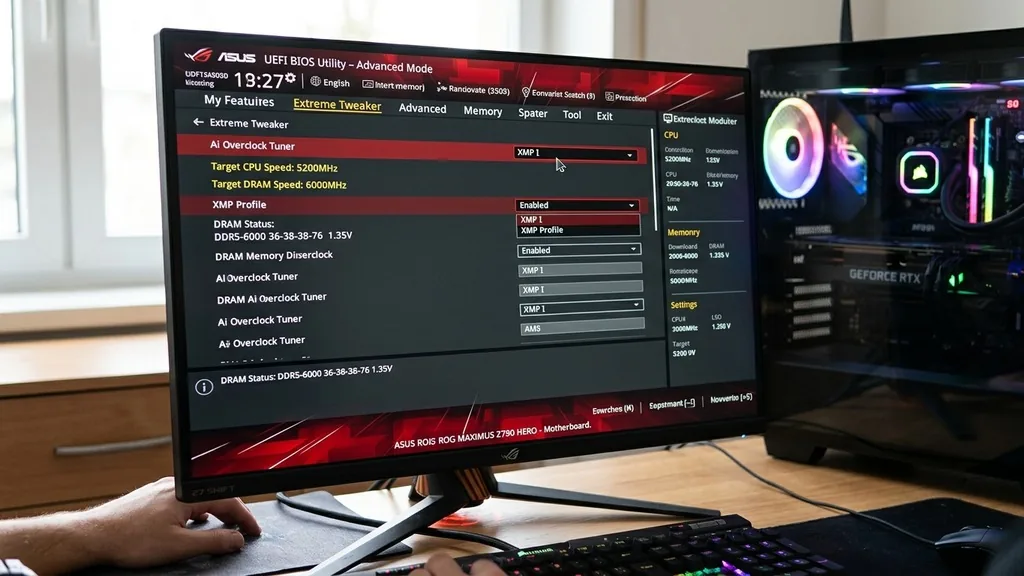
Getting the most out of your system memory often requires more than just plugging the sticks into the motherboard slots. If you have recently built a PC or upgraded your RAM, you might notice that your memory is running at a slower speed than advertised on the box.
This is because modern RAM modules rely on a technology called Extreme Memory Profile, or XMP, to reach their rated performance levels. Learning how to enable XMP on an ASUS motherboard is the most effective way to ensure your system memory is operating at its peak potential, providing better data throughput and overall system responsiveness.
When you install new DDR4 or DDR5 RAM, the motherboard defaults to a conservative JEDEC standard frequency to ensure the system boots reliably regardless of the specific hardware configuration. By default, your high-performance memory might be clocked at 2133MHz or 2666MHz, even if it is sold as a 3600MHz kit.
Enabling this profile allows the system to adjust the voltage, timing, and frequency parameters automatically to match the manufacturer’s specifications. This process is straightforward on ASUS boards, which utilize the UEFI BIOS interface to manage hardware settings.
Accessing the ASUS UEFI BIOS Utility

To access the ASUS UEFI BIOS utility, you must press the Del or F2 key repeatedly during the initial boot sequence when the ASUS or ROG splash screen appears. This is the entry point for all hardware-level configurations. Once the computer is powered on, the motherboard initialization process begins immediately, and you have a very narrow window to interrupt the boot process before the operating system takes over.
If you miss the window and the system starts loading Windows, simply restart your PC and try again. Once you successfully enter the interface, you will likely land on the EZ Mode screen, which provides a simplified overview of your system’s health, including CPU temperature, fan speeds, and installed memory capacity.
While EZ Mode is great for quick checks, you will need to familiarize yourself with the Advanced Mode to toggle your memory profiles effectively. The interface on modern ASUS boards is highly responsive, allowing you to use both your keyboard and mouse to navigate through the various menus and settings.
Understanding the Difference Between EZ Mode and Advanced Mode
ASUS motherboards feature two distinct interfaces, EZ Mode and Advanced Mode, each serving a different purpose for the user. EZ Mode is designed for quick adjustments, such as changing fan curves or setting the boot priority, and it usually contains a prominent button to toggle XMP. Advanced Mode, on the other hand, is where the granular control resides, allowing you to tweak CPU voltages, load-line calibration, and specific memory timings.
If you are a beginner, EZ Mode is the safest place to start. Most ASUS UEFI implementations place the memory profile setting right on the main dashboard of EZ Mode. You might see a label such as “XMP” or “DOCP” (Direct Over Clock Profile) depending on whether your motherboard is designed for Intel or AMD processors.
Clicking this button cycles through the available profiles stored on your RAM modules. After making the selection, you must remember to save your changes before exiting. If you feel comfortable with the interface, Advanced Mode offers a deeper look at what is happening under the hood, showing you exactly how the voltage and frequency values will change once the profile is applied.
How to Enable XMP on Intel-Based ASUS Motherboards
For users running Intel platforms, the feature is almost universally labeled as XMP. To enable it, navigate to the Ai Tweaker tab within the Advanced Mode of the BIOS. This section is the command center for all performance-related settings on your motherboard.
Within the Ai Tweaker menu, look for an option called “Ai Overclock Tuner.” By default, this is usually set to “Auto,” which keeps your memory running at the base frequency.
Changing the Ai Overclock Tuner from Auto to “XMP I” or “XMP II” will automatically apply the manufacturer’s tested settings. XMP I typically uses the primary timings and frequencies specified by the RAM manufacturer, while XMP II might allow the motherboard to optimize secondary or tertiary timings for better stability.
Once you select the desired profile, the BIOS will often display a summary of the changes, showing the new frequency and voltage that will be applied. It is important to confirm that these values match the specifications found on your RAM packaging to ensure the profile was loaded correctly.
Navigating DOCP and EXPO for AMD Systems
AMD users will find that ASUS motherboards use different terminology to achieve the same result as Intel’s XMP. If you are using a Ryzen processor, you will likely see “DOCP” or “EXPO” instead of XMP.
DOCP stands for Direct Over Clock Profile, which is essentially the ASUS implementation of XMP for AMD motherboards. It reads the XMP data from the memory sticks and translates it into the correct settings for the AMD memory controller.
For newer platforms, such as those using the AM5 socket, you might see “EXPO” (Extended Profiles for Overclocking), which is an AMD-specific standard for DDR5 memory. The process remains the same as with Intel: navigate to the Ai Tweaker or Extreme Tweaker section, find the Ai Overclock Tuner setting, and select the DOCP or EXPO profile from the dropdown menu.
These profiles are designed to work in harmony with the Infinity Fabric architecture of AMD processors, ensuring that memory bandwidth is maximized without compromising system stability. You can learn more about official memory standards and technical specifications by visiting the JEDEC Solid State Technology Association website, which sets the foundation for how memory modules communicate with the rest of the system.
The Importance of Saving and Applying BIOS Changes
Many users make the mistake of selecting the correct profile but failing to save the configuration before exiting the BIOS. Simply hitting the back button or closing the window will revert your system to the default settings, meaning your RAM will remain at the slow base frequency.
To apply your changes, you must navigate to the “Exit” or “Save & Exit” menu. Most ASUS boards also allow you to press the F10 key, which triggers a prompt to save your changes and reboot.
When you save and exit, the system will perform a warm reboot. During this time, the motherboard is retraining the memory controller to work with the new frequency and timings.
Do not be alarmed if the system takes a few extra seconds to post or even restarts once or twice; this is a normal part of the training process. If the system fails to boot after enabling the profile, the motherboard will usually detect the instability and automatically revert to the safe, default settings, allowing you to try a different configuration or check for potential hardware conflicts.
Troubleshooting Common XMP and DOCP Boot Failures
Occasionally, you might find that your system refuses to boot after enabling an XMP or DOCP profile. This usually happens if the memory kit is not fully compatible with your motherboard’s QVL (Qualified Vendor List) or if the memory controller on your CPU is struggling to handle the higher frequency. If this occurs, try updating your BIOS to the latest version available on the ASUS support website, as newer firmware often includes improved memory compatibility and stability patches.
If a BIOS update does not solve the issue, you may need to manually input the timings or slightly increase the DRAM voltage. Be cautious when manual tuning, as increasing voltage beyond the manufacturer’s recommended levels can lead to overheating or hardware degradation.
For most users, using the pre-defined profiles is the safest path. If the profile still fails, it is possible that the RAM kit is simply too aggressive for your specific CPU’s memory controller, and you may need to run the memory at a slightly lower speed, such as 3200MHz instead of 3600MHz, to achieve perfect stability.
Comparing Memory Performance Profiles
To understand the impact of these settings, it is helpful to look at how different profiles interact with your hardware. The following table illustrates the typical shift in performance parameters when moving from a default state to an active memory profile.
| Setting Category | Default (Auto) | XMP / DOCP / EXPO |
|---|---|---|
| DRAM Frequency | 2133 – 2666 MHz | 3200 – 6400+ MHz |
| DRAM Voltage | 1.20V | 1.35V – 1.45V |
| Primary Timings | Loose (e.g., CL22) | Tight (e.g., CL16) |
| System Stability | High | Optimized |
This table demonstrates that enabling these profiles does more than just increase frequency; it also optimizes the latency of the memory modules. By tightening the timings, the RAM can process data requests faster, which translates to smoother performance in gaming, content creation, and everyday multitasking.
Verifying Memory Speeds in Windows
Once you have successfully enabled the profile and booted into Windows, you should verify that the settings have taken effect. Relying on the BIOS display alone is good, but checking within the operating system confirms that the settings are stable and active under load. The easiest way to do this is by using the Windows Task Manager.
Right-click your taskbar, select Task Manager, and navigate to the “Performance” tab. Click on “Memory” and look at the “Speed” field.
If the speed matches your RAM’s rated frequency, you are all set. For more detailed information, you can download third-party utilities like CPU-Z.
These tools provide a comprehensive look at your memory’s current clock speed, timings, and even the manufacturer’s part number. If you see the speed reported as half of what you expect, do not worry; this is common for DDR (Double Data Rate) memory, where the effective speed is double the actual clock frequency.
Addressing Frequently Asked Questions
- Is it safe to enable XMP on my ASUS motherboard? Yes, it is perfectly safe. XMP, DOCP, and EXPO are manufacturer-approved methods for running your RAM at its advertised specifications. These profiles have been tested by the memory vendor to ensure they operate correctly within standard voltage and timing parameters.
- What should I do if my PC won’t turn on after enabling XMP? If the system fails to post, the motherboard will usually revert to default settings automatically. If it stays stuck, clear the CMOS by removing the circular battery on the motherboard for 30 seconds or using the CLRTC jumper pins to reset the BIOS settings.
- Do I need to enable XMP every time I update my BIOS? Often, yes. Updating the BIOS frequently resets all custom settings to their factory defaults. After a firmware update, it is a good habit to enter the BIOS and re-enable your preferred memory profile to ensure your system performance is restored to its optimal state.
- Does enabling XMP void my warranty? Generally, no. Using the built-in XMP or DOCP profiles provided by the motherboard and RAM manufacturers is considered a standard feature of the hardware. However, manually overclocking beyond these factory-tested profiles could potentially cause stability issues or heat-related damage.
Taking the time to properly configure your RAM settings is a fundamental step in optimizing your PC build. By following the steps outlined above, you ensure that your investment in high-speed memory is actually paying off in real-world performance.
ASUS motherboards provide an intuitive interface for this, and with a little patience, you can navigate the UEFI BIOS to unlock the true potential of your processor and memory combination. Whether you are a gamer looking for higher frame rates or a professional needing faster rendering times, enabling these profiles is the quickest way to improve your system’s efficiency.


