

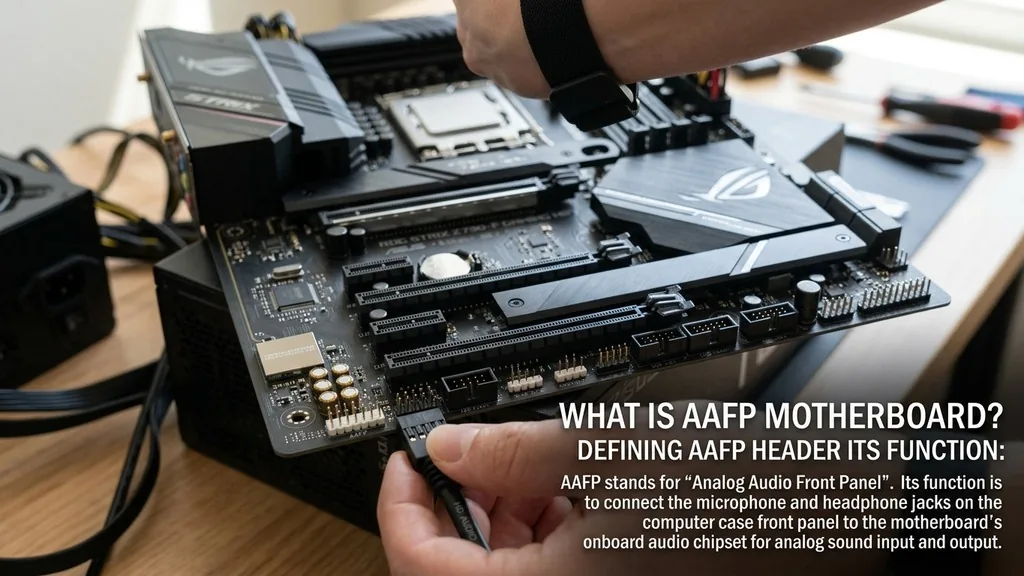
When you look at the lower edge of your PC motherboard, you will find an array of pins and connectors designed to handle various signals. Among these, the AAFP header is one of the most common yet misunderstood ports.
If you have been wondering what is AAFP on motherboard, the short answer is that it serves as the connection point for your computer case’s front panel audio interface. It acts as the bridge between the high-definition audio hardware on your motherboard and the headphone or microphone jacks located on the exterior of your computer chassis.
Understanding this connector is essential for anyone building a PC or troubleshooting audio issues. Without this connection, your front panel audio ports will remain completely unresponsive, forcing you to rely solely on the rear ports located on the motherboard’s I/O shield.
Defining the AAFP Header and Its Function
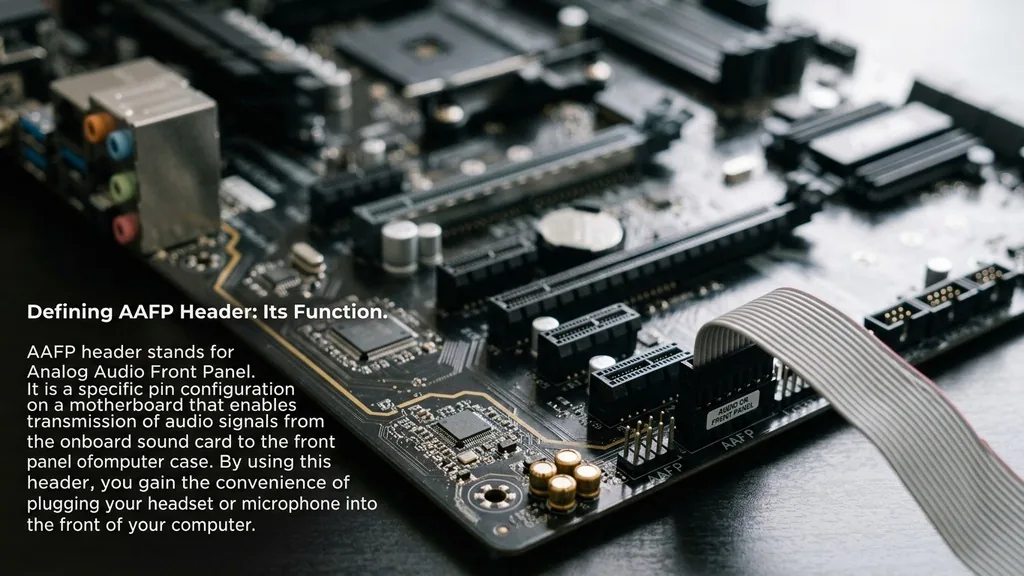
The AAFP header stands for Analog Audio Front Panel. It is a specific pin configuration on a motherboard that enables the transmission of audio signals from the onboard sound card to the front of the computer case. By using this header, you gain the convenience of plugging your headset or microphone into the front of your PC rather than reaching around to the back every time you want to switch audio devices.
The motherboard routes audio signals through this header using a standardized layout. When you plug a cable from your case into these pins, you are essentially extending the onboard audio circuitry.
This setup allows the system to detect when a device is plugged in, a feature known as jack detection. Most modern motherboards use the High Definition (HD) Audio standard for this connection, which provides better signal quality and smarter device management compared to the older AC’97 standard that dominated the industry decades ago.
Physical Layout and Pin Configuration
The AAFP connector typically consists of a 10-pin block, though one pin is often missing to ensure you cannot plug the connector in backwards. This physical layout is designed to prevent incorrect installation, which could theoretically cause short circuits or damage the audio components on your motherboard. The industry has largely standardized this 10-pin header, meaning that almost every modern case and motherboard will be physically compatible.
Inside the connector, specific pins are dedicated to different channels. These include left and right audio signals, ground connections, and presence detection pins.
The presence detection pin is particularly clever; it tells the motherboard’s audio controller whether a physical plug is currently inserted into the case jack. This allows your operating system to automatically mute the speakers or switch the output device when you plug in a pair of headphones.
Understanding the Pinout Standard
While the header is standard, the way the wires are arranged in your case cable is what matters most. Most modern cases come with a single block connector that is keyed to fit onto the header perfectly. You should never force this connector.
If it does not slide on easily, check the orientation. The missing pin on the header should align with the plugged hole on your case connector.
AAFP vs. AC’97: Why Standards Matter
Historically, the industry shifted from the AC’97 standard to the High Definition Audio standard to improve sound quality and functionality. While the physical AAFP header often looks identical, the wiring and the signal processing differ significantly. The AC’97 standard was designed for simpler, analog-only audio, whereas HD Audio supports multi-streaming, meaning you can have different audio streams playing through the front and rear ports simultaneously.
If you are using a very old computer case with an AC’97 connector, you might find that the wiring does not map perfectly to a modern HD Audio header. Fortunately, most modern motherboards allow you to toggle between these modes in the BIOS or the UEFI settings. If you plug in your audio cable and find that the sound is distorted or the microphone is not working, it is often a sign that there is a mismatch between the BIOS setting and the physical connection standard of your case.
Connecting Your Front Panel Audio Cable
Installing the front panel audio cable is one of the final steps in a PC build. You will typically find the cable labeled “HD Audio” or “Audio” bundled with the other front panel connectors, such as the power switch and LED indicators. Finding the header on the motherboard is usually straightforward, as it is almost always located near the rear audio ports, often tucked into the bottom-left corner of the board.
To ensure a successful connection, follow these steps:
- Locate the AAFP header on your motherboard by referring to your manual or looking for the “AAFP” or “JAUD1” label printed on the PCB.
- Examine the connector on your case cable to identify the missing pin hole.
- Align the connector with the pins on the motherboard, ensuring the orientation matches the keyed pins.
- Gently push the connector onto the pins until it is fully seated.
- Boot your computer and check the audio settings in your operating system to verify that the front ports are recognized.
If you encounter issues, verify that the cable is pushed all the way down. A loose connection is the most common cause of crackling sound or one-sided audio in headphones.
Troubleshooting Common Audio Issues
If your front panel audio is not working, do not panic. The issue is rarely a hardware failure and almost always a configuration or connection problem. Start by checking the connection on the motherboard.
If the cable is firmly seated, the next step is to check the audio drivers in your operating system. Sometimes, the software will disable the front panel jacks by default.
You can visit the official Intel support website to learn more about how audio controllers interact with front panel interfaces in modern computing environments.
Another common issue is that the front panel audio is being overridden by the rear audio ports. In your audio management software—often provided by Realtek or the motherboard manufacturer—there is usually a setting to “disable front panel jack detection.”
If this is checked, the system might not realize you have plugged something into the front of the case. Toggle this setting to see if it resolves your connectivity problems.
Comparison of Audio Port Features
To help you distinguish between the different ways your system handles audio, the following table breaks down the key characteristics of front versus rear audio configurations.
| Feature | Front Panel Audio (AAFP) | Rear Audio Ports |
|---|---|---|
| Accessibility | High (Easily reachable) | Low (Located behind the case) |
| Signal Path | Extended via internal cable | Direct to motherboard |
| Interference | Higher risk (Internal routing) | Lower risk (Shielded) |
| Detection | Smart Jack Detection | Automatic sensing |
As shown in the table, while the front panel offers better convenience, the rear ports are generally preferred for high-fidelity audio equipment because the signal does not have to travel through an unshielded cable inside the computer case.
Addressing Topical Gaps: Why Some Cables have Split Connectors
One question that often confuses builders is why some cases come with individual, single-pin connectors instead of a single molded block. This is a legacy design choice, mostly found in older or very budget-oriented cases. These individual pins allow for maximum compatibility with ancient motherboards that may not have followed the standard 10-pin layout.
If you are dealing with these individual pins, you must refer to your motherboard manual to map each wire to the correct pin. The wires are usually labeled with names like “Mic In,” “Mic Bias,” “Ground,” and “Left/Right Return.” Installing these requires patience.
If you mix them up, you could get feedback loops or complete silence. Modern standardized blocks have largely rendered this tedious process unnecessary, but knowing how to map them manually can save a vintage build.
The Future of Front Panel Audio
While the AAFP header has remained consistent for years, the way we consume audio is changing. Many users are moving toward USB-based headsets or wireless Bluetooth solutions, which bypass the traditional 3.5mm jack entirely. However, the AAFP header remains a critical component for high-end audio enthusiasts who prefer wired audiophile-grade headphones.
The motherboard manufacturers continue to include these headers because they represent a fundamental part of the PC building experience. Whether you are using a basic headset or a studio-grade microphone, having that dedicated connection on the front of your chassis ensures you can manage your audio environment without struggling with cables behind your desk. The AAFP header is a small, quiet, yet vital piece of the PC architecture that ensures your system remains user-friendly and accessible.
Frequently Asked Questions
- Is AAFP the same as HD Audio? Yes, for all practical purposes, they are the same. AAFP is the header location on the motherboard, while HD Audio refers to the standard of signal transmission used by that header. They are interchangeable terms in modern PC assembly.
- Can I damage my motherboard by plugging the AAFP cable in wrong? It is difficult to plug the cable in wrong because of the keyed pin, but if you force it, you could bend the pins. This might cause a short, potentially disabling the audio controller, though permanent hardware damage is rare if you are careful.
- Why is my front panel audio quiet or static-filled? Front panel audio cables are unshielded and run near electrical components like the power supply and GPU, which can cause interference. If you hear static, try moving the cable away from power lines inside your case or use the rear ports for better quality.
- Do I need to install special drivers for the front panel audio? You generally do not need specific drivers for the front panel itself, but you must have the latest audio drivers for your motherboard’s chipset. These drivers manage the jack detection and signal routing, ensuring the front ports function correctly once connected.


