


Replacing a motherboard is one of the most involved tasks a PC builder or enthusiast can undertake. It is essentially the heart transplant of a computer, requiring a systematic approach to ensure that your CPU, memory, and storage communicate correctly once the system powers back on. If you are looking to upgrade your platform—perhaps moving from an older architecture to a modern AM5 or LGA socket—or if you are troubleshooting a catastrophic hardware failure, understanding the mechanical and software-related dependencies is critical to success.
Diagnosing the Need for a Motherboard Replacement
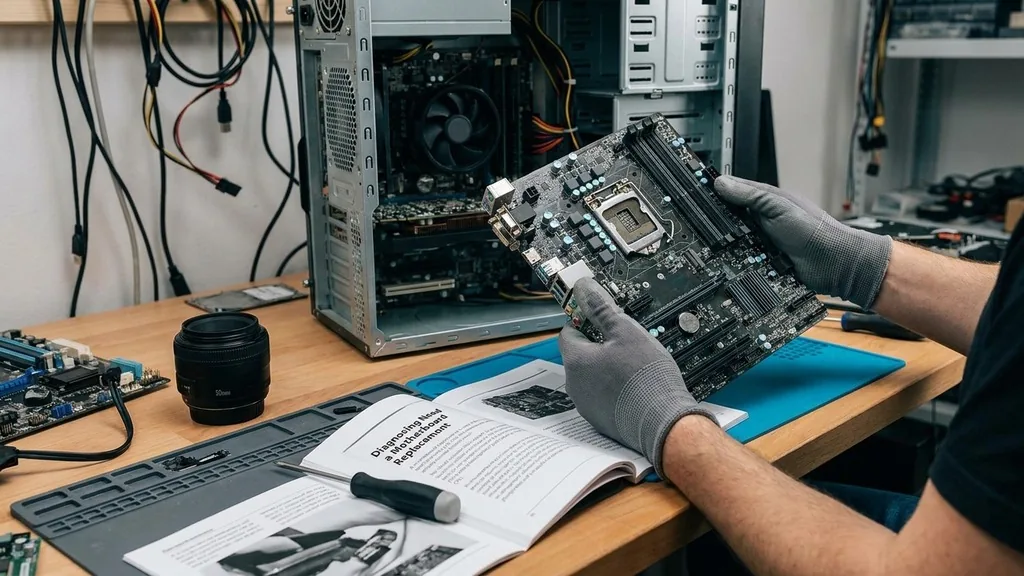
A motherboard replacement is rarely the first step in troubleshooting a PC, but it becomes necessary when specific hardware failures occur. You should consider this upgrade if your system exhibits persistent power cycles, fails to post despite testing other components, or if physical damage such as bent pins in the CPU socket prevents the processor from making contact.
Before committing to a full swap, perform a process of elimination. Check your power supply unit (PSU) to ensure it is delivering consistent voltage.
Inspect the CMOS battery; a drained battery can cause BIOS corruption symptoms that mimic motherboard death. If you have ruled out the RAM, GPU, and PSU, and you are still facing “no boot” scenarios, the motherboard’s integrated circuitry may be the culprit.
Selecting a Compatible Motherboard
Selecting the right board requires careful attention to technical specifications. Your new board must support your existing processor’s socket type.
For example, if you are currently using an Intel chip, you cannot drop it into an AM5 board designed for AMD Ryzen processors. Furthermore, you must verify that the physical dimensions of the board—ATX, Micro-ATX, or Mini-ITX—fit within your current computer chassis.
| Factor | Consideration |
|---|---|
| Socket Type | Must match your CPU (e.g., LGA 1700 or AM5) |
| Form Factor | Must fit your case (ATX vs. mATX) |
| RAM Support | DDR4 vs. DDR5 compatibility is critical |
| Storage Slots | Number of M.2 NVMe SSD ports available |
Preparing for the Swap and Avoiding ESD
Safety is paramount when handling sensitive electronic components. The most significant threat to your hardware during a motherboard replacement is electrostatic discharge (ESD).
A tiny static spark can permanently damage the microscopic traces on a printed circuit board. To mitigate this risk, always use an ESD strap attached to a grounded metal surface, or frequently touch the unpainted metal part of your computer chassis to discharge any static buildup.
Preparation also involves organizing your workspace. You will need a magnetic screwdriver set, a clean surface, and fresh thermal paste for when you reinstall your CPU cooler.
Do not rush the disassembly process. Taking photos of your current cable routing can save you hours of frustration when it comes time to reconnect everything to the new unit.
Removing the Existing Hardware
The removal process begins by disconnecting all power. Flip the switch on your power supply unit to the “off” position and unplug the cable from the wall.
Once the system is unpowered, disconnect all external peripherals, including your monitor and USB devices. Open the side panel and begin by removing the GPU, as it often blocks access to the motherboard screws.
Next, unplug the 24-pin motherboard power cable and the 8-pin CPU power cable. Carefully disconnect all SATA cables and the front panel headers—the tiny wires that control your power button and activity LEDs.
Labeling these wires with masking tape can be a lifesaver. Finally, remove the CPU cooler, the processor itself (if you are reusing it), and the RAM sticks before unscrewing the motherboard from the case standoffs.
Installing the New Motherboard
Before you screw the new board into the chassis, you must install the I/O shield. Many modern high-end boards come with this pre-installed, but if yours is a separate piece of metal, snap it into the rectangular cutout at the back of the case now. Forgetting this step is a common mistake that requires removing the entire board to fix.
Align the motherboard with the pre-installed standoff screws in your case. These small metal pillars prevent the back of the motherboard from touching the case metal, which would cause a short circuit.
Gently lower the board onto the standoffs, ensuring the ports align perfectly with the I/O shield. Secure it with screws, but do not overtighten them, as you risk stripping the threads or cracking the PCB.
Connecting Components and Managing Cables
Once the board is secure, it is time to populate the sockets. Install your CPU according to the manufacturer’s instructions, ensuring the alignment notches match the CPU socket.
Apply a pea-sized amount of thermal paste to the center of the heat spreader before mounting your cooler. Install your RAM in the correct DIMM slots—usually the second and fourth slots from the CPU for dual-channel performance.
If you are using an NVMe SSD, install it into the M.2 slot and secure it with the small screw or latch provided. Reconnect the power supply cables: the 24-pin connector, the CPU power, and any GPU power cables.
Finally, attach the front panel connectors. Refer to your motherboard manual for the exact pinout, as these are not standardized across manufacturers.
BIOS Firmware and System Configuration
After you have confirmed all connections are firm, plug in your PC and power it on. You will likely see a prompt to enter the BIOS or UEFI.
This is the BIOS firmware interface where you configure hardware settings. Check that your RAM is running at its advertised speed, verify that your storage drives are detected, and ensure that your CPU temperature is stable.
If you are using a new motherboard, you may need to update the BIOS to the latest version to ensure compatibility with newer processor steppings or to patch security vulnerabilities. You can find official instructions on how to perform these updates at the official Intel support center regarding processor and motherboard compatibility. Always ensure your power remains steady during a BIOS flash, as a loss of power at this stage can “brick” the board.
Addressing Software and Windows Activation
Replacing a motherboard often triggers a Windows activation requirement. Because Windows licenses are typically tied to the hardware ID of your machine, the OS may detect the new motherboard as a “new computer.” If you have a retail license linked to your Microsoft account, you can usually reactivate it by signing in and using the activation troubleshooter.
Beyond activation, the most critical software task is installing the correct chipset drivers. Even if Windows boots successfully, your system will not perform optimally without these drivers.
They act as the bridge between your operating system and the motherboard hardware. Download the latest drivers directly from the manufacturer’s website rather than relying on generic Windows Update versions to ensure full compatibility with your motherboard’s unique features.
Troubleshooting Common Post-Installation Issues
Even with careful planning, things can go wrong. If your PC fails to boot, start by checking the “Debug LEDs” or the “POST codes” on your motherboard.
Many modern boards have a small numeric display or four LEDs (CPU, DRAM, VGA, BOOT) that light up to tell you exactly where the boot process is failing. If the CPU LED is lit, check your power cables and cooler mounting pressure.
Another frequent issue is the “no video” problem. If your motherboard has integrated graphics but you are using a discrete GPU, ensure your monitor is plugged into the GPU, not the motherboard’s rear I/O. If you still see no signal, try reseating your RAM, as a loose stick is the most common cause of a system that powers on but displays nothing on the screen.
Topical Gaps: What Most Guides Miss
Most guides stop at the hardware installation, but the nuances of motherboard replacement go deeper. One gap is the handling of RAID configurations.
If you had an array set up on your old board, moving to a new one will likely break the array unless you migrate the configuration correctly or restore from a backup. Always back up your data before starting, as hardware changes can render encrypted partitions inaccessible if you do not have your BitLocker recovery key saved externally.
Another frequently overlooked point is the front panel audio and USB headers. These cables are fragile and easily damaged if forced. Furthermore, if you are upgrading from an older platform, check if your new board requires a different power supply connector configuration.
While the 24-pin ATX standard is stable, some modern boards require dual 8-pin CPU power connectors for high-end overclocking. Ensure your PSU has the necessary cables before you start the tear-down.
Frequently Asked Questions
- Can I replace my motherboard without reinstalling Windows? Yes, Windows 10 and 11 are generally good at handling hardware changes. However, for peak performance and to avoid driver conflicts, a clean installation of Windows is highly recommended to ensure the OS is perfectly synchronized with the new chipset.
- Will I lose my data if I change my motherboard? Your data is stored on your storage drives, not the motherboard. As long as you don’t format your drives, your files will remain intact. However, always back up your data to an external drive or cloud service before starting any hardware changes just in case.
- How do I tell if my motherboard is bad? Common signs include the computer failing to turn on, unexpected restarts, peripheral failure (like USB ports or audio jacks stopping), or the system hanging at the BIOS screen. Testing other components like the PSU and RAM is essential to confirm the motherboard is the actual failure point.
- How much does it cost to replace a motherboard? Replacement costs vary significantly. Budget-friendly boards can start around $80 to $120, while high-end enthusiast boards with advanced power delivery and connectivity can exceed $400. You must also factor in the cost of new thermal paste and potentially a new Windows license if yours is OEM-bound.


