

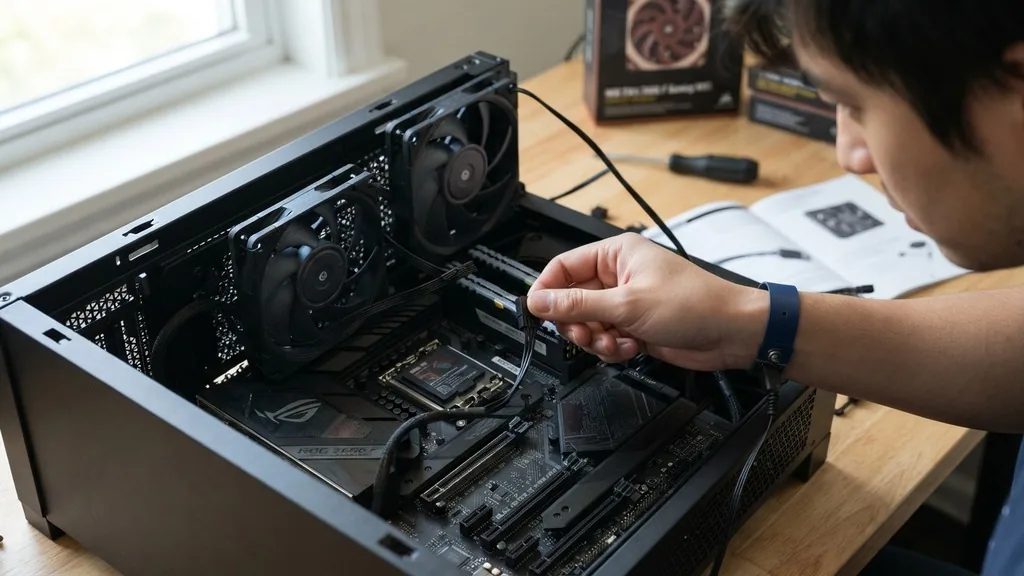
Managing airflow inside a computer chassis is essential for maintaining component longevity and performance. As you add more cooling capacity to your system, you will eventually face the challenge of how to connect multiple fans to motherboard headers that are limited in both quantity and power output.
While modern motherboards often feature several fan connectors, they are rarely enough for enthusiasts who want to maximize cooling with a full suite of case fans. Solving this requires understanding the electrical limits of your board and the specific hardware tools available to expand your connectivity.
Understanding Motherboard Fan Header Limitations
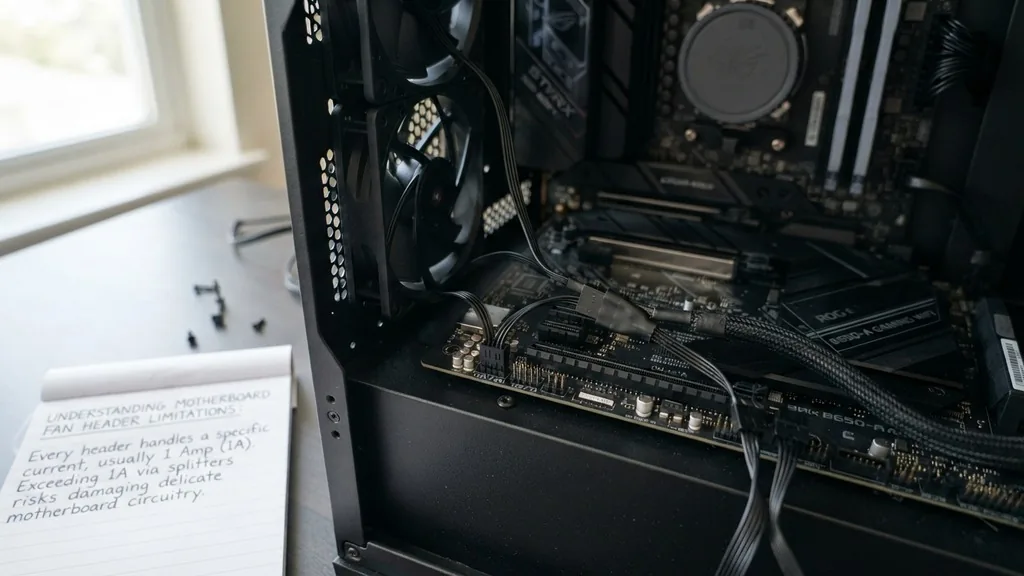
Every fan header on your motherboard is designed to handle a specific amount of electrical current, usually measured in amperes. Most standard headers are rated for 1 Amp (1A) of power.
If you exceed this limit by drawing too much current through a single port, you risk damaging the delicate circuitry of the motherboard, which can lead to permanent hardware failure. Before you start plugging in additional cooling units, you must identify how much power each fan consumes.
You can typically find the power rating on the sticker located on the back of the fan hub. If a fan is rated for 0.3A, you can theoretically connect three of them to a single 1A header safely. However, it is standard practice to leave a safety margin of at least 20% to account for the initial power spike that occurs when a fan starts spinning from a standstill.
Ignoring these electrical constraints is the most common cause of motherboard fan controller burnout. Always check your motherboard manual to confirm the specific amperage rating for each header, as some high-end boards include specialized high-amperage headers specifically for water-cooling pumps or heavy-duty fan arrays.
Using Fan Splitter Cables for Simple Expansion
A fan splitter cable is the most straightforward method for connecting two or more fans to a single header. These inexpensive cables take one male connector and branch it into two, three, or even four female connectors.
They are an excellent solution for users who want to group fans that are located in the same area of the case, such as two front-mounted intake fans. When you use a splitter, the motherboard sees only one fan, meaning it will control the speed of all connected fans simultaneously based on the signal from the primary fan header.
There is one critical nuance when using these splitters: only one of the female connectors will have all four pins (or three pins, depending on the type). The other connectors will lack the tachometer pin, which sends speed data back to the motherboard. This is intentional.
If the motherboard received speed signals from three different fans simultaneously, the sensor reading would be erratic and impossible to interpret. By design, the splitter reports the speed of only one fan while sending the same PWM (Pulse Width Modulation) signal to all of them, ensuring they all run at the same relative speed.
The Role of PWM vs. DC Fan Control
To effectively manage multiple fans, you need to understand how the motherboard regulates their speed. Modern systems primarily use PWM, which relies on a four-pin connector to send a specific signal to the fan’s internal controller.
This allows for precise speed adjustments without needing to lower the actual voltage supplied to the motor. In contrast, older or budget-friendly fans use three-pin connectors and rely on DC voltage control, where the motherboard varies the actual power delivered to the fan to change its speed.
If you are mixing and matching different fan types, you must be careful. Connecting a PWM fan and a DC fan to the same splitter can lead to unpredictable behavior, as the motherboard will only be able to control one type effectively. Ideally, you should group fans of the same model and specifications on the same splitter.
If you are interested in the technical specifications of pulse-width modulation, you can learn more about PWM fan specifications directly from official industry standards. Ensuring that your control method matches your hardware ensures that your thermal management remains stable and quiet.
Selecting a Dedicated Fan Hub
When your build requires more than three or four fans, a simple splitter cable starts to look messy and potentially dangerous due to the cumulative power draw. This is where a dedicated fan hub becomes the superior choice.
Unlike a passive splitter, a fan hub is an active device that receives power directly from your power supply unit (PSU) via a SATA or Molex connection. The motherboard header is then used only to provide the control signal, meaning the electrical load of the fans is shifted away from the motherboard entirely.
A fan hub typically features a small circuit board with multiple output headers. Because the power comes from the PSU, you don’t have to worry about exceeding the 1A limit of your motherboard header. This is the safest way to connect six, eight, or even ten fans into a single system.
Most high-quality hubs also come with an adhesive backing or magnetic mount, allowing you to hide them behind the motherboard tray for a cleaner look. When choosing a hub, verify that it supports PWM pass-through so that your motherboard can still adjust the speed of all connected fans based on CPU or system temperatures.
Comparing Connection Methods
Choosing the right hardware depends on your specific cooling requirements and the number of fans you need to manage. The following table highlights the differences between the common methods used to expand fan capacity.
| Method | Power Source | Max Fan Count | Best Use Case |
|---|---|---|---|
| Direct Header | Motherboard | 1 | Small builds, single rear exhaust |
| Splitter Cable | Motherboard | 2-3 | Grouping fans in the same chassis zone |
| Powered Fan Hub | PSU (SATA/Molex) | 6-10+ | Large builds, high-airflow setups |
Each method has its place in a well-managed build. If you are working with a compact ITX chassis, a single splitter is often all you need.
However, for a full-sized ATX tower loaded with RGB-lit fans, investing in a powered hub is the professional standard. It reduces cable clutter and provides the peace of mind that comes with drawing power from the robust rails of your power supply rather than the sensitive traces on your motherboard.
Addressing Cable Management and Aesthetics
Connecting multiple fans often results in a “spaghetti” of cables that can obstruct airflow and look unsightly. As you integrate more fans, prioritize cable routing.
Many modern cases include dedicated channels and tie-down points behind the motherboard tray specifically for this purpose. Use zip ties or Velcro straps to bundle cables together as they move toward the fan hub or motherboard headers.
Consider using black-sleeved extension cables if your fan wires are too short to reach the hub. These extensions are relatively inexpensive and significantly improve the visual quality of your build. When routing cables, ensure they are not pulled too tight, as tension can cause the connectors to pull out of the motherboard or hub over time.
Also, keep fan cables away from the blades of the fans themselves to avoid clicking sounds or mechanical damage. A clean build isn’t just about appearance; it ensures that air can move freely through the case without being blocked by tangled wires.
Troubleshooting Common Fan Issues
Even with the correct hardware, you may encounter issues such as fans not spinning, fans running at full speed, or the motherboard failing to detect them. If a fan isn’t spinning, first check the connection at both the hub and the header.
If you are using a splitter, ensure the fan with the tachometer wire (the one with the full pin count) is securely attached to the primary header. If all fans are running at full speed, you likely need to enter your BIOS/UEFI settings and ensure the header is set to “PWM” mode rather than “DC” or “Auto.”
Sometimes, a specific header might report 0 RPM even when the fans are spinning. This usually happens if the fan reporting the speed data is disconnected or faulty. If you have a hub, check if it has a dedicated port for the “master” fan.
This port is the only one that sends the RPM signal back to the motherboard. If you accidentally plug your master fan into a slave port, the motherboard won’t receive any speed data, which might trigger a “CPU Fan Error” during boot. Always double-check the documentation provided with your hub to identify the master port.
Optimizing Fan Curves for Multiple Fans
Once you have successfully connected your fans, the final step is to configure them in your BIOS. Simply connecting them isn’t enough; you need to create a fan curve that balances cooling performance with noise levels.
Most modern BIOS interfaces allow you to set a curve based on temperature inputs, such as the CPU package temperature or the motherboard chipset temperature. For multiple fans, it is usually best to tie their speed to the CPU temperature, as that is the primary source of heat in most systems.
Start by setting a “silent” profile for idle tasks, where the fans spin at a low, barely audible speed. Then, gradually increase the speed as temperatures rise, creating a steep curve once the CPU hits 70 or 80 degrees Celsius. This ensures that your system stays quiet during office work but ramps up aggressively during gaming or rendering sessions.
If you have a mix of intake and exhaust fans, try to keep the intake fans spinning slightly faster than the exhaust fans to create positive air pressure. Positive pressure helps keep dust out of the case by forcing air through filtered intake vents rather than sucking it in through every crack in the chassis.
Frequently Asked Questions
- Can I run 4 fans off one header? You can safely run 4 fans off one header if you use a powered fan hub that draws electricity from the PSU. If using a passive splitter, verify the total current draw of all four fans is well below the 1A motherboard header limit.
- Is 10 fans in a PC overkill? Ten fans are generally unnecessary for standard builds and can lead to diminishing returns regarding cooling. However, in high-end systems with multiple GPUs or custom water loops, 10 fans may be needed to maintain adequate airflow and ensure heat is exhausted efficiently.
- Should you daisy chain PC fans? Daisy chaining is acceptable for fans that come with built-in connectors designed for this purpose, like many modern RGB fans. Always monitor the total power draw to avoid overloading your motherboard headers, and avoid daisy-chaining more than three fans per header without external power.
- How do I know if my motherboard header is overloaded? If your motherboard header is overloaded, you may notice fans spinning inconsistently, failing to start, or the system shutting down unexpectedly. In severe cases, the fan header may stop working entirely or show signs of physical damage like discoloration on the motherboard PCB.


