

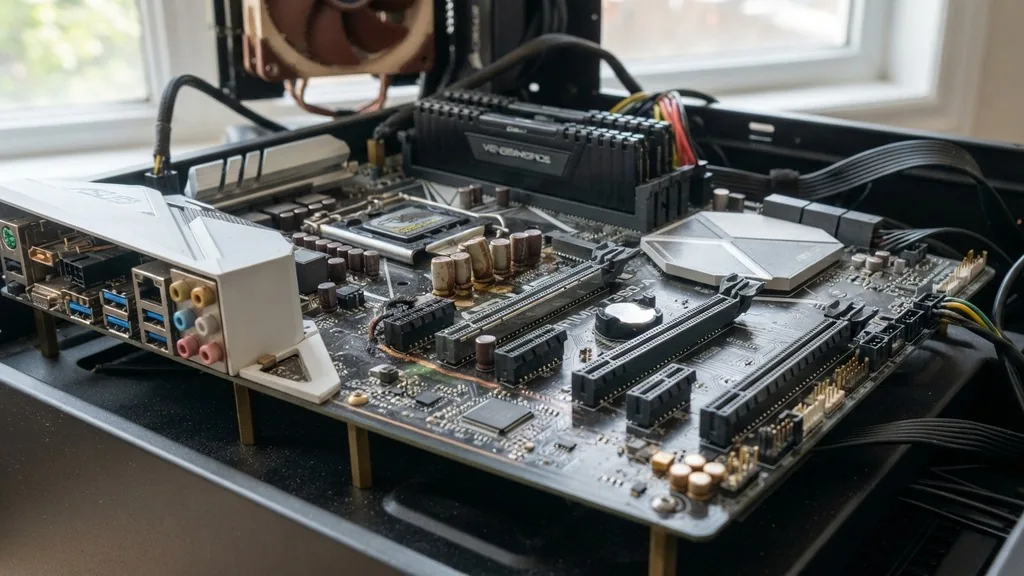
Pinpointing a failing mainboard is one of the most frustrating tasks for any computer builder or enthusiast. Because the motherboard serves as the central nervous system for your entire rig, its failure often mimics other hardware issues, leading many people to mistakenly replace a perfectly good power supply or processor. Understanding how to tell if a motherboard is bad requires a methodical, step-by-step approach to rule out peripheral components before condemning the board itself.
Physical Inspection and Visual Indicators
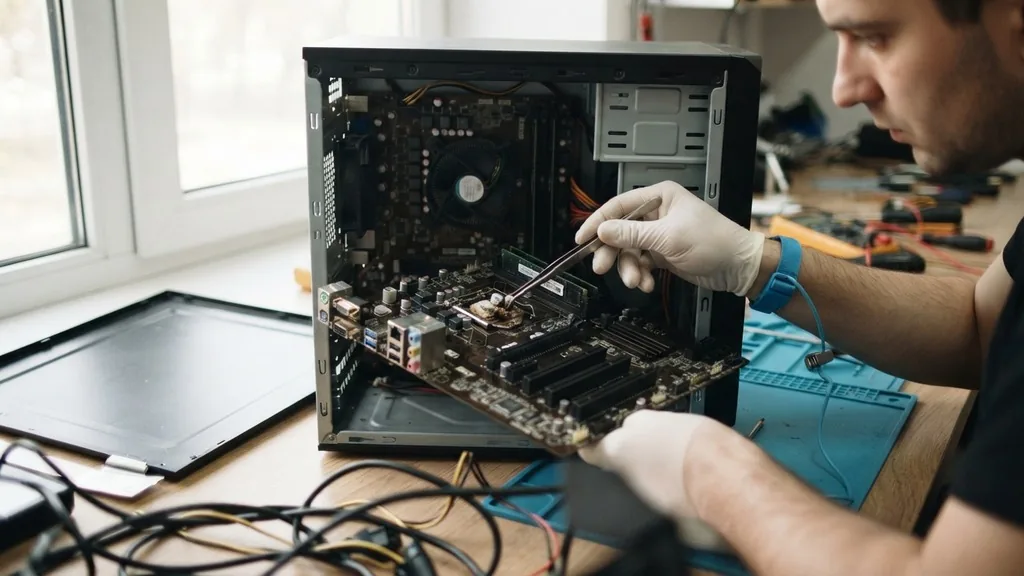
The most direct way to identify a failing board is to physically examine the hardware for signs of catastrophic electrical failure. Before you touch any internal components, ensure the computer is unplugged and you have discharged any static electricity from your body.
Remove the side panel of your case and inspect the surface of the motherboard under a bright light. You are specifically looking for damaged capacitors, which act as energy reservoirs for the circuits.
On older boards, these components were often cylindrical and prone to bulging or leaking electrolyte fluid when they failed. While modern solid-state capacitors are more resilient, they can still show signs of distress, such as charring or a distinct burnt smell near the VRMs (Voltage Regulator Modules). Furthermore, look for any discoloration on the PCB itself, particularly around the CPU socket or the PCIe slot.
Dark brown or black spots often indicate that a component has shorted out, potentially causing permanent damage to the board’s traces. If you see any physical burning, the board is almost certainly beyond repair and needs to be replaced.
Power Supply and Boot Sequence Analysis
A common symptom of a bad board is a computer that refuses to start entirely, even when the power supply is known to be functional. When you press the power button, pay close attention to the fans and the case LEDs. If the power supply fan spins for a fraction of a second and then stops, or if you hear a faint clicking sound, the motherboard might be entering a “protection mode” due to a short circuit.
To verify if the board is the culprit, perform a minimal boot. Disconnect everything that isn’t essential for the computer to post. This includes removing all RAM sticks except for one, disconnecting all SATA drives, and removing any secondary expansion cards like sound cards or capture cards.
If the system still fails to turn on or post, you have successfully narrowed the failure down to the motherboard, the CPU, or the power supply. At this stage, checking the official Intel technical documentation on system troubleshooting can help you identify if your specific CPU socket has known power-delivery issues that mirror motherboard failure.
Interpreting Post Codes and Debug LEDs
Many modern mid-to-high-end motherboards come equipped with diagnostic tools designed specifically to help users identify why a system won’t boot. If your board has a small digital display with two-character alphanumeric codes, this is your best friend. These codes correspond to specific stages of the power-on self-test (POST).
If the display stays stuck on a specific code, consult your motherboard manual to see what that code represents. For example, a code related to memory initialization might suggest a dead DIMM slot rather than a dead board.
If your motherboard lacks a digital display, it might use a series of small “Debug LEDs” labeled CPU, DRAM, VGA, and BOOT. If the CPU light remains lit and never progresses to the others, the board is likely failing to communicate with the processor. If the light cycles through these indicators and then turns off, the board is likely passing its internal checks, which suggests the issue lies with your operating system or storage drive rather than the motherboard itself.
Memory Slot and PCIe Lane Failure
Sometimes, a motherboard is not completely dead but is instead suffering from “partial” failure. This usually manifests as an inability to use specific expansion slots or memory channels. If your computer runs fine with one stick of RAM but refuses to boot when you add a second stick to a different channel, the motherboard’s memory controller or the slot itself might be faulty.
Similarly, if your graphics card (GPU) works in one PCIe slot but causes the system to freeze or display artifacts in another, the motherboard’s PCIe lanes may have sustained damage. This is common if heavy graphics cards were installed without proper support brackets, causing the slot to sag and lose electrical contact over time. Before assuming the board is bad, use a can of compressed air to clean the slots thoroughly, as a small amount of dust or debris can prevent a clean electrical connection.
BIOS and Firmware Instability
The BIOS is the firmware that tells the hardware how to behave before the operating system takes over. If your computer starts, but the BIOS settings fail to save, or if the board loses the date and time every time you unplug it, the CMOS battery is likely dead. While this is a trivial fix, a corrupted BIOS chip is a more serious issue.
If you find that the BIOS becomes inaccessible, or if the system randomly resets to factory defaults, it could indicate that the BIOS chip on the motherboard is failing or that the board is experiencing voltage fluctuations. In some cases, a corrupted BIOS can be reflashed using a “BIOS Flashback” button found on the back I/O panel. If the board refuses to accept a flash update or keeps looping into a repair state, it is a strong indicator that the underlying hardware managing the firmware is defective.
Checking for Short Circuits and Grounding
A motherboard can appear bad simply because it is grounding out against the computer case. This often happens if an extra motherboard standoff—the small brass spacers that keep the board from touching the metal chassis—is left in the wrong place. If a standoff touches a circuit trace on the back of the board, it will trigger a short, causing the system to shut down immediately upon power-up.
To test for this, remove the motherboard from the case and place it on a non-conductive surface, such as the cardboard box it came in. Connect only the power supply, the CPU, one stick of RAM, and your monitor.
If the system boots successfully outside the case, your problem was a short circuit caused by improper installation. This is a common “false positive” for a bad motherboard and is one of the first things you should check if you recently moved your components or rebuilt your system.
Comparing Potential Hardware Failures
Understanding the subtle differences between a failed motherboard and other failing components is vital to avoiding unnecessary purchases. Use the table below to compare common symptoms across different pieces of hardware.
| Symptom | Possible Motherboard Issue | Possible Other Component Issue |
|---|---|---|
| System won’t power on | Dead VRMs or BIOS chip | Dead power supply or power button |
| Random blue screens/restarts | Faulty chipset or traces | Bad RAM or unstable CPU overclock |
| USB ports stop working | Failed southbridge controller | Corrupted OS drivers |
| No video output | Faulty PCIe slot | Dead GPU or faulty cable |
As shown in the table, many of these symptoms overlap. A bad motherboard often leaves you guessing because it acts as the bridge for all these other components.
When troubleshooting, always try to swap out the “other” component first. If your USB ports fail, try a different device or reinstall the chipset drivers before assuming the board’s southbridge is physically broken.
Topical Gaps: What Most Guides Miss
Most advice on this topic ignores the “silent” death of integrated peripherals. We often focus on the CPU and RAM, but modern boards have integrated audio, Ethernet controllers, and Wi-Fi modules. If your internet connection drops out randomly or your audio crackles consistently regardless of the drivers you install, you might be looking at a motherboard that is slowly dying.
Another overlooked area is the “cold boot” issue. Some motherboards start fine after they have been running for a while, but fail to boot when the computer has been off for a long period. This is often caused by aging capacitors that have lost their ability to hold a charge effectively.
When the board is cold, the capacitors cannot provide the stable voltage required for the initial power-on sequence. As the board warms up, the internal resistance changes, and the system might finally boot. This is a classic sign of an aging board that is nearing the end of its life, even if it technically still works.
The Role of Software in Diagnostics
Before you give up and buy a new board, ensure your software isn’t the reason for your hardware instability. Use tools like HWMonitor to check your voltages. If your 12V or 5V rails are showing wild fluctuations that don’t match the output of your power supply, the motherboard’s voltage regulation is likely failing.
* Check for BIOS updates that might fix stability issues.
* Run a memory stress test to rule out bad RAM sticks.
* Monitor system temperatures to ensure the chipset isn’t overheating.
* Update your chipset drivers to the latest version from the manufacturer.
* Check the Event Viewer in Windows for “Kernel-Power” errors.
If you have performed these steps and the issues persist, you have exhausted the logical software-based troubleshooting paths. At this point, you can be reasonably confident that the hardware itself is the source of the failure.
FAQ Section
- How long do motherboards typically last? Most motherboards are designed to last between 5 to 10 years. Failure is rarely due to age alone; it is more often caused by heat, dust accumulation, power surges, or physical stress on the components and slots.
- Is there a definitive way to test a motherboard? There is no single “motherboard tester” tool for consumers. The only reliable way to test a motherboard is the process of elimination: stripping the system down to the bare essentials and testing each component individually in a known-working system.
- Is a dead motherboard worth fixing? In most cases, no. Repairing a motherboard requires specialized equipment to solder micro-components, which is usually more expensive than simply buying a new or refurbished board. It is generally only worth attempting if the motherboard is a high-end, rare, or legacy model.
- Can a bad motherboard damage other parts? Yes, it is possible. A failing motherboard that has a short circuit in the voltage regulation area can send incorrect voltage to the CPU or RAM, potentially causing permanent damage to those components. This is why you should stop using a board as soon as you suspect a serious electrical fault.
When you reach the conclusion that your board is indeed failing, don’t feel discouraged. Building and maintaining a computer is a skill, and learning how to isolate a faulty motherboard is a rite of passage for any tech enthusiast. By systematically checking your connections, observing your POST codes, and ruling out other components, you save yourself time and money while gaining a deeper understanding of how your machine functions.
If the board is truly dead, it’s simply time to move on to a newer, more capable unit that can serve as the foundation for your next computing chapter. Always remember to handle your hardware with care, keep your workspace clean, and take your time during the diagnostic process; haste is the enemy of accurate troubleshooting.


