

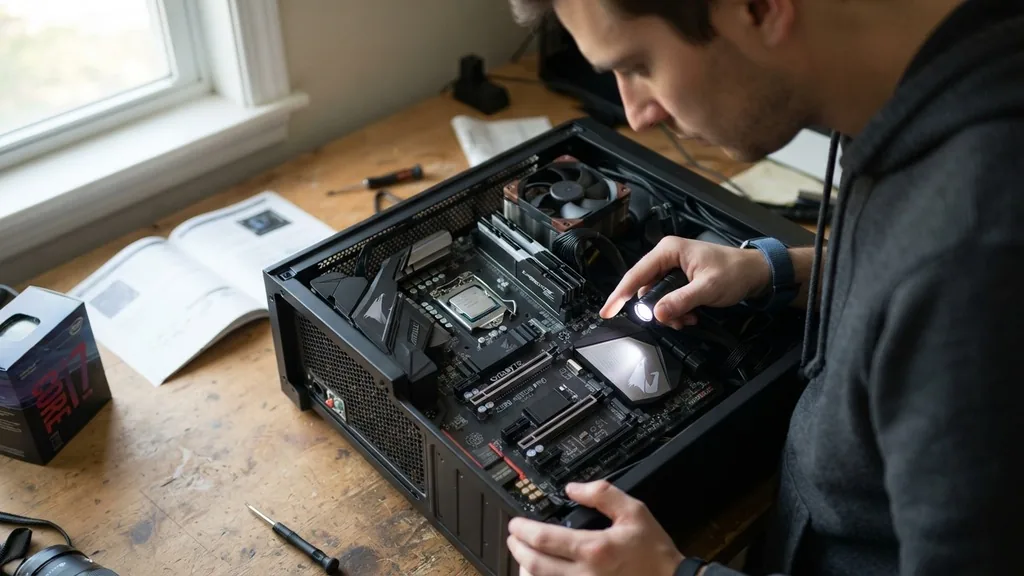
Determining what CPUs are compatible with my motherboard is the most critical step when you decide to upgrade your computer’s processing power. Before you spend money on a high-performance chip, you must ensure the physical socket and the underlying chipset can actually talk to your processor.
If you simply buy the latest chip on the market, you might find yourself with hardware that refuses to boot or, worse, causes electrical damage. This process involves identifying your specific board model, checking the manufacturer’s support list, and confirming that your BIOS is ready to handle the new silicon.
Identifying Your Motherboard Model
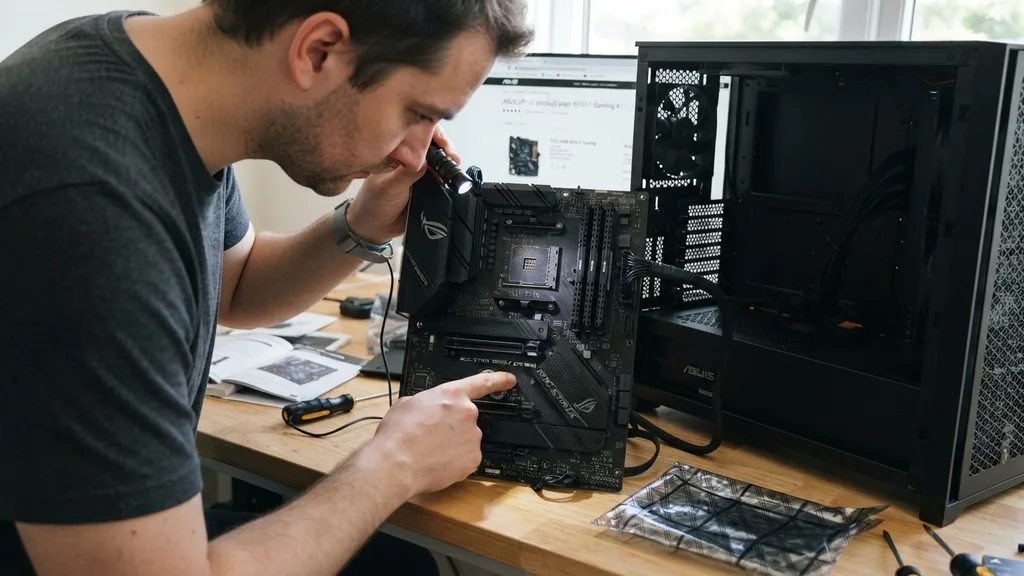
To find out what CPUs are compatible with your motherboard, you must first identify the exact make and model of the board installed in your computer. You cannot guess based on the brand alone, as manufacturers like ASUS, MSI, and Gigabyte produce hundreds of variations for the same chipset. If you are using a pre-built computer from a company like Dell, HP, or Lenovo, the motherboard model is often proprietary, meaning it may have specific limitations even if the chipset suggests broader support.
You can identify your motherboard using software tools like CPU-Z or by checking the system information built into your operating system. For Windows users, typing “System Information” into the search bar will often display the “BaseBoard Manufacturer” and “BaseBoard Product” fields.
If the software approach feels too technical, you can open the computer case and look for the model name printed directly onto the printed circuit board, usually located near the RAM slots or the PCIe lanes. Once you have the specific model number—for example, “B550 Aorus Elite”—you have the key to unlocking the manufacturer’s official support page.
Decoding the Importance of the CPU Socket
The CPU socket is the physical interface where the processor meets the motherboard. Understanding socket compatibility is the foundation of knowing what CPUs are compatible with my motherboard.
A socket is not just a collection of pins or pads; it is a mechanical and electrical standard that dictates how data travels between the CPU, the memory, and the rest of your system components. If the physical layout of the pins on your processor does not match the hole pattern on the motherboard, you will not be able to install the chip without causing catastrophic failure.
For instance, Intel and AMD use entirely different socket architectures. An Intel LGA 1700 processor will never fit into an AMD AM4 socket. Even within the same brand, sockets change frequently to accommodate new technology.
AMD moved from the long-standing AM4 platform to the AM5 platform, which requires an entirely different motherboard architecture. Always check the physical socket type listed in your motherboard manual; if the socket labels don’t match exactly, the components are physically incompatible regardless of any other factors.
Navigating Chipset Compatibility
While the socket determines if the CPU fits, the chipset determines if the motherboard can actually support the CPU’s features. The chipset is the “traffic cop” of your motherboard, managing communication between the processor, storage drives, and expansion cards.
Even if a CPU fits into a socket, the motherboard’s chipset might lack the necessary firmware or electrical pathways to drive that specific processor. Manufacturers often release a series of chipsets—entry-level, mid-range, and enthusiast-grade—that all share the same socket but offer different levels of support for newer CPU generations.
When you investigate what CPUs are compatible with my motherboard, you are essentially looking for the intersection of the socket type and the chipset generation. A motherboard released three years ago might have the right socket for a brand-new CPU, but the chipset might not recognize the newer architecture.
This is why you must consult the official CPU support list provided by the motherboard vendor. This list is the definitive source of truth for your specific hardware configuration and will tell you exactly which processors will function correctly on your board.
The Role of BIOS and Firmware Updates
A common issue users face when upgrading is installing a compatible CPU only to find that the system won’t boot. This usually happens because the motherboard’s BIOS (Basic Input/Output System) is outdated. The BIOS is the low-level software that initializes your hardware during startup.
If your motherboard was manufactured before a specific CPU was released, the BIOS will not have the “instructions” required to recognize that new processor. To fix this, you often need to update the BIOS before you swap out the old chip.
Always check the support page for your motherboard to see if a BIOS update is required for the processor you intend to buy. Many modern motherboards now feature a “BIOS Flashback” button, which allows you to update the firmware using a USB drive even without a CPU installed. This is a life-saver if you purchased a new processor that your current board doesn’t recognize yet.
If your board does not have this feature, you will need to keep your old CPU installed to perform the update, then swap to the new one afterward. Failure to perform this step is the most common reason for a “black screen” issue after a hardware upgrade.
Comparing CPU and Motherboard Generations
Manufacturers design motherboards to support specific generations of CPUs. While there is sometimes backward compatibility, forward compatibility is much rarer.
For example, a motherboard built for an 11th-generation Intel processor will not work with a 12th-generation chip, even if both were made by the same company. This is because the electrical requirements and the pin layouts are redesigned to support higher power draw and faster data transfer speeds.
To help you visualize how these generations often align with specific hardware, consider the following table which breaks down common compatibility patterns:
| Component Category | Compatibility Factor | Action Required |
|---|---|---|
| Socket Type | Physical Fit | Match exactly (e.g., AM4 to AM4) |
| Chipset | Logic Support | Verify on manufacturer support list |
| BIOS Version | Instruction Set | Update to latest version before swap |
| Power Delivery | Thermal/Electrical | Ensure VRM can handle CPU TDP |
Addressing Potential Power Delivery Issues
Even if a CPU is technically compatible, you must consider whether your motherboard’s voltage regulator modules (VRMs) can handle the power needs of the chip. A high-end, power-hungry processor might fit into a budget-friendly motherboard, but if the VRMs are not robust enough, they will overheat under load. When this happens, the motherboard will throttle the CPU’s speed to prevent damage, effectively wasting the money you spent on the upgrade.
If you are planning to install a high-performance, many-core processor, ensure your motherboard has decent heatsinks on the VRMs. You can find this information by looking at reviews or checking the board’s specifications for its power phase design.
If your motherboard has no heatsinks on the power delivery components, it is generally safer to stick to mid-range processors that don’t demand massive amounts of electricity. This is a common oversight that can lead to system instability during intensive gaming or video editing tasks.
Checking Official Support Lists
The most reliable way to answer what CPUs are compatible with my motherboard is to visit the manufacturer’s website directly. Every major motherboard vendor maintains a “CPU Support List” for every model they produce.
This is a comprehensive database that lists every single processor that has been validated for use with that specific board. This list is updated whenever a new BIOS version adds support for newer hardware, so it is always the most accurate resource available.
You can find this list by searching for your motherboard model on the manufacturer’s site and navigating to the “Support” or “Compatibility” tab. Do not rely on third-party forums or generic hardware databases, as these can sometimes contain outdated or incorrect information. Using the official manufacturer list ensures that you are looking at the exact BIOS version and stepping requirements for your specific hardware.
If your CPU is not on the list, it is highly likely that it will not work, or if it does, it will operate at reduced performance or cause instability. You can find more technical documentation and standards at the official Intel website for reference on processor specifications.
Common Mistakes When Matching Components
Many users fall into the trap of assuming that because a CPU and motherboard share the same brand, they will work together. This is a dangerous assumption. For example, Intel has launched many different generations of Core processors that require entirely different motherboards.
Similarly, AMD has multiple generations of Ryzen chips that require specific chipset versions. A common mistake is buying a “used” motherboard that was never updated, meaning it lacks support for the newer CPU you bought, leading to a frustrating troubleshooting process.
Another mistake is ignoring the RAM requirements. While the CPU and motherboard might be compatible, the motherboard also dictates what type of RAM you can use (e.g., DDR4 versus DDR5).
If you are upgrading your CPU, you might find that you also need new memory modules to match the motherboard’s requirements. Always check the motherboard’s memory compatibility list alongside the CPU support list to ensure your entire system configuration is balanced and operational.
- Always verify the socket type before making a purchase.
- Check the manufacturer’s official support website for the specific CPU model.
- Confirm that your current BIOS version is compatible with the new processor.
- Ensure your power supply unit can handle the increased power draw of a new CPU.
- Update your BIOS before removing the old processor if necessary.
- Verify that your existing RAM is compatible with the new motherboard/CPU combination.
Frequently Asked Questions
- How do I check if my CPU is compatible with my motherboard? The best method is to locate your motherboard’s exact model name and visit the manufacturer’s official support website. Look for the “CPU Support List” page, which explicitly states every processor model that has been tested and confirmed to work with your specific board and BIOS version.
- Are all CPUs compatible with all motherboards? No, CPUs are not universal. They are designed for specific sockets and chipsets. For example, an AMD processor will not fit in an Intel motherboard, and even within the same brand, different generations often require different sockets and chipsets to function correctly. Always check compatibility before buying.
- Do I need to update my BIOS before installing a new CPU? Often, yes. If your motherboard was released before the CPU, the BIOS may not recognize the new chip. Check your motherboard’s support page to see if a specific BIOS version is required for your new processor. If so, update it before swapping the hardware to avoid boot issues.
- Can I use a high-end CPU in a budget motherboard? While it might physically fit, it is often not recommended. Budget motherboards may have weak power delivery systems (VRMs) that can overheat when paired with high-performance, power-hungry CPUs. This can lead to thermal throttling, where the CPU slows down to prevent damage, negating the benefits of your upgrade.


