

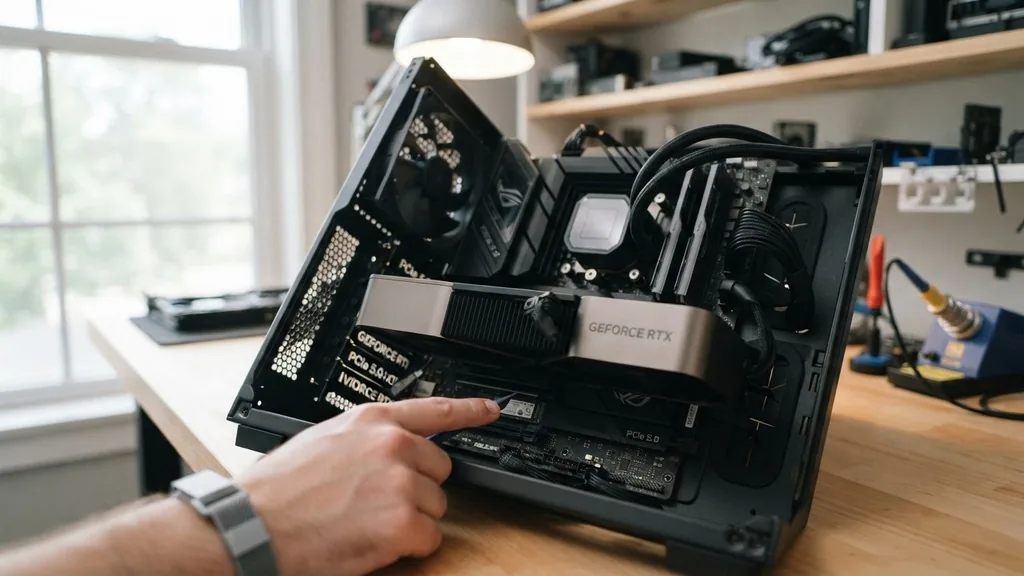
When building or upgrading a PC, users often worry about whether their components will play nicely together. A common question that arises is: can a motherboard bottleneck a gpu?
While the central processing unit (CPU) and the graphics processing unit (GPU) are typically the primary suspects when it comes to performance limitations, the motherboard acts as the foundation for every signal traveling through your system. If that foundation has outdated specifications, it can theoretically impact the communication between your hardware, though the reality is often more nuanced than a simple “yes” or “no.”
Understanding the Role of the Motherboard in GPU Communication
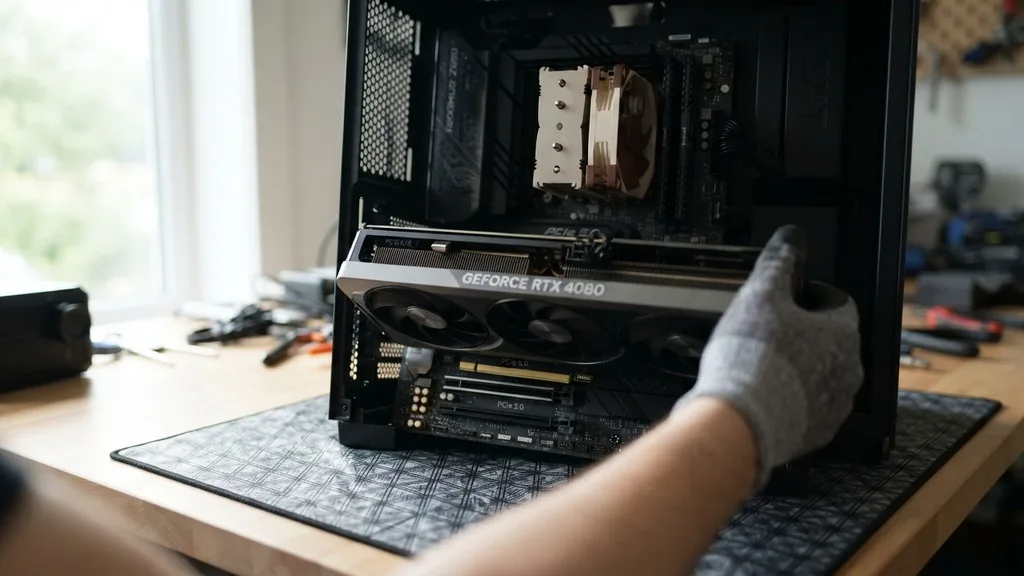
A motherboard acts as the central nervous system of your computer, facilitating data transfer between the CPU, memory, and the graphics card. The primary interface for this communication is the PCIe (Peripheral Component Interconnect Express) slot.
When you plug a card into the motherboard, you are establishing a direct line of communication that relies on specific lane counts and generation standards. If your motherboard uses an older PCIe standard, such as PCIe 2.0 or 3.0, while your modern graphics card is designed for PCIe 4.0 or 5.0, you might wonder if you are holding back your performance.
In most real-world scenarios, the impact of the PCIe generation on gaming performance is negligible. Most modern GPUs do not fully saturate the bandwidth provided by PCIe 3.0 slots, meaning the motherboard is rarely the primary factor in frame rate drops.
However, the motherboard can become a bottleneck if the physical slot configuration is limited—for example, if a motherboard forces a primary x16 slot to run at x4 speeds. This reduction in lane availability restricts the amount of data that can be moved at once, which could lead to stuttering or decreased performance in data-heavy tasks like high-resolution rendering or specific professional workflows.
The Impact of PCIe Generations on Modern Graphics Cards
PCIe generations are often misunderstood by enthusiasts who believe that a mismatch will lead to catastrophic performance loss. The truth is that PCIe is backward compatible. You can plug a PCIe 4.0 card into a PCIe 3.0 slot, and it will function perfectly.
The question of whether this creates a bottleneck depends entirely on the bandwidth requirements of the specific hardware. While some high-end cards might see a single-digit percentage difference in frame rates when moved from a 4.0 to a 3.0 slot, this is rarely perceptible during actual gameplay.
The latest hardware standards, such as PCIe 5.0, offer massive theoretical bandwidth improvements, but even the most powerful consumer GPUs currently on the market rarely utilize the full capacity of a PCIe 4.0 x16 interface. Therefore, unless you are using a professional-grade card with massive data transfer requirements, the motherboard’s PCIe version is unlikely to be the component holding back your graphics card. You should focus your budget on the CPU and GPU rather than worrying about replacing a motherboard solely to gain a newer PCIe generation, unless you are performing specialized tasks that demand extreme throughput.
How Lane Allocation Affects GPU Performance
Motherboards are designed with a specific number of PCIe lanes provided by the CPU and the chipset. A full-sized x16 slot is the standard for graphics cards, providing 16 lanes of data transfer. Some budget-tier motherboards may feature an x16 physical slot that is electrically wired for only x4 or x8 operation.
When a GPU is restricted to fewer lanes, it cannot move data as quickly as it would on a full x16 connection. This is where a genuine bottleneck can occur.
If your motherboard restricts your GPU to x4 lanes, you might notice performance degradation in titles that require constant streaming of assets from system memory to video memory. This is particularly relevant for modern open-world games with high-resolution textures.
It is important to check your motherboard manual to ensure your graphics card is installed in the primary slot that offers the full x16 bandwidth. If you are using a multi-GPU setup or have multiple NVMe drives installed, some motherboards will automatically split the lanes, potentially reducing your GPU’s available bandwidth.
Power Delivery and Thermal Constraints
Another way a motherboard can influence GPU performance is through power delivery and thermal regulation. While the GPU draws most of its power directly from the power supply unit (PSU) via dedicated cables, the motherboard provides up to 75 watts through the PCIe slot.
If a motherboard’s power delivery components (VRMs) are poorly cooled or failing, the overall system stability can be compromised. While this is less of a “bottleneck” in the traditional sense, it can lead to thermal throttling or system crashes that mimic poor performance.
Furthermore, the physical layout of the motherboard matters. If the PCIe slot is positioned in a way that restricts airflow to the GPU fans, the graphics card will heat up faster. Once a GPU reaches its thermal limit, it will automatically downclock to prevent damage, which results in lower performance.
In this case, the motherboard layout is indirectly causing a bottleneck by preventing the GPU from operating at its peak boost clock. Proper case airflow and a motherboard with a sensible layout are essential for maintaining stable clock speeds during intense gaming sessions.
Comparing Motherboard Influence Across Different Builds
To understand the scope of this issue, it is helpful to look at how different motherboard tiers handle high-performance hardware. The table below outlines how various motherboard features can impact overall system throughput.
| Feature | Potential Impact on GPU | Risk Level |
|---|---|---|
| PCIe Version (3.0 vs 4.0) | Minimal to None | Low |
| Lane Count (x16 vs x4) | Moderate to High | Medium |
| Slot Placement | Thermal Throttling | Low |
| Chipset Bandwidth | Data Transfer Speed | Low |
As shown in the table, the most significant risk comes from lane count restrictions. While the version of the PCIe slot is often hyped in marketing materials, it is the actual number of lanes connected to the CPU that determines whether the card is effectively “choked.” If you are building a system, prioritize a motherboard that supports full x16 speed on the primary slot to ensure your GPU has the necessary headroom to perform as intended.
The Relationship Between CPU and Motherboard Bottlenecks
It is impossible to discuss motherboard bottlenecks without addressing the CPU. The motherboard serves as a bridge, but the CPU is the traffic controller. If you pair a powerful, modern GPU with an old, slow CPU, the CPU will be unable to process game logic fast enough to keep the GPU fed with data.
This is a classic CPU bottleneck. Sometimes, an older motherboard might limit your CPU upgrade path, effectively forcing you into a situation where you are stuck with an aging processor that prevents your GPU from reaching its full potential.
If your motherboard has a socket that no longer supports modern, high-performance processors, you might eventually need a new motherboard to upgrade the CPU, which in turn allows the GPU to perform better. The motherboard itself isn’t the bottleneck in the sense of a slow data pipe, but it is the gatekeeper that determines which CPUs you can use. When you run into a scenario where your frame rates are low regardless of your graphics settings, the issue is almost always a mismatch between the CPU and the GPU, rather than the motherboard’s inherent speed.
Common Myths and Misconceptions
There are many myths circulating in online forums about motherboard performance. One of the most common claims is that “gaming motherboards” provide higher frame rates than standard office boards. In reality, a motherboard does not directly increase your FPS.
Its role is to provide stable power and reliable communication between components. If a motherboard is high-quality, it will support the full speed of your components, but it won’t magically make them faster than their rated specifications.
Another common question is whether you need a new motherboard if you buy a new GPU. For 95% of users, the answer is no. As long as your motherboard has a standard PCIe slot and your power supply can handle the load, your GPU will work.
The only time you truly need a new motherboard is when you are upgrading to a CPU that uses a different socket type or if your current motherboard lacks essential features like M.2 slots for fast storage, which can sometimes impact game loading times and asset streaming. You can find detailed information on hardware compatibility through the official Intel support resources, which offer guidance on chipset and processor pairings.
Addressing Topical Gaps: Troubleshooting Performance Issues
If you suspect your motherboard is holding back your GPU, you should take a methodical approach to troubleshooting. First, check your GPU usage during a game using monitoring software.
If your GPU usage stays consistently below 90-95% while your CPU usage is also low, you might have a frame rate limiter enabled, or your RAM might be the culprit. If your GPU usage is high (95-100%), your GPU is likely performing exactly as expected, and any performance issues are due to the card’s inherent limits.
If you believe the PCIe slot is the issue, run a benchmark tool like GPU-Z. This software will tell you exactly what speed your PCIe slot is running at while under load. If it says “x4” instead of “x16,” you have identified the bottleneck.
Check your BIOS settings to see if PCIe lane configuration can be adjusted. Sometimes, enabling “High Performance” modes or updating your BIOS can resolve hidden communication issues between the motherboard and the graphics card.
- Update your motherboard BIOS to the latest version to ensure compatibility with newer hardware.
- Verify that the GPU is seated firmly in the top PCIe x16 slot, which is usually wired directly to the CPU.
- Check for BIOS settings related to PCIe lane speeds, such as “Gen3” or “Gen4” forced modes.
- Ensure your power supply has enough overhead to handle the transient power spikes of your specific GPU.
- Monitor temperatures for both the CPU and GPU to rule out thermal throttling caused by poor case airflow.
- Disable unnecessary background applications that might be consuming PCIe bandwidth or CPU cycles.
The Future of Motherboard and GPU Integration
As technology moves forward, the interface between motherboards and GPUs is becoming more efficient. Technologies like Resizable BAR (Base Address Register) now allow the CPU to access the entire frame buffer of the GPU at once, rather than in small chunks.
This feature, which requires support from both the motherboard BIOS and the GPU, can lead to significant performance gains in many modern games. This is a clear example of how the motherboard’s software and configuration can directly influence the effectiveness of a graphics card.
When you look for a new motherboard, look for support for modern features like Resizable BAR and PCIe 4.0 or 5.0. While you don’t need the most expensive board on the shelf, ensuring these features are present will help your system age better.
The motherboard is no longer just a passive circuit board; it is an active participant in the performance of your system. While it rarely acts as a hard bottleneck, its capabilities determine how well your other components can communicate and cooperate under heavy workloads.
Frequently Asked Questions
- Does a motherboard affect FPS? A motherboard does not directly increase FPS. Its role is to provide stable power and efficient data transfer. However, if a motherboard limits your CPU choice or restricts PCIe lanes to an x4 speed, it can indirectly cause lower frame rates by preventing other components from reaching their potential.
- Do I need a new motherboard for a new GPU? Usually, no. If your motherboard has a PCIe x16 slot and fits your current CPU, it will work with almost any modern GPU. You only need a new motherboard if you are also upgrading your CPU to a different socket or if your current board lacks necessary features.
- How can I check if my PCIe slot is slowing my GPU down? You can use software like GPU-Z to monitor the bus interface of your graphics card while it is under load. If the software shows that your card is running at x4 or x8 speeds instead of the expected x16, your motherboard or slot configuration may be limiting performance.
- Is PCIe 3.0 vs 4.0 a big deal for gaming? For the vast majority of games, the difference between PCIe 3.0 and 4.0 is negligible, often resulting in less than a 1-3% difference in frame rates. Unless you are using a very high-end card in a professional productivity workload, the version of the PCIe slot will not be a noticeable bottleneck.


