

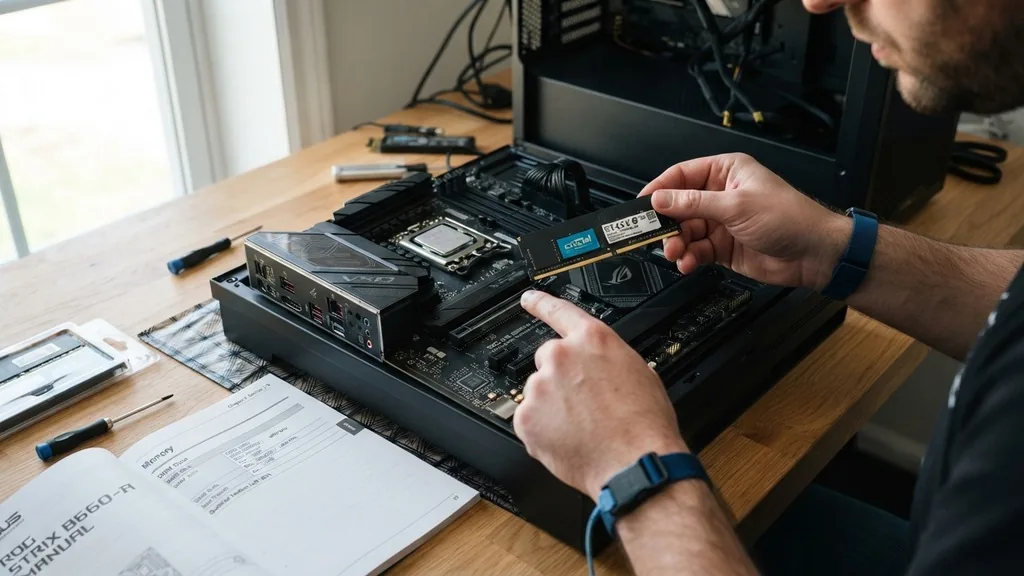
Upgrading your computer‘s memory is one of the most effective ways to boost performance, but it isn’t as simple as just buying the first stick you see on sale. Knowing how to check if RAM is compatible with your motherboard is a critical skill for anyone building or upgrading a system.
If the memory modules you purchase do not align with the specifications of your board, the system will fail to boot, or you might encounter persistent stability issues that are difficult to diagnose. Before you spend money on new hardware, you need to understand the physical and electrical constraints of your current setup.
Understanding Memory Form Factors and Standards
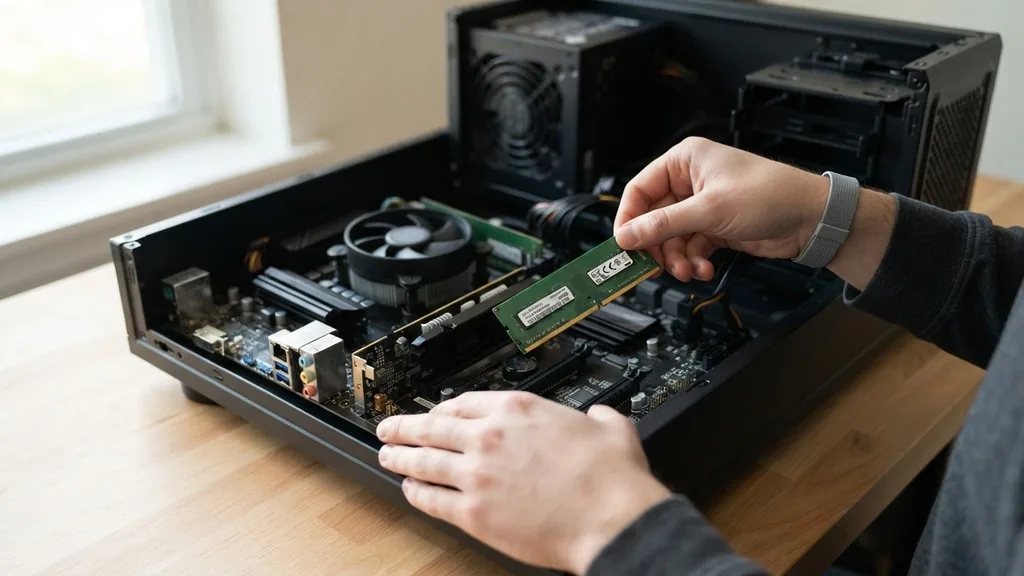
To determine if RAM is compatible with a motherboard, you must identify the physical form factor and the generation of memory supported by your system. The motherboard serves as the foundation for your computer, and it dictates exactly which types of memory modules can be installed.
Modern desktops almost exclusively use DIMM (Dual In-line Memory Module) sticks, while laptops and small form factor PCs utilize the smaller SO-DIMM (Small Outline DIMM) format. Attempting to force a desktop DIMM into a laptop slot is physically impossible, and even within the desktop category, there are generational barriers that prevent cross-compatibility.
The most common standard today is DDR (Double Data Rate) technology. You cannot install DDR4 memory into a motherboard designed for DDR5, nor can you place DDR3 into a modern DDR4 slot. The “keying”—the small notch located on the gold contact edge of the RAM stick—is positioned differently for each generation.
This physical design ensures that you cannot accidentally insert an incompatible module. When you check your system specifications, you are looking for the specific generation supported by your CPU and motherboard chipset. Always verify the manual or the manufacturer’s website to confirm whether your board requires DDR4 or DDR5, as these two technologies are not electrically or physically interchangeable.
Decoding Motherboard Specifications for Memory
Every motherboard manufacturer provides a technical specification sheet that lists the memory standards it supports. This document is your primary source of truth when evaluating hardware upgrades. You should look for the maximum memory capacity, the number of available slots, and the supported memory frequencies.
For example, a motherboard might support up to 64GB of RAM across four slots, with a maximum speed of 3600MHz. If you purchase 4000MHz memory, the system might down-clock it to 3600MHz, or it might refuse to post if the BIOS cannot handle the XMP or EXPO profile required for that speed.
It is also vital to consider the motherboard’s support for dual-channel or quad-channel memory architectures. Most consumer motherboards utilize a dual-channel configuration, meaning you get the best performance by installing RAM in matching pairs.
If you have four slots, installing two sticks in the correct slots (usually the second and fourth slots from the CPU) ensures the memory bus operates at its full potential. If you mix and match capacities or speeds, the system will default to the slowest common denominator, which often hampers the performance of your entire computer.
Using Manufacturer QVL Lists for Verification
A Qualified Vendor List (QVL) is a document published by motherboard manufacturers that lists specific RAM kits that have been tested and verified to work with that particular board. When you want to be absolutely certain that a new stick of RAM is compatible, checking the QVL is the gold standard of verification.
While most modern RAM will work with most motherboards, using a kit from the QVL eliminates the guesswork. If your specific model number appears on the list, you have a guarantee from the manufacturer that the hardware will function as intended.
To find the QVL, you can visit the official support page for your motherboard make and model. Many users overlook this step, assuming that all RAM with the correct DDR version will work. While this is often true, some high-performance kits require specific voltage adjustments or timings that may not be stable on every board.
By consulting the QVL, you can avoid the frustration of returning parts that cause blue screens or random system crashes. If you are building a high-end gaming machine, the QVL is particularly important because high-frequency memory puts a significant load on the motherboard’s memory controller.
How Memory Frequency and Latency Affect Stability
Memory frequency, measured in Megahertz (MHz) or Megatransfers per second (MT/s), is often the most misunderstood aspect of compatibility. While a motherboard might support a wide range of speeds, the actual ceiling is often dictated by the CPU’s integrated memory controller.
If you buy a very fast RAM kit, you must ensure your system supports the necessary XMP (Extreme Memory Profile) or EXPO (Extended Profiles for Overclocking) settings. Without enabling these profiles in the BIOS, your RAM will run at the default JEDEC speed, which is significantly slower than the advertised frequency on the box.
Latency, represented by the “CL” number (such as CL16 or CL18), also plays a role in how well your system handles memory. Lower latency generally results in faster data access times, but it is less critical for stability than frequency. If you are upgrading existing RAM, try to match the latency and frequency of your current sticks to prevent synchronization issues.
Mixing two different RAM kits—even if they are the same brand—can lead to “training” errors during the boot process. You can learn more about how memory standards are developed and categorized by visiting the JEDEC Solid State Technology Association for official industry documentation.
Software Tools to Check Your Current Hardware
If you do not have the physical manual for your motherboard, you can use software to identify your current hardware components. Tools like CPU-Z are excellent for determining your current memory type, speed, and the number of channels currently in use.
By opening the “Memory” and “SPD” tabs in CPU-Z, you can see exactly what is inside your computer without opening the case. This information is invaluable when you are searching for compatible upgrades, as it tells you exactly what you have right now.
Other tools, such as system scanners provided by major memory manufacturers like Crucial or Kingston, can automatically detect your motherboard make and model. These compatibility tools are designed to scan your system and provide a list of guaranteed-compatible upgrades from their own inventories. While these tools are convenient, they are essentially automated versions of the QVL check.
They use a database to match your motherboard’s ID to a list of validated components. They are very reliable for standard office and home setups, though they might not always show the most exotic, high-performance gaming memory options.
Common Pitfalls When Mixing RAM Kits
One of the most frequent mistakes users make is assuming that buying the same brand of RAM means it will be compatible with their existing sticks. Even if the brand and model name are identical, manufacturers often change the internal memory chips—the actual silicon dies—between production batches. This is known as a change in “revision.”
If you buy a stick of RAM today and another of the same model six months from now, they might use different chips from different suppliers. This can lead to system instability, especially if you are trying to run them at high frequencies.
If you need to increase your total capacity, it is almost always better to purchase a single, matched kit of the desired capacity rather than adding to your old sticks. If you must mix them, ensure the voltage requirements are identical. For example, some DDR4 kits run at 1.2V while high-performance ones run at 1.35V.
If your motherboard cannot provide two different voltages to the same memory bank, one of the sticks will be forced to operate outside of its rated specifications. This leads to data corruption, file system errors, and the dreaded “boot loop” where the computer restarts repeatedly.
| Factor | Importance | Impact on Compatibility |
|---|---|---|
| DDR Generation | Critical | Prevents physical installation if incorrect. |
| Frequency (MHz) | Moderate | System may down-clock if speed is unsupported. |
| CAS Latency | Low | Affects performance; can cause instability if mixed. |
| Voltage | High | Mismatch can lead to total system failure. |
Verifying Compatibility for Specialized Systems
Laptop and small form factor (SFF) computer users face unique challenges when checking for RAM compatibility. In many modern laptops, the memory is soldered directly onto the motherboard, meaning it cannot be upgraded at all. Before you buy anything, you must confirm that your laptop has swappable SO-DIMM slots.
You can usually find this by searching for your laptop’s service manual or by checking if there is an access panel on the bottom of the device. If the RAM is soldered, you are limited to the capacity you purchased at the time of manufacture.
For SFF desktops, the space constraint is the primary concern. Some high-performance RAM kits include large heat spreaders that can interfere with the CPU cooler or the chassis itself. Always measure the clearance inside your case before ordering tall, RGB-lit memory modules.
Additionally, some proprietary motherboards—common in pre-built systems from companies like Dell, HP, or Lenovo—have limited BIOS settings. These boards may not support the XMP profiles required to run aftermarket RAM at its advertised speed, meaning you might be stuck with the standard JEDEC speeds regardless of what you buy.
Steps to Take Before You Buy
Before you commit to a purchase, follow this systematic approach to ensure you don’t waste your time or money. First, identify your motherboard’s exact model number using the system information tool or by looking at the board itself. Second, visit the manufacturer’s website and locate the support or memory compatibility page.
Third, verify the maximum capacity and the number of slots available. Fourth, if you are planning to add to existing RAM, check the technical specifications of your current sticks to ensure the voltage and speed are as similar as possible.
- Confirm your motherboard supports the specific DDR generation (e.g., DDR5).
- Check the maximum supported memory capacity for your specific chipset.
- Verify the physical clearance for RAM modules if you are using an aftermarket CPU cooler.
- Use the motherboard’s QVL to identify tested and stable RAM kits.
- Enable XMP or EXPO in the BIOS after installation to ensure the RAM runs at its rated speed.
- Run a memory diagnostic tool (like MemTest86) after installation to confirm system stability.
If you follow these steps, you will significantly reduce the risk of encountering compatibility issues. Remember that “compatible” does not just mean the computer turns on; it means the system runs reliably under load without crashing or corrupting data. Taking the extra twenty minutes to verify these details is far better than spending hours troubleshooting a system that won’t boot or crashes during a gaming session.
Frequently Asked Questions
- Can I use DDR4 RAM in a DDR5 slot? No, you cannot. The physical notches on the RAM sticks are located in different positions, and the electrical signaling is entirely incompatible. Attempting to force the wrong type of RAM into a slot will damage both the memory module and the motherboard.
- How do I know if my RAM is running at the correct speed? Once you install the RAM, enter your BIOS settings and check the “Memory” or “Overclocking” section. You will likely need to enable an XMP or EXPO profile to ensure the RAM reaches its advertised speed, otherwise, it will default to a standard, slower speed.
- Does RAM brand matter for compatibility? The brand name itself is less important than the underlying specifications and the QVL status. As long as the RAM meets the voltage, frequency, and generation requirements of your motherboard, it should work fine regardless of whether you choose a premium or budget brand.
- What happens if I install incompatible RAM? In most cases, the computer will fail to boot and may produce beeps or light codes from the motherboard indicating a memory error. In rare cases, using incompatible voltage could potentially damage the memory controller on your CPU or the slots on the motherboard.


