

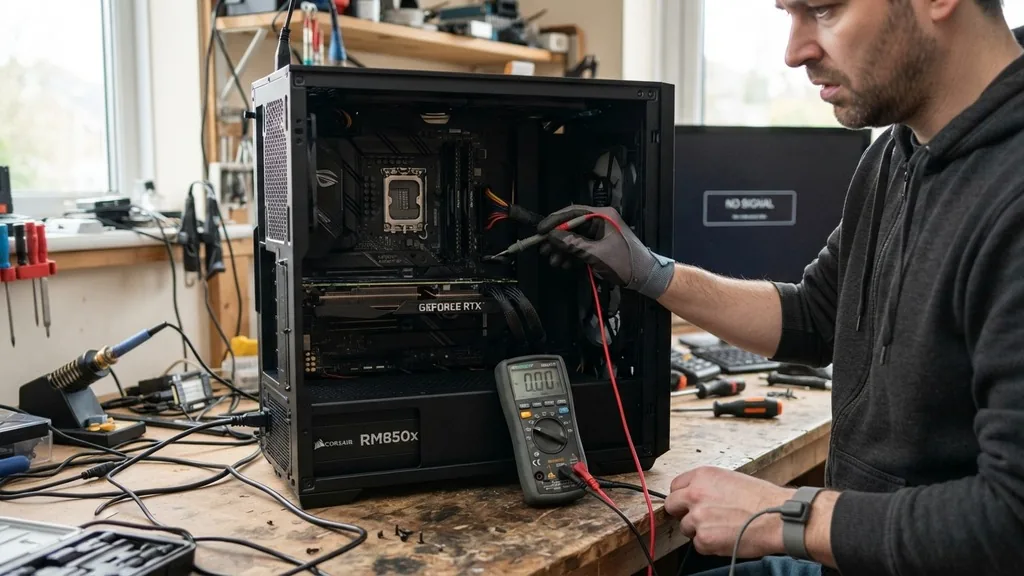
Troubleshooting a unresponsive computer is often a stressful experience, especially when you suspect the core component—the motherboard—has failed. Knowing how to know if your motherboard is dead requires a systematic approach to isolate the problem from other common hardware issues like a faulty power supply or a dying graphics card.
When your machine refuses to boot, the motherboard is often the primary suspect because it acts as the central nervous system, connecting the CPU, RAM, and storage devices. By observing specific behavioral patterns and performing targeted tests, you can determine if your mainboard is truly beyond repair or if another component is simply mimicking a total system failure.
Understanding the Signs of a Non-Responsive System
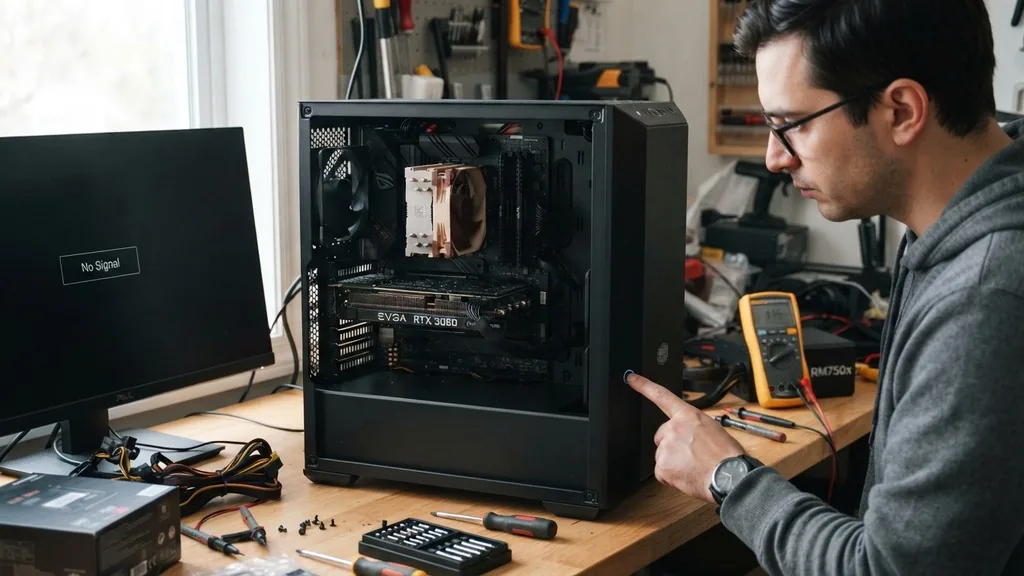
A dead motherboard typically presents itself through a total lack of activity when you attempt to start the machine. If you are pressing the power button and absolutely nothing happens, the first thing you should check is the power supply unit (PSU).
However, if the PSU is functional and the system remains silent, the motherboard may have suffered a critical failure. The motherboard is responsible for sending the initial electrical signal to the CPU to begin the boot process; if this signal path is broken due to a short circuit or a blown capacitor, the system will not respond to any input.
You should look for subtle signs that indicate the board is receiving power but failing to execute the startup sequence. Are there any LEDs glowing on the board itself? Many modern systems have diagnostic lights that indicate power status even when the computer is off.
If you see no lights, no fans spinning, and hear no beeps, the board is likely failing to distribute power correctly. This state of “total silence” is a hallmark of a motherboard that has reached the end of its lifespan or suffered a catastrophic electrical surge.
The “No Response” Test: Initial Hardware Observations
When you are pressing the power button, the absence of any mechanical movement is a primary indicator of a hardware fault. If your fans are not spinning, it suggests that the electrical current is not reaching the components or the motherboard is not triggering the start command.
You must check the physical connections inside the case to ensure that the front panel connectors—the small wires that link your case’s power button to the motherboard pins—are securely seated. A loose connector can easily be mistaken for a dead board, so verify these first.
If the connections are solid and the PSU has been verified as working, you may be dealing with a dead motherboard. Another common sign involves the system power LEDs.
If these lights fail to illuminate despite the PSU being plugged in and the wall outlet providing power, the motherboard’s power distribution circuitry is likely damaged. In some cases, the board might show a brief flicker of light before dying instantly, which often indicates a short circuit somewhere on the board that is triggering the PSU’s internal safety shutdown mechanism to prevent fire or further damage.
Interpreting BIOS Beep Codes and Diagnostic LEDs
Modern motherboards are designed to communicate their status through specific audio signals known as beep codes or via small LED diagnostic panels. If you hear a series of beeps when you turn on the computer, the motherboard is actually functioning well enough to perform a POST (Power-On Self-Test).
A long, continuous beep or a specific pattern of short beeps usually points to a RAM or GPU issue rather than a dead motherboard. If you hear absolutely nothing—no fans, no beeps, and no lights—the board is likely not even reaching the stage where it can perform these diagnostics.
Consulting your motherboard’s manual is essential here. Every manufacturer uses different beep codes to signify hardware failures. If your motherboard has a small digital display on the PCB, it might show an error code.
You can cross-reference this code with the manufacturer’s documentation to see if the error is related to the CPU, memory, or the board itself. If the display is completely dark, it reinforces the suspicion that the board is unresponsive. For those who want to see the official standards for these signals, you can review the Intel technical documentation on system boot issues to understand how these processes are intended to function under normal conditions.
The Role of RAM and CPU in Diagnostic Isolation
Sometimes, a motherboard is not dead, but a faulty component plugged into it is preventing the system from starting. The RAM is a frequent culprit. If a stick of memory is malfunctioning, it can prevent the motherboard from initializing.
You should try removing all RAM sticks and booting with only one in a different slot. If the system suddenly shows signs of life, the board is fine, and you simply have a bad memory module. This is a crucial step in the diagnostic process because it prevents unnecessary replacement of the motherboard.
The CPU is another component that can cause a “dead” symptom. If the CPU is not seated correctly or has bent pins, the motherboard will detect this as a critical failure and refuse to boot. While it is rare for a CPU to simply die, a bad motherboard can sometimes cause the CPU to overheat or fail to receive the correct voltage.
By isolating the RAM and ensuring the CPU is properly installed, you narrow down the possibilities significantly. If you have gone through these steps and the board still shows zero activity, your confidence in the diagnosis of a dead motherboard increases significantly.
Testing the Power Supply Unit Independently
Before condemning the motherboard, you must ensure the power supply is delivering the correct voltage. A power supply can appear “dead” if its internal fuse has blown or if it has simply failed. You can test this by using a simple paperclip test, which involves jumping the green wire and any black wire on the 24-pin ATX connector while the PSU is unplugged from the motherboard.
If the PSU fan spins when you do this, the PSU is likely functional. If it does not, your power supply is the issue, not your motherboard.
This distinction is vital because a motherboard replacement is far more expensive and labor-intensive than swapping out a power supply. Many users mistakenly replace their entire system because they assume the motherboard is dead, when in reality, the power delivery system was the only failure point.
Always perform this test while the PSU is disconnected from all other components to prevent accidental damage to your drives or graphics card. If the PSU powers up during the test but the motherboard remains dead when reconnected, you have successfully isolated the fault to the board.
Physical Inspection for Blown Capacitors and Damage
If you are comfortable opening your case, a visual inspection of the motherboard can reveal physical signs of failure. Look closely at the capacitors—the small cylindrical components scattered across the board. If you see any that are bulging, leaking, or have a crusty residue on top, they have failed.
In older systems, this was a very common cause of motherboard death. Even if only one capacitor has failed, it can disrupt the entire power delivery chain, rendering the board non-functional.
Additionally, check for burn marks or scorched areas on the back or front of the board. These marks often occur near the VRMs (Voltage Regulator Modules) or the CPU socket. If you smell a faint “burnt electronics” scent when you open the case, it is a definitive sign of a component failure.
Physical damage from a dropped screw, liquid spill, or a shorted standoff can also kill a motherboard instantly. If you find physical damage, there is no software fix that can revive the board; it must be replaced.
Comparing Common Failure Symptoms
To help you categorize your experience, the following table outlines the common symptoms and their likely causes. This should help you differentiate between a dead motherboard and other common system failures that mimic the same behavior.
| Symptom | Likely Cause |
|---|---|
| No power, no lights, no fans | PSU failure or dead motherboard |
| Fans spin, but no display output | GPU, RAM, or CPU issue |
| System loops on and off | Power supply or overheating CPU |
| Beep codes during startup | RAM or component configuration error |
By reviewing this table, you can see that a completely dead system is usually limited to power delivery issues. If you hear the fans but get no video, your motherboard is likely alive, and you should focus your troubleshooting on the graphics card or monitor settings. This distinction saves significant time and effort during the repair process.
When to Consider Professional Repair Versus Replacement
Deciding whether to repair or replace a motherboard depends heavily on the age and value of your computer. If the motherboard is out of warranty, board-level repair—such as replacing individual capacitors or microchips—requires specialized equipment and expertise that most home users do not possess. Professional repair services exist, but they are often expensive and may cost nearly as much as a modern entry-level motherboard.
If your system is more than five years old, it is usually more cost-effective to replace the motherboard and potentially upgrade the CPU and RAM simultaneously. Replacing the motherboard requires transferring your existing components to a new board, which is a delicate process that requires careful handling of the CPU socket.
If you choose to replace it, ensure the new board is compatible with your existing processor’s socket type and memory standard. If you are unsure about your technical skills, seeking professional assistance is always better than risking further damage to your other components.
Frequently Asked Questions
- Can a dead motherboard be fixed? It is rarely feasible for the average user. While professionals can perform board-level repairs like replacing capacitors, most motherboard failures are internal or related to the chipset, meaning the board must be replaced to restore functionality.
- Will a dead motherboard show any signs of life? Generally, no. A truly dead motherboard will not trigger fans, will not illuminate LEDs, and will not provide any response to the power button, effectively acting as if it is completely disconnected from the power supply unit.
- How long do motherboards typically last? Motherboards are highly durable and can easily last 7 to 10 years. However, they are susceptible to electrical surges, heat damage, and component aging, which can shorten their lifespan significantly if the computer is not well-maintained or protected by a surge protector.
- How can I tell if I need a new motherboard? You likely need a new motherboard if you have verified that your power supply is working, you have tested your RAM and CPU in another system, and the board still fails to show any signs of activity or consistent POST behavior.
Ultimately, the process of determining if your motherboard has failed is one of elimination. By systematically testing the power supply, isolating memory modules, and inspecting the board for physical damage, you can make an informed decision. Don’t rush to buy a new system until you have ruled out the simpler, cheaper components.
A methodical approach ensures that you only spend money when absolutely necessary, and it provides you with the peace of mind that comes from knowing exactly why your computer stopped working. Whether you end up replacing a simple cable, a power supply, or the entire motherboard, you will have gained valuable knowledge about how your machine functions on a foundational level. Keep your workspace clean, use an anti-static wrist strap, and take your time—hardware troubleshooting is a skill that improves with every successful repair.


