

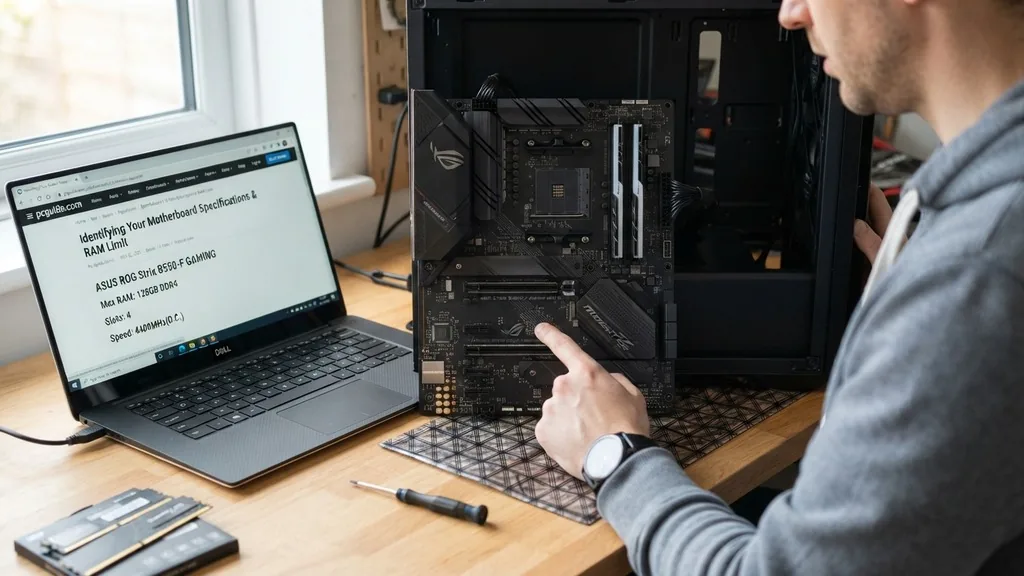
Determining how much RAM your motherboard can handle is a foundational step in upgrading your computer. Whether you are aiming to improve multitasking efficiency, run demanding professional software, or simply squeeze a few more years of life out of an aging workstation, understanding your hardware’s limitations is critical.
Many users assume that because they have physical slots available, they can simply plug in any memory modules they find. Unfortunately, this often leads to system instability, boot failures, or, at best, memory running at speeds significantly lower than its rating.
Identifying Your Motherboard Specifications
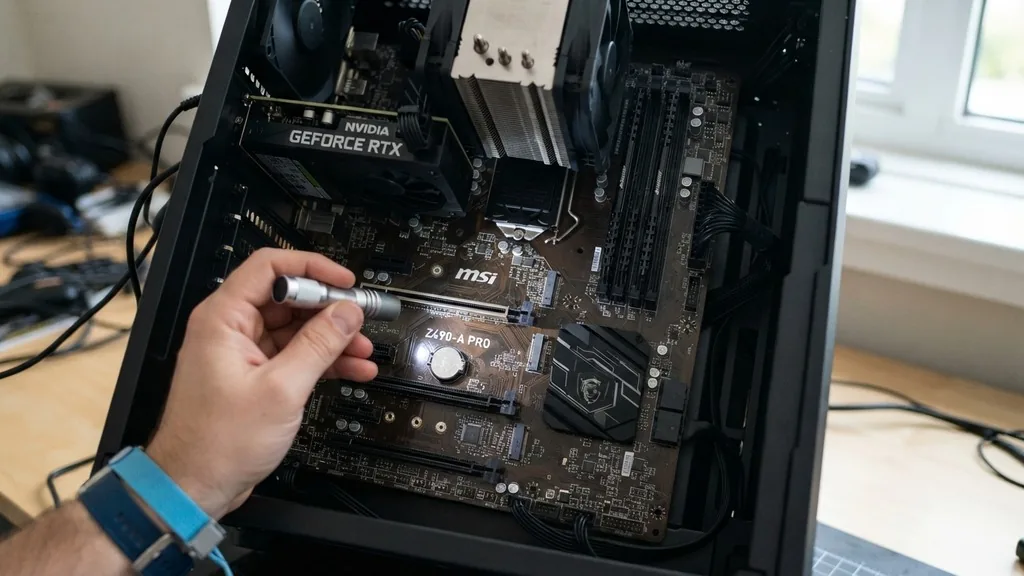
To find out how much RAM your motherboard can handle, you must first identify the exact model of your mainboard. This is the central nervous system of your computer, and it dictates the maximum capacity and the specific type of memory it supports.
You can often find this information printed directly onto the board itself, but if your case is already closed, software solutions are far more convenient. Tools like CPU-Z provide an immediate readout of your motherboard manufacturer and model number, which you can then cross-reference with the manufacturer’s official support website.
Once you have the model name, search for the official product page. Manufacturers maintain detailed specification sheets—often labeled as a “QVL” or “Qualified Vendor List”—that outline the absolute ceiling for memory capacity.
Do not rely solely on third-party forums or generic hardware databases, as these can contain outdated information or variations based on specific BIOS revisions. Always verify the capacity limit for your specific motherboard revision, as a board released in 2020 might have different support capabilities than the same model released in 2022.
Understanding Memory Slot Configurations
The physical layout of your motherboard plays a significant role in how much memory you can install. Most consumer-grade motherboards feature either two or four DIMM slots.
A board with two slots is typically limited to a lower total capacity, often topping out at 32GB or 64GB, whereas a four-slot configuration can frequently support 128GB or more. It is essential to look at your physical hardware to confirm how many slots are currently populated.
When you are checking your capacity, remember that the “maximum” stated by the manufacturer usually assumes you are utilizing all available slots. If you have a board with four slots and a 64GB limit, that generally means you are meant to use four 16GB sticks.
Attempting to force a single high-capacity module into a board that expects a balanced distribution across channels can lead to initialization errors. Always check the manual for your specific motherboard layout, as some boards have specific slot-loading requirements—like filling slots A2 and B2 first—to ensure the system boots correctly.
The Role of Processor Limitations
While the motherboard is the gateway for your memory, the processor (CPU) is the gatekeeper. Even if your motherboard claims to support a massive amount of RAM, your CPU may impose its own architectural limit. For instance, many entry-level processors are capped at 64GB, meaning that even if you install 128GB into a high-end motherboard, the system might only recognize and utilize the amount the CPU can address.
This interaction between the CPU and the motherboard is why checking both is non-negotiable. You can learn more about how memory controllers work by reading the official Intel technical documentation on memory controller architecture to understand why these hardware ceilings exist.
When you pair a powerful motherboard with a budget CPU, the CPU remains the bottleneck. Always verify the memory controller specifications of your specific processor model alongside the motherboard’s documentation to ensure there is no conflict between the two components.
DDR Generations and Compatibility
Compatibility goes beyond just the total gigabytes; the generation of memory—DDR4, DDR5, and so on—is strictly determined by the motherboard’s socket design. You cannot physically insert a DDR5 module into a DDR4 slot, nor will the electrical signaling work even if you managed to force it. The motherboard’s memory controller is hardwired for a specific generation.
When you look for upgrades, you must match the generation exactly. Furthermore, you should pay attention to the speed ratings (measured in MT/s or MHz).
While a motherboard might support a wide range of speeds, using memory that exceeds the board’s native support often requires enabling XMP (Extreme Memory Profile) or DOCP in the BIOS. If you install high-speed memory on a motherboard that does not support that frequency, the system will downclock the RAM to a stable, lower speed, meaning you paid for performance you cannot actually access.
Table: Common Memory Capacity Tiers
The following table provides a general overview of how memory capacity requirements often scale based on intended system usage. These are industry-standard estimates for modern computing environments.
| Usage Scenario | Recommended RAM | Typical Motherboard Support |
|---|---|---|
| Basic Office & Web Browsing | 8GB – 16GB | Standard Entry-Level |
| Gaming & Multitasking | 16GB – 32GB | Mid-Range Consumer |
| Professional Video Editing | 32GB – 64GB | High-End Consumer/Workstation |
| Virtualization & 3D Rendering | 64GB – 128GB+ | HEDT/Enterprise Boards |
Addressing Common Topical Gaps
A common point of confusion for many users is whether mixing different brands or speeds of RAM is safe. While it is technically possible to mix modules, it is highly discouraged.
Your system will default to the lowest common denominator—the slowest speed and the loosest timing among all the installed sticks. If you have one stick running at 3200MHz and another at 2400MHz, your entire system will default to 2400MHz.
Another gap in knowledge involves the impact of operating system limitations. Even if your motherboard can handle 128GB of RAM, your version of Windows might not. For example, older versions of Windows 10 Home had a strict limit on the amount of RAM they could address.
Always ensure that your operating system version is capable of utilizing the capacity you intend to install. If your BIOS detects the full amount but your “About” screen in Windows shows a lower number, the issue is almost certainly a software license limitation rather than a hardware fault.
Steps to Verify Capacity via Software
If you want to avoid opening your computer case, you can use built-in Windows tools to check your current status and theoretical limits. Opening the Command Prompt and typing “wmic memphysical get maxcapacity” will return a number in kilobytes.
You can divide this number by 1024 twice to get the total in gigabytes. While this method is highly convenient, it is not always 100% accurate because it relies on the BIOS reporting the value correctly.
For a more reliable approach, software utilities are preferred. Programs like HWInfo64 provide a comprehensive deep dive into your system’s hardware. These tools read the SPD (Serial Presence Detect) data from your existing modules and the motherboard’s SMBIOS tables.
This is often the most accurate way to determine what your system is currently capable of without manually dismantling the machine. If the software reports a limit of 64GB, you can be fairly certain that installing a 128GB kit will result in the extra 64GB being ignored or causing a failure to post.
Diagnostic Signs of Exceeding Limits
What happens if you ignore the specifications and install more RAM than the motherboard supports? Most modern systems are designed to be safe, but they will simply fail to boot.
This is commonly referred to as a “no post” scenario. You might hear a series of beeps from the motherboard speaker or see a diagnostic LED light up on the board itself, usually labeled “DRAM” or “CPU.”
If your system boots but periodically crashes or experiences “Blue Screen of Death” errors, you may have installed memory that is technically within the capacity limit but incompatible with the motherboard’s timing or voltage requirements. RAM is sensitive to voltage; if your motherboard cannot provide the necessary power to a high-density module, instability is inevitable.
Always check the voltage rating of your memory modules against the motherboard’s support list. If you are experiencing these issues, remove the new modules one by one to isolate the faulty or incompatible stick, then re-test the system configuration.
Strategic Upgrading Considerations
When planning your upgrade, think about your long-term needs rather than just the immediate goal. If your motherboard has four slots and you currently have two 8GB sticks, you have two options: replace the existing sticks with larger ones or add two more 8GB sticks.
Adding more sticks increases the load on the memory controller, which can sometimes lead to stability issues at higher speeds. Replacing two sticks with two larger ones is often the cleaner, more stable approach.
* Check the motherboard manual for dual-channel or quad-channel memory optimization.
* Ensure the RAM voltage is compatible with the motherboard’s power delivery.
* Update your BIOS to the latest version before installing new high-capacity memory, as newer firmware often improves memory compatibility.
* Run a memory diagnostic tool like MemTest86 after installation to ensure the new modules are functioning correctly.
* Verify that your CPU cooler does not physically obstruct the taller RAM modules you might be planning to buy.
By following these strategic steps, you ensure that your upgrade provides a genuine performance boost rather than a series of technical headaches. Upgrading memory is one of the most cost-effective ways to improve system responsiveness, provided you operate within the constraints of your motherboard’s design. Take your time, verify your hardware IDs, and always prioritize compatibility over raw capacity.
Frequently Asked Questions
- Can I use more RAM than my motherboard supports? No, your system will not recognize the extra capacity. In many cases, the computer will fail to boot entirely because the memory controller cannot address the additional modules, leading to a “no post” error that requires removing the incompatible hardware.
- Does higher speed RAM help if my motherboard is slow? Generally, no. Your motherboard will automatically downclock the faster RAM to match the maximum speed it can support. You will essentially be paying for performance that the motherboard is physically incapable of utilizing, rendering the extra speed useless.
- How do I check my RAM limit without opening the PC? You can use the Command Prompt by typing “wmic memphysical get maxcapacity” or use third-party software like CPU-Z or HWInfo64. These tools query your system’s BIOS/UEFI to report the maximum capacity supported by your specific hardware configuration.
- Is it better to have more RAM or faster RAM? For most users, capacity is more important than speed. Once you have enough RAM to hold all your active applications, extra capacity provides diminishing returns, while faster RAM only offers marginal gains in specific high-performance tasks like video rendering or competitive gaming.


