

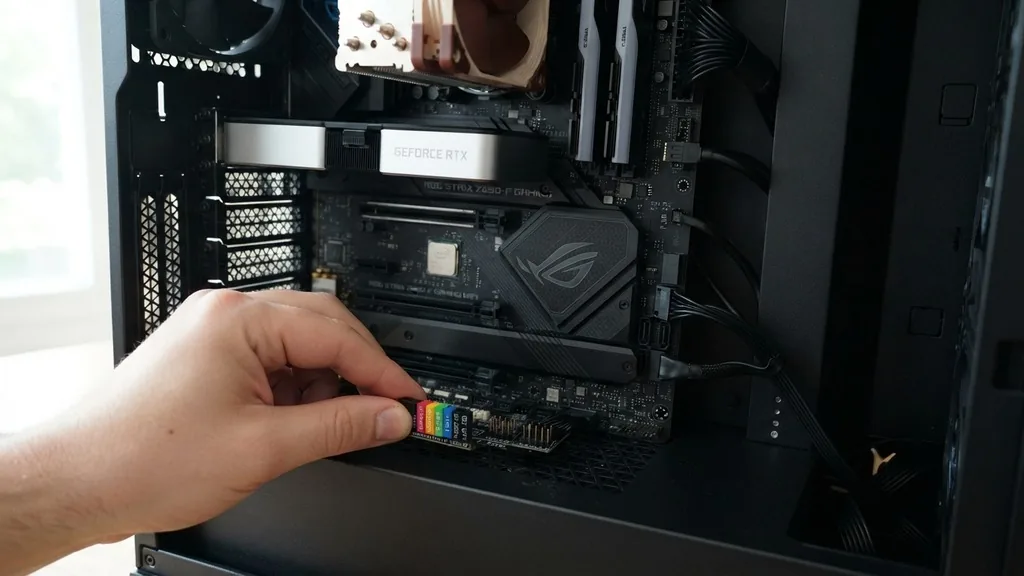
Connecting the front panel cables is arguably the most intimidating part of building a custom PC. You have finished installing the CPU, RAM, and storage, but you are left with a handful of tiny, individual wires dangling from your case.
If you have ever stared at your board wondering where does f panel go on motherboard, you are certainly not alone. This cluster of connectors, often labeled as the front panel header, is the bridge between your physical PC case buttons and the electronic brain of your computer.
While modern components have become increasingly standardized, the system panel connector remains a point of friction for many builders. Because these connectors aren’t universal in their physical layout across every brand, knowing how to interpret your specific board is vital. Getting this wrong won’t usually fry your hardware, but it will result in a PC that refuses to turn on, which is just as frustrating when you are ready to boot up for the first time.
Locating the Front Panel Header on Your Board
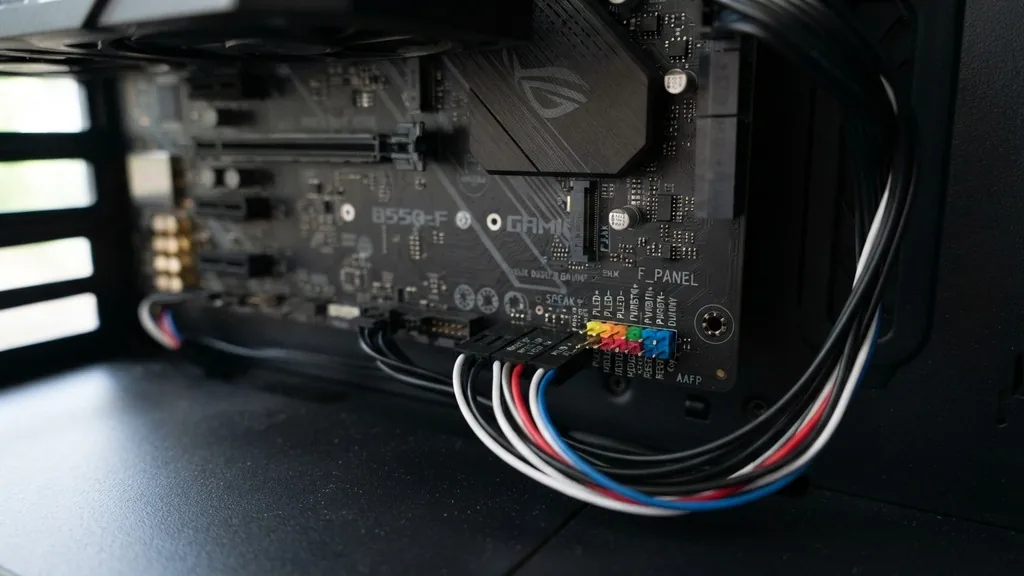
The front panel header is almost always located along the bottom edge of your ATX motherboard, typically in the bottom-right corner. It is usually a cluster of small, protruding motherboard pins arranged in a rectangular block. When searching for this area, look for a group of pins that are often color-coded or grouped together in a way that distinguishes them from USB or audio headers.
Most manufacturers label these pins directly on the PCB (printed circuit board). If your eyesight is sharp or you have a flashlight handy, you will see tiny white text printed on the board surface, such as “PWR_SW,” “RESET,” “HDD_LED,” and “P_LED.” These labels identify exactly which function belongs to which pin.
If the text is too small to read, your motherboard manual is your absolute best friend. Every manufacturer, from ASUS to MSI, provides a detailed pinout diagram in their documentation that maps out exactly which pin corresponds to which case wire.
You can find digital versions of these manuals on the manufacturer’s official support website if you have misplaced the physical copy. For those who want to understand the electrical standards behind these connections, you can review the Intel motherboard design specifications to see how these headers are standardized for compatibility.
Understanding the Individual Cables
The chassis cabling that runs from your case to the motherboard usually consists of several distinct, small connectors. Each one serves a specific purpose, and understanding their function helps you troubleshoot if something isn’t working after assembly.
The power switch is the most critical cable; without it, you cannot physically command the motherboard to start. The reset switch is optional but useful for rebooting without cutting power.
Then there are the indicator lights. The HDD LED flashes to show disk activity, while the power LED stays lit to confirm the system is receiving electricity. These cables are often labeled with a plus (+) or minus (-) sign.
This brings us to the concept of polarity. Unlike USB or SATA cables, which are keyed to only plug in one way, these individual front panel pins are sensitive to electrical direction. If you plug an LED connector in backward, the light simply won’t turn on.
The computer will still function, but the visual feedback won’t work. For the switches, however, polarity does not matter; they simply complete a circuit, so it doesn’t matter which way the plug is oriented.
Interpreting the Pinout Diagram
When you look at your motherboard pins, you might see a layout that looks confusing at first. Some motherboards, specifically those from MSI, use a standard called JFP1.
This is just a proprietary naming convention for the exact same front panel header found on other boards. Whether it is labeled F_PANEL, JFP1, or PANEL1, the function remains identical.
The diagram in your manual will show you a grid of pins. It will usually look something like this:
| Connection Type | Pin Location (Typical) | Polarity Required |
|---|---|---|
| Power Switch | Pins 6 & 8 | No |
| Reset Switch | Pins 5 & 7 | No |
| Power LED | Pins 2 & 4 | Yes |
| HDD LED | Pins 1 & 3 | Yes |
The table above is a general representation; always cross-reference it with your specific board’s manual. The key takeaway is that the diagram acts as a map. By following the grid, you can ensure that each wire finds its proper home.
If you are struggling to see the pins, use a smartphone camera to zoom in on the board’s surface. This trick is far more effective than trying to squint into the dark, cramped corner of a computer case.
Common Mistakes During Case Wiring
The most common error when installing PC case wiring is misreading the pinout diagram. It is very easy to flip the rows mentally, especially when you are working in a tight space inside a case. Another frequent mistake is failing to push the connector all the way onto the pin.
Because these connectors are tiny, they can sometimes feel seated when they are actually just resting against the pin. Always ensure you hear or feel a slight click, or at least see that the connector has slid down far enough to cover the metal contact completely.
Another issue arises when users try to force a connector onto the wrong header. For example, the front panel header is located near the USB 2.0 headers. They look somewhat similar because they are both rows of pins.
However, a USB header usually has 9 or 10 pins in a specific block shape, while the front panel header is often a sparse collection of individual pins. If the connector doesn’t slide on with minimal resistance, stop and double-check your manual.
Forcing a connector can bend the pins, which is a headache you definitely want to avoid. If a pin does get slightly bent, you can gently straighten it with a small pair of needle-nose pliers, but be extremely careful not to snap it off.
Dealing with Non-Standard Connectors
Some modern cases have moved toward a unified, single-block connector for the front panel. This is a massive quality-of-life improvement.
Instead of juggling five tiny, separate wires, you have one solid plastic piece that plugs directly onto the header. If your case includes this, your “where does f panel go on motherboard” worries are essentially over—it only fits one way.
However, not all motherboards support this unified standard. If your motherboard has the older, individual pin layout and your case has a unified block, check your manual. Often, the motherboard will include a small plastic adapter, sometimes called a “Q-Connector,” that allows you to plug the individual wires into a block first, then snap that block onto the motherboard.
This makes the installation much easier, as you can do the fiddly work outside of the cramped confines of the case. If you don’t have this tool, you are stuck with the traditional method of individual wires. In those cases, a pair of tweezers can be a lifesaver for guiding the tiny plugs onto the pins.
Troubleshooting Power and LED Issues
If you press your power button and absolutely nothing happens, the first thing to check is the power switch connection. It is the most likely culprit. Ensure it is connected to the correct two pins as specified in your manual.
If you have confirmed the placement and it still won’t start, try shorting the two pins manually. You can do this by gently touching the two power switch pins together with the tip of a flathead screwdriver for a split second. If the PC turns on, your case’s power button is likely faulty.
If the PC turns on but the lights don’t work, verify the polarity of your HDD LED and power LED connectors. As mentioned earlier, these are the only ones that care about direction. If they are plugged in backward, they will remain dark.
Simply pull them off, flip them 180 degrees, and slide them back onto the pins. This is a common occurrence even for experienced builders, so don’t feel discouraged if you have to do this a couple of times. It is a minor inconvenience that is easily corrected without risk to your components.
The Role of the Motherboard Manual
You might be tempted to skip the manual, but when it comes to the internal header layout, it is the only source of truth. Even if you have built PCs before, every board design is slightly different.
A layout that worked on your previous build might be completely inverted on your current one. The manual will contain a section specifically for the front panel, often illustrated with a clear diagram that highlights which pin is positive and which is negative.
If you have lost your paper manual, do not panic. Head to the manufacturer’s website, navigate to the support or “downloads” section for your specific motherboard model, and download the PDF version. You can search the PDF for terms like “panel” or “JFP1.”
This will take you directly to the relevant page. Having the PDF open on your phone or a secondary monitor while you work is a pro-level strategy that saves significant time. It allows you to zoom in on the diagram and verify your connections in real-time, removing the guesswork from the assembly process.
Addressing Topical Gaps: What If Pins Are Missing?
A common point of confusion occurs when a user looks at the motherboard pins and sees a gap—a pin is missing from the grid. This is not a manufacturing defect. In many motherboard layouts, one pin is intentionally left out to serve as a physical key.
This helps you orient the connector correctly. If your connector block has a sealed hole that matches the missing pin, it acts as a guide.
Another gap in knowledge often concerns what to do if your case has more wires than your motherboard has pins. Some cases include additional connectors for things like front-panel audio or extra USB ports. These are completely separate from the front panel header.
Do not try to jam your audio cable into the power switch header. The system panel connector is strictly for the buttons and lights that control the power state of the machine. Always keep your audio and USB cables separate and route them to their respective headers, which are usually located in different areas of the motherboard, typically along the bottom edge or the side.
Summary and Frequently Asked Questions
Connecting the front panel is a test of patience, but it is entirely manageable with the right approach. Focus on the labels on the motherboard, use your manual as a definitive guide, and remember that polarity only matters for the LEDs. By taking your time and ensuring each connection is seated firmly, you will have your system up and running in no time.
Frequently Asked Questions
- What happens if I connect the power switch to the wrong pins? If you accidentally connect the power switch to the wrong pins, the PC simply won’t turn on when you press the button. It will not cause damage to your motherboard, so you can safely move the connector to the correct pins identified in your manual.
- Do all cases use the same front panel pin layout? No, while the function of the pins is standard, the physical arrangement (the pinout) can vary between motherboard manufacturers. Always check your specific motherboard manual to ensure the wires are connected to the correct pins, as the layout is not universal across all brands.
- Can I use an F panel cable from an old case on a new motherboard? Yes, the wiring for front panel buttons is standard across almost all PC cases. The connectors are compatible with any motherboard header. However, you must ensure you map the individual wires to the correct pins on your new motherboard, as the sequence may differ from your previous setup.
- What if my motherboard doesn’t have labels for the F panel pins? If your motherboard lacks clear labels on the PCB, you must refer to the manual. Look for a section labeled “System Panel Connector” or “Front Panel Header.” It will provide a diagram showing exactly which pin corresponds to the power, reset, and LED functions for your specific board.


