

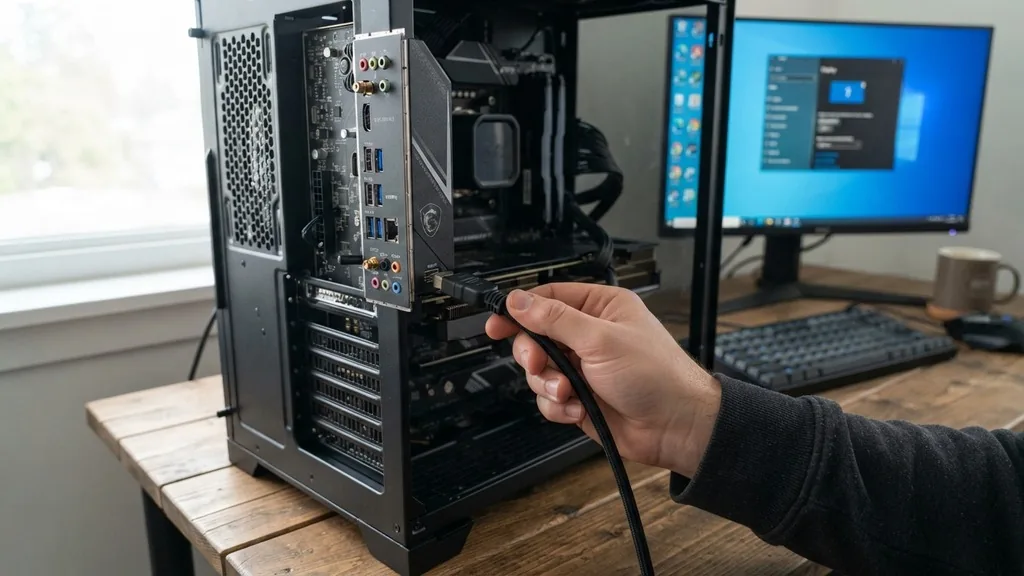
Connecting a monitor directly to your motherboard is a task that often seems straightforward until you find yourself staring at a blank screen. Learning how to use motherboard HDMI ports effectively requires understanding the relationship between your processor, your motherboard’s chipset, and your discrete graphics hardware. Many users assume that just because a port exists on the back of the motherboard, it should automatically output a signal, but the reality is dictated by the architecture of your specific system.
Understanding the Role of Integrated Graphics
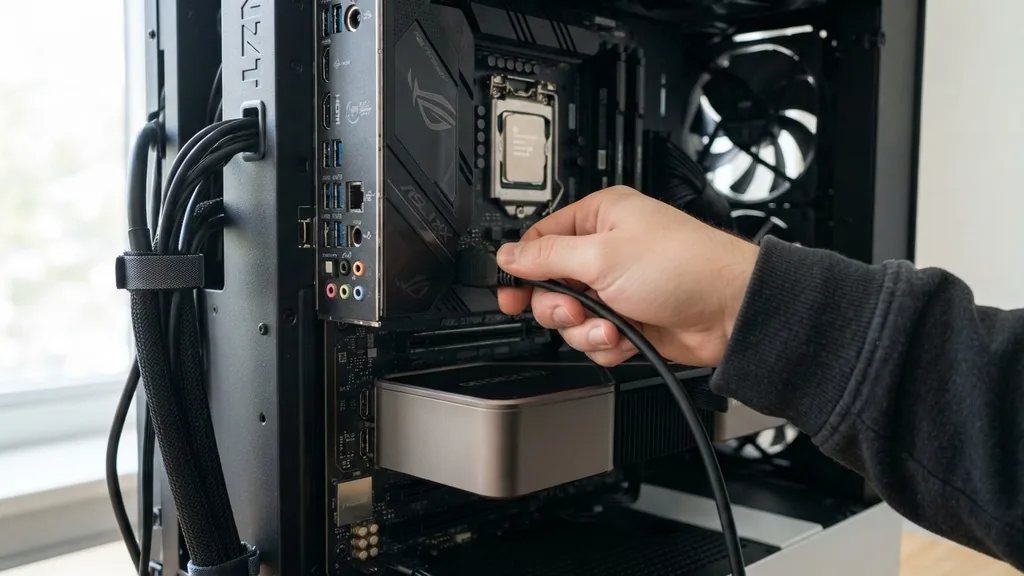
Integrated graphics, or an iGPU, refers to a graphics processing unit that is built directly into the processor die rather than residing on a separate expansion card. When you want to use the HDMI port on your motherboard, the CPU must contain this integrated graphics component. If your processor lacks this feature—common in many high-end desktop chips or specific “F” series Intel processors—the HDMI port on your motherboard will remain inactive, regardless of your settings.
The motherboard acts as a conduit. It provides the physical traces and the connector, but the actual video signal generation happens inside the chip. When you plug an HDMI cable into the motherboard, the system BIOS/UEFI settings must be configured to prioritize this integrated video controller over any other detected devices.
If you are building a system or troubleshooting a display issue, your first step is to verify if your specific CPU model includes integrated graphics. You can usually find this information by checking the specifications on the manufacturer’s website or by consulting your processor technical documentation.
Troubleshooting No Display Signal Issues
If you have connected your monitor and see no image, the most common culprit is a mismatch between the hardware configuration and the BIOS/UEFI settings. Many modern systems are designed to detect a dedicated GPU automatically and disable the onboard HDMI port to prevent resource conflicts. If you are not using a dedicated graphics card, the system should default to the iGPU, but sometimes it needs a manual nudge.
To resolve this, you may need to enter the BIOS during the POST screen. This is the brief moment after you power on your computer where the system performs a Power-On Self-Test. By pressing the designated key—usually Delete, F2, or F10—you can access the advanced settings.
Look for menu options labeled “Integrated Peripherals,” “Chipset Configuration,” or “Video Settings.” Within these menus, you will often find a toggle for “Primary Display” or “Initiate Graphic Adapter.”
Setting this to “IGFX” or “Integrated Graphics” forces the system to initialize the motherboard’s video output. If you save these changes and reboot, the monitor should begin receiving a signal.
Motherboard HDMI vs Dedicated Graphics Card
A common point of confusion is whether you should use the motherboard HDMI port or the ports on your dedicated GPU. Generally, if you have a dedicated graphics card installed in a PCIe slot, you should always plug your monitor cable into the GPU’s ports. The dedicated card is significantly more powerful and designed to handle demanding tasks like gaming, video editing, and 3D rendering.
Using the motherboard HDMI port while a dedicated card is installed can lead to several issues. First, you might be forcing your system to use the weaker integrated graphics, which will negatively impact performance in almost every graphical application. Second, some motherboards are hard-wired to disable the onboard HDMI port entirely the moment a GPU is detected in the primary PCIe slot.
If you find yourself in a situation where you need to use both, you might need to enable “Multi-Monitor Support” in the BIOS, which allows both the iGPU and the dedicated GPU to function simultaneously. This is useful for users who need extra screen real estate for productivity but don’t need the graphical power of the dedicated card for every single window.
Navigating BIOS and UEFI Configuration
The BIOS and UEFI interfaces are the command centers for your hardware. If your motherboard HDMI isn’t working, the settings here are likely the bottleneck. When you access these menus, you are interacting with the low-level firmware that manages the communication between your hardware components before the operating system even loads.
Within the BIOS, you should look for specific settings related to the video controller. Some boards have a “DVMT” or “Shared Memory” setting, which dictates how much system RAM the integrated graphics are allowed to borrow for video processing. If this is set too low, the display might flicker or fail to initialize at higher resolutions.
Another setting to watch for is “Multi-Monitor” or “IGPU Multi-Monitor.” Enabling this is essential if you intend to use the motherboard HDMI port as a secondary output while relying on a discrete graphics card for your primary display. Always remember to save your changes before exiting, as failing to do so will result in the system reverting to its previous state.
The Importance of Display Drivers
Even if the BIOS is set up correctly, your operating system needs the right software to communicate with the integrated graphics hardware. This is where the display driver comes into play. If your system boots but the resolution is wrong or the screen is flickering, it is almost certainly a driver issue.
Windows typically manages these drivers automatically through Windows Update, but for the best results, you should download the latest drivers directly from the manufacturer of your CPU. For Intel processors, this means visiting the Intel Download Center; for AMD processors with integrated graphics, you would visit the AMD support site. Once installed, the driver acts as the translator between your software applications and the physical video controller on your motherboard.
If you find that the display is still not performing correctly, you can open the Device Manager in Windows to check for any yellow warning icons next to the “Display adapters” section. This will tell you if the device is being recognized correctly or if there is a conflict.
Managing Multi-Monitor Setups
A popular reason for wanting to use the motherboard HDMI port is to expand a workspace beyond what the dedicated GPU can handle. If your GPU only has one HDMI port and two DisplayPort outputs, but you have two HDMI monitors, using the motherboard port can be a convenient workaround. However, this setup requires careful management to ensure the OS treats both displays as a cohesive, extended desktop.
When you have one monitor plugged into the GPU and another into the motherboard, Windows may struggle to identify which is the primary display. You can manage this by right-clicking on your desktop and selecting “Display settings.” From here, you can identify which screen is which and drag them into the correct orientation.
You can also specify which monitor acts as the primary display, which is where your taskbar and desktop icons will appear by default. Be aware that because the two monitors are being driven by different hardware controllers, you might experience slight differences in color calibration or refresh rates. This is normal and can often be corrected within the Windows Color Management settings or the graphics control panel software.
Common Hardware Constraints and Limitations
Not all motherboard HDMI ports are created equal. Depending on the age and tier of your motherboard, the version of the HDMI standard supported by the port can vary significantly.
Some older boards only support HDMI 1.4, which limits you to 1080p at 60Hz or 4K at 30Hz. Newer motherboards may support HDMI 2.0 or 2.1, allowing for higher refresh rates and 4K resolutions at 60Hz or higher.
It is also important to consider the physical limitations of your build. The following table highlights the common differences you might encounter when comparing onboard video outputs to dedicated graphics cards.
| Feature | Integrated Graphics (iGPU) | Dedicated Graphics (GPU) |
|---|---|---|
| Performance | Basic/Office Tasks | High/Gaming/Content Creation |
| Memory Usage | Shares System RAM | Uses Dedicated VRAM |
| Power Consumption | Low | High |
| Multi-Monitor | Limited | Extensive |
Understanding these differences helps you set realistic expectations for your system. If you try to run a high-end game on a monitor connected to the motherboard HDMI, you will likely experience significant frame rate drops because the CPU is being tasked with both processing the game logic and rendering the graphics.
Best Practices for Cable and Connection Maintenance
The physical connection is often the most overlooked aspect of troubleshooting motherboard HDMI issues. A faulty or low-quality HDMI cable can cause intermittent signal loss, screen tearing, or complete failure to display an image. When you are setting up your monitor, ensure that the cable is firmly seated in both the motherboard port and the monitor’s input.
- Use high-speed HDMI cables for resolutions above 1080p to prevent bandwidth bottlenecks.
- Avoid using excessive force when inserting the cable, as the HDMI port on a motherboard is soldered directly to the PCB and can break with rough handling.
- Keep cables away from power bricks or other electromagnetic interference sources to reduce signal noise.
- If you are using a long cable run, consider an active HDMI cable to ensure signal integrity over distance.
- Periodically check the port for dust or debris, which can prevent a solid connection.
Maintaining a clean and secure connection is a simple yet effective way to ensure that your display remains stable. If you frequently move your PC or adjust your monitor setup, be mindful of the stress placed on the HDMI port, as it is a common point of failure for long-term hardware health.
Frequently Asked Questions
- Why is my motherboard HDMI port not working? The most common reason is that your CPU does not have integrated graphics or the BIOS is configured to prioritize a dedicated graphics card. Ensure your processor supports iGPU and check the BIOS settings to enable the onboard video output.
- Can I use my motherboard HDMI and a graphics card at the same time? Yes, but you usually need to enable “iGPU Multi-Monitor” or a similar setting within your BIOS. Once enabled, you can use both the motherboard ports and the graphics card ports for an extended multi-monitor desktop setup in Windows.
- Does the motherboard HDMI affect gaming performance? Yes, it will significantly reduce performance. The motherboard HDMI uses the integrated graphics core, which is much slower than a dedicated graphics card. For gaming, always connect your monitor directly to the HDMI or DisplayPort output on your dedicated graphics card.
- How do I know if my CPU has integrated graphics? You can check your CPU model number on the manufacturer’s website (Intel or AMD). For Intel, processors ending in “F” lack integrated graphics. For AMD, look for a “G” suffix, which indicates the presence of integrated Radeon graphics.


