

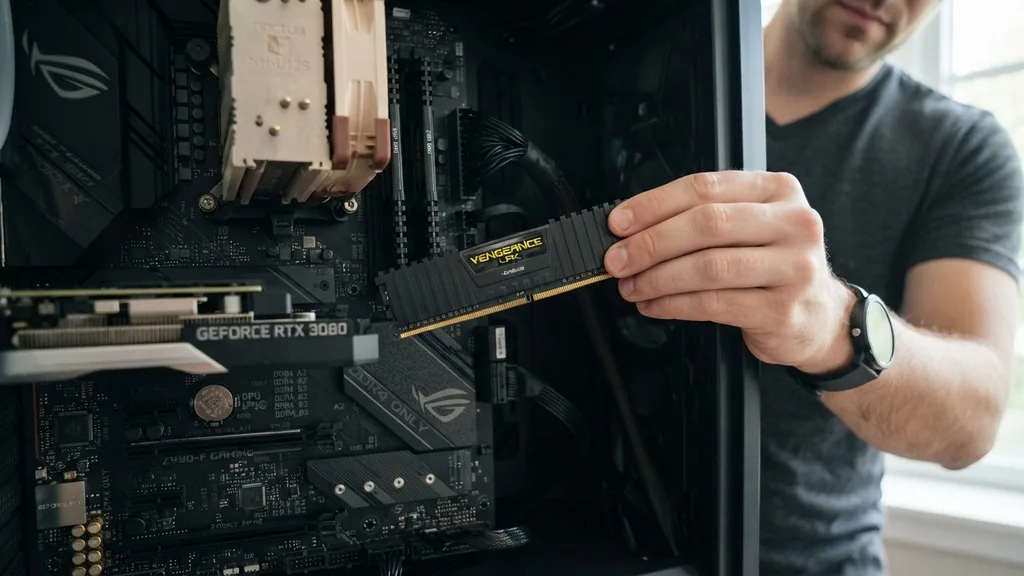
The question of whether RAM is compatible with any motherboard is one of the most common hurdles for PC builders and upgraders. The short answer is a definitive no; memory modules are not universal, and attempting to install the wrong type can result in physical damage or a system that simply refuses to boot.
Understanding the intricate relationship between your memory and your compatible motherboard is essential for ensuring your computer functions correctly. Because hardware standards evolve rapidly, what worked in a system five years ago is almost certainly incompatible with a modern build today.
The Fundamental Architecture of Memory Slots
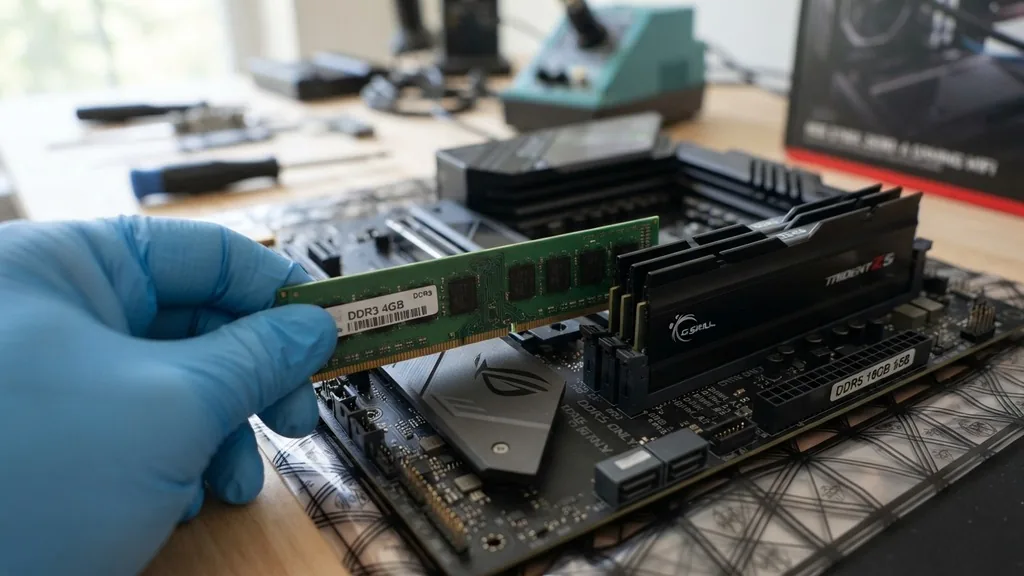
Directly answering the core concern: RAM is not interchangeable across all boards because physical slot configurations differ by generation. Every motherboard is designed with specific memory slots that only accept modules matching the physical and electrical standards of that generation.
If you try to force a stick of DDR4 into a DDR5 slot, you will find that the notch—a small gap in the connector pins—does not align. This design is a deliberate safety feature, preventing users from inserting modules that could cause short circuits or electrical failure.
The physical structure of a RAM module is governed by the JEDEC standard, which defines the placement of the keying notch. This notch changes position with every major iteration of memory technology. For instance, DDR3, DDR4, and DDR5 all have their notches in different locations along the contact edge.
Because the motherboard’s slot has a corresponding plastic protrusion, the physical geometry ensures that only the correct generation can be inserted. Beyond the physical notch, the number of pins also varies.
DDR4 features 288 pins, while DDR5 also uses 288 pins but with a different layout and power management integrated onto the module itself. This means even if the slots look similar, the electrical requirements are fundamentally distinct, making them entirely incompatible in a functional sense.
Decoding Memory Generations and Standards
To determine if RAM is compatible with your specific setup, you must first identify the generation your motherboard supports. You cannot mix and match generations; a motherboard designed for DDR4 will never support DDR5, and vice versa. This is not a software limitation that can be patched in Windows or the BIOS; it is a hardware-level constraint tied to the memory controller located within your CPU.
When you look at your system specifications, the generation is the primary gatekeeper. If you ignore this, you won’t even get past the initial power-on self-test (POST).
Beyond the generation, you must consider the speed, often measured in MHz or MT/s (MegaTransfers per second). While a motherboard might technically support a certain generation, it also has a “Qualified Vendor List” (QVL) that dictates which specific speed ratings it can reliably handle.
If you purchase RAM that is rated for a higher speed than your motherboard’s chipset or CPU memory controller can manage, the system will either throttle the RAM down to a base speed or fail to boot entirely. Always check the motherboard manufacturer’s website for the official support list to ensure the specific kit you are eyeing has been tested and verified for stability.
The Role of the Memory Controller
The memory controller, which is integrated into the processor, acts as the traffic cop for all data moving between your RAM and the CPU. Even if a stick of RAM physically fits into the slot, the motherboard and CPU must be able to communicate with it using the same language and clock timings. If you install high-frequency memory into a budget motherboard that doesn’t support XMP or EXPO profiles, you’ll be leaving performance on the table, or worse, dealing with constant system crashes due to timing mismatches.
How to Verify Your Motherboard Support
Finding out if your hardware is compatible involves more than just looking at the RAM stick itself. The most reliable way to find this information is to consult the official documentation for your specific motherboard model. Every motherboard manufacturer provides a support page that lists the exact memory modules they have verified.
This list is the “gold standard” for compatibility. If your specific RAM model is on that list, you can be 99% certain it will work. If it is not on the list, it might still work, but you are taking a risk that the manufacturer hasn’t accounted for.
You can also use diagnostic software to see what is currently installed. Tools like CPU-Z provide a detailed breakdown of your current memory generation, speed, and timings. If you are planning an upgrade, this is the first step.
Knowing your current hardware configuration prevents the mistake of buying hardware that is technically the right generation but physically or electrically incompatible with your BIOS settings. For those who prefer a more automated approach, many online retailers and component manufacturers provide a memory advisor tool that scans your system or allows you to input your motherboard model to suggest guaranteed compatible upgrades.
Physical and Electrical Constraints
When discussing RAM compatibility, we must address the physical size and voltage requirements. Desktop motherboards use DIMM (Dual In-line Memory Module) sticks, while laptops use SO-DIMM (Small Outline DIMM) modules. These are not interchangeable.
A laptop motherboard cannot take a full-sized desktop DIMM, and a desktop motherboard has no place for a tiny laptop SO-DIMM. Attempting to mix these form factors is impossible due to the sheer difference in physical dimensions.
Voltage is another critical factor. Different generations operate at different voltages. DDR3 typically runs at 1.5V, while DDR4 dropped to 1.2V, and DDR5 lowered the base voltage further to 1.1V.
If you were to somehow force an incompatible module into a slot, you could potentially send the wrong voltage to the memory, which can lead to permanent damage to the motherboard’s memory traces or the CPU’s integrated memory controller. This is why the physical keying is so strict; it is a protective measure against these electrical mismatches.
| Memory Generation | Pin Count | Operating Voltage | Keying Notch Position |
|---|---|---|---|
| DDR3 | 240 | 1.5V | Left-Center |
| DDR4 | 288 | 1.2V | Near-Center |
| DDR5 | 288 | 1.1V | Off-Center |
Addressing Topical Gaps: ECC vs. Non-ECC Memory
A common point of confusion is the distinction between ECC (Error Correction Code) and non-ECC memory. Most consumer motherboards and processors, such as those intended for gaming or home office use, do not support ECC memory. ECC RAM is designed for server environments where data integrity is paramount.
If you put ECC RAM into a consumer motherboard that doesn’t support it, the computer will likely fail to boot, or it will simply ignore the error-correcting features entirely. It is a waste of money to buy ECC RAM for a standard desktop unless you have specifically verified that your motherboard and CPU support it.
Another gap is the concept of “Registered” or “Buffered” RAM. These modules contain an extra register that helps the system handle a high number of memory modules. Like ECC, this is generally reserved for server-grade hardware.
Consumer motherboards are designed for “Unbuffered” RAM. Installing registered memory into a standard desktop board is a classic mistake.
The system will not recognize the RAM, and you will be left with a black screen. Always confirm that the RAM you are buying is “UDIMM” (Unbuffered DIMM) if you are building a standard home or gaming PC.
The Impact of BIOS and Firmware Updates
Sometimes, a motherboard is technically compatible with a certain type of RAM, but it requires a BIOS update to recognize the specific density or speed of the module. This is particularly common with newer generations of RAM.
If you buy a motherboard that was released just as a new RAM standard was hitting the market, the out-of-the-box firmware might not have the correct memory training profiles to initialize that memory. Updating the BIOS before installing new, high-performance RAM is often a recommended best practice.
When you encounter a situation where your RAM is technically the right generation but the system won’t boot, the BIOS is the first place to look. You can often reset the CMOS to clear out old settings that might be interfering with the new hardware.
Additionally, checking for BIOS updates on the manufacturer’s website can reveal “improved memory compatibility” notes in the changelog. These updates are essentially instructions for the motherboard on how to communicate with newer or different types of memory modules, ensuring that the hardware handshake is successful upon startup.
Troubleshooting Memory Recognition Issues
If you have installed your RAM and the computer does not recognize it, or if it shows less memory than you installed, there are several steps to take. First, ensure the sticks are seated correctly. It takes a surprising amount of pressure to click a RAM stick into place, and beginners often leave them slightly loose.
If the golden contacts aren’t fully engaged, the motherboard won’t detect the module. The clips on the side of the slot should click firmly into place when the stick is fully inserted.
- Check the motherboard manual for the correct slot configuration (e.g., using slots 2 and 4 for dual-channel).
- Ensure the RAM is fully seated; you should hear a distinct click from the retention clips.
- Test one stick at a time to rule out a single faulty module.
- Update your BIOS to the latest version to ensure maximum compatibility.
- Clear your CMOS if you are upgrading from older, slower memory to faster modules.
- Verify that you are not mixing different brands or speeds, which can cause stability issues.
If you are using multiple sticks, the motherboard usually requires them to be placed in specific slots to enable dual-channel performance. If you put two sticks in adjacent slots instead of the recommended configuration, the system might boot, but it will suffer from reduced bandwidth.
Always consult the motherboard diagram, as some boards are picky about which channels are populated first. Incorrect slot population is a common reason for memory detection errors, even when the RAM itself is perfectly compatible with the board.
Performance Implications of Mismatched Hardware
Even when RAM is compatible, performance can vary wildly based on how well the hardware is matched. Buying a high-end, high-frequency RAM kit for a motherboard that caps memory speed is a common pitfall.
The motherboard will simply default to the highest speed it can support, effectively wasting the money you spent on the faster RAM. Conversely, buying slow RAM for a high-performance CPU can create a bottleneck, causing the processor to wait for data, which slows down your entire system.
Furthermore, mixing and matching different brands or capacities of RAM, even if they are the same generation, is generally discouraged. While it can work, it often leads to instability. The motherboard will try to run the memory at the speed of the slowest stick, but the different timings and voltage requirements can lead to “Blue Screen of Death” errors in Windows.
To get the most stable performance, it is always best to buy a matched kit from a single manufacturer. This ensures that all sticks have been tested together at the factory and share identical performance profiles, which is crucial for maintaining a reliable computer environment.
Frequently Asked Questions
- How do I check if my RAM is compatible with my motherboard? Check your motherboard’s official manual or the manufacturer’s website for their QVL (Qualified Vendor List). This list contains specific models of RAM that have been tested and confirmed to work with your board, ensuring you avoid stability issues or boot failures.
- Can I use DDR4 RAM in a DDR5 motherboard? No, you cannot. DDR4 and DDR5 have different pin layouts, voltages, and physical keying notches. They are electrically and physically incompatible. A motherboard is designed to support only one specific generation of memory, so you must match the RAM generation to your board’s requirements.
- Why is my motherboard not recognizing my new RAM? This is often due to the RAM not being fully seated in the slot, or because the BIOS needs an update to support the newer module. Ensure the clips are fully locked and try clearing your CMOS settings to force the motherboard to re-detect the hardware configuration.
- Does mixing different brands of RAM cause problems? Mixing brands, speeds, or capacities can cause system instability and crashes. Even if the sticks are the same generation, different manufacturers use different timing profiles. For the best performance and reliability, always use a single, matched kit of identical RAM modules from the same manufacturer.


