

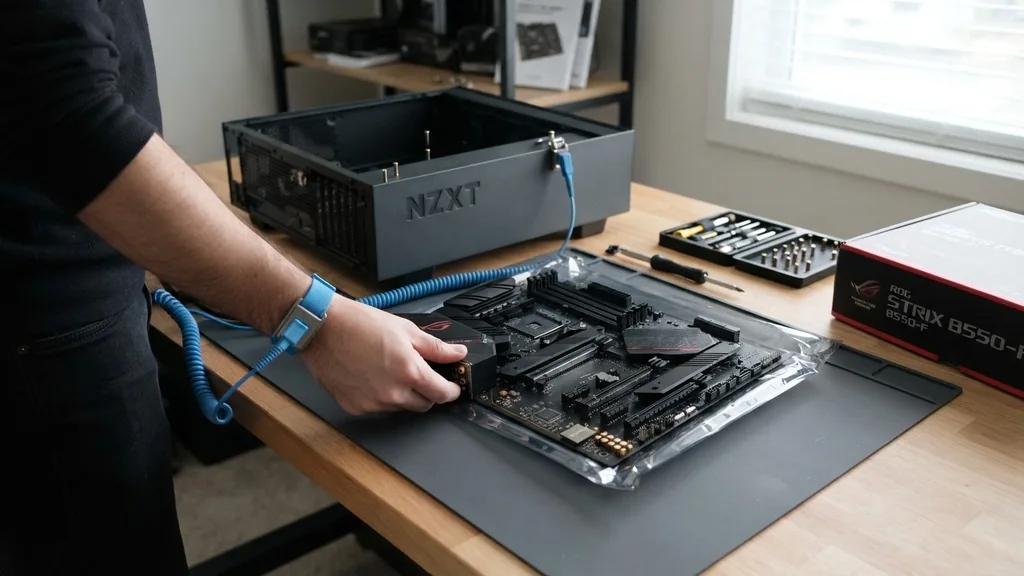
Learning how to install a motherboard represents the most critical phase of building a custom computer. It serves as the central nervous system for your entire rig, connecting the CPU, RAM, storage, and graphics processing units into one cohesive, functional machine.
While the process might seem intimidating to beginners, it essentially involves careful preparation, correct alignment, and a steady hand. By following a logical sequence and respecting the fragility of the hardware, you can successfully integrate this core component into your chassis.
Preparation and Safety Measures Before You Begin
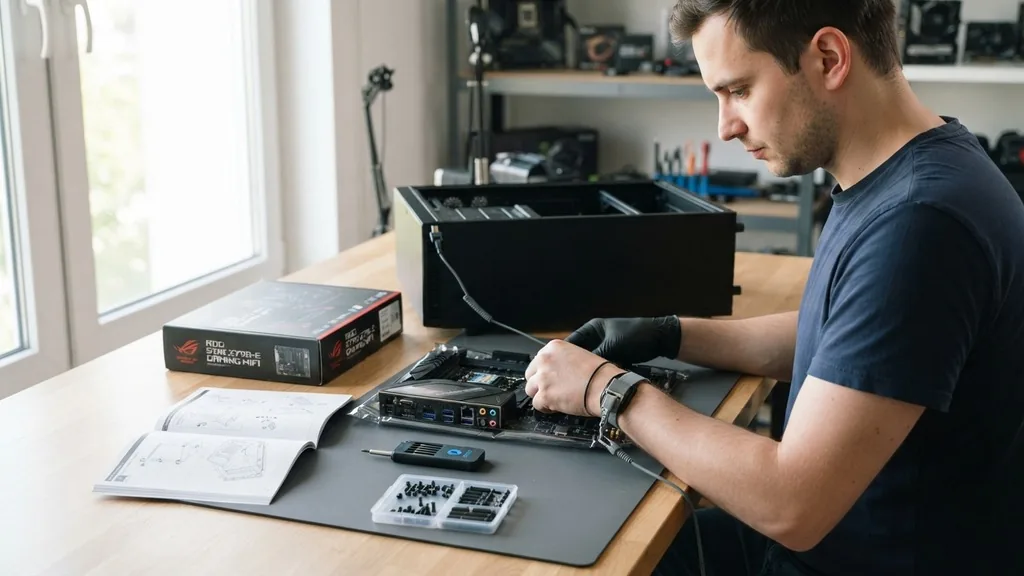
Installing a motherboard requires a clean, static-free workspace and a bit of mental preparation. Before you touch any electronic components, you must mitigate the risk of electrostatic discharge (ESD). Even a tiny spark of static electricity can permanently damage the sensitive circuits on your board.
To protect your hardware, work on a non-conductive surface like a wooden table rather than a carpeted floor. Touching a grounded metal object before handling parts helps discharge any built-up static from your body. You should also gather your tools: a Phillips-head screwdriver, your motherboard manual, and the screws that came with your computer case.
Consulting the documentation provided by the manufacturer is non-negotiable. Every motherboard design varies slightly, and the manual contains specific information regarding pin layouts, screw placement, and unique features. Take a moment to inspect your chassis to understand how the internal layout functions.
If you are replacing an existing board, ensure you have backed up all your data beforehand. Preparation is not just about having the right tools; it is about understanding the specific architecture of the hardware you are handling.
Installing the Motherboard Standoffs Correctly
Standoffs are the small, threaded metal spacers that elevate your motherboard away from the metal interior of the case. Without these, the back of the circuit board would touch the metal wall of the chassis, causing a short circuit the moment you apply power.
Most modern cases come with some standoffs pre-installed, but you must verify that they align perfectly with the holes on your specific board. If your motherboard is a standard ATX size but your case has Micro-ATX standoffs installed, you will need to move them to avoid damaging the board or causing an electrical malfunction.
To check alignment, hold your board over the case tray without forcing it. Look through the mounting holes on the board to see if they line up with the standoffs below. If you find a hole in the board that does not have a corresponding standoff, screw in an extra one using the small tool provided with your case.
Conversely, if there is a standoff where there is no hole, remove it immediately. Using the wrong configuration is a common mistake that leads to frustration later in the build.
Understanding the I/O Shield Integration
The I/O shield is the metal plate that snaps into the back of the case to protect the ports of your motherboard. In the past, this was a separate, flimsy piece of metal that was notoriously difficult to install.
Many modern high-end motherboards now feature a pre-installed I/O shield attached directly to the board itself. This design makes the installation process significantly easier and ensures that you never forget to put it in before securing the board.
If your board does not have a pre-installed shield, you must snap it into the rectangular cutout on the back of the case before you lower the motherboard into position. Press it firmly from the inside of the case until you hear a satisfying click on all four sides. If it feels loose or uneven, take it out and try again.
A poorly seated I/O shield can block your USB or audio ports, forcing you to remove the entire motherboard just to adjust a small piece of metal. Always ensure the orientation matches the layout of your board’s ports.
Placing the Motherboard into the Case
Lowering the board into the case is the moment of truth. Hold the motherboard by its edges to avoid touching the delicate components or the pins on the underside. Gently tilt the board so that the rear I/O ports slide into the I/O shield opening.
Once the ports are aligned, slowly lower the rest of the board so that it rests flat against the standoffs. Gravity should do most of the work here; if you feel significant resistance, stop and check if something is snagging on the bottom of the board.
Once the board is resting on the standoffs, look through the mounting holes to confirm that the threads are centered. If they are slightly off, you can gently nudge the board to align it. Never force the board into place, as this can bend the standoffs or crack the motherboard substrate.
When everything is centered, you are ready to secure the board with screws. Use only the screws that came with your case, as they are specifically designed for the standoffs and the motherboard mounting holes.
Securing the Motherboard with Screws
Tightening the screws is a delicate process that requires patience. Use a magnetic Phillips-head screwdriver to lower each screw into the hole. Start by threading one screw in loosely—do not tighten it all the way down yet.
This allows you a small amount of wiggle room to align the remaining holes. Once all screws are in their respective spots, go back and tighten them in a diagonal or “cross” pattern, similar to how you would tighten the lug nuts on a car wheel.
Tighten the screws until they are snug, but avoid overtightening. Overtightening can put unnecessary stress on the motherboard’s PCB (printed circuit board), potentially causing microscopic fractures in the trace lines. As long as the board feels firm and does not slide against the standoffs, it is secure enough.
A firm hand is helpful here, but you should never use excessive force. If you accidentally drop a screw inside the case, ensure you retrieve it immediately, as a loose metal screw can cause a catastrophic short circuit if it lands on the motherboard while the system is running.
Connecting Essential Power Cables
Once the motherboard is physically mounted, you must provide it with electricity. The two primary power connections are the 24-pin ATX connector and the 8-pin (or 4+4 pin) CPU power connector. The 24-pin cable is typically located on the right side of the board, while the CPU power cable sits near the top left.
These connectors are keyed, meaning they will only fit in one orientation. If a plug does not slide in easily, check the orientation of the plastic clip before applying more pressure.
Beyond the main power, you must connect the cables from your case front panel. These include the power switch, reset switch, and LED indicators. These are notoriously small and can be tricky to manage.
Refer to your motherboard manual for the exact pinout diagram, as there is no universal standard for these connections. You can find more detailed information on power standards and safety at the official Intel technical support documentation regarding hardware installation. Connecting these correctly ensures your power button actually turns the computer on.
Managing Internal Components and Cables
With the board installed and the main power connected, you can begin installing other components like the CPU, RAM, and storage drives. It is often easier to install the CPU and RAM before mounting the motherboard into the case, but doing it after is also perfectly acceptable if you have enough clearance. Ensure your RAM clicks firmly into the slots, and verify that your CPU cooler is mounted with even pressure.
Cable management is the final step in the physical installation. Use zip ties or velcro straps to bundle excess cables together, keeping them away from fans and out of the main airflow path. A clean interior not only looks professional but also improves the cooling efficiency of your computer.
When you are finished, double-check every connection. Ensure that no cables are stretched tight and that all power plugs are fully seated. If you feel confident, you can move on to the initial boot process.
Addressing Common Installation Challenges
Even experienced builders run into issues during a motherboard install. Perhaps the most frequent problem is the “no-boot” scenario, where the computer receives power but fails to display anything on the screen.
This is often caused by improperly seated RAM or a GPU that isn’t pushed all the way into the PCIe slot. If you encounter this, try removing and reseating your memory modules first, as they are the most common culprit for boot failures.
Another frequent challenge is the “shorting” issue, where the motherboard detects a ground fault and refuses to turn on. This usually happens because a standoff was placed in the wrong spot or a stray screw is wedged behind the board. If the system flickers on for a second and then dies, check your standoff configuration immediately.
You might also face compatibility issues, such as a BIOS version that does not support your specific CPU. In such cases, you may need to use a BIOS flashback feature if your board supports it.
| Component | Installation Priority | Common Issue |
|---|---|---|
| CPU | High (Before case) | Bent pins |
| RAM | Medium | Not fully clicked in |
| Standoffs | Very High | Short circuits |
| Front Panel | Low | Incorrect pin order |
Frequently Asked Questions
- Is installing a new motherboard easy? It is a manageable process for anyone with basic mechanical aptitude. The difficulty lies in the attention to detail required for alignment and cable management. By taking your time and following the manual, you can successfully complete the installation without professional assistance.
- Do I need to reinstall Windows after a motherboard swap? In many cases, Windows 10 and 11 are quite good at adapting to new hardware. However, a clean installation is highly recommended to prevent driver conflicts, registry errors, and system instability that can occur when moving from one chipset to another.
- What should I do before installing a new motherboard? Always perform a full backup of your important files. If you are replacing an existing board, uninstall the old chipset drivers if possible. Ensure you have your Windows license key handy, as a motherboard change is often interpreted by Microsoft as a new computer.
- How do I know if my motherboard is shorting? If your computer powers on for a fraction of a second and immediately shuts down, it is likely detecting a short. Inspect the back of the motherboard to ensure no metal parts are touching the case and that all standoffs are in the correct locations.


