

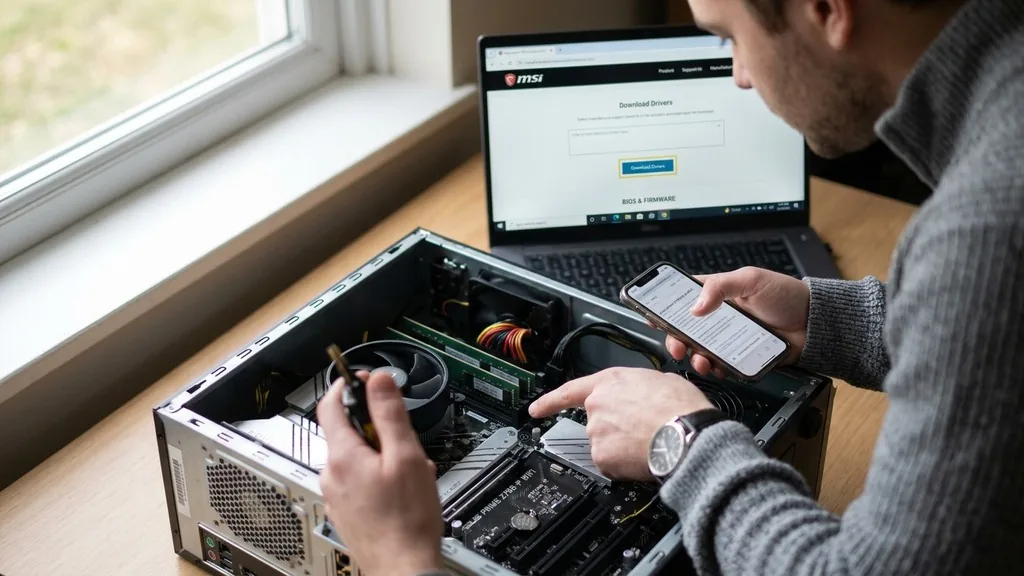
When you build a new computer or perform a clean install of your operating system, the hardware components inside your PC need specific software instructions to communicate correctly with the kernel. Learning how to download motherboard drivers is a vital skill for anyone maintaining a high-performance machine.
Without these specialized files, your system might suffer from reduced performance, lack of audio, unstable Wi-Fi, or even failure to recognize connected peripherals like keyboards and mice. While modern versions of Windows are excellent at pulling generic drivers from the cloud, they often lack the manufacturer-specific optimization required to unlock the full potential of your hardware.
Identifying Your Motherboard Hardware
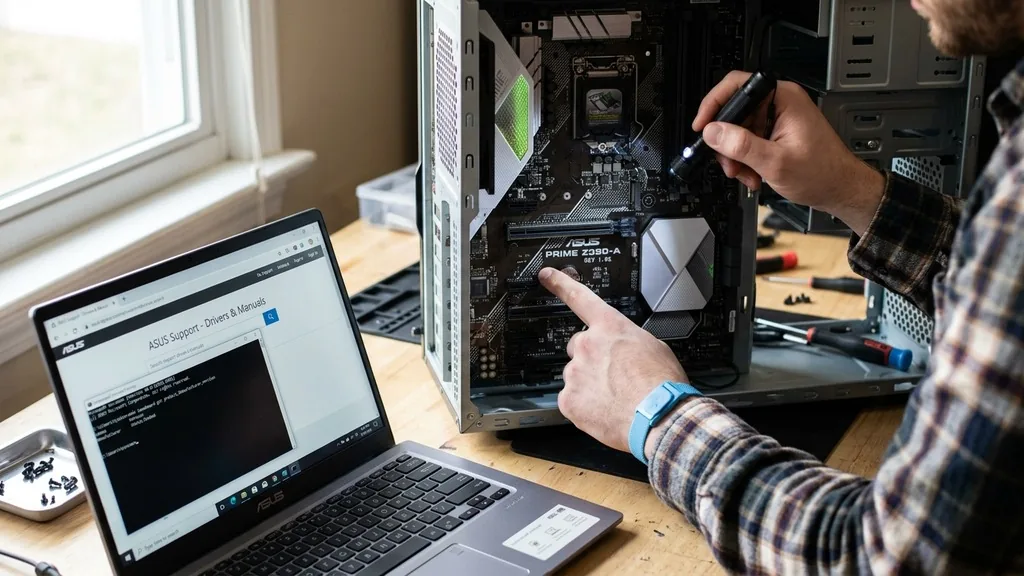
To identify your motherboard, you need to check the specific model name and revision number printed on the PCB or accessible via system information tools. You cannot download the correct software without knowing exactly which board is inside your chassis, as driver packages are highly specific to individual chipsets and power delivery configurations.
If you have already assembled your computer, you don’t necessarily need to open the case to find this information. You can use built-in Windows utilities to retrieve the necessary data. Press the Windows key, type “System Information,” and look for the “BaseBoard Manufacturer” and “BaseBoard Product” fields.
These two lines provide the exact identity of your component. Alternatively, third-party utilities like CPU-Z can provide deeper insights, including the current BIOS version and chipset details, which are often required when you start the process of updating your system software.
Once you have the model name—for example, a specific ASUS ROG Strix board—you are ready to move to the manufacturer’s official portal. Never rely on third-party “driver updater” software that claims to scan your system automatically; these often install bloatware or incorrect versions that can destabilize your systems. Always source your files directly from the company that manufactured the board to ensure compatibility and security.
Locating the Official Support Page
The most reliable way to find the correct software is to visit the manufacturer’s official website and navigate to their support section. Most major manufacturers have a dedicated search bar where you can input your model number directly to be taken to a page listing all available downloads for that specific device.
When you arrive at the product page, look for a tab labeled “Drivers,” “Downloads,” or “Support.” This area is the central repository for everything your board needs to function, including chipset drivers, LAN drivers, audio controllers, and SATA/RAID management software.
It is important to filter these results by your specific operating system version, such as Windows 10 or Windows 11. Downloading drivers designed for an older version of Windows might lead to installation errors or mysterious system crashes during operation.
If you are struggling to find the page, a simple search query like “[Motherboard Model] support” in your favorite search engine will almost always lead you directly to the manufacturer’s official landing page. Be wary of unofficial mirrors or forums that host driver files, as these can be modified to contain malicious code. Sticking to the primary domain of the manufacturer is the only way to guarantee that the files are authentic and free from unwanted software.
Understanding the Different Types of Drivers
Your motherboard requires several distinct types of drivers to manage different components effectively. While the chipset driver is arguably the most important, as it facilitates communication between the CPU and other devices, you will likely need to install a collection of files to get everything working at peak efficiency.
| Driver Type | Primary Function | Importance |
|---|---|---|
| Chipset | Manages CPU-to-peripheral communication | Critical for system stability |
| Audio | Handles onboard sound processing | Necessary for output/input |
| LAN / Wi-Fi | Controls network connectivity | Required for internet access |
| SATA / NVMe | Manages storage drive data flow | Vital for disk performance |
| USB | Enables peripheral compatibility | Needed for external devices |
Each of these categories plays a role in the overall health of your PC. The chipset driver, for instance, often includes power management features that dictate how your CPU enters low-power states. If this driver is missing or outdated, you might notice that your computer refuses to wake from sleep mode or experiences thermal throttling under light loads.
The audio driver, meanwhile, often includes the software control panel used to manage surround sound settings or microphone inputs. Without the specific manufacturer driver, you might be stuck with basic stereo output, losing the advanced features your hardware is capable of providing.
The Step-by-Step Installation Process
After you have downloaded the necessary files, the actual install process is generally straightforward, though it requires a specific order of operations to avoid conflicts. Always begin by installing the chipset drivers first, as these provide the foundation upon which the other drivers rely. Restart your computer after the chipset installation is complete to ensure the new configuration is properly loaded into the kernel.
Once the chipset is handled, proceed to the network drivers. Having a stable connection is vital if the system needs to pull additional updates from Windows Update. Following the network drivers, you can install the audio and storage drivers.
For most users, these will come in the form of an executable (.exe) file that launches a wizard. Simply follow the on-screen prompts, accept the terms, and allow the installer to overwrite any generic drivers currently in use.
If you encounter a file in a compressed format, such as a .zip or .rar, you must extract the contents to a folder on your desktop before running the setup. Never try to run an installer directly from within the compressed folder, as the program will fail to find the necessary support files and will likely throw an error message. After finishing all installations, a final system restart is highly recommended to finalize the integration of all new drivers into your hardware stack.
Addressing Common Compatibility Questions
A frequent question users have is whether they need to download drivers if Windows already seems to be working fine. The truth is that while Windows is excellent at plug-and-play functionality, the generic driver provided by Microsoft is rarely the one optimized for your specific board.
You might find that your high-speed USB 3.2 ports are running at standard USB 2.0 speeds, or that your onboard sound lacks the ability to drive high-impedance headphones. In these cases, the manufacturer driver is absolutely required to unlock the performance you paid for.
Another common concern involves the order of operations. Does it matter if you install the audio driver before the network driver? Generally, no, provided the chipset driver is already in place.
However, it is good practice to keep things organized. If you have a folder on your desktop labeled “Motherboard Drivers,” you can work through the list systematically, checking off each item as you go. This prevents you from accidentally skipping a component like the Intel Management Engine or the specific SATA controller software, which are often tucked away in sub-menus on the support page.
If you are building a system for a specific purpose, such as professional video editing or gaming, you should also look for “utility” software provided by the manufacturer. While not strictly drivers, these tools often allow you to manage fan curves, monitor temperatures, and update your BIOS directly from within the operating system. These tools can be incredibly helpful for fine-tuning your PC to meet specific workload requirements.
Handling Driver Conflicts and Errors
Sometimes, an installation might fail, or you might find that a device is still not functioning correctly. This usually happens when an old, corrupted driver is still lurking in the system registry, preventing the new version from taking control.
To resolve this, you can open the Windows Device Manager, locate the problematic device, and select “Uninstall Device.” Once you have removed the old software, restart your computer and attempt the installation again.
If the error persists, it may be a sign that you have downloaded the wrong driver version or that your BIOS requires an update. Many modern motherboards have features that are only enabled after a BIOS flash.
Check the support page again to see if there are any “critical” or “firmware” updates available. Updating your BIOS is a more delicate process than installing a standard driver, so ensure you follow the manufacturer’s instructions to the letter, as an interrupted BIOS update can potentially render the motherboard unusable.
For those who want to learn more about the technical specifications of their hardware and how these drivers interact with the system architecture, the official Intel support documentation provides an excellent deep dive into how chipsets and drivers communicate. Understanding this relationship helps demystify the process and makes troubleshooting significantly easier when things go wrong.
The Role of BIOS and Firmware Updates
While drivers manage the interaction between the software and the hardware, the BIOS (Basic Input/Output System) acts as the firmware that initializes the hardware when you first press the power button. Often, when you search for motherboard drivers, you will see a separate section for BIOS updates. These updates are essential if you are experiencing stability issues or if you have recently upgraded your CPU to a newer generation that the original board did not support out of the box.
Updating the BIOS is different from installing a typical driver. Most modern boards have a “Flash” tool integrated directly into the BIOS menu, which allows you to load the update file from a USB thumb drive.
You should never attempt to update the BIOS while inside Windows unless the manufacturer provides a specific, reputable utility designed for that purpose, as background processes can interfere with the flashing process and cause a system failure. Always read the release notes for a BIOS update; if it doesn’t address a problem you are currently facing, it is often best to leave it alone, as the saying goes: “if it isn’t broken, don’t fix it.”
However, if you are experiencing intermittent blue screens or memory compatibility issues, a BIOS update is often the first solution recommended by technical support teams. These updates frequently include microcode fixes that improve the way the processor handles data, which can have a massive impact on overall system stability and performance during intensive tasks.
Maintaining Your System After Installation
Once everything is installed and your system is running smoothly, your work isn’t entirely finished. Drivers are updated periodically by manufacturers to fix bugs, improve security, and add support for new features.
It is a good practice to check the manufacturer’s website every few months to see if any new versions have been released. You don’t need to update every single month, but keeping your chipset and network drivers relatively current is a great way to ensure your machine stays secure and fast.
Consider creating a backup of your current driver configuration once everything is working perfectly. You can use various disk imaging tools to take a “snapshot” of your system state.
If you ever have to reinstall Windows in the future, you can simply restore this image or have your driver folder ready to go, saving you the time of hunting down the files all over again. This proactive approach to system maintenance is what separates a casual user from a power user, ensuring that your hardware remains reliable for years to come.
Remember that your motherboard is the central hub of your entire computer. Every piece of data that moves from your storage to your CPU, and every bit of information that travels from your GPU to your monitor, passes through the pathways managed by these drivers. By taking the time to properly download and install the correct software, you are ensuring that your machine runs as efficiently as possible, protecting your investment and providing a smoother computing experience.
Frequently Asked Questions
- How do I check if my motherboard drivers are up to date? You can check your current driver versions in the Windows Device Manager. Compare these version numbers against the latest files listed on your motherboard manufacturer’s official support page to see if a newer version is available for your specific model and operating system.
- Is it necessary to install every driver listed on the support page? Generally, yes, especially the chipset, audio, and network drivers. Some utilities or “bloatware” software listed on the page are optional, but the core driver files are essential for hardware stability. If you are unsure, install the mandatory drivers first and add the optional utilities later if needed.
- What should I do if my internet stops working after a driver update? If your network connection fails, you may have installed an incompatible driver. Use a different device to download the correct network driver from the manufacturer’s website, transfer it to your PC via a USB drive, and perform a clean installation to restore your connectivity.
- Can I use drivers from a different motherboard model? No, you should never use drivers from a different motherboard model, even if it is from the same manufacturer. Drivers are written for specific hardware configurations, chipsets, and controllers. Using the wrong file can lead to system instability, hardware conflicts, or a complete failure to boot the operating system.


