


Knowing exactly what type of motherboard you have is a fundamental skill for any computer user, whether you are planning a hardware upgrade, troubleshooting a performance issue, or simply checking compatibility for new components. The motherboard, often referred to as the system board or baseboard, acts as the central nervous system of your computer, connecting the processor, memory, storage, and expansion cards. If you have ever wondered what type of motherboard do I have, you are not alone; many users find themselves staring at a case full of components without a clear path to identifying the underlying hardware.
Fortunately, you don’t need to be a professional technician to extract this information. You can uncover these details through built-in software tools, command-line interfaces, or by performing a physical inspection of the hardware itself.
Using System Information to Identify Your Motherboard
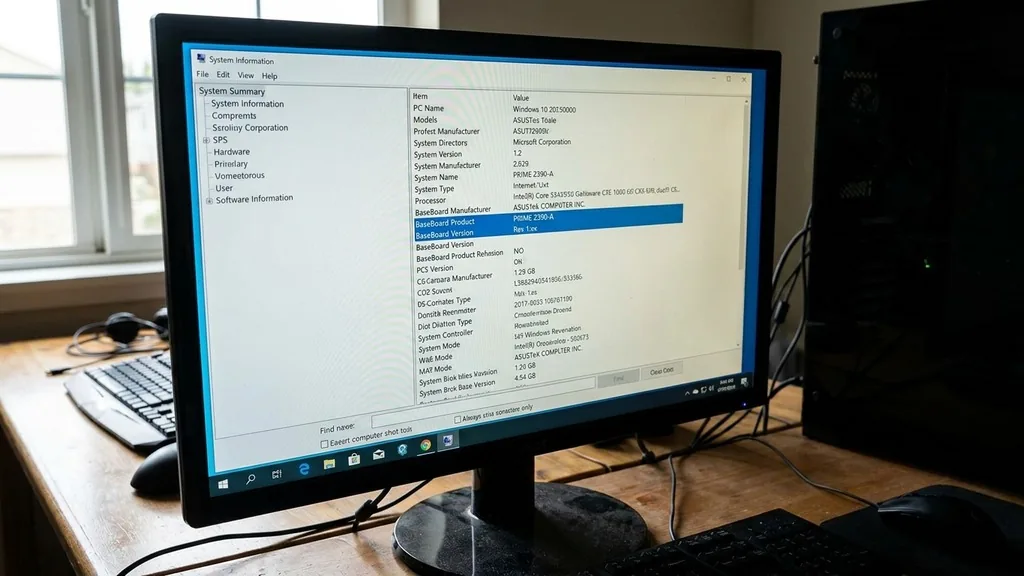
To identify your motherboard using the built-in Windows System Information tool, press the Windows key, type “msinfo32” into the search bar, and press Enter to open the utility. Within the “System Summary” tab, look for the fields labeled “BaseBoard Manufacturer,” “BaseBoard Product,” and “BaseBoard Version.” This is the fastest, most reliable way to find your motherboard model without needing to install third-party software or open your computer case.
The System Information utility is a powerful, native tool that pulls data directly from the BIOS or UEFI firmware of your computer. When you open this window, you will see a detailed list of hardware components. The “BaseBoard” entries are the specific identifiers you need.
The manufacturer field will tell you if you are using an ASUS, Gigabyte, MSI, ASRock, or perhaps a proprietary board from a pre-built manufacturer like Dell or HP. The “BaseBoard Product” is the specific model name, which is essential when you are hunting for driver updates or checking if a new CPU is supported by your current socket.
Understanding Manufacturer Specifics
If the System Information tool shows “To be filled by O.E.M.” or a generic name, you are likely using a pre-built desktop or a laptop. In these cases, the manufacturer has customized the board, and you should look for the model name on the support page of your computer’s manufacturer.
For those building custom PCs, this field will almost always display the exact retail model name of your board, such as “ROG STRIX B550-F GAMING.” Knowing this exact string allows you to cross-reference your hardware against official documentation.
Checking Your Motherboard Model via Command Prompt
If you prefer a more technical approach or find yourself in a situation where the graphical user interface is unresponsive, you can use the Command Prompt to query your hardware information. Open the Command Prompt by typing “cmd” in the Windows search bar, then execute the command: wmic baseboard get product,Manufacturer,version,serialnumber. This command will return the exact details stored in the board’s firmware, providing a clean, text-based output of your hardware identity.
The Windows Management Instrumentation Command-line (WMIC) is a robust tool that interfaces with the operating system’s database of hardware components. By requesting specific fields like the product name and the serial number, you bypass the need to navigate through various menus.
This method is particularly useful for system administrators or power users who need to catalog hardware across multiple machines. If the output returns generic values, it confirms that the board is a proprietary design intended for a specific mass-market PC, which often limits upgrade paths compared to standard retail boards.
Accessing the BIOS or UEFI Interface
To see your motherboard model directly from the firmware, restart your computer and repeatedly press the designated key—usually Delete, F2, F10, or F12—during the initial boot process to enter the BIOS. Once inside, navigate to the “Main” or “System Information” tab, where the board model and BIOS version will be clearly displayed. This method is effective because it works independently of your operating system, ensuring that you can identify your hardware even if you haven’t installed Windows yet.
Entering the BIOS/UEFI is the most accurate way to verify hardware details because this information is hardcoded into the board’s non-volatile memory. Unlike Windows, which relies on drivers to interpret hardware, the BIOS provides a raw view of the physical components.
If you are preparing to perform a BIOS update, this is the environment where you will confirm your current version. Always be cautious when navigating these menus; while viewing information is safe, changing settings without understanding their function can lead to system instability or failure to boot.
Physical Inspection of the Motherboard
Sometimes the most reliable way to identify your motherboard is to open your computer case and look directly at the surface of the board. Most manufacturers print the model name in bold, white text directly onto the PCB (printed circuit board), usually near the CPU socket or between the PCIe slots. If you have a clear side panel, you may not even need to remove the side of the chassis to see this information; a flashlight and a keen eye are often all that is required.
Physical inspection is necessary when the OS fails to report the model correctly or when you are dealing with a motherboard that has been modified. While you are inside the case, you can also identify the form factor of your board. Common sizes include ATX, Micro-ATX, and Mini-ITX.
Understanding your form factor is just as important as knowing the model name, especially if you ever decide to move your components into a new case or replace the power supply unit. Be sure to turn off your computer and unplug it from the power source before opening the case to avoid electrical hazards.
Identifying Motherboards in macOS
If you are a user of a mac system, the process is fundamentally different because Apple uses proprietary hardware designs that do not follow standard retail naming conventions. You can find your specific model information by clicking the Apple menu in the top-left corner of the screen and selecting “About This Mac.” This will provide you with the model name, year, and technical specifications of your machine, which is the equivalent of a motherboard model identifier for Apple hardware.
Unlike Windows PCs, where you can easily swap out a motherboard for a different brand, Apple hardware is tightly integrated. The logic board, as it is called in the Apple ecosystem, is specifically designed for the chassis and CPU it ships with.
If you are looking for information on your specific logic board, you would typically need to use the serial number of your Mac on the official Apple support website. This will give you the precise configuration of your machine, which is necessary if you are seeking repairs or checking for compatible replacement parts through authorized service providers.
Comparing Motherboard Form Factors
Understanding the physical dimensions and layout of your motherboard is critical for future upgrades, as it determines which cases and power supplies will fit your build. The following table provides a quick reference for the most common motherboard form factors found in modern desktop computers.
| Form Factor | Dimensions (mm) | Best Use Case |
|---|---|---|
| ATX | 305 x 244 | Standard builds with maximum expansion |
| Micro-ATX | 244 x 244 | Balanced builds for office or mid-range gaming |
| Mini-ITX | 170 x 170 | Small form factor (SFF) and compact builds |
| E-ATX | 305 x 330 | High-end workstations and enthusiast systems |
Choosing the right form factor depends entirely on your needs. An ATX board offers the most PCIe slots for graphics cards, capture cards, and sound cards, making it the choice for power users. Micro-ATX boards are popular because they offer a good middle ground, providing enough slots for most users while taking up less space.
Mini-ITX is ideal for those who want a clean, minimalist setup, though you are limited to a single PCIe slot for your graphics card. E-ATX, or Extended ATX, is generally reserved for multi-GPU setups or high-core-count processors that require more power delivery components on the board.
Topical Gaps: Why Some Methods Fail
Many users struggle to find their motherboard model because of “white-label” or pre-built systems that obscure hardware details. When you purchase a computer from a major manufacturer like Dell, HP, or Lenovo, they often use custom-designed boards that do not have a public retail name.
If you search for the model number found in System Information, you might find nothing on Google. This is a deliberate design choice by the manufacturer to ensure that users rely on their specific support channels for parts and upgrades rather than buying off-the-shelf components.
To bridge this gap, you should rely on the manufacturer support page. By entering your computer’s serial number or service tag on the manufacturer’s website, you can pull up the exact “as-built” configuration. This provides more accurate data than any generic software tool.
For those who are building or upgrading, understanding the chipset is often more important than the board name itself. The chipset—such as Intel’s Z790 or AMD’s X670—dictates the features of the board, such as overclocking support, the number of USB ports, and PCIe lane allocation. You can find more details on chipset compatibility via Intel’s official support center to ensure your hardware choices align with your performance goals.
Essential Tips for Motherboard Maintenance
Once you have identified your motherboard, maintaining it ensures the longevity of your entire system. Regularly checking for BIOS updates is the most important maintenance task. Manufacturers release these updates to improve system stability, enhance memory compatibility, and patch security vulnerabilities.
You can check your current BIOS version using the methods described above and compare it to the latest version available on the manufacturer’s website. If there is a newer version, download it, place it on a USB drive, and use the BIOS update utility to flash your board.
Another crucial aspect of maintenance is keeping the board clean and cool. Dust accumulation can insulate components, leading to higher operating temperatures and potential throttling. Use a can of compressed air to gently blow dust out of the heatsinks and away from the VRM (Voltage Regulator Module) areas.
Ensure that your case has adequate airflow, as the motherboard relies on the ambient air movement within the chassis to keep its chipset and power delivery components within safe operating limits. Proper cable management also plays a role; by keeping cables bundled and away from the board’s surface, you allow for better airflow and easier access if you need to perform future upgrades.
Frequently Asked Questions
- How can I identify my motherboard type without opening the PC? You can use the Windows System Information tool (msinfo32) or the Command Prompt (wmic baseboard get product) to retrieve the model name directly from the software. These tools read the data stored in the BIOS, allowing you to identify your hardware without any physical tools or case manipulation.
- Does the motherboard model matter for Windows updates? While Windows handles generic hardware updates automatically, the motherboard model is crucial for specific drivers like chipset, audio, and network controllers. Using the specific drivers from the manufacturer’s website is always better than relying on generic Windows drivers to ensure your system performs at its maximum potential.
- Is it possible to damage my motherboard by checking its model? No, using software tools to view your motherboard information is completely safe and carries no risk to your hardware. If you perform a physical inspection, ensure the computer is powered off and unplugged to avoid accidental short-circuits, which is the only real risk when interacting with internal components.
- What should I do if my motherboard model isn’t listed? If no model name appears, you are likely using a pre-built computer from a company like Dell or HP. In this case, enter your computer’s serial number on the manufacturer’s support website. They will provide the exact specifications and driver downloads for your specific machine’s custom motherboard.


