

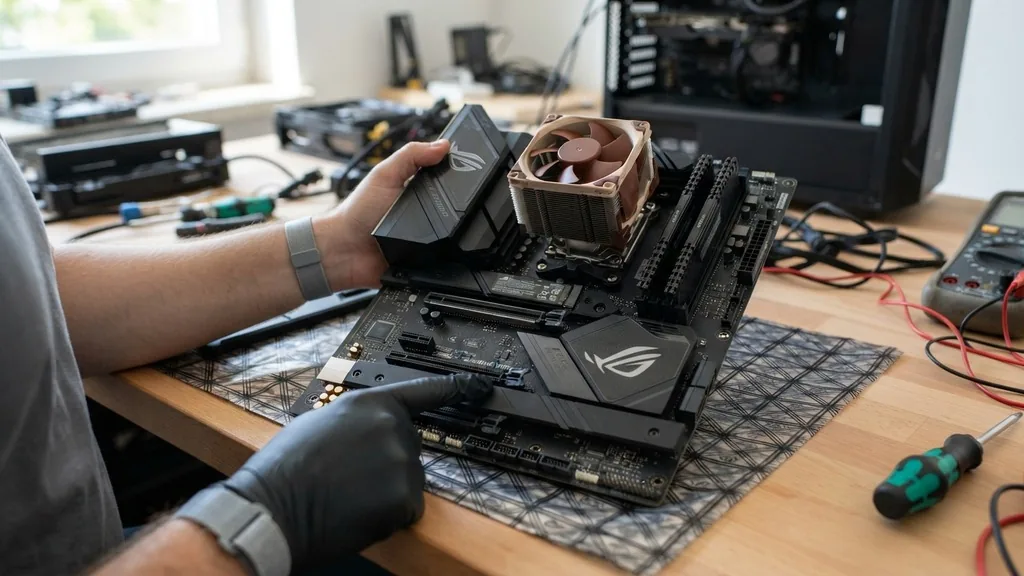
Identifying the specific hardware inside your computer is often necessary when you need to upgrade components, troubleshoot driver issues, or verify that your system matches its technical specifications. While software tools can often pull this data from the operating system, knowing how to check motherboard model physically provides a definitive answer that bypasses any potential software errors or misreporting. Whether you are building a new machine, repairing an old one, or simply curious about your internal components, locating the model number directly on the circuit board is a fundamental skill for any computer user.
Preparation for Physical Inspection
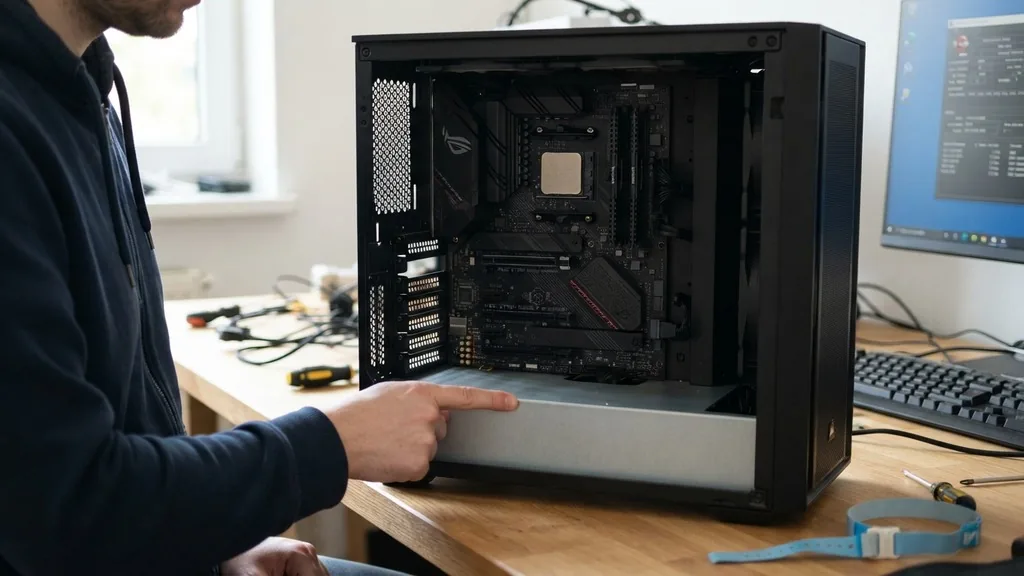
To check your motherboard model physically, you must first safely power down your computer, unplug all cables, and open the side panel of your desktop case to gain visual access to the main circuit board. Before touching any internal components, it is critical to discharge any static electricity from your body by touching a grounded metal object or wearing an anti-static wrist strap.
This simple precaution protects sensitive electrical pathways from damage. Once the case is open, you will likely need a flashlight to illuminate the dark corners of the chassis, as many manufacturers print model numbers in small, inconspicuous locations.
If your computer is a pre-built system from a major manufacturer like Dell, HP, or Lenovo, the motherboard might be proprietary. In these cases, the model number may not follow standard retail conventions, appearing instead as a series of letters and numbers specific to that company’s internal inventory. Always look for a clean, flat surface on the board.
Avoid touching the gold-plated pins of your RAM slots or the CPU socket, as these are highly fragile. Keep your hands on the edges of the board or on non-conductive plastic areas to ensure you do not inadvertently bridge connections or bend delicate pins.
Locating Labels and Printed Markings
The most direct way to identify your hardware is to scan the surface of the motherboard for silkscreened text, which is the white or colored lettering printed directly onto the board’s substrate. Manufacturers almost always print the model number and revision version in a prominent location, though “prominent” is relative in a cramped computer case.
Look near the center of the board, specifically around the area where the RAM slots meet the CPU cooler. Many boards also feature a large brand logo, such as ASUS, Gigabyte, or MSI, with the specific model number printed just below or beside the branding.
If you cannot find the model number near the processor, check the area around the expansion slots, specifically between the PCIe slots. Manufacturers frequently use this space to print the model name in a font that is easy to read. You should also check the perimeter of the board, especially near the rear I/O panel where your USB ports and audio jacks are located.
Sometimes, the model number is printed on a small sticker rather than being silkscreened onto the board itself. If you see a barcode sticker, it often contains the serial number and the model designation, which can be cross-referenced on the manufacturer’s official support website.
Understanding Board Revisions
A motherboard model number is rarely a single static string; it is often followed by a revision number, which indicates an updated version of the same board design. For instance, you might find “Rev 1.0” or “Rev 2.1” printed near the main model number.
This detail is vital because different revisions of the same motherboard model can sometimes require different BIOS updates or have slight variations in component compatibility. When you are looking for drivers or BIOS updates on the manufacturer’s website, selecting the correct revision is as important as selecting the correct model number.
The revision number indicates that the manufacturer has tweaked the hardware layout or replaced certain capacitors or voltage regulators to improve stability or reduce costs. If you are upgrading your RAM or CPU, the revision can determine whether your board supports newer, faster modules or specific processor generations.
Always note down both the primary model number and the revision number to ensure you have the complete picture of your hardware. If you are ever in doubt, you can verify your hardware specifications by visiting the official Intel support portal for general guidance on hardware identification and component compatibility.
Removing Obstructions for Clear Visibility
Sometimes the motherboard model is hidden beneath bulky hardware components such as the CPU cooler, the graphics card, or even dense bundles of power cables. If you cannot see the board clearly, you may need to perform a minor teardown to get a better look. The graphics card is the most common culprit for obscuring the board; by simply releasing the retention clip at the end of the PCIe slot and unscrewing the bracket at the back of the case, you can pull the card out to reveal the motherboard surface underneath.
Be cautious when moving cables. Over time, internal wires can become stiff, and pulling on them might dislodge a connection elsewhere. Gently push cables aside and hold them in place with a piece of electrical tape or a zip tie if necessary while you inspect the board.
Do not force any component out of its slot. If a component feels stuck, re-examine the mounting screws or clips. You should never have to remove the processor or the RAM to find the model number, as these components are positioned to leave the board’s surface markings visible.
Using Component Identification Tables
When identifying a motherboard, it helps to know which manufacturers use which naming conventions. While there are no universal standards, certain brands adhere to predictable patterns. The following table provides a breakdown of common identification areas and what to look for when you are searching for the model number on the physical board.
| Component Area | What to Look For |
|---|---|
| Center Board | Large silkscreened model name (e.g., Z790 AORUS) |
| PCIe Slot Space | Small printed text between expansion slots |
| Rear I/O Area | Stickers containing serial numbers and model IDs |
| Edge of Board | PCB version or revision number (e.g., Rev 1.02) |
By systematically checking these four areas, you can significantly increase your chances of finding the exact model without having to guess or rely on potentially misleading software data. If you find a string of numbers that looks like a part number rather than a model name, try searching that string in a search engine; it will often lead you directly to the product page for that specific board.
Why Physical Inspection Outperforms Software
While it is tempting to use software utilities to find your motherboard information, these tools rely on the BIOS or UEFI reporting correct information to the operating system. If the motherboard has a corrupted BIOS or if the manufacturer used a generic firmware image, the software might report “To Be Filled By O.E.M.” or an incorrect generic model.
Physical inspection removes this layer of uncertainty. When you see the model number printed on the circuit board, you are looking at the source of truth, not a digital interpretation that could be wrong.
Furthermore, physical inspection allows you to see the actual state of the hardware. While looking for the model number, you might notice other important details, such as bulging capacitors, scorched traces, or dust accumulation that could be causing overheating issues. This “eyes-on” approach is an excellent way to perform routine maintenance.
You might find that a fan header is loose or that a specific slot is damaged, providing you with more information than any diagnostic software could ever provide. It turns a simple identification task into an opportunity to ensure your hardware is in top condition.
Cross-Referencing the Identified Model
Once you have the model number written down, the next step is to verify it online to ensure you have the correct information for your future needs. Take the alphanumeric string you found and input it into your preferred search engine.
Because motherboard models are specific, the search results should immediately point to the manufacturer’s product page. This page will contain the official specifications, including the type of chipset, the supported CPU socket, and the maximum capacity for RAM.
If you find multiple results for a similar model, check the revision number again. You might find that a model like “B650M” has several variations, such as “B650M-Plus” or “B650M-DS3H.” Each of these represents a different tier of features.
The physical inspection is the only way to distinguish between these variations, as they often look nearly identical from the outside but have different power delivery systems or integrated audio chips. By confirming the exact model online, you can proceed with confidence when buying new components.
Addressing Topical Gaps in Motherboard Identification
A common question that often goes unanswered in standard guides is what to do when the motherboard is completely unlabeled or is a proprietary board from an OEM system like a pre-built gaming PC or a corporate workstation. In these scenarios, the board might not have a retail model name at all. Instead, it will have a “Part Number” (often abbreviated as P/N or FRU for Field Replaceable Unit).
You should search for this part number on the manufacturer’s support site. If it is a Dell or HP system, the support page for your computer’s service tag will list the exact motherboard part number that was originally installed in your system.
Another gap involves identifying motherboards that are buried in small form factor cases, such as ITX builds, where the space is so restricted that you cannot physically read the board even after opening the case. In these instances, try using a small mirror or the camera on your smartphone to reach into the tight spaces.
You can take a high-resolution photo of the board and then zoom in on the image on your computer screen. This trick is often more effective than trying to squint into a cramped, dark case with your naked eye.
Common Troubleshooting Steps After Identification
Once you have identified your motherboard, you might find that you need to update the system. If you are experiencing stability issues, the first thing to check is whether you are running the latest version of the BIOS.
With your confirmed model number and revision in hand, visit the manufacturer’s support section to download the correct firmware. Always read the release notes for the BIOS update, as they will tell you if the update is necessary for your specific hardware configuration.
If you are planning to upgrade your RAM, use the motherboard model to find the “Qualified Vendor List” (QVL) on the manufacturer’s website. The QVL is a document that lists every specific brand and model of RAM that the manufacturer has tested with that board.
While most RAM will work, sticking to the QVL ensures maximum stability and performance. Do not assume that all DDR4 or DDR5 RAM is interchangeable; motherboard traces are designed with specific signal integrity in mind, and using supported memory is the best way to avoid “Blue Screen of Death” errors or boot failures.
Frequently Asked Questions
- Can I find my motherboard model without opening the case? Yes, you can often find this information by typing “system information” into the Windows search bar or by using the Command Prompt command “wmic baseboard get product,Manufacturer”. However, these software methods can sometimes return incorrect or blank information if the BIOS is not configured properly.
- What should I do if the motherboard model number is faded or unreadable? If the silkscreened text is worn off, look for a sticker on the board, usually near the RAM slots or the rear I/O ports. If that is missing, search for the manufacturer’s serial number or the board’s part number on the company’s official support website to identify it.
- Does the motherboard revision number really matter for upgrades? Yes, the revision number is crucial. Different revisions can have different power delivery components, support for different CPU generations, or even different pin layouts for headers. Always check the revision number on the board when looking for compatible BIOS updates or hardware drivers to ensure full system stability.
- Is it dangerous to touch the motherboard while the computer is turned off? It is generally safe as long as you have unplugged the power cable and discharged static electricity. Avoid touching the pins inside the CPU socket or the gold contacts on the RAM, as these are very delicate and can be damaged by oils or physical force.


