


Determining what RAM is compatible with my motherboard requires more than just picking a stick that looks like it will fit. Your computer relies on a precise handshake between the memory controller, the motherboard chipset, and the physical memory modules themselves. When you upgrade your system, you are essentially trying to match the electrical and logical requirements of your hardware with the specifications of the new RAM.
Misalignment here results in a system that refuses to post, experiences frequent crashes, or throttles performance significantly. Understanding the technical boundaries of your hardware is the only way to ensure a stable upgrade path for your gaming rig or workstation.
Identifying Your Current Motherboard and System Specifications
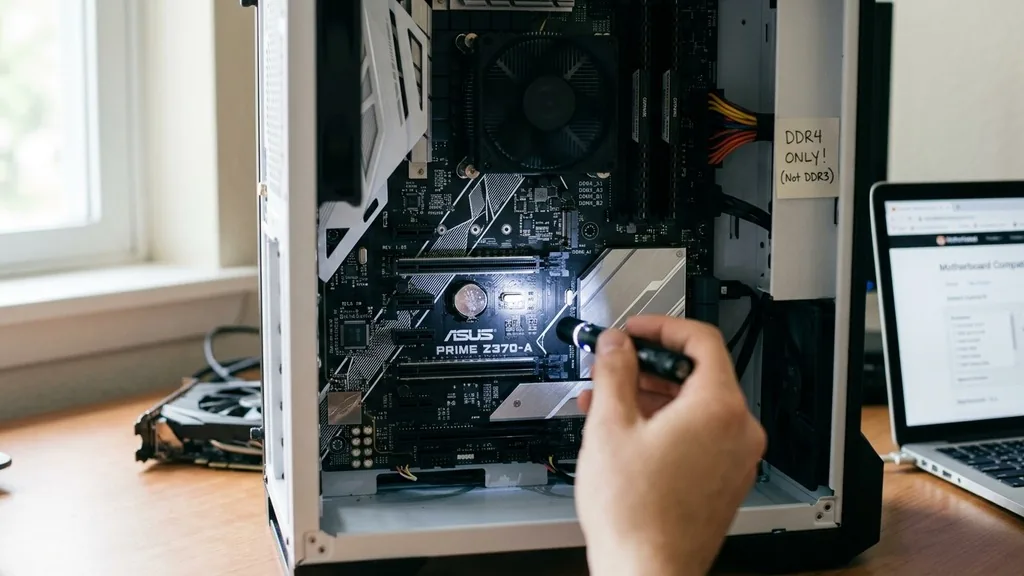
To figure out what RAM is compatible with my motherboard, you must first identify the exact make and model of your hardware. Guessing based on the age of your computer often leads to purchasing the wrong generation of memory, such as accidentally buying DDR4 for a motherboard that only supports DDR3.
You can find this information by opening your computer case and looking at the silk-screened text on the PCB near the CPU socket or the PCIe slots. If you prefer a software-based approach, tools like CPU-Z provide a detailed readout of your current motherboard’s manufacturer and model name.
Once you have the model name, visit the manufacturer’s website to find the support page for that specific board. Every motherboard manufacturer maintains a Qualified Vendor List, commonly abbreviated as the QVL. This document lists every specific memory kit that the manufacturer has physically tested and verified for stability on that board.
While you can often use memory that isn’t on the list, sticking to the QVL is the safest way to guarantee compatibility. If you are struggling to find the manual, the official Intel processor and memory support documentation provides a great baseline for understanding how memory controllers interact with different generations of hardware.
Understanding DDR Generations and Physical Keying
Memory technology evolves in generations, and these generations are not backward compatible. You cannot insert a DDR5 module into a DDR4 slot, nor can you fit a DDR4 stick into a DDR3 slot. This physical limitation is enforced by the “keying” of the module—a small notch located on the bottom edge of the RAM stick.
This notch is placed at a different position for each generation, preventing you from physically forcing the wrong type of memory into a slot. If you try to force a module, you will likely damage the gold contacts or the motherboard slot itself.
Beyond the physical notch, the electrical signaling protocols differ between generations. DDR5, for instance, manages power delivery on the module itself, whereas DDR4 relies on the motherboard to regulate voltage. These deep structural differences mean that your motherboard’s BIOS is hard-coded to communicate only with the generation of RAM it was designed for.
Always check your motherboard manual to see the specific DDR standard it supports. If the manual says DDR4, that is the only type of memory that will ever work in that system.
Decoding Memory Speed and XMP Profiles
Even within a single generation, RAM comes in various speeds, measured in megatransfers per second (MT/s). A common point of confusion is whether you can put faster RAM into a motherboard that officially supports a slower speed. If your motherboard is rated for 2666MHz but you install a 3600MHz kit, the system will typically downclock the RAM to match the motherboard’s native speed.
However, this is not always guaranteed. If the voltage requirements or the timing profiles of the faster RAM are too aggressive for the older motherboard, the system may fail to boot entirely.
This is where XMP (Extreme Memory Profile) comes into play. XMP is a pre-configured overclocking profile stored on the RAM stick that tells the motherboard to run at higher speeds and tighter timings than the standard JEDEC specifications. If you purchase high-performance gaming RAM, it will often default to a lower, stable speed until you manually enable the XMP profile in the BIOS.
Before buying, verify that your motherboard supports the specific XMP version associated with your chosen RAM kit. If your motherboard BIOS is locked or lacks memory tuning options, you may never reach the advertised speeds of your new memory.
The Role of Motherboard Chipsets in RAM Compatibility
The motherboard chipset acts as the traffic controller for your system, dictating how much memory you can install and at what speeds. For example, entry-level chipsets might limit you to two memory slots, while high-end chipsets support four or even eight slots.
These chipsets also determine the maximum total capacity of RAM your system can address. If your chipset has a 64GB limit, installing 128GB of RAM will result in the extra memory simply being ignored or causing a boot loop.
When you investigate what RAM is compatible with my motherboard, look at the chipset specifications. Intel’s “Z” series boards, for example, usually allow for memory overclocking and higher speed support, whereas “B” or “H” series boards might lock your RAM speed to the maximum officially supported by the processor.
This distinction is crucial for gamers who want to squeeze every bit of performance out of their hardware. If you are building a system for heavy multitasking or video editing, the chipset’s ability to handle high-density modules is just as important as the speed of the RAM itself.
Analyzing Memory Capacity and Module Density
Total system capacity is often determined by the number of slots available and the maximum density of the DIMMs the memory controller can handle. Most modern motherboards support a range of capacities, such as 8GB, 16GB, 32GB, or 64GB per stick. However, older motherboards might struggle with high-density modules.
If you are upgrading an older system, you might find that a single 32GB stick doesn’t work, while two 16GB sticks of the same total capacity function perfectly. This is due to the way the memory controller partitions the address space.
| Factor | Impact on Compatibility |
|---|---|
| DDR Generation | High: Must match (e.g., DDR4 vs DDR5) |
| DIMM Capacity | Medium: Limited by motherboard max address space |
| Operating Voltage | High: Incorrect voltage can cause system instability |
| CAS Latency | Low: Affects performance, rarely causes boot failure |
When planning your upgrade, consider your specific needs. If you are doing light office work, 16GB is usually sufficient. For gaming, 16GB to 32GB is the modern standard.
If you are running virtual machines or editing high-resolution video, you might need 64GB or more. Always check the motherboard manual for the “Maximum Memory Capacity” to avoid buying sticks that your system cannot recognize.
Dual Channel Configurations and Slot Placement
To get the best performance out of your RAM, you need to understand dual-channel architecture. Most consumer motherboards are designed to work with pairs of memory sticks.
When you place two sticks in the correct slots—usually slots 2 and 4, counting from the CPU—the system can access both sticks simultaneously, effectively doubling the bandwidth available to the CPU. If you only use one stick, or if you place them in the wrong slots, the system will fall back to single-channel mode, which can significantly hinder gaming performance and system responsiveness.
If your motherboard has four slots but you only have two sticks of RAM, you must consult the manual to identify the primary channel slots. Often, the slots are color-coded to help you identify which pairs go together.
Using the wrong slots might still allow the computer to boot, but you will lose the performance benefits of dual-channel operation. When mixing and matching different sticks, it is highly recommended to keep the pairs identical in terms of capacity, speed, and timing to ensure the system remains stable and operates in dual-channel mode.
Troubleshooting Common RAM Compatibility Issues
Even after following all the rules, sometimes a system will refuse to boot after a RAM upgrade. This is a common frustration, but it is usually solvable. The first step is to perform a CMOS reset, which clears the BIOS settings and forces the motherboard to re-detect the new memory hardware.
This is done by removing the small coin-shaped battery on the motherboard for a few seconds or by using the reset jumper pins. A fresh BIOS detection often resolves conflicts where the board was trying to apply settings from the previous, incompatible RAM.
If the system still won’t boot, try seating only one stick of RAM in the primary slot. If it boots with one stick but not two, you might have a faulty module or a dead memory channel on your motherboard. Another common issue is that the RAM is simply not pushed in all the way.
It requires a surprising amount of pressure to snap a DIMM into place. Ensure that the locking tabs on the sides of the slot have clicked into the notches on the side of the RAM stick. If the tabs aren’t fully engaged, the electrical connection will be intermittent, leading to random reboots or blue screens.
FAQs: Common Questions About RAM Compatibility
- Can I mix different brands of RAM? While possible, it is not recommended. If you must mix them, ensure the speed, voltage, and timings are identical. If they differ, the system will default to the slowest common denominator among all installed modules, which can cause instability.
- How do I check my RAM compatibility without opening the PC? You can use software like HWiNFO or CPU-Z to view your current motherboard and RAM specs. Then, use the manufacturer’s website or a trusted memory manufacturer’s configuration tool to see what upgrades are officially supported for your specific board.
- Will higher voltage RAM damage my motherboard? If the RAM requires a higher voltage than your motherboard is designed to provide, it may not boot. Conversely, if you force the motherboard to supply more voltage than the RAM is rated for, you risk damaging the memory modules. Always match the voltage requirements.
- Does RAM latency matter for compatibility? Latency (CAS timings) generally does not affect physical compatibility or the ability to boot. However, it does affect performance. Mixing sticks with different latencies can cause system instability or force the BIOS to run at much slower, safer timings to compensate for the mismatch.
When you ask yourself what RAM is compatible with my motherboard, you are essentially looking for the intersection of physical fit, electrical requirements, and chipset support. By verifying your motherboard model, checking the QVL, and respecting the generation of your memory technology, you can successfully upgrade your system. Remember that the goal is not just to get the computer to turn on, but to ensure that the memory operates at its intended speed and stability.
Take your time during the installation process, ensure the modules are seated firmly, and always clear your CMOS if the system behaves unexpectedly after the upgrade. Following these steps ensures your computer remains a reliable tool for whatever tasks you need to accomplish.


