


Identifying the hardware inside your computer is a fundamental skill for any user, whether you are planning a significant upgrade, troubleshooting performance issues, or simply checking compatibility for new software. Knowing how to find out my motherboard allows you to make informed decisions about your RAM, storage, and processor capabilities.
The motherboard acts as the central hub of your computer, connecting the CPU, memory, storage, and peripheral devices. Because it is the foundation of your system, understanding its specific manufacturer and motherboard model is essential before you attempt to install drivers or hardware components.
Many users assume that finding this information requires opening the computer case, but in reality, modern operating systems provide several software-based methods to retrieve these details. Whether you are running Windows 11, Windows 10, or an older version of the operating system, you can extract this data without ever touching a screwdriver. This article will guide you through the most efficient ways to identify your hardware, ranging from built-in command-line tools to third-party diagnostic software.
Using the System Information Utility
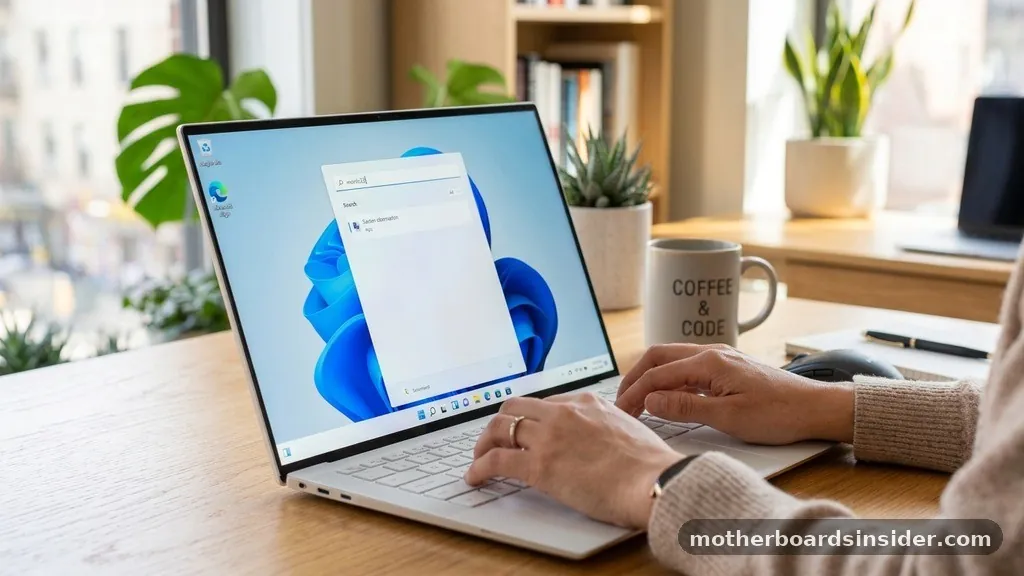
One of the most straightforward methods to find motherboard information on a Windows machine is the built-in System Information tool. This utility provides a comprehensive overview of your hardware environment, including the baseboard manufacturer and product name. To access this, you simply need to use the search bar in your taskbar.
Type “msinfo32” or “System Information” into the search box and press enter. Once the window opens, ensure that the “System Summary” category is selected in the left-hand pane. In the main list, scroll down until you see the labels “BaseBoard Manufacturer,” “BaseBoard Product,” and “BaseBoard Version.”
The “BaseBoard Product” field will display the specific motherboard model currently installed in your system. This method is highly reliable because it pulls data directly from the system’s own registry and firmware interface. If you see “Not Available” in these fields, it usually suggests that the drivers for your motherboard chipset are not properly installed or that the board is a proprietary design from a pre-built computer manufacturer.
Leveraging the Command Prompt for Quick Data
For power users or those who prefer a keyboard-centric approach, the Windows Command Prompt (CMD) offers a rapid way to query the hardware. This method is particularly useful when you need to script the retrieval of hardware information or if you are working on a system where the graphical user interface feels sluggish.
Open the Command Prompt by typing “cmd” into the Windows search bar. Once the terminal window appears, you can use the Windows Management Instrumentation Command-line (WMIC) tool. Type the following command exactly as written: “wmic baseboard get product,Manufacturer,version,serialnumber” and then press enter.
The system will output the requested details in a clean, text-based format. This command is an excellent way to get the exact serial number of your board as well, which is often required if you need to contact the manufacturer for support or warranty claims. By avoiding the need to navigate through complex menu trees, this method saves time and provides a direct line to the hardware registry.
Checking Hardware Details via PowerShell
PowerShell is a more advanced version of the Command Prompt and is the preferred tool for system administrators. If you want to know how to find out my motherboard model using a more modern interface, PowerShell is the way to go. It allows for more complex queries and better formatting of the returned information.
To start, right-click the Start button and select “Windows PowerShell” or “Terminal.” Once the blue window opens, you can execute a command similar to the WMIC method but with more robust parsing capabilities. Type “Get-CimInstance Win32_BaseBoard | Format-List Product,Manufacturer,SerialNumber,Version” and press enter.
This command will return a vertical list of your motherboard’s specifications. The use of the “Get-CimInstance” cmdlet is considered best practice in modern Windows environments, as the older WMIC tool is being phased out in future iterations of the operating system. This method ensures that your technical workflow remains future-proof while giving you accurate, reliable information about the core of your machine.
The BIOS and UEFI Interface
If your computer is failing to boot into the operating system, you can still identify your hardware by accessing the BIOS or UEFI menu. This is the most reliable way to identify your hardware because it bypasses the operating system entirely, pulling information directly from the firmware stored on the chip.
To enter the BIOS, restart your computer and repeatedly press the designated key (usually Del, F2, F10, or F12) during the boot process. Once inside the BIOS interface, look for a tab labeled “System Information,” “Main,” or “About.” The motherboard model name and the firmware version should be clearly listed there.
This is especially helpful if you are trying to determine if your hardware supports a specific CPU upgrade. Many BIOS interfaces also allow you to see the current voltage and temperature settings, which provides additional context about the health and configuration of your board. Note that every manufacturer uses a different menu layout, so you may need to look around for the specific hardware identification screen.
Using Third-Party Diagnostic Software
Sometimes, the native tools provided by Windows do not offer enough depth, or they might display cryptic codes rather than consumer-friendly names. In such cases, using third-party diagnostic software like CPU-Z is the gold standard for enthusiasts. This lightweight utility is designed specifically to read low-level hardware information and present it in an easy-to-read format.
You can visit the official CPU-Z download site to grab the installer or the portable version. Once you run the application, navigate to the “Mainboard” tab. Here, you will find the manufacturer, the chipset, the motherboard model, and the BIOS version.
This tool is invaluable because it often provides more granular data than Windows System Information, such as the exact southbridge model and the PCI Express interface version. It is a must-have for anyone who frequently builds or upgrades their own systems, as it provides a consistent interface across different hardware generations.
Physical Inspection of the Motherboard
If software methods fail—perhaps because the system is completely dead or you are dealing with a custom-built machine that lacks proper driver support—you can always perform a physical inspection. This involves opening the side panel of your computer case and looking directly at the circuit board.
Most manufacturers print the model name and number directly onto the PCB (printed circuit board). Look near the RAM slots, the PCI Express slots, or the area between the CPU socket and the I/O shield. You may need a flashlight to see the text clearly, as it is often printed in a color that blends in with the board’s finish.
If you have a large CPU cooler installed, it might be obstructing your view of the model name. In that case, you might need to take a high-resolution photo with your phone to zoom in on the text. Always remember to power down the computer and unplug it from the wall before opening the case to avoid electrical hazards or accidental shorts.
Comparison of Identification Methods
Choosing the right method depends on your current situation and the level of detail you require. The following table compares the different ways to identify your motherboard so you can choose the path of least resistance.
| Method | Ease of Use | OS Dependency | Level of Detail |
|---|---|---|---|
| System Information | High | Windows | Basic |
| Command Prompt | Medium | Windows | Medium |
| BIOS/UEFI | Medium | None | High |
| CPU-Z Software | High | Windows | Very High |
Addressing Hardware Identification on Apple Devices
It is important to note that the term “motherboard” is rarely used in the context of Apple computers. Instead, Apple refers to this component as a “logic board.”
If you are trying to find the model information for a Mac, the process is significantly different from a Windows PC. Because Apple maintains a closed ecosystem, you generally do not need to hunt for motherboard models for upgrade purposes, as most components are soldered directly to the board.
To find your device information on a Mac, click the Apple menu in the top-left corner and select “About This Mac.” This will provide you with the exact model name, year, and processor information. If you need more specific details about the logic board, such as for a repair, you will need to rely on the serial number.
You can type this serial number into Apple’s official support page to get a full breakdown of your machine’s specifications. Unlike Windows PCs, where you might be looking for a motherboard to install a new graphics card or processor, Mac users rarely need to know their logic board model unless they are performing a high-level repair or looking for specific replacement parts.
Common Questions and Troubleshooting
Many users find themselves stuck when their system does not report the expected information. Here are some common questions to help you navigate these hurdles.
- What if the motherboard model shows up as “To be filled by O.E.M.”? This usually happens with pre-built computers from companies like Dell, HP, or Lenovo. These manufacturers use proprietary boards that don’t always report standard identification strings to Windows. In these cases, you should use the computer’s serial number on the manufacturer’s support website to find your exact specifications.
- Does the BIOS version affect motherboard identification? Yes, the BIOS version is a component of your motherboard identification. If you are checking for compatibility with a new CPU, knowing your BIOS version is just as important as knowing the model name, as you may need to update the firmware to support newer processors.
- Is it possible to check the motherboard model from a remote computer? Yes, if you have administrative access, you can use PowerShell Remoting or tools like Windows Admin Center to query the hardware of a computer on your network, allowing you to identify the motherboard without being physically present at the machine.
- Will a Windows update change my motherboard information? No, a Windows update will not change the hardware identification of your motherboard. However, sometimes a major update might require you to reinstall chipset drivers, which could temporarily cause the system to display generic information until the proper drivers are restored.
In summary, whether you use the built-in Windows utilities, a third-party tool like CPU-Z, or a physical inspection of the components, finding your motherboard information is a manageable task. By understanding these different methods, you empower yourself to better manage your system, ensure compatibility for future upgrades, and troubleshoot hardware issues with confidence. Always start with the simplest software-based solutions before moving toward hardware-level inspections, and keep your drivers updated to ensure that your operating system can always accurately report the details of your computer’s internal components.


