

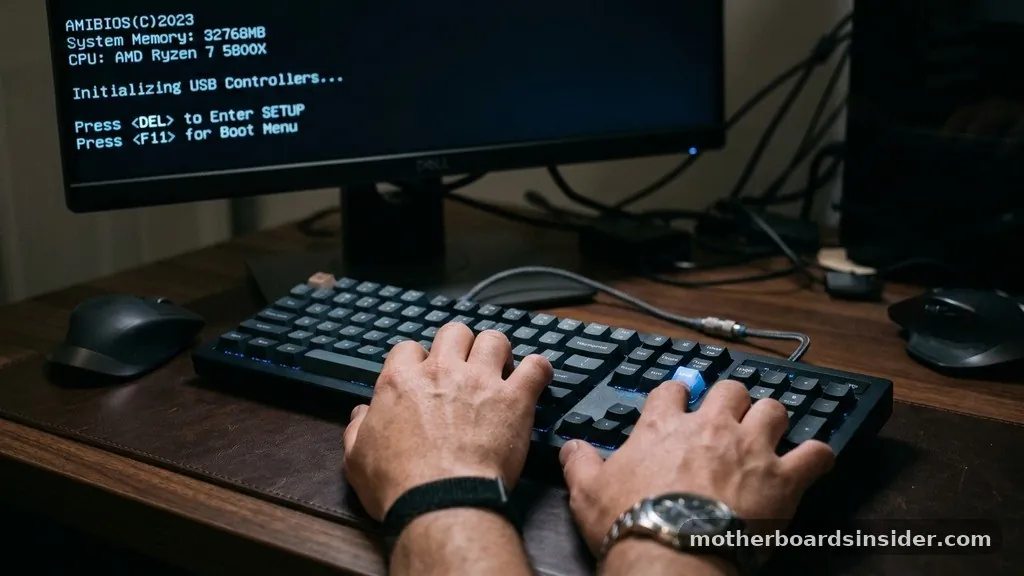
Accessing the firmware interface of your computer is a fundamental skill for any enthusiast or power user looking to optimize their hardware. When you need to know how to enter BIOS on MSI motherboard systems, the process is usually straightforward, but it can be intimidating if you have never navigated the pre-boot environment before. Whether you are looking to enable XMP profiles to boost your memory speeds, adjust your fan curves for better thermal management, or simply change your boot priority to install a new operating system, understanding the entry methods is your first step toward total system control.
Modern MSI motherboards utilize a robust UEFI (Unified Extensible Firmware Interface) environment known as MSI Click BIOS 5. This graphical interface is significantly more user-friendly than the legacy blue-screen BIOS of the past, offering mouse support and intuitive menus.
However, because modern computers boot so quickly, the traditional “press a key during startup” method can sometimes feel like a race against time. Fortunately, there are several reliable ways to reach these settings, ranging from keyboard shortcuts during the POST (Power-On Self-Test) process to navigating through Windows Recovery Environment settings.
The Standard Keyboard Method During Startup
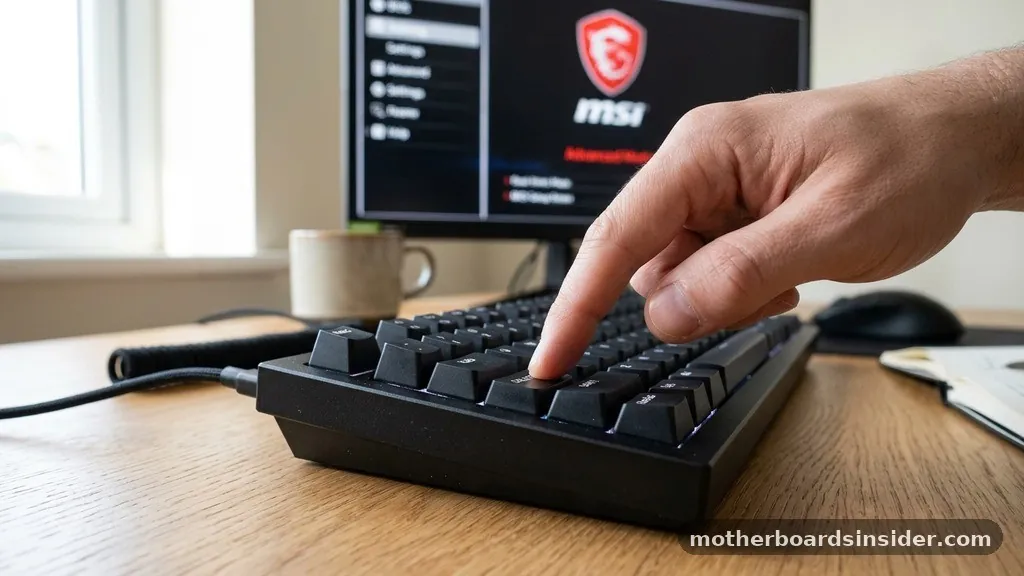
The most common way to access your system’s firmware is by using the physical keyboard during the initial boot sequence. As soon as you press the power button, the motherboard begins its internal diagnostic checks.
During this narrow window, the system listens for specific keystrokes that signal the user’s intent to enter the setup utility. For nearly all MSI boards, the Delete key is the primary command.
To execute this correctly, you should power on your machine and immediately begin tapping the Delete key repeatedly. Do not hold the key down, as this may cause a stuck-key error; instead, tap it rhythmically until the graphical interface appears on your monitor. If your system boots directly into Windows, you likely missed the timing window or your monitor is taking too long to wake up.
In such cases, you may need to try again or utilize the software-based entry methods described later in this guide. For those using a wireless keyboard, ensure the receiver is plugged into a USB 2.0 port, as these ports are often initialized earlier in the boot process than high-speed ports, ensuring the signal is registered by the motherboard before the OS begins loading.
Accessing BIOS via Windows Settings
If you find that your computer boots too fast—a common occurrence with SSDs and the Fast Boot feature enabled—you can bypass the physical keyboard method entirely by using Accessing BIOS via Windows Settings. This approach is highly reliable because it instructs the operating system to reboot directly into the firmware interface, taking the guesswork out of timing your key presses.
To begin, open your Windows Start menu and navigate to Settings. From there, go to System and then Recovery. Within this menu, you will see an option for Advanced startup.
Click the Restart now button located next to this option. Your computer will then reboot into a blue menu screen. From here, you must navigate through the following path: Troubleshoot, followed by Advanced options, and finally, UEFI Firmware Settings.
Clicking this will prompt a final restart, after which your computer will land directly inside the MSI Click BIOS 5 environment. This method is the preferred choice for users who want to avoid the frantic tapping of keys during the boot sequence.
Understanding the MSI Click BIOS 5 Interface
Once you have successfully navigated into the interface, you will be greeted by the MSI Click BIOS 5 dashboard. This environment is designed to bridge the gap between complex hardware settings and user accessibility. By default, most users will land on the EZ Mode screen, which provides a high-level overview of your system status, including CPU temperature, DRAM frequency, and storage device health.
For those who need granular control, there is an Advanced mode, which can be toggled by pressing the F7 key or clicking the button at the top of the interface. In this mode, you can perform advanced tasks such as overclocking, fine-tuning voltage parameters, and configuring complex RAID arrays. It is important to note that while the interface is graphical, changes made here directly influence the CMOS settings.
Always exercise caution when modifying power-related settings, as incorrect values can lead to system instability. If you ever find yourself in a position where the system will not boot after a change, you can usually reset these settings by clearing the CMOS via the physical jumper on the motherboard or by removing the coin-cell battery for a few minutes.
Utilizing the Boot Menu for Temporary Changes
Sometimes, you do not need to change permanent settings but simply need to boot from a different device, such as a USB flash drive for a Windows installation. In these scenarios, you do not necessarily need to enter the full setup utility.
Instead, you can use the built-in boot menu. On MSI motherboards, this is typically accessed by pressing the F11 key during the initial boot process.
When you press F11 during the POST screen, a temporary menu will appear, listing all bootable devices currently connected to your system. Selecting a drive from this list will force the system to boot from that device for this session only, leaving your primary boot priority settings in the BIOS untouched.
This is an essential troubleshooting tool when you are testing hardware or performing system recovery. If you are interested in the official documentation regarding system hardware configurations, you can visit the Intel support center for detailed information on processor and chipset architectures that interact with your motherboard’s firmware.
Key Differences Between BIOS Entry Methods
It is helpful to understand why different methods exist and when to use each one. The following table compares the primary ways to interact with your system’s startup environment.
| Method | Primary Use Case | Difficulty |
|---|---|---|
| Delete Key | Standard access for frequent users | Moderate (Timing sensitive) |
| Windows Recovery | When Fast Boot is active | Easy (Software controlled) |
| F11 Boot Menu | Temporary boot source selection | Low |
| CMOS Reset | System recovery after bad settings | High (Physical intervention) |
Resolving Common Access Issues
If you are struggling to enter the interface, there are a few common culprits to investigate. The most frequent issue is the Fast Boot feature.
When enabled, the motherboard skips the initialization of some USB devices to shave seconds off the boot time, which effectively ignores your keyboard inputs. If you cannot reach the BIOS via the Delete key, you must use the Windows Recovery method to disable Fast Boot or to enter the interface directly.
Another potential issue involves display output. If you are using a dedicated graphics card, sometimes the motherboard will prioritize the onboard video output for the BIOS screen, leaving your monitor black. If you suspect this is happening, try switching your HDMI or DisplayPort cable to the motherboard’s rear I/O panel temporarily.
Additionally, ensure that your keyboard is connected to a standard USB 2.0 port. While USB 3.0 or 3.1 ports are faster for data, they rely on drivers that may not be loaded until the operating system begins to start, which can prevent your keyboard from being recognized during the early POST phase.
Managing System Performance and Stability
Once you are inside the interface, you have the power to optimize your machine. One of the most common tasks is to enable XMP profiles.
By default, your RAM may run at a lower base speed to ensure compatibility. Enabling XMP allows the motherboard to read the pre-configured performance profile stored on the memory sticks, immediately bumping them to their advertised frequency and timings.
Beyond memory, you can also manage your cooling via fan curves. Instead of running fans at full speed constantly—which creates unnecessary noise—you can set the fans to scale based on CPU temperature. This creates a quieter environment during light tasks while ensuring maximum cooling performance when the system is under heavy load.
Remember that any change you make, usually by pressing F10 to save and exit, will be written to the firmware. If you ever feel overwhelmed, you can always choose to discard changes and exit, returning your system to its previous state without any permanent modifications.
Addressing Frequently Asked Questions
To ensure you have a complete understanding, here are the answers to the most common questions users have regarding MSI firmware interaction.
- What is the MSI BIOS boot key? The primary key to enter the setup utility on an MSI motherboard is the Delete key. For accessing the one-time boot menu to select a specific drive, the F11 key is the standard command.
- Is BIOS F2 or F12? While some motherboard manufacturers use F2 or F12, MSI almost exclusively uses the Delete key to enter the main settings menu. F11 is used for the boot selection menu, and F12 is often reserved for taking a screenshot of the BIOS screen to a USB drive.
- How do I boot directly into BIOS? The most reliable way is to use the Windows Recovery Environment. Go to Settings, then Recovery, and select Restart now under Advanced startup. Once the computer reboots to the blue menu, navigate to Troubleshoot, Advanced options, and select UEFI Firmware Settings.
- What if my keyboard isn’t working during boot? Try plugging your keyboard into a USB 2.0 port on the back of the motherboard rather than a front-panel port or a blue/red USB 3.0+ port. If that fails, use the Windows-based method to enter the firmware without needing keyboard input at startup.
Conclusion
Learning how to enter BIOS on MSI motherboard hardware is an essential step for any user who wants to get the most out of their computer. Whether you are performing routine maintenance, enabling performance profiles, or troubleshooting a boot issue, the methods outlined here provide you with the necessary tools to navigate your system’s firmware with confidence. By using the Delete key for quick access or the Windows Recovery method for more deliberate navigation, you can ensure that you are always in control of your system’s hardware settings.
Always remember to save your changes carefully, and if you ever encounter issues, the ability to reset your settings via the CMOS remains your ultimate safety net. With these skills, you are well-equipped to manage and optimize your PC for years to come.


