

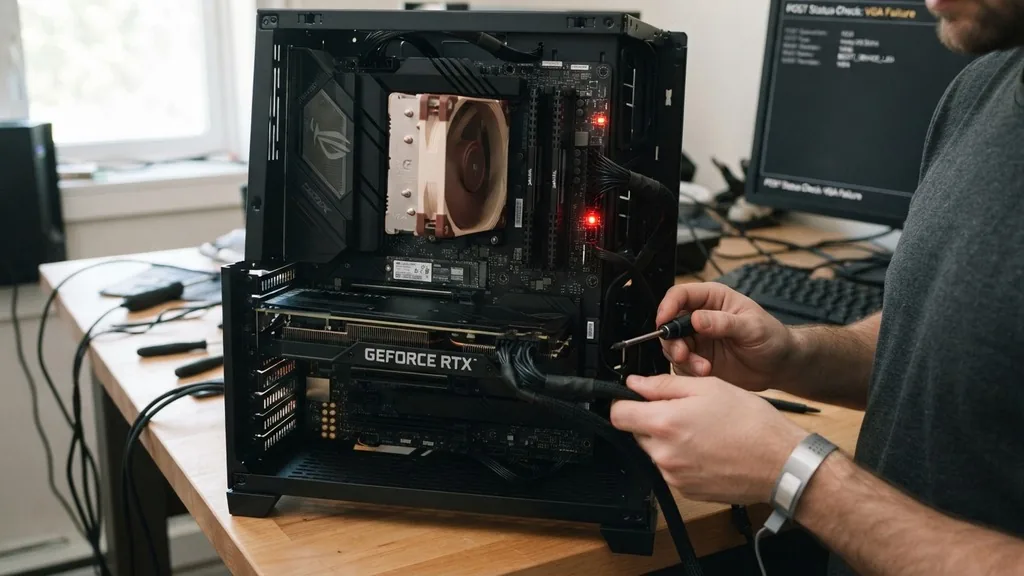
A persistent VGA light on your motherboard is one of the most frustrating experiences for a PC builder. You press the power button, the fans spin, the lights glow, but your screen remains stubbornly black.
This specific indicator, often part of a set of debug LED lights, serves as a silent diagnostic tool that tells you exactly where the boot process has stalled. When this light remains illuminated, it signifies that your motherboard’s firmware—the BIOS—has encountered an issue during the Power-On Self-Test (POST) phase related to your graphics subsystem.
Understanding this indicator requires looking at how your computer initializes hardware before the operating system ever loads. The motherboard runs a series of checks on your CPU, memory, storage, and graphics card. If any of these fail, the system halts.
The VGA light specifically targets the communication between your system and your graphics card. It is not necessarily a sign that your hardware is broken; often, it is merely a signal that the system cannot identify a valid display output.
Understanding the Role of the VGA Debug LED
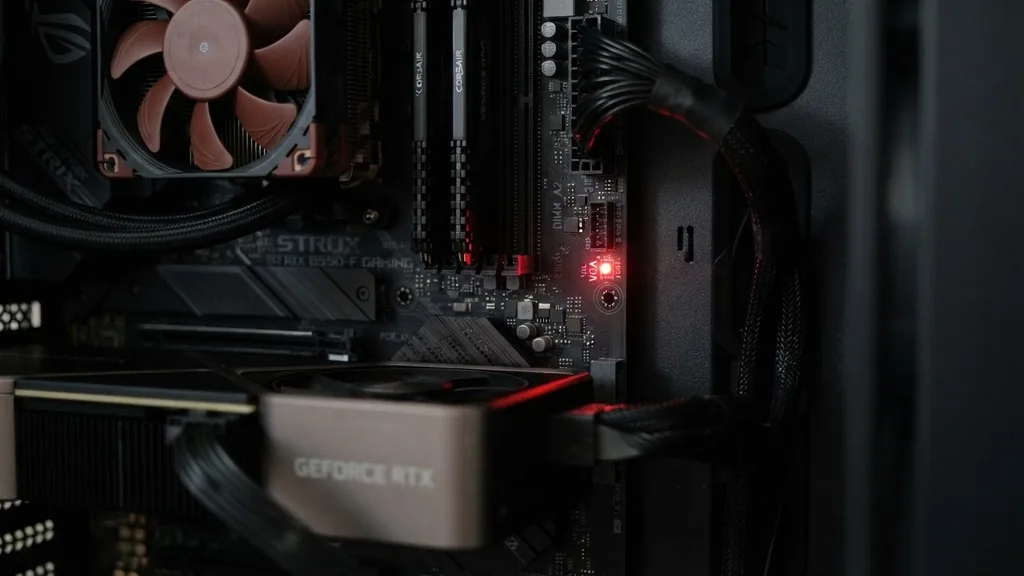
The VGA light is a diagnostic indicator located on the motherboard that alerts the user to a failure in the graphics initialization sequence. During the POST process, the motherboard actively probes for a functional display adapter. If the system fails to detect a valid connection or receives an error response from the card, the light stays on to warn you that the computer cannot proceed to boot.
Most modern motherboards come equipped with four primary debug LEDs: CPU, DRAM, VGA, and BOOT. Each is tied to a specific stage of the startup sequence. The VGA LED specifically monitors the initialization of your dedicated GPU.
If your motherboard cannot communicate with the card, the process hangs there, preventing the computer from displaying anything on your monitor. This prevents the system from blindly attempting to load Windows or Linux without a visual interface, which would make troubleshooting even more difficult.
It is helpful to view this light as a gatekeeper. It doesn’t mean your graphics card is dead; it means the system cannot confirm the card is ready to output a signal.
This could be due to a loose cable, a power issue, or a configuration error in the BIOS. By isolating this light, the motherboard manufacturer provides a clear starting point for your troubleshooting efforts, saving you from having to guess whether the problem is with your RAM, your processor, or your storage drives.
Common Causes for a Persistent VGA Light
When the VGA light stays on, it is rarely due to a single, catastrophic failure. More often, it is a simple connectivity or communication issue.
The most frequent culprit is improper seating of the graphics card in the PCIe slot. If the gold contacts on the GPU are not making perfect contact with the pins inside the slot, the motherboard will fail to detect the device during the initial hardware check.
Another common cause involves the power supply unit (PSU). High-performance graphics cards require significant power, and if the PCIe power cables are not fully clicked into the card, or if the PSU is failing to provide stable voltage, the GPU won’t initialize. Even if the fans on the GPU spin, the core components might not be receiving enough power to complete the handshake with the motherboard.
Configuration issues also frequently trigger this light. For example, if you have recently changed settings in the BIOS—such as toggling between Legacy and UEFI modes—the motherboard might be looking for a display output that your current GPU configuration does not support. Additionally, using an older graphics card that lacks UEFI support on a modern motherboard can cause a compatibility mismatch, leading the system to fail the POST process entirely.
Verifying Graphics Card Seating and Power
The first step in resolving a VGA light issue is to physically inspect the hardware. Power down your system completely and flip the switch on your power supply. Open the side panel of your case and locate your graphics card.
You should remove the card from the PCIe slot entirely and inspect the slot for any debris, dust, or bent pins. Reinsert the card firmly until you hear the retention clip click into place.
Once the card is securely seated, check your power cables. Ensure that the 8-pin or 6-pin connectors are pushed all the way into the GPU. It is common for users to leave a tiny gap between the connector and the socket, which can cause intermittent power delivery.
If you are using a modular power supply, check the connection at the PSU end as well. Sometimes, a cable can become loose during cable management or when moving the chassis.
| Troubleshooting Step | Goal |
|---|---|
| Reseat GPU | Ensure physical contact in PCIe slot |
| Reconnect Power Cables | Verify stable voltage to the card |
| Clear CMOS | Reset BIOS settings to default |
| Check Monitor Cable | Confirm HDMI/DisplayPort integrity |
| Test Different Port | Rule out faulty output on the GPU |
If the card is seated correctly and the power cables are tight, try moving the card to a different PCIe slot if your motherboard has more than one. While the primary slot is usually the fastest, testing a secondary slot can help determine if the issue is a faulty motherboard lane rather than a faulty GPU.
The Role of BIOS and Firmware Settings
Sometimes, the hardware is fine, but the software configuration is preventing a successful boot. If you have recently updated your BIOS or cleared the CMOS, your motherboard settings might have reset to a state that is incompatible with your current display setup. For instance, if your motherboard is set to “Integrated Graphics” as the primary display output but you don’t have a CPU with an integrated GPU, the motherboard will struggle to find a display signal.
A BIOS update can often resolve compatibility issues, especially with newer graphics cards. If you are using a cutting-edge GPU on an older motherboard, the firmware might simply not know how to communicate with the card. You can usually perform a BIOS update using a flash-back button on the rear I/O panel, which allows you to update the firmware without needing to boot into the OS or even have a CPU installed in some cases.
You should also check if your system is trying to use the wrong display protocol. If you are using a DisplayPort cable, try switching to an HDMI cable. Occasionally, the handshake between the monitor and the GPU fails over DisplayPort due to cable quality or firmware versioning issues, and the motherboard interprets this lack of signal as a GPU failure.
Addressing Display Signal and Monitor Issues
It is surprisingly common for a VGA light to be a “false positive” in the sense that the PC is actually working, but the monitor isn’t receiving the signal. If your monitor is set to the wrong input, or if the cable is faulty, the computer may have finished the boot process but has no way to display the output. The motherboard sees that it has sent a signal, but the monitor hasn’t acknowledged it, or the GPU is waiting for a response that never comes.
Try connecting your PC to a different monitor or a television. Ensure that you are plugging the cable directly into the graphics card and not into the motherboard’s I/O panel. Plugging into the motherboard while a dedicated GPU is installed is a classic mistake; the motherboard will often disable its own video output ports to prioritize the dedicated card.
If you are using a high-refresh-rate monitor, try lowering the resolution or refresh rate if you can access the monitor’s menu. Sometimes, the initial handshake between a 4K monitor and a GPU can fail at the BIOS level. You can read more about troubleshooting display issues on the official Intel support page to better understand how these signals are negotiated during startup.
RAM Compatibility and the VGA Light
One of the most counterintuitive aspects of building a PC is that a RAM compatibility issue can sometimes trigger a VGA light. While the DRAM light is intended to show memory issues, the way the motherboard initializes hardware is sequential. If the RAM fails to initialize properly, the system may hang before it even gets to the VGA check, or the error codes may become confused.
If you have multiple sticks of RAM, try booting with only one stick installed in the second slot from the CPU. If the system boots, you know you have a memory configuration problem.
Sometimes, the motherboard simply needs to “train” the memory, which can take a few minutes during the first boot. If you see the VGA light, don’t panic immediately; wait at least two to three minutes to see if the system recovers.
Furthermore, ensure your RAM is fully compatible with your motherboard’s QVL (Qualified Vendor List). Using high-speed memory that isn’t supported can cause the system to crash during the memory training phase, which the motherboard might misreport as a failure in the graphics subsystem. Always double-check your motherboard manual to see which slots are prioritized for single-stick configurations.
When to Consider Hardware Failure
If you have tried reseating the GPU, checking all power connections, updating the BIOS, and testing with different cables, you must consider the possibility of hardware failure. A dead graphics card is a sad reality, but it is a possibility. If the card has been used for heavy mining or has been subjected to extreme heat, the VRMs (Voltage Regulator Modules) on the card may have failed.
To confirm if the GPU is the issue, try installing it in another computer. If the other computer also displays a VGA light or fails to output a signal, the card is likely defective.
Conversely, if you have a spare, older graphics card, try plugging it into your current system. If the system boots perfectly, the issue is almost certainly your primary GPU.
Don’t ignore the motherboard itself. The PCIe slot could be physically damaged or the motherboard’s chipset could have a fault.
If you have tested the GPU in another machine and it works fine, then the motherboard’s ability to communicate with the GPU is the likely point of failure. In this scenario, you may need to look into an RMA (Return Merchandise Authorization) for the motherboard.
Topical Gaps: Why the VGA Light Persists Even When the GPU Works
A common point of confusion is why the VGA light stays on even when the PC boots into Windows perfectly. This usually happens because of a minor mismatch between the GPU’s firmware and the motherboard’s UEFI implementation. Specifically, if the GPU doesn’t support “UEFI GOP” (Graphics Output Protocol), the motherboard may not be able to display the BIOS setup screen properly, even if Windows loads fine once the OS-level drivers take over.
This is a classic “silent failure.” The system is working, but it can’t perform the pre-boot handshake required for the BIOS interface. A BIOS update is the standard fix for this.
Manufacturers often release updates specifically to improve compatibility with newer graphics cards. If you are experiencing this, check your motherboard manufacturer’s website for “VGA compatibility” or “GOP support” updates.
Another reason for a persistent light is the use of a PCIe riser cable. If you are using a vertical GPU mount, the riser cable itself might be the issue. Many budget riser cables do not support PCIe Gen 4.0 speeds.
If your motherboard is trying to communicate at Gen 4.0 speeds but the cable can only handle Gen 3.0, the connection will fail. You can often fix this by entering the BIOS (using a direct connection to the motherboard or a different card) and manually setting the PCIe slot speed to Gen 3.0.
Frequently Asked Questions
- Can bad RAM cause a VGA light? Yes, occasionally. Because the system initialization process is sequential, a failure in memory training can cause the motherboard to stall during the POST process, sometimes triggering the wrong debug LED or causing the system to hang before the VGA check is complete.
- Why is my VGA light constantly on? This indicates that the motherboard cannot detect or communicate with your graphics card. It is usually caused by the GPU not being fully seated in the PCIe slot, a lack of sufficient power, or an incompatible BIOS setting preventing the initial display handshake.
- What does VGA mean for a motherboard? In the context of a debug LED, VGA refers to the Video Graphics Array subsystem. It is a diagnostic indicator that notifies the user that the system’s graphics component has failed the initial boot-up check, preventing the computer from proceeding to load the operating system.
- Why is the VGA light on even though my GPU works? This often happens due to an incompatibility between the GPU’s firmware and the motherboard’s UEFI settings, specifically regarding the Graphics Output Protocol. Updating your motherboard’s BIOS often resolves this issue, allowing the system to properly recognize the card during the initial startup phase.


