

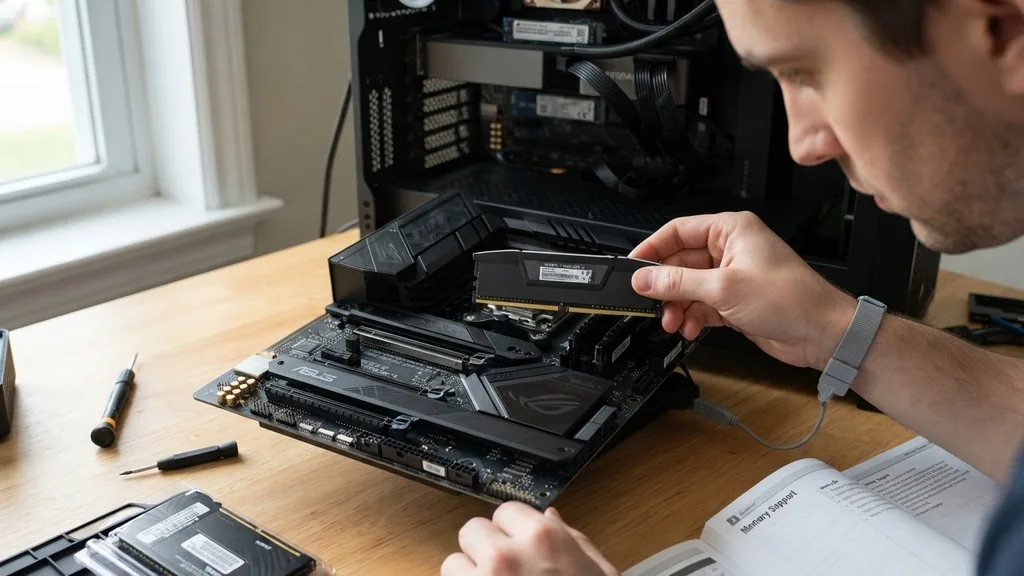
Upgrading your memory is one of the most effective ways to breathe new life into an aging system or maximize the performance of a high-end gaming rig. Before you purchase new sticks, you must understand how to check RAM compatibility with motherboard specifications to avoid hardware failures or post-boot errors. The process involves identifying your current hardware, verifying the physical interface, and ensuring the speed and capacity align with your system’s architecture.
Understanding Memory Architecture and Standards
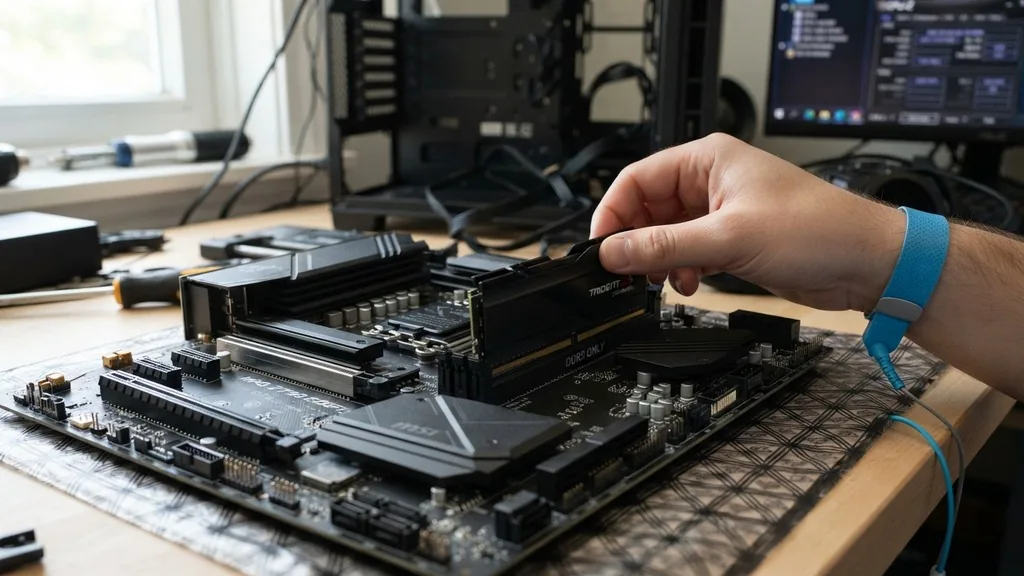
To determine if a memory module fits your system, you must first identify the generation of memory supported by your motherboard. The memory industry follows strict standards, most notably the Double Data Rate (DDR) protocol.
You cannot physically install a DDR4 module into a DDR5 slot, nor can you use DDR3 in a modern DDR4 system. These generations are keyed differently, meaning the notch on the bottom of the stick is placed in a unique location to prevent accidental insertion into the wrong socket.
Most modern consumer desktops utilize DDR4 or DDR5. Identifying which one you have is the first step toward compatibility. You can find this information by checking your motherboard’s manual or by using system diagnostic tools.
If you are building a new system, the motherboard product page will explicitly list the memory standard it supports. Never assume that because a stick of RAM looks similar to another, it will function in your specific computer. The electrical requirements and signal integrity demands change significantly between generations.
Using the Motherboard QVL for Guaranteed Success
The Qualified Vendor List, or QVL, is the most reliable resource for confirming that a specific set of memory will work with your motherboard. Manufacturers generate this document after extensive testing to ensure that specific modules perform reliably at their advertised speeds. If you are aiming for high-frequency memory, checking the QVL is non-negotiable.
When you visit the support page for your specific motherboard model on the manufacturer’s website, you will typically find a section labeled “Support” or “Memory QVL.” This document lists the exact part numbers of the modules tested.
While non-QVL RAM often works fine, using verified components eliminates the risk of instability or failure to reach XMP or EXPO profiles. If your desired RAM is not on the list, it does not mean it is incompatible, but it does mean the motherboard manufacturer has not verified that specific combination under their testing conditions.
The Role of Memory Speed and Frequency
Memory speed is measured in megatransfers per second (MT/s) or megahertz (MHz). Your motherboard has a maximum officially supported speed, but it may also support overclocked profiles. When checking compatibility, ensure the speed of your chosen RAM does not exceed the maximum capacity of your processor’s memory controller or the motherboard’s chipset.
If you install a kit rated for 6000MHz into a board that only supports 4800MHz, the system will usually default to the slower speed. However, the system may fail to boot if the motherboard cannot handle the voltage or latency timings required by the high-speed stick.
Always cross-reference the maximum memory frequency supported by your CPU, as the memory controller resides inside the processor, not the motherboard. An entry-level processor might throttle the speed of premium memory, regardless of what the motherboard claims to support.
Identifying Physical Form Factors
Form factor refers to the physical size and shape of the memory module. Desktop computers typically use DIMM (Dual In-line Memory Module) sticks, which are longer and feature a specific pin layout. Laptops, mini-PCs, and some small-form-factor motherboards use SO-DIMM (Small Outline DIMM) modules, which are significantly shorter.
Attempting to install a DIMM module into a laptop slot is physically impossible due to the size difference. Conversely, a SO-DIMM module will not fit into a desktop motherboard without a specialized adapter, which is rarely recommended due to signal integrity issues.
Always check the physical space available in your case, especially if you are buying RAM with tall heat spreaders. Large air coolers can obstruct DIMM slots, making it impossible to seat the RAM even if it is technically compatible with the board.
| Feature | DDR4 | DDR5 |
|---|---|---|
| Pin Count | 288 Pins | 288 Pins (Different Keying) |
| Typical Speed Range | 2133MHz – 4400MHz | 4800MHz – 8000+MHz |
| Operating Voltage | 1.2V | 1.1V |
| On-DIMM Power Management | No | Yes |
Software Tools to Scan Your Current System
If you are unsure what hardware you currently have, software tools can provide an instant breakdown of your system configuration. CPU-Z is the industry-standard utility for this purpose.
Once downloaded, you can navigate to the “Memory” and “SPD” tabs to see exactly what is installed. The “Memory” tab shows your current frequency and latency, while the “SPD” tab provides the manufacturer, part number, and slot information for each stick.
Using these tools is essential when you want to add more RAM rather than replacing it. To maintain stability, it is best practice to match the brand, model, and speed of your existing memory.
If you cannot find an exact match, try to find a module that shares the same CAS latency and voltage requirements. Mixing different speeds often forces the entire system to run at the speed of the slowest stick, negating the benefits of purchasing high-performance hardware.
Troubleshooting Boot Issues After Installation
Even when you have followed every guide and verified specifications, you may occasionally run into boot issues. This is common when the motherboard fails to automatically detect the correct memory profile.
The first step is to clear your CMOS, which resets the BIOS to factory defaults. This forces the motherboard to re-train the memory and attempt a standard, stable boot.
If the system still refuses to post, try installing only one stick of RAM in the primary slot—usually the second slot from the CPU, labeled A2 on most boards. If the system boots, you can then enter the BIOS to manually enable XMP (Extreme Memory Profile) or EXPO (Extended Profiles for Overclocking).
These profiles allow the RAM to operate at its advertised speed rather than the conservative base speed set by the industry standards. For more technical guidance on hardware configurations, you can refer to the official Intel support resources regarding memory controller compatibility.
The Impact of Capacity and Channel Architecture
Motherboards are limited by the total amount of memory they can address, usually capped by the chipset and the number of physical slots. While most modern boards support up to 128GB or even 192GB, you must ensure your operating system can also handle that amount.
Additionally, consider your channel configuration. Most consumer motherboards are dual-channel, meaning they require memory to be installed in specific pairs to provide the best data throughput.
Installing a single stick of RAM in a dual-channel motherboard will result in a significant performance penalty because the processor can only access the memory through one bus. Always consult your motherboard manual to identify which slots to populate first.
Usually, this is the second and fourth slots from the CPU. Failing to use the correct slots can prevent the system from entering dual-channel mode, which is a common oversight that limits gaming and workstation performance.
Solving Common Compatibility Gaps
A common issue users face is the “hidden” incompatibility between specific CPU coolers and RAM heat spreaders. You might buy the fastest, most compatible RAM, only to find that the fan on your processor cooler hangs over the memory slots, preventing the stick from locking into place. Always measure the clearance between your motherboard and the bottom of your cooler’s fin stack.
Another gap involves BIOS updates. Often, a new motherboard will be released before specific memory kits are fully optimized. If you find your RAM is not reaching its advertised speed, check the motherboard manufacturer’s website for a BIOS update.
These updates frequently include “Memory Compatibility Improvements” or “System Stability Updates” that allow the board to communicate more effectively with newer or higher-capacity memory modules. Do not ignore these updates if you are experiencing crashes or blue screens during heavy workloads.
- Verify the DDR generation (DDR4 vs DDR5) matches your motherboard slots.
- Check the QVL list on the motherboard manufacturer’s website for tested kits.
- Confirm the RAM height does not interfere with your CPU cooling solution.
- Ensure your CPU’s memory controller supports the frequency of the RAM you purchase.
- Populate the correct DIMM slots (usually 2 and 4) to enable dual-channel performance.
- Enable XMP or EXPO in the BIOS after installation to reach advertised speeds.
Frequently Asked Questions
- Can I mix different brands of RAM in my computer? Mixing brands is possible but not recommended. Different manufacturers may use different memory chips (die) even within the same speed rating. This can lead to system instability, crashes, or an inability to boot. It is always best to buy a matched kit to ensure total harmony between modules.
- How do I know if my RAM is running at the correct speed? You can verify your RAM speed by opening Task Manager in Windows and clicking the Performance tab, then selecting Memory. Alternatively, use the CPU-Z utility. If the speed is lower than what you paid for, you likely need to enable the XMP or EXPO profile in your BIOS settings.
- Is it okay to install more RAM than the motherboard officially supports? Exceeding the maximum capacity listed by the manufacturer is risky. The system may fail to recognize the extra memory, or it may experience frequent errors because the chipset cannot address the additional capacity. Always adhere to the maximum capacity limits specified in your motherboard manual to ensure long-term reliability.
- Does RAM speed affect gaming performance significantly? Yes, especially for modern processors that rely on fast memory access. Higher frequency RAM with low latency can improve minimum frame rates and reduce stuttering in CPU-intensive games. However, the gains diminish once you go beyond the “sweet spot” of the specific CPU architecture you are using.


