

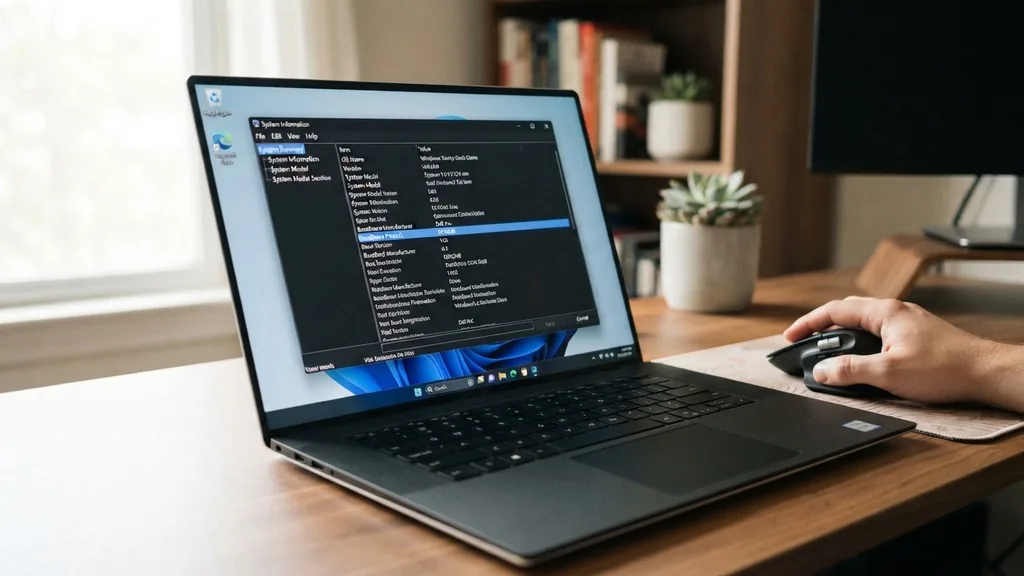
Identifying the hardware components inside your computer is a vital skill for anyone looking to upgrade their system, troubleshoot performance issues, or simply keep their drivers up to date. If you are wondering how to find my motherboard model windows 11, you are in luck because the operating system provides several built-in tools that make this process straightforward. Whether you are a casual user or a tech enthusiast, knowing the exact specifications of your mainboard is the first step toward compatibility, especially when you need to purchase new RAM, a faster processor, or a dedicated graphics card.
Using System Information to Identify Your Motherboard
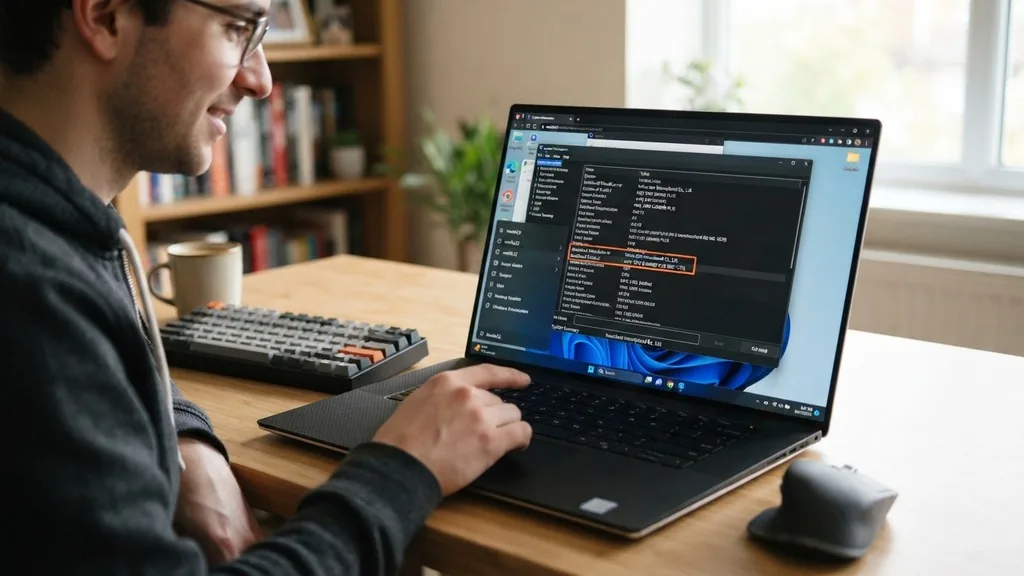
To find your motherboard model using the built-in Windows 11 System Information tool, press the Windows key, type “msinfo32” into the search bar, and hit Enter to open the window. Once the utility launches, look under the System Summary section for the “BaseBoard Manufacturer” and “BaseBoard Product” entries, which will explicitly state the brand and specific model of your board.
The System Information utility is arguably the most user-friendly method because it does not require you to download third-party software or navigate through complex command-line interfaces. When you open the tool, you will see a wealth of data regarding your hardware, including your BIOS version, processor type, and installed physical memory. However, the most critical fields for our purpose are the ones labeled “BaseBoard.”
Many users confuse the “System Model” with the “BaseBoard Product.” The System Model often refers to the pre-built computer brand (such as Dell or HP), while the BaseBoard Product refers to the actual electronic circuit board manufactured either by a third-party vendor like ASUS or MSI or by the system integrator themselves.
By focusing specifically on the BaseBoard entries, you ensure that you are getting the exact identifier needed to search for firmware updates or manual documentation on the manufacturer’s website. This method is highly reliable for most desktop and laptop configurations, though custom-built machines might sometimes show generic information if the motherboard drivers were not installed correctly during the initial setup.
Leveraging Command Prompt for Instant Hardware Details
You can quickly find your motherboard model by opening the Command Prompt, typing “wmic baseboard get product,Manufacturer,version,serialnumber” and pressing Enter. This command queries the Windows Management Instrumentation (WMI) database directly to pull the specific data stored in your system’s firmware about your motherboard.
For those who prefer a more direct, text-based approach, the Command Prompt is an incredibly efficient tool. It bypasses the graphical overhead of Windows and provides you with the raw data strings.
When you run the command provided, the terminal will return a clean output listing the manufacturer and the product name. If you are curious about the specific revision of your board, the “version” parameter included in that command string is particularly useful.
This method is especially beneficial for advanced users or IT professionals who need to gather hardware information across multiple machines quickly. Because it is a scriptable command, you can even incorporate it into batch files if you are managing a network of computers.
It is worth noting that if the output returns “To be filled by O.E.M.” or a similar placeholder, it usually indicates that the motherboard manufacturer did not program the specific identification strings into the BIOS during the factory assembly process. In such cases, you may need to rely on other methods, such as physical inspection or third-party diagnostic software, to uncover the truth about your hardware.
Checking the Motherboard Model via PowerShell
PowerShell offers a more modern and robust alternative to the standard Command Prompt, allowing you to execute the command “Get-CimInstance Win32_BaseBoard | Select-Object Product,Manufacturer,SerialNumber,Version” to retrieve your motherboard details. This command returns a formatted table that is often easier to read than the raw output of the older command-line tools.
PowerShell is the successor to the traditional command-line environment in Windows and is built on the .NET framework, making it much more powerful for hardware introspection. When you run the command, you are essentially asking the Windows operating system to pull the specific CIM (Common Information Model) instances related to your baseboard. This is the same data that the Windows GUI uses, but by accessing it through PowerShell, you have more control over how the output is presented.
You can also export this information to a text file or a CSV if you are performing a hardware audit. For example, by adding a pipe character and “Out-File -FilePath C:\hardware_info.txt” to the end of the command, you can save the details for future reference.
This is a great way to keep a record of your hardware specs without having to manually write them down. It is a highly effective way to confirm your hardware identity before you start installing new drivers or attempting to overclock your system, as having the exact model name is essential for ensuring you download the correct BIOS or chipset updates.
Using BIOS or UEFI to Identify Hardware Without Loading Windows
If your computer is failing to boot into Windows 11, you can still find your motherboard model by entering the BIOS or UEFI setup menu during the initial startup process. Simply restart your machine and repeatedly press the designated key—commonly Del, F2, F10, or F12—to enter the firmware interface, where the motherboard model is usually listed on the main landing screen.
Accessing the BIOS or UEFI (Unified Extensible Firmware Interface) is the most reliable way to identify your hardware because this information is hardcoded into the board’s firmware. Since you are accessing the information before the operating system even loads, it is immune to software-related issues or driver conflicts that might prevent Windows from reporting the correct data. This is the “source of truth” for your machine’s configuration.
When you enter this menu, look for tabs labeled “System Information,” “Main,” or “About.” In modern UEFI interfaces, the motherboard model is often displayed prominently at the top of the screen alongside the CPU temperature and memory frequency. If you are troubleshooting a hardware failure, this is the first place you should look.
It also allows you to check if your BIOS is up to date, which is a common requirement when installing newer processors that the board might not have supported out of the box. Keep in mind that every manufacturer has a unique interface design, so the specific path to the model name might vary slightly between brands like Gigabyte, ASRock, or EVGA.
Physical Inspection of the Motherboard
When software methods fail or the computer is completely non-functional, the only remaining option is to perform a physical inspection of the motherboard by opening the computer case. You will typically find the manufacturer and model number printed directly onto the surface of the circuit board, often near the CPU socket or the PCIe slots.
Sometimes, the simplest approach is the most effective. If your system is a custom build, the motherboard model is almost always printed in clear text on the PCB (Printed Circuit Board).
You may need to use a flashlight to see it clearly, as the printing can be small or partially obscured by bulky cooling components or large graphics cards. If you have a massive air cooler installed, you might have to temporarily remove it, though this is rarely necessary unless the model number is hidden directly beneath it.
While you have the case open, it is a great time to check for other hardware details as well, such as the specific revisions of your RAM sticks or the version number of the board itself. Many manufacturers release “Revision 1.0,” “Revision 2.0,” and so on, and these versions can have different features or compatibility requirements.
Identifying the revision number is crucial, as downloading a BIOS update for the wrong revision can potentially brick your motherboard. For more guidance on safely handling internal components, you can refer to official hardware maintenance documentation provided by Intel to ensure you do not damage any sensitive parts while inspecting your board.
Third-Party Diagnostic Tools for Detailed Hardware Reporting
For those who want a comprehensive overview of their system, third-party software like CPU-Z or HWiNFO provides an easy-to-read interface that displays the motherboard model, chipset, and BIOS version. These tools are widely used by enthusiasts because they pull data that is often hidden or difficult to locate through native Windows tools.
The advantage of using dedicated diagnostic software is that it presents all your hardware information in a clean, organized dashboard. CPU-Z, for instance, has a specific tab labeled “Mainboard” that breaks down the manufacturer, model, chipset, and even the current BIOS version and date. This is incredibly helpful when you are comparing different components to ensure they are compatible.
These programs are generally free and lightweight, making them perfect for a quick check. They are also useful if you are trying to find the exact model of an OEM motherboard that came inside a pre-built computer, as these boards often lack the branding of retail models and can be difficult to identify through standard Windows queries. By using these tools, you can often find the specific “sub-model” or internal part number that the manufacturer uses, which is necessary if you need to order a replacement component or find specific drivers that aren’t listed on a general support page.
Comparing Methods for Finding Motherboard Information
Choosing the right method depends on your current situation and the state of your computer. The following table provides a quick reference to help you decide which approach is best suited for your specific needs, whether you are trying to troubleshoot a boot issue or simply checking specs.
| Method | Accessibility | Level of Detail | Best Use Case |
|---|---|---|---|
| System Information | High | Moderate | General users checking specs |
| Command Prompt | Medium | High | IT tasks and automation |
| BIOS/UEFI | Low (requires reboot) | Very High | Troubleshooting boot issues |
| Physical Inspection | Low (requires disassembly) | Maximum | Damaged or non-booting PC |
As shown in the table, there is a clear trade-off between convenience and depth. If your computer is running perfectly, there is no reason to open the case or enter the BIOS. You can find everything you need through the operating system.
However, if you are planning to upgrade your CPU or troubleshoot a blue screen of death, the BIOS or a physical check might be necessary to confirm the exact hardware revision. Always prioritize the methods that are safest for your system first before moving on to physical disassembly.
Addressing Common Issues and Topical Gaps
A common issue users face is when the motherboard model returns generic information like “To be filled by O.E.M.” or “System Board.” This usually happens with pre-built computers from companies like Dell, HP, or Lenovo, where the manufacturer uses proprietary board designs that aren’t sold in retail stores. In these scenarios, the motherboard model is often tied to the “System Model” of the computer itself.
If you find yourself in this situation, do not worry. Instead of searching for the motherboard model, search for your computer’s model number on the manufacturer’s official support website.
The support pages for your specific laptop or desktop will list all the drivers and hardware specifications, including the motherboard, associated with your machine’s serial number. This is often a more effective way to find the information you need.
Another frequent gap in information is understanding what to do once you have the model number. Many users find their board name but don’t know why it matters. Knowing your board model is the only way to ensure you are downloading the correct drivers for your network card, audio chip, and chipset.
Installing the wrong driver can lead to system instability, audio issues, or even Wi-Fi connectivity problems. Always verify the board model and the manufacturer-provided drivers before performing any major system updates.
Frequently Asked Questions
- Does every motherboard have a serial number? Yes, every motherboard has a unique serial number assigned by the manufacturer, typically found on a sticker near the RAM slots or the PCIe ports, which is useful for warranty claims and identifying specific manufacturing batches.
- Will updating my BIOS change my motherboard model? No, updating your BIOS will not change the model of your motherboard. It will only update the firmware version and potentially add support for newer processors or improve system stability and security features.
- Can I find my motherboard model using the Device Manager? While Device Manager shows many hardware components, it often hides the specific motherboard model under generic “System Devices” or “Firmware” categories, making it less reliable than the System Information tool or command-line methods.
- Is it safe to share my motherboard serial number online? Generally, it is safe, but you should avoid posting it on public forums or social media. This information can be used by others to register products under their own accounts or potentially spoof your hardware identity.
Finding your motherboard model in Windows 11 is a fundamental task that provides you with the knowledge necessary to manage your PC effectively. By utilizing the tools mentioned throughout this article, you can confidently identify your hardware, ensuring that you always have the correct information for upgrades, repairs, or driver management. Whether you are using the simplicity of the System Information app or the depth of the Command Prompt, you now have the tools required to master your system’s identity.


