

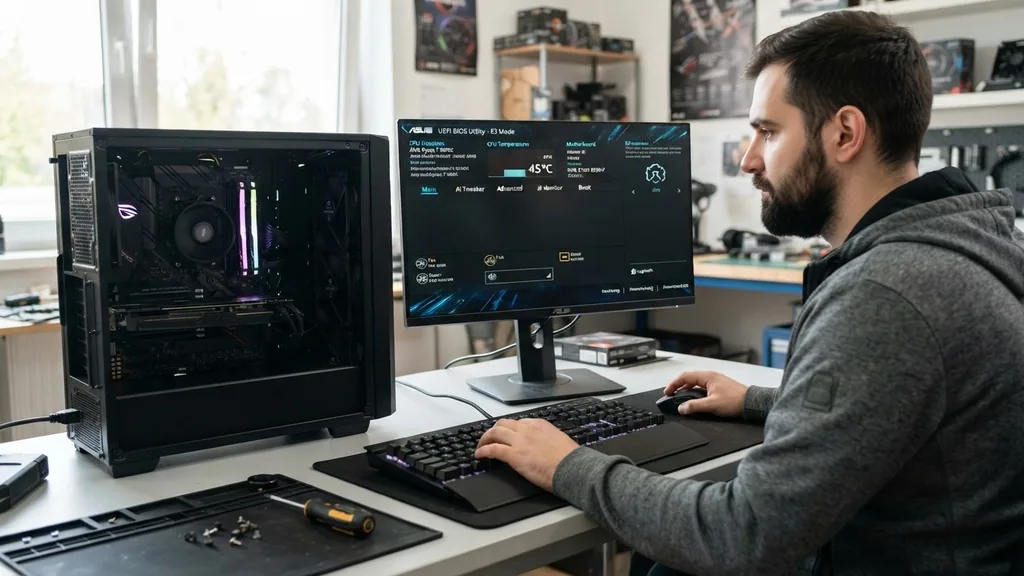
Learning how to access motherboard BIOS is a fundamental skill for anyone looking to manage their computer hardware at the deepest level. The Basic Input/Output System, or BIOS, acts as the primary interface between your hardware components and the operating system.
Whether you need to overclock your processor, adjust memory timings, or simply change the boot order to reinstall your operating system, knowing how to trigger this environment is essential. While modern systems have become faster and more integrated, the core process of reaching these low-level settings remains a standard procedure across almost all motherboard manufacturers.
Understanding the Role of the BIOS and UEFI
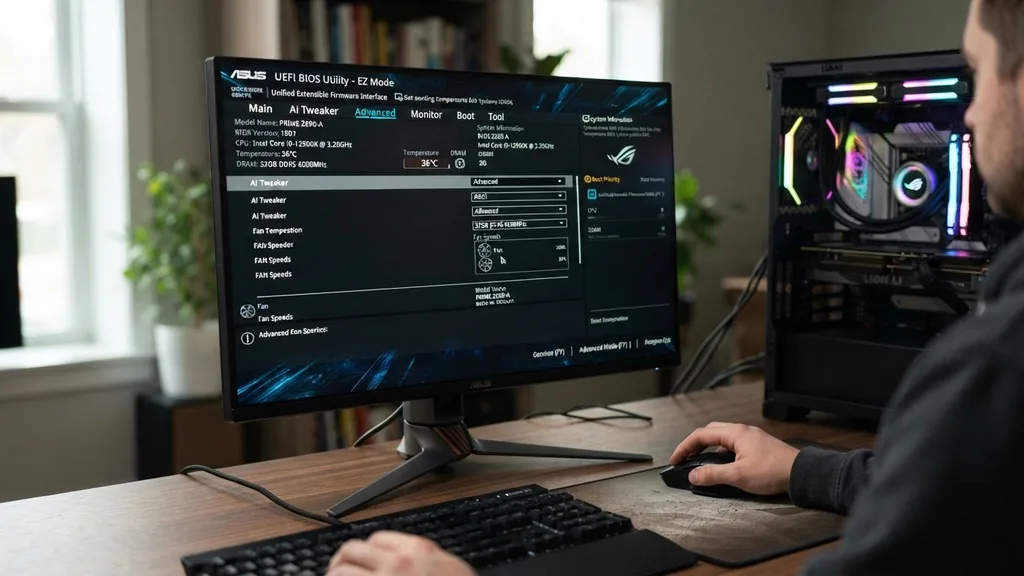
To understand how to access motherboard BIOS, you must first recognize that most modern computers actually use a more advanced version called UEFI (Unified Extensible Firmware Interface). While many people still colloquially refer to it as “BIOS,” UEFI offers a more graphical, mouse-supported environment with better security and faster boot times.
The primary function of this firmware is to initialize your hardware components during the boot process before handing off control to the Windows operating system. Without this layer of code, your processor would not know how to communicate with your RAM, storage drives, or graphics card.
When you power on your computer, the motherboard performs a Power-On Self-Test (POST). During this brief window, the system looks for specific keyboard input to pause the loading process and open the configuration menu. If you miss this narrow timing window, the system simply proceeds to load your operating system.
Understanding that this firmware is stored on a small chip directly on the motherboard explains why these settings persist even when the power is completely disconnected. It is the bedrock upon which your entire digital environment is built, and it controls everything from CPU voltage levels to the behavior of your fans and internal sensors.
The Traditional Keyboard Shortcut Method
The most common way to enter BIOS is to press a specific function key or delete key repeatedly immediately after turning on your machine. During the initial POST screen, which often displays the manufacturer’s logo, the motherboard firmware waits for a signal.
If you hit the correct key at the right moment, the system will pause its boot sequence and display the setup utility rather than proceeding to the desktop. This method is the “old school” approach, but it remains highly effective for most desktop builds and older laptop models.
Different manufacturers assign different keys for this purpose. If you are struggling to find the right one, look closely at the bottom of the screen during startup; most motherboards will display a fleeting message such as “Press Del to enter setup” or “F2 for BIOS.”
If the message disappears too quickly, you can try tapping the key rhythmically the moment you hear the power supply click or see the monitor backlight turn on. It is better to tap the key multiple times rather than holding it down, as holding a key can sometimes trigger a keyboard error in the firmware, causing it to ignore your input entirely.
- Delete: Standard for most ASUS, Gigabyte, and MSI desktop motherboards.
- F2: The common choice for Dell, HP, and many laptop manufacturers.
- F10: Frequently used by HP and some older server-grade hardware.
- F1: Often used by Lenovo and older ThinkPad systems.
- Esc: Occasionally used by various manufacturers to bring up a boot menu where BIOS can be selected.
Accessing BIOS Through Windows Settings
Because modern computers utilize “Fast Boot” technology, the time window to press a physical key during startup is often only a few milliseconds. This makes the traditional method frustrating for many users.
Fortunately, Microsoft introduced a reliable way to bypass this by utilizing the advanced startup options within Windows. This is arguably the most consistent method for modern machines, as it forces the computer to reboot directly into the firmware interface without requiring you to time your key presses perfectly.
To use this method, you need to open your settings menu. Navigate to Update & Security, then select Recovery. Under the “Advanced startup” section, you will see a button labeled “Restart now.”
Clicking this will reboot your machine into a special blue-screen menu. From here, you must select Troubleshoot, then Advanced options, and finally UEFI Firmware Settings.
Once you click the final Restart button in this sequence, the computer will automatically drop you into the BIOS or UEFI menu. This approach eliminates the guesswork and is the preferred way to manage hardware settings on Windows 10 and Windows 11 systems.
Using the Command Prompt for Direct Access
For power users who prefer the command prompt or want to automate the process, there is a direct way to trigger the restart-to-firmware sequence. By executing a simple command, you can instruct the Windows operating system to initiate a reboot that specifically lands in the motherboard firmware. This is particularly useful if you are working on a system remotely or if you simply prefer using the terminal over clicking through nested menus.
Open the command prompt as an administrator and type the following command: “shutdown /r /fw /t 0”. In this command, the “/r” tells the system to restart, the “/fw” flag instructs the firmware to boot into the settings interface, and the “/t 0” sets the timer to zero seconds. Once you execute this, your computer will shut down and immediately enter the BIOS environment.
This is a powerful, efficient way to manage your system without needing to navigate through multiple graphical menus. Always ensure you have saved your work before running this, as it forces an immediate shutdown of all running applications.
Manufacturer-Specific Variations and Nuances
While the steps above cover the vast majority of cases, specific motherboard brands often have their own quirks. For instance, some high-end ASUS boards feature a “BIOS Flashback” button or a dedicated “DirectKey” header that can be mapped to a physical button on your case.
Understanding your specific hardware manual is the best way to identify these proprietary features. You can find detailed technical documentation for your specific motherboard model by visiting the official Intel support center for chipset and firmware guidance.
Laptop manufacturers are often more restrictive than desktop motherboard builders. On many laptops, the BIOS is locked down to prevent users from changing voltage or memory speeds. If you find that certain menus are missing or grayed out, it is likely a design choice by the manufacturer to protect the integrity of the thermal envelope.
If you are building your own PC, you will find that motherboard BIOS interfaces are much more open, often allowing for extensive tuning of CPU multipliers, load-line calibration, and fan curves. The following table illustrates common entry points for major manufacturers.
| Manufacturer | Primary Key | Secondary Key |
|---|---|---|
| ASUS | Delete | F2 |
| Gigabyte | Delete | F12 (Boot Menu) |
| MSI | Delete | F11 (Boot Menu) |
| ASRock | Delete | F2 |
| Dell | F2 | F12 (Boot Menu) |
Troubleshooting Common Access Issues
Sometimes, despite your best efforts, you simply cannot enter the BIOS. This usually points to a peripheral issue rather than a hardware failure. If you are using a wireless keyboard, the motherboard may not be initializing the USB receiver early enough in the boot process to register your keystrokes.
Try switching to a wired USB keyboard during the boot sequence to ensure the signal is processed immediately. Additionally, if you are using a DisplayPort cable, some older graphics cards have a known issue where they do not send a signal to the monitor until the operating system has fully loaded, leaving you staring at a black screen even though the BIOS is open.
If you suspect this is the case, try switching to an HDMI or DVI cable for the duration of your BIOS configuration. Another common issue involves “Fast Boot” or “Ultra Fast Boot” settings enabled within the BIOS itself. These settings intentionally disable USB keyboard support during the initial boot phase to save time.
If you have previously enabled these features and are locked out, you may need to clear the CMOS (Complementary Metal-Oxide-Semiconductor) to reset the motherboard to its factory defaults. This is usually done by removing the small coin-shaped CR2032 battery on the motherboard for a few minutes while the power is disconnected, which wipes the settings and forces the BIOS to return to a state where it recognizes keyboard input on startup.
Addressing Topical Gaps: Firmware Updates and Security
A critical aspect of BIOS management that is frequently overlooked is the necessity of firmware updates. Many users wonder if they should update their BIOS if their system is running fine. The answer is generally no, unless you are experiencing hardware compatibility issues or need a security patch.
Firmware updates carry a small risk; if the power cuts out during the update process, the motherboard can become “bricked” and unusable. However, if you are installing a new generation of CPU, a BIOS update is often mandatory for the motherboard to recognize the new processor architecture.
When you enter the BIOS, look for a feature typically labeled “EZ Flash” or “M-Flash.” This utility allows you to update the firmware directly from a USB drive. Always download the update file from the official manufacturer’s website, never from third-party forums.
Security-wise, modern BIOS/UEFI environments include features like Secure Boot and TPM (Trusted Platform Module) 2.0. These are essential for running the latest versions of Windows.
If you are unable to upgrade your OS, it is often because these security features were disabled in the BIOS or the firmware version is too old to support them. Navigating these settings is a routine part of modern system maintenance and ensures your machine remains secure against low-level threats.
Best Practices for Modifying Settings
Once you have successfully accessed the BIOS, you should exercise caution. Changing settings here can have a direct impact on system stability. If you are looking to overclock your hardware, do so in small, incremental steps.
Increasing the voltage to your CPU or RAM without proper cooling can cause permanent hardware damage. Always keep a notepad or use your phone to take a photo of your current settings before you change anything. This provides a “safety net” so you can revert to a known-working configuration if the system fails to boot after your adjustments.
Most modern motherboards include a “Load Optimized Defaults” option. If you find yourself in a situation where the computer won’t boot after changing a setting, this is your primary recovery tool. It resets everything to the factory-tested, safe parameters.
Furthermore, remember that the BIOS is not just for performance tuning; it is also where you manage the health of your system. You can monitor CPU temperatures, check fan speeds, and ensure that all your drives are being detected correctly by the SATA or NVMe controllers. Treat the BIOS as a powerful diagnostic tool rather than just a place to squeeze out extra performance, and you will find your system maintenance much more predictable and less prone to catastrophic errors.
FAQ: Frequently Asked Questions
Why does my computer bypass the BIOS screen entirely?
Most modern computers use “Fast Boot” or “Ultra Fast Boot” settings that skip the initialization of certain peripherals to speed up startup. To bypass this, use the Windows Advanced Startup settings to force the computer to reboot directly into the UEFI firmware interface instead of the OS.
Is it safe to change settings in the BIOS?
It is safe as long as you understand what you are changing. Avoid modifying voltage settings unless you are experienced with overclocking. If you make a mistake, you can usually use the “Load Optimized Defaults” option or clear the CMOS to restore the motherboard to its original factory state.
Do I need to update my BIOS regularly?
You do not need to update your BIOS unless you are experiencing hardware instability or need to support a new component, such as a newer CPU. Firmware updates carry a risk of failure, so only perform them when necessary and ensure you have a stable power supply during the process.
Can I access the BIOS if my keyboard doesn’t work?
If your keyboard is not recognized during startup, try using a different USB port, preferably one directly on the motherboard rear I/O panel. If that fails, the Windows Advanced Startup method is the most reliable way to access the BIOS without needing to press keys during the boot sequence.


