

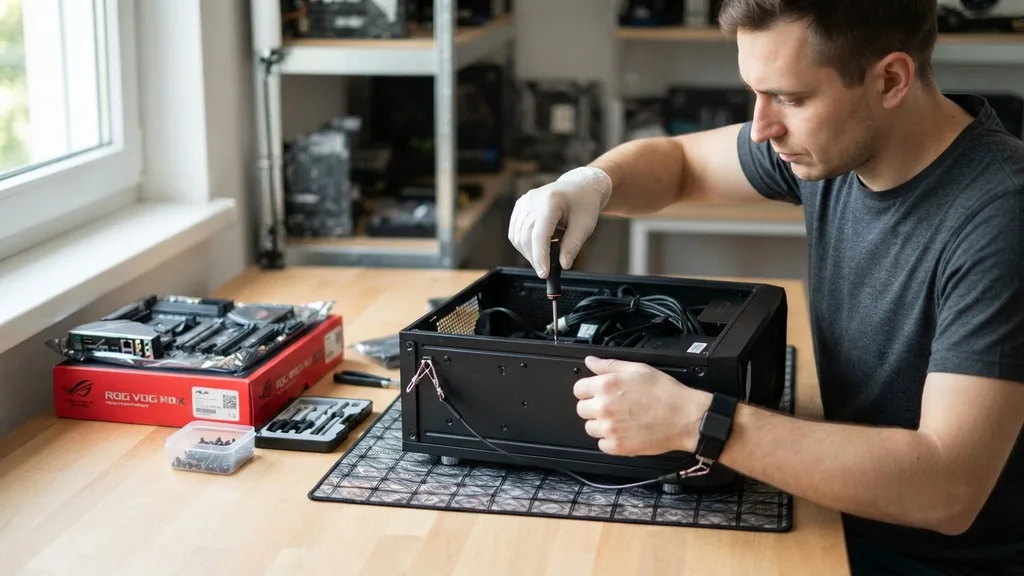
Learning how to change motherboard hardware is a rite of passage for PC enthusiasts and a practical skill for anyone looking to extend the lifespan of their desktop computer. Whether you are upgrading your CPU socket, moving to a modern chipset, or replacing a failed unit, the process requires patience, precision, and a steady hand.
While it might seem intimidating to strip your machine down to the bare metal, the procedure is logical and follows a predictable sequence. By carefully managing your components and ensuring every cable is accounted for, you can transform your system’s performance without needing to purchase an entirely new computer.
Preparation and Safety Protocols Before You Begin
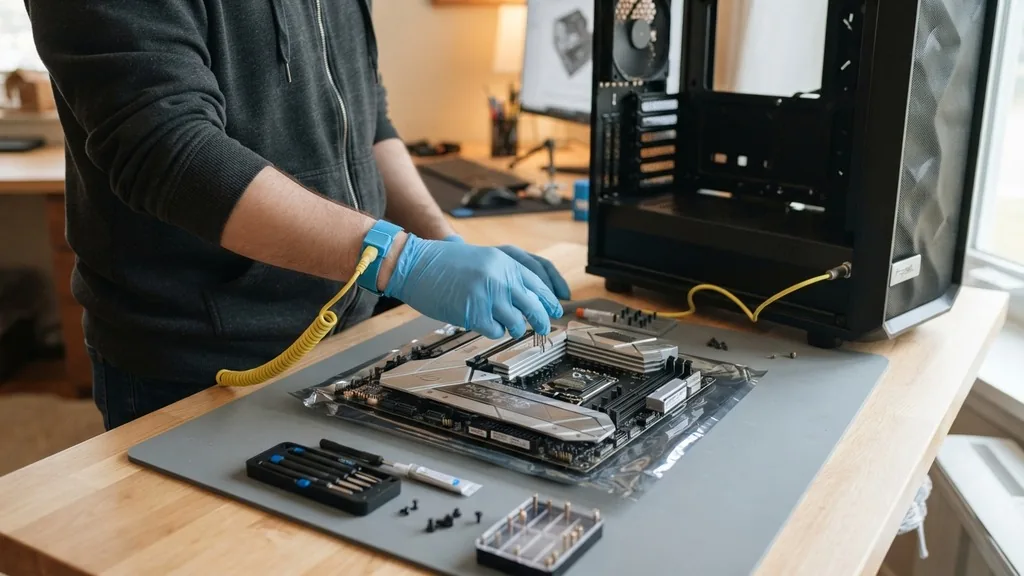
To successfully change your motherboard, you must prioritize static electricity prevention and workspace organization. Static discharge can permanently damage sensitive silicon components, so it is essential to ground yourself before touching any internal hardware. You can achieve this by wearing an anti-static wrist strap connected to a grounded metal part of your case, or by frequently touching an unpainted metal surface.
Before opening the side panel, ensure the computer is powered down and the power supply unit (PSU) toggle switch is in the off position. Unplug the power cable entirely to eliminate any residual electrical current.
Gather your tools before you start. You will almost certainly need a high-quality Phillips-head screwdriver, specifically a PH2 size, which fits the standard screws used in PC building. Having a small bowl or magnetic tray to hold the tiny screws you remove is vital; losing a motherboard standoff screw inside a chassis can turn a simple job into a frustrating search.
Clear off a large, flat surface—preferably a wooden or plastic table—where you can lay out your components. Avoid working on carpet, as this significantly increases the risk of static buildup. By creating a controlled environment, you set the stage for a smooth hardware transition.
Removing the Existing Motherboard Components
The process of removing the old board begins with stripping away everything attached to it. Start by disconnecting all external cables from the rear I/O panel, including your monitor, keyboard, and mouse. Once the case is open, remove the side panel to gain access to the interior.
You must disconnect every power cable leading from your PSU to the board, including the large 24-pin ATX connector and the 8-pin or 4-pin CPU power cable. These connectors often have small plastic clips that must be depressed before they will release.
After the power is disconnected, move on to the data and peripheral cables. Unplug your SATA drives, front panel connectors (power switch, reset button, and LEDs), and any USB or audio headers. Next, remove your graphics card, as it usually obstructs access to the motherboard screws.
To do this, unscrew the bracket holding the GPU to the case, push down the small locking tab on the PCIe slot, and pull the card out gently. Finally, remove your RAM sticks and any M.2 SSDs. By clearing these components, you prevent accidental damage to them while you are maneuvering the motherboard out of the chassis.
Extracting the Old Motherboard from the Chassis
Once the board is clear of cables and expansion cards, you are ready to remove the screws that hold it in place. Most standard ATX or Micro-ATX boards are secured by six to nine screws. Locate these by looking for the small, metal standoffs that sit between the back of the motherboard and the chassis wall.
As you unscrew each one, keep track of where it came from; some cases use different screw types for the motherboard versus the drive bays. Be careful not to let your screwdriver slip and scratch the surface of the circuit board.
Once the screws are removed, gently lift the motherboard. It should be held in place only by the I/O shield—the metal plate at the back of the case that protects the ports. If it feels stuck, check that you haven’t missed a hidden screw or a snagged cable behind the board.
Slide the unit slightly toward the front of the case to release it from the I/O shield, then lift it out carefully. Place the old board on an anti-static bag or a clean, non-conductive surface. If you are reusing the CPU, you can remove the cooler and processor now, but be cautious with the pins if you are using an Intel socket or an older AMD platform.
Installing the New Motherboard
Before you place the new unit into the case, you must prepare the environment. If your new motherboard does not have a pre-installed I/O shield, snap the provided backplate into the rectangular cutout at the rear of the case. Ensure it is oriented correctly; the port holes should align with the motherboard’s rear ports.
Check that the standoffs in your case match the mounting holes on the new board. If you are moving from a standard ATX to a smaller Micro-ATX or Mini-ITX board, you may need to move or remove some standoffs to prevent a short circuit.
Lower the motherboard into the case at a slight angle, aligning the rear ports with the I/O shield. Once the holes line up with the standoffs, gently lower the board until it rests flat. Use your screws to secure the board, but do not overtighten them, as this can crack the board’s traces.
A snug fit is sufficient. If you are interested in the technical specifications and compatibility standards for various form factors, you can review the official motherboard form factor guidelines to ensure your case and board are fully compatible before you begin the physical installation.
Managing Components and Cabling
With the board secured, it is time to reinstall your components. It is often easier to install the CPU, RAM, and M.2 SSD before putting the motherboard in the case, but if you didn’t, do it now. Carefully align the CPU in its socket, ensuring the triangle markers match, and lock the retention arm.
Attach your CPU cooler, making sure to apply a pea-sized amount of thermal paste if it isn’t pre-applied. Insert your RAM modules into the slots, pressing down firmly until the clips snap into place.
Now, reconnect the power cables. Start with the 24-pin motherboard power and the CPU power cable. These are the most critical connections.
Next, attach the front panel cables. These are notoriously small and often difficult to see; consult your motherboard manual to ensure you are plugging the power switch and LED pins into the correct headers. It is a common mistake to swap these, which leads to a system that won’t turn on.
Finally, connect your SATA cables for storage drives and any USB headers for your front case ports. Route these cables behind the motherboard tray if your case allows, which helps with airflow and keeps the build looking clean.
Handling Windows and Driver Compatibility
A common concern when swapping a motherboard is whether you need to reinstall your operating system. In many cases, Windows 10 and 11 are remarkably good at detecting hardware changes and downloading the necessary drivers automatically.
However, you may encounter issues with license activation if your Windows key was tied to the previous motherboard hardware ID. If you have a Microsoft account linked to your digital license, you can often reactivate Windows by running the activation troubleshooter in the Settings menu.
Drivers are another story. Even if the system boots, you should visit the manufacturer’s website to download the latest chipset, audio, and network drivers for your specific model. Using the basic Windows drivers might work for a while, but they won’t provide the performance or stability required for gaming or intensive tasks.
If you encounter frequent blue screens or stability issues, a clean install of Windows is the most reliable way to ensure a fresh start. Back up your important data to an external drive before attempting the swap, just in case you run into partition or boot sector errors that require a full wipe.
Troubleshooting Common Post-Installation Issues
If you press the power button and nothing happens, do not panic. This is a common part of the process. First, verify that the PSU is switched on and the power cable is firmly seated.
Check the front panel connectors again; the tiny power switch pins are frequently misaligned. If the fans spin but there is no display, ensure your monitor is plugged into the dedicated graphics card, not the motherboard’s display ports, and confirm that the RAM is fully seated. Sometimes, simply removing and reseating the RAM sticks clears a “no-boot” scenario.
If the system boots into the BIOS but fails to load Windows, check your boot priority settings. The motherboard might be trying to boot from an empty drive or a secondary storage device instead of your main OS drive.
Adjust the boot order to place your primary drive at the top of the list. If you are using an older Windows installation, you might need to toggle the CSM (Compatibility Support Module) setting in the BIOS to support legacy boot modes, though modern systems typically use UEFI.
Comparison of Motherboard Form Factors
When choosing a replacement, you must ensure the board physically fits your case. The following table highlights the common differences between standard consumer form factors.
| Form Factor | Dimensions (mm) | Best Use Case |
|---|---|---|
| ATX | 305 x 244 | Standard builds with multiple expansion cards. |
| Micro-ATX | 244 x 244 | Balanced builds, smaller footprint, good value. |
| Mini-ITX | 170 x 170 | Compact builds, limited space, high portability. |
Understanding these differences is crucial before you purchase. An ATX board will not fit in a case designed specifically for Mini-ITX, and a tiny board in a large case can look awkward and may lack the necessary headers for all your fans and storage drives.
Addressing Topical Gaps and Common Pitfalls
Many people wonder if they can simply swap a motherboard without reinstalling Windows. While possible, it isn’t always the “perfect” solution. The primary gap in most advice is the registry bloat caused by old drivers.
Even if the system boots, leftover files from the previous chipset can cause ghosting issues or performance bottlenecks. If you are experiencing strange stuttering or hardware device conflicts after the swap, a clean install is the only way to guarantee peak performance.
Another frequent oversight is the thermal paste application. When changing a motherboard, you are likely removing the CPU cooler. Never reuse old, dried-up thermal paste.
Always clean the old residue off the CPU heat spreader and the cooler base using high-percentage isopropyl alcohol before applying a fresh layer. This simple step prevents the overheating that often plagues amateur upgrades.
Furthermore, pay attention to the BIOS version. New CPUs often require a specific BIOS version to function; check your board’s compatibility list to ensure you don’t need a firmware update before the system will even POST (Power-On Self-Test).
FAQ Section
- Can I swap my motherboard without reinstalling Windows? Yes, you can often swap the motherboard without a full reinstall. Windows is quite adept at reconfiguring itself for new hardware, though you should expect to reactivate your license and manually update your chipset and peripheral drivers to ensure full system stability.
- Will I lose my files if I change the motherboard? No, swapping the motherboard does not delete your personal files. Your data is stored on your storage drives (HDD or SSD), not the motherboard. However, you should always back up your critical data to an external location before performing any major hardware changes.
- Is it worth replacing just the motherboard? It is worth it if you are upgrading to a newer generation chipset or replacing a failed component. If you are keeping the same CPU and RAM, ensure the new motherboard supports your existing hardware, or you will end up needing to replace those components as well.
Taking the time to research your specific motherboard model, understanding the pin layouts, and following these careful steps will ensure your upgrade is successful. By treating each cable and component with care, you can reliably refresh your machine’s capabilities and continue using your computer for years to come. The process is methodical, and with the right approach, you will find that managing your own hardware is a rewarding and cost-effective way to maintain your computing environment.


