

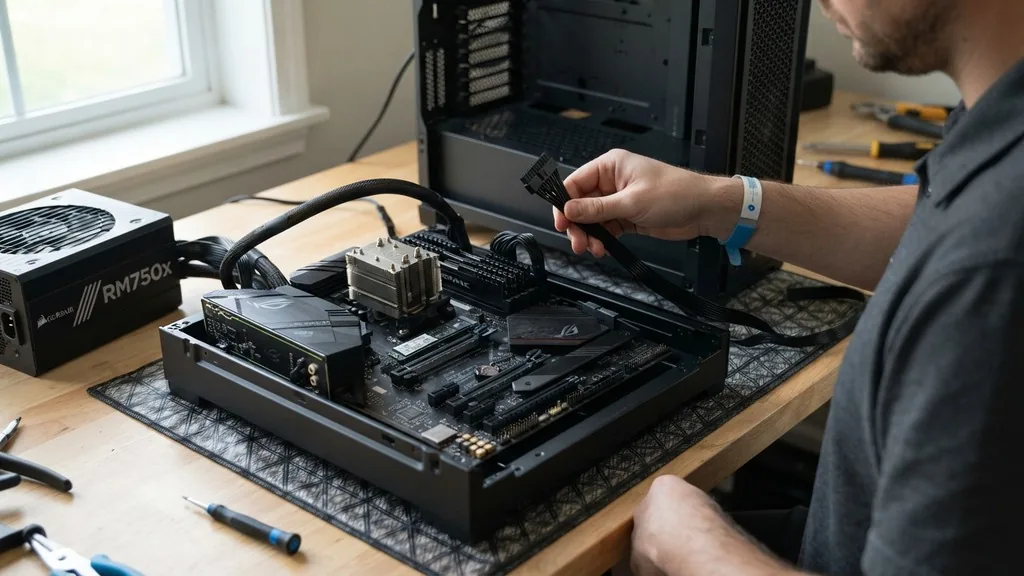
Successfully powering your PC build starts with understanding how to connect the power supply to the motherboard correctly. This task serves as the heartbeat of your system, ensuring that the electrical current reaches vital components like the CPU and memory modules.
If the connections aren’t seated perfectly, your computer might fail to post, or worse, suffer from intermittent stability issues. Whether you are a first-time builder or looking to refresh your knowledge, this process requires patience, precision, and a clear understanding of the standardized cable layout found in modern computing.
Preparing Your Workspace and Identifying Cables
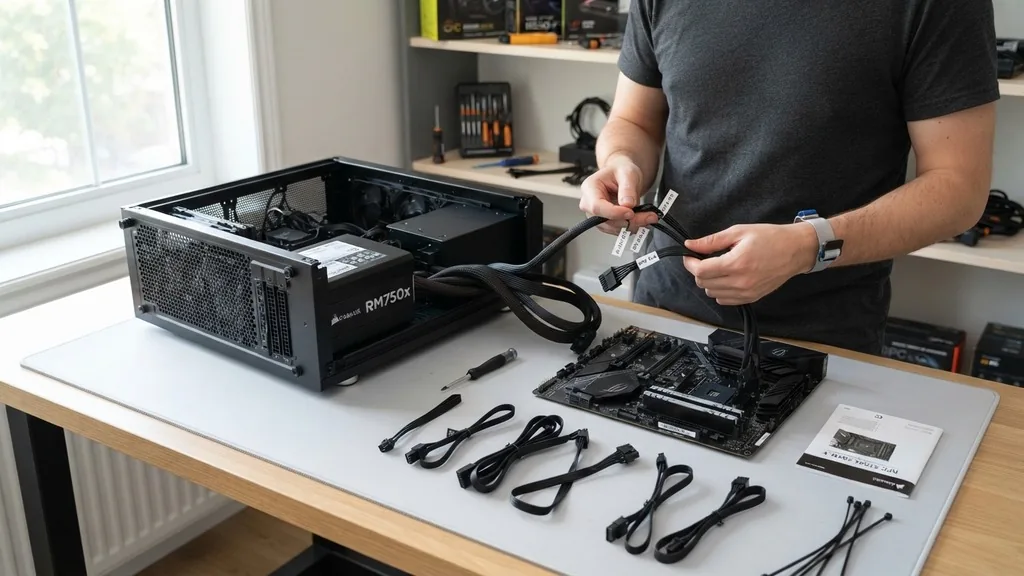
To connect your power supply to your motherboard effectively, you must first organize your workspace and identify the specific cables coming from your PSU. A clean, well-lit area is essential because working inside a cramped PC case often leads to mistakes.
Before you begin plugging things in, ensure your power supply is switched to the off position, or better yet, completely unplugged from the wall outlet. This prevents accidental short circuits while you are maneuvering cables into the chassis.
Lay out your modular cables if you have a modular power supply, or simply untangle the fixed cables if you are using a non-modular unit. You are looking for several distinct types of connectors. The largest will be the 24-pin ATX connector, which provides the main power to the motherboard.
You will also need to find the 8-pin or 4+4-pin EPS connector, which is dedicated to the CPU. Do not confuse this with the 6+2-pin PCIe connectors, which are strictly for your graphics card. Mixing these up can cause severe hardware damage, so take a moment to look at the labels embossed on the plastic housing of each connector.
Installing the 24-Pin ATX Main Power Cable
The 24-pin ATX connector is the most critical link between your power supply and the motherboard. To install it, locate the large, rectangular slot on the right-hand side of your motherboard, typically positioned near the RAM slots. This connection provides the primary voltage rails—3.3V, 5V, and 12V—that the board needs to initialize its various onboard controllers.
Align the connector carefully. Most modern power supplies utilize a 20+4 pin configuration, where the smaller 4-pin section clips onto the side of the 20-pin block to create a single, unified 24-pin plug. Ensure the plastic locking tab on the connector faces the right direction; it should align with the small plastic ridge on the motherboard’s socket.
Press down firmly but gently until you hear a distinct click. If the connector doesn’t seat, check for debris inside the pins or ensure you aren’t trying to force it in backward. A secure connection is vital here, as any loose contact can lead to arcing or system shutdowns under load.
Powering the CPU with the EPS Connector
The CPU requires dedicated power, which is delivered through the EPS or ATX12V connector. This usually consists of an 8-pin block, though some motherboards feature an 8+4 or even an 8+8 configuration for high-end overclocking.
Locate the socket in the top-left corner of your motherboard, near the rear I/O panel. This area can be difficult to reach once the CPU cooler is installed, so it is often better to route this cable before mounting your cooling solution.
When you connect the power supply to the motherboard for the CPU, you will likely encounter a 4+4 pin split connector. Simply snap the two halves together to form a solid 8-pin block. Like the main ATX cable, this connector features a locking mechanism that must snap into the motherboard socket.
If your board has an additional 4-pin socket, you can fill it if you have the extra cable, though most standard systems function perfectly with just the primary 8-pin connection. Always consult the official motherboard manual for specific power requirements regarding your CPU socket.
Understanding the Difference Between PCIe and CPU Cables
A common point of confusion for beginners is the visual similarity between CPU (EPS) power cables and PCIe power cables. While both use a similar pin layout, they are wired differently.
Plugging a PCIe cable into a CPU socket, or vice-versa, can result in a catastrophic failure of your components. The CPU cable is almost always labeled as CPU or EPS, while the graphics card cable is labeled as VGA or PCIe.
The PCIe connector typically comes in a 6+2 pin configuration. This design allows it to adapt to older 6-pin cards or newer 8-pin cards. Never try to force a PCIe connector into the 8-pin CPU socket on the motherboard.
The physical shape of the plastic pins—some squares and some rounded edges—is designed to prevent this, but with enough force, it is possible to bypass these safeguards. Always verify the label on the cable head before you attempt to push it into a slot.
Managing Cable Routing for Airflow and Aesthetics
Effective cable management is not just about making your PC look clean; it is about protecting your components and ensuring optimal airflow. When you connect the power supply to the motherboard, try to route the cables behind the motherboard tray using the grommets or cutouts provided by your case. This keeps the main chamber of your computer free of obstructions, allowing fans to move air across the motherboard components without interference.
Keep your cables taut but not strained. If a cable is pulled too tightly, it puts unnecessary pressure on the solder joints of the motherboard’s power socket, which can lead to cracks over time.
Conversely, if there is too much slack, use zip ties or Velcro straps to bundle the excess cable behind the back panel. This organization makes future upgrades much easier, as you won’t have to untangle a “rat’s nest” of wires just to swap out a storage drive or add more RAM.
Troubleshooting Common Power Connection Issues
Even when you follow the steps perfectly, sometimes a PC fails to power on. If you press the power button and nothing happens, the first thing to check is your power supply connections. Start by verifying that the 24-pin and 8-pin cables are fully seated.
It is surprisingly common for a connector to look plugged in while actually being slightly loose. Give each one a gentle pull to ensure the locking tabs are engaged.
Another frequent issue involves the front panel headers. While these aren’t part of the main power delivery, the motherboard won’t start if the power switch cable isn’t connected to the correct pins on the board.
Additionally, ensure the PSU’s main power switch on the back of the unit is in the “I” (on) position. If your motherboard has diagnostic LEDs, check them; they often indicate which component is failing to receive power, helping you narrow down whether the issue is with the 24-pin cable or a different connection entirely.
Comparing Power Connector Types
To help you identify the cables before you start, refer to the following table. This outlines the typical physical characteristics of the power cables you will encounter when building your system.
| Connector Type | Pin Count | Primary Purpose | Typical Location |
|---|---|---|---|
| ATX Main | 24-pin | Motherboard power | Right edge of board |
| EPS / CPU | 8-pin (4+4) | Processor power | Top-left of board |
| PCIe / VGA | 6+2 pin | Graphics card | Graphics card side |
| SATA | 15-pin | Storage / Accessories | Drives |
Safety Protocols for Handling Electrical Components
When you connect the power supply to the motherboard, safety should be your primary concern. Always work on a non-conductive surface, such as a wooden desk.
Avoid working on carpet, as this increases the likelihood of electrostatic discharge (ESD). While modern components are relatively resilient, a single static shock can permanently damage sensitive traces on a motherboard.
If you are concerned about static, touch a grounded metal object before you begin. You can also wear an anti-static wrist strap, which provides a path for static electricity to dissipate safely. Furthermore, never force a connector into a slot.
If you feel significant resistance, stop and inspect the pins. You might find a bent pin or a piece of debris blocking the way.
Gently straightening a pin with needle-nose pliers is often possible, but doing so requires an extremely steady hand. If you are unsure, please consult your manufacturer’s support documentation rather than risking damage to your expensive hardware.
Addressing Common Questions About Power Connections
* Do I need both the 8-pin and 4-pin CPU connectors?
For most standard desktop CPUs, the primary 8-pin EPS connector is sufficient. The additional 4-pin socket is generally intended for extreme overclocking or high-power workstation processors. You do not need to fill the extra socket unless your specific CPU requires it for stability.
* Can I use any power supply with any motherboard?
Generally, yes, as long as they follow the standard ATX form factor.
However, you must ensure your power supply has enough wattage to handle your specific components. Also, avoid using cables from a different power supply model, even if they fit, as the pinouts might be wired differently.
* Should I install the PSU before the motherboard?
Yes, it is usually easier to install the power supply into the case first.
This allows you to route the cables through the back of the case before the motherboard is in the way, making the final connections much easier to manage once the board is mounted in the chassis.
* What if my cable is too short?
If you find that your power cables cannot reach the motherboard headers due to the size of your case, you can purchase high-quality cable extensions. These are designed to bridge the distance between your power supply and the motherboard, allowing for cleaner routing without compromising electrical integrity.


