


Selecting the right foundation for your PC build is a decision that dictates the long-term reliability and upgrade potential of your system. When determining what to look for in a motherboard, you aren’t just picking a piece of hardware; you are choosing the central nervous system that governs how your processor, memory, and storage communicate. Many builders make the mistake of prioritizing the aesthetics of the board over its electrical components, leading to thermal throttling or limited expansion capabilities later on.
Your choice should reflect your specific use case, whether you are building a workstation for heavy rendering, a high-end rig for competitive gaming, or a budget-friendly home office machine. Understanding the technical nuances—from chipset tiers to power delivery phases—ensures you don’t overspend on features you don’t need while avoiding the pitfalls of an inadequate foundation.
Chipset Compatibility and CPU Socket Types
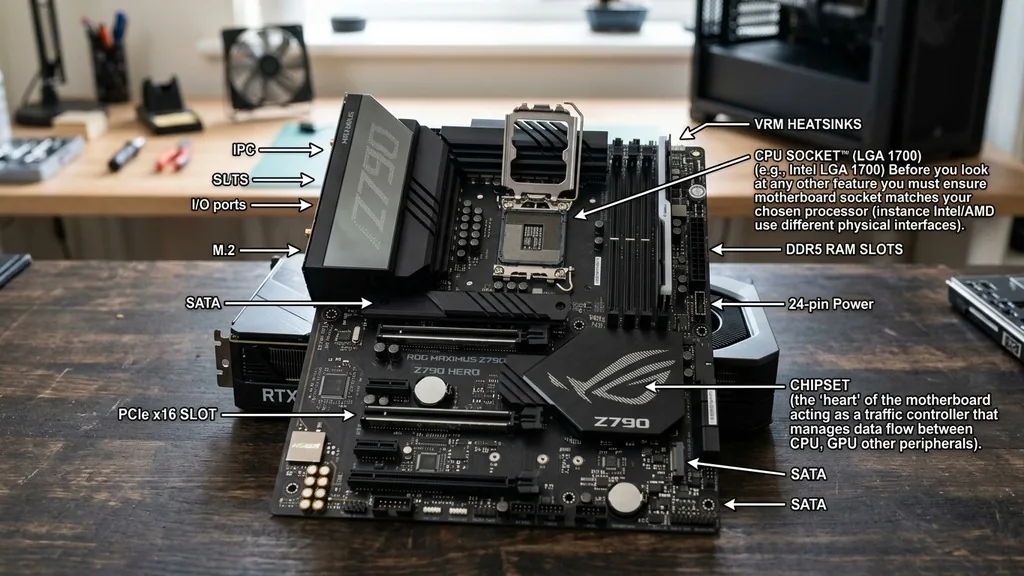
The chipset is the heart of the motherboard, acting as a traffic controller that manages data flow between the CPU, GPU, and other peripherals. Before you look at any other feature, you must ensure the motherboard socket matches your chosen processor.
For instance, Intel and AMD use different physical interfaces, and even within the same brand, sockets change every few generations. If you attempt to pair an incompatible processor with a motherboard, the physical installation will be impossible, or the system will simply fail to POST.
Beyond the physical socket, consider the chipset tier. Manufacturers categorize motherboards into entry-level, mid-range, and enthusiast-grade chipsets. Entry-level boards often lack advanced features like PCIe lane bifurcation or high-speed USB headers.
Enthusiast chipsets, by contrast, offer superior overclocking support, more storage lanes, and robust heat sinks for the voltage regulator modules. Always consult the official processor compatibility list provided by the manufacturer to verify that your specific CPU model is supported by the BIOS version shipping with the board.
Power Delivery and VRM Quality
The Voltage Regulator Module, or VRM, is arguably the most critical component for system stability under load. Its job is to step down the power from your power supply unit to a voltage that your CPU can actually use.
If you are running a high-end processor with many cores, the CPU will demand significant current. A motherboard with a weak VRM design will overheat, causing the system to throttle the CPU speed to prevent damage, which directly impacts performance during intense tasks like video encoding or gaming.
Look for motherboards that feature high-quality capacitors and a sufficient number of power phases. While marketing materials often boast about the “number of phases,” it is the quality of the MOSFETs and the presence of a substantial heat sink over the VRM area that truly matters.
If you plan on overclocking, do not skimp here. A board with a well-cooled, robust power delivery system will allow your CPU to maintain its boost clocks consistently, ensuring that you get every ounce of performance you paid for.
RAM Support and Memory Slots
The amount of RAM you need depends on your primary applications, but the motherboard determines the speed and capacity you can actually reach. Most modern boards support dual-channel memory, meaning you should install memory sticks in pairs to maximize throughput.
When checking specifications, pay attention to the maximum memory frequency supported. While the CPU’s integrated memory controller plays a role, the motherboard’s trace layout—the physical paths on the board connecting the RAM slots to the CPU—dictates how stable the system will be at higher speeds.
Check the number of DIMM slots available. ATX motherboards typically offer four slots, allowing you to upgrade your memory capacity later without discarding your existing sticks. Micro-ATX and Mini-ITX boards might only have two.
If you are building a workstation that requires massive amounts of data in memory, ensure the board supports the total capacity you anticipate needing over the next three to five years. Also, verify if the board supports DDR4 or DDR5, as these are not interchangeable.
PCIe Slots and Expansion Potential
PCIe slots are the gateways for your graphics card, capture cards, sound cards, and high-speed networking adapters. The primary slot, usually the one closest to the CPU, is almost always the fastest, utilizing the full bandwidth provided by the processor.
When looking at these slots, you need to differentiate between physical size and electrical speed. A slot might be physically long enough to fit a card but only wired for a fraction of the bandwidth, which could bottleneck a high-performance GPU.
Consider your future needs regarding expansion. If you plan to add a specialized card later, you need enough physical space between the slots so that a bulky graphics card doesn’t block access to the others.
Modern boards are shifting toward more M.2 slots for NVMe storage, which is excellent for speed but can sometimes share bandwidth with other PCIe slots. Always check the manual to see if installing an extra M.2 drive disables any of your SATA ports or secondary PCIe slots.
Storage Connectivity and M.2 Sockets
In the modern era, traditional mechanical hard drives are being replaced by lightning-fast NVMe solid-state drives. A good motherboard should offer at least two, if not three or four, M.2 slots.
Ideally, these slots should support the latest PCIe generation supported by your CPU to ensure maximum read and write speeds. Look for boards that include M.2 heat sinks; these small metal plates significantly reduce the operating temperature of your SSD, which is essential for maintaining performance during large file transfers or gaming sessions.
SATA ports are still relevant for mass storage, such as large 3.5-inch HDDs used for backups or media libraries. Ensure the board has enough SATA ports to accommodate your storage array. It is also worth noting the physical orientation of these ports.
On some boards, they face outward from the side, which can be difficult to access in a cramped case, while others face upward. Choose the layout that best fits your cable management strategy and case size.
Rear I/O and Internal Headers
The rear I/O panel is your primary interface for keyboards, mice, audio equipment, and networking. When evaluating what to look for in a motherboard, don’t ignore the number of USB ports.
High-speed USB-C ports are becoming standard, and they are incredibly useful for external SSDs and modern peripherals. If you have specific audio requirements, check if the motherboard features a high-quality integrated audio codec or an optical S/PDIF output for external DACs.
Internal headers are equally important for your case’s functionality. These include the headers for your front-panel USB-C port, RGB lighting controllers, and fan headers.
If you are building a system with many fans or a complex liquid cooling loop, ensure the board has enough dedicated fan headers to manage your thermal solution without requiring extra splitters. A board with a well-labeled and logically placed set of headers will make the initial assembly process much less frustrating.
Form Factor Considerations
The physical size of the motherboard, known as the form factor, dictates which computer case you can use. The three most common sizes are ATX, Micro-ATX, and Mini-ITX. Each comes with distinct trade-offs regarding component density and upgradeability.
| Form Factor | Expansion Slots | Best For |
|---|---|---|
| ATX | 5-7 slots | Full-tower builds, multi-GPU, heavy storage |
| Micro-ATX | 3-4 slots | Balanced builds, compact desktops |
| Mini-ITX | 1 slot | Small form factor (SFF), HTPC, minimalism |
While ATX boards offer the most flexibility, Mini-ITX boards have become surprisingly capable, often packing enthusiast features into a tiny footprint. However, you will pay a premium for the engineering required to shrink these circuits. Choose your case first, then find a motherboard that fits, or vice versa; just ensure that your choice doesn’t leave you with a massive empty case or an impossible-to-build-in cramped enclosure.
Addressing Topical Gaps: BIOS and Software Ecosystems
One area often overlooked in motherboard reviews is the quality of the manufacturer’s BIOS and software suite. A “good” motherboard isn’t just about the hardware; it’s about how easy it is to update the firmware, configure fan curves, and monitor system health.
Look for boards that offer a “Flashback” feature, which allows you to update the BIOS using a USB drive without needing a CPU or RAM installed. This is a lifesaver if you buy a new processor that requires a newer BIOS version than the one pre-installed on your board.
Beyond the BIOS, consider the manufacturer’s support software. While some find “bloatware” annoying, useful utilities for fan control and automatic driver updates can be beneficial for less experienced users. Research the community forums for the brands you are considering.
Are users reporting frequent issues with the BIOS stability? Is the manufacturer releasing updates frequently to improve compatibility? A company that provides long-term software support is a sign of a reliable product that will remain relevant for years to come.
Summary Checklist for Selection
To make your final decision, keep this list of priority factors in mind. By following these steps, you minimize the risk of choosing an incompatible or under-performing unit for your specific needs:
- Verify CPU socket compatibility with your specific processor generation.
- Ensure the chipset supports the features you need, such as overclocking or extra PCIe lanes.
- Check the VRM heat sink design if you plan on using a high-wattage, multi-core CPU.
- Confirm the number and speed of M.2 slots for your storage requirements.
- Count the available fan headers to ensure they match your case’s cooling configuration.
- Look for BIOS Flashback capabilities for easier setup and future-proofing.
- Match the form factor to your chosen PC case to ensure a proper fit.
- Review the rear I/O to ensure you have enough USB and audio ports for your gear.
Ultimately, the best motherboard is the one that provides exactly what you need without forcing you to pay for features that will never be used. If you are a casual user, an entry-level chipset will serve you perfectly well.
If you are a power user who intends to push hardware limits, investing in a mid-to-high-tier board with premium power delivery will pay dividends in stability and performance. Trust the hardware specifications over marketing buzzwords, and you will find a reliable backbone for your computer.
Frequently Asked Questions
- How do I tell if a motherboard is high quality? Look for robust heat sinks covering the VRMs, high-quality capacitors, and a solid build weight. Reputable manufacturers provide clear specifications regarding power phases and trace layout, which indicate a focus on stability and electrical efficiency for high-performance components.
- Does the motherboard affect gaming performance? Generally, no. A motherboard does not increase frame rates directly. However, an inadequate board can cause thermal throttling of the CPU or limit the speed of your RAM and GPU, which indirectly lowers performance. A good board ensures your components run at their peak.
- What is the typical lifespan of a motherboard? Most motherboards are designed to last five to ten years under normal operating conditions. Failure is often caused by capacitor degradation or environmental factors like dust buildup and humidity. Keeping your system clean and well-ventilated can significantly extend the longevity of the board.
- How do I know if my motherboard supports my CPU? You must check the motherboard’s official support page on the manufacturer’s website. Search for the “CPU Support List” for that specific model. It will indicate which processors are compatible and whether you need to update the BIOS firmware for full support.


