

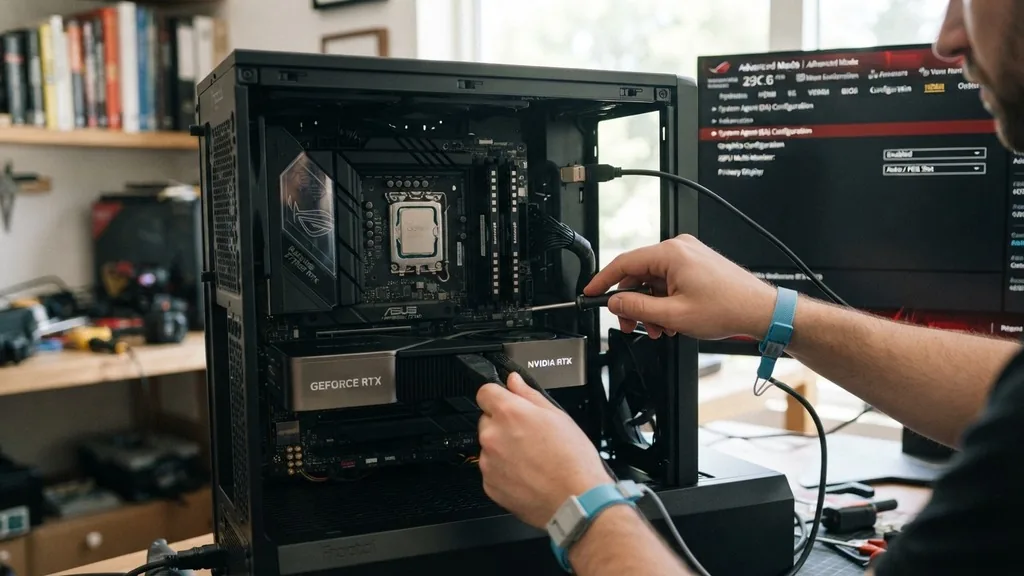
Getting your display to work through the motherboard HDMI port can be surprisingly tricky, especially if you have a dedicated graphics card installed. Many users find that when they plug a monitor into the motherboard, the screen stays black, leading to immediate frustration.
The core issue is that your system often prioritizes the dedicated GPU, effectively disabling the onboard video output to prevent resource conflicts. To resolve this, you generally need to adjust settings within your BIOS or UEFI interface to force the system to acknowledge the integrated graphics, even when a discrete card is present.
Understanding the Relationship Between Integrated Graphics and Dedicated GPUs
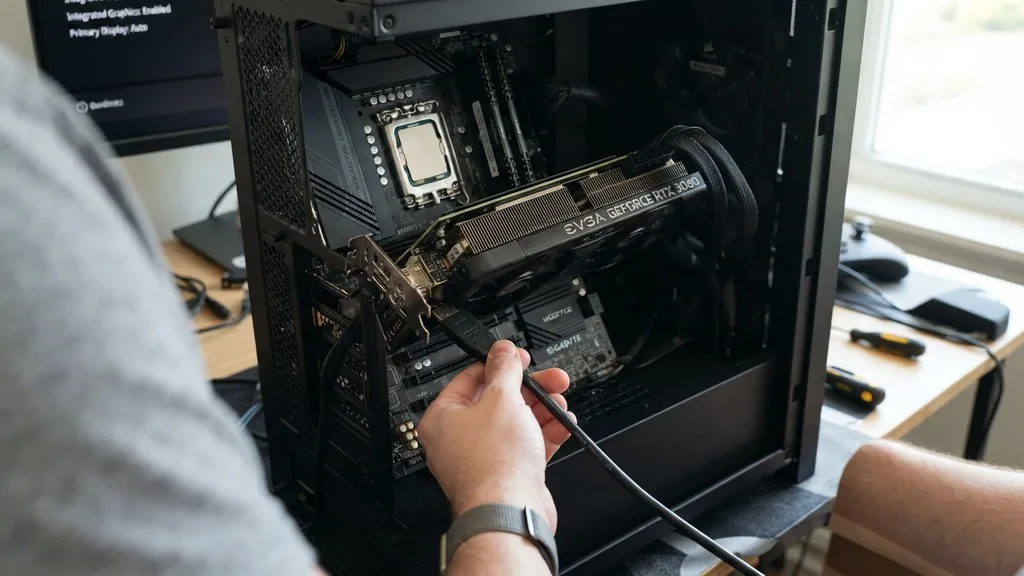
When you install a dedicated graphics card, your system hardware often defaults to that device for all video processing. The integrated graphics processor, which lives inside your CPU, is automatically put into a standby or disabled state to save power and prevent driver conflicts.
This is why, by default, the HDMI port on your motherboard will not output a signal once a GPU is detected. Understanding this hierarchy is the first step in learning how to enable motherboard HDMI.
The system performs a hardware check during the POST (Power-On Self-Test) phase of the boot process. If it detects a PCIe graphics card, the BIOS firmware typically instructs the OS to ignore the integrated chipset. If you are trying to set up a second monitor or simply troubleshooting a display issue, you must manually override this behavior.
It is important to note that not all CPUs feature integrated graphics. If your processor model ends in a specific suffix—such as the “F” series from Intel—it lacks an integrated GPU entirely. In such cases, no amount of BIOS tweaking will make the motherboard HDMI port function, as the physical hardware component required to generate a video signal is missing from the silicon.
Accessing the BIOS and UEFI Interface
The most reliable way to change your display output settings is through the motherboard’s BIOS or UEFI menu. To enter this environment, you must restart your computer and press the designated key immediately as it powers on. Common keys include Del, F2, F10, or F12, depending on your motherboard manufacturer.
A splash screen usually appears briefly at the start, often displaying a “Press [Key] to enter Setup” message. If your boot sequence is too fast, you might need to try several times or use the advanced startup options within Windows to navigate to the firmware settings.
Once you are inside the BIOS, you will likely need to switch from “Easy Mode” to “Advanced Mode” to find the specific display configuration settings. Every manufacturer organizes their menus differently, so look for tabs labeled “Advanced,” “Chipset,” “System Agent,” or “Onboard Devices Configuration.” Within these menus, you will find settings related to your primary display or integrated graphics.
Changing these values is the primary method for enabling the motherboard port. Always remember to save your changes before exiting, typically by pressing F10, or the system will revert to its previous, non-functional state upon the next reboot.
Configuring Integrated Graphics Settings in BIOS
Once you have located the relevant menu, you will typically see an option labeled “Integrated Graphics” or “IGPU Multi-Monitor.” By default, this is often set to “Auto” or “Disabled.”
If it is set to “Auto,” the system is likely choosing the dedicated card and ignoring the motherboard port. Changing this setting to “Enabled” or “Always On” forces the system to keep the integrated graphics active regardless of whether a dedicated card is present.
Some motherboards offer a specific setting called “Primary Display” or “Initiate Graphic Adapter.” This determines which device the system uses for the BIOS boot screen and the initial loading of the operating system. If you want your motherboard HDMI port to act as the primary display, you should set this option to “IGFX” or “Integrated.”
If you simply want it to serve as a secondary display for a multi-monitor setup, keep your primary as the dedicated card and ensure the “Multi-Monitor” or “IGPU” setting is explicitly enabled. This is a common requirement for users who need to connect a second monitor or a specialized display device that doesn’t require high-end 3D rendering performance.
Troubleshooting Common BIOS Settings by Manufacturer
Different motherboard brands utilize unique interfaces, which can make the process of enabling the HDMI port confusing. For Gigabyte boards, you often need to navigate to the “Chipset” tab and look for “Internal Graphics.” On Asus motherboards, the setting is frequently hidden under “Advanced” and then “System Agent Configuration.”
MSI boards often group these under “Integrated Graphics Configuration.” If you cannot find the setting, consult your motherboard’s manual or visit the official Intel support documentation for general guidance on how integrated graphics interact with chipset architecture.
It is worth noting that some older systems or very specific enterprise motherboards might not allow for “Dual Graphics” mode. In these instances, you may have to choose between either the dedicated card or the motherboard HDMI. If your system forces a choice, you will not be able to use both simultaneously.
If you are struggling to find the exact menu, use the search function if your BIOS interface supports it. Many modern UEFI interfaces include a search bar that allows you to type in terms like “Graphics” or “HDMI” to quickly jump to the relevant configuration page, saving you from digging through nested menus.
Verifying Hardware and Driver Requirements
Even after you have enabled the port in the BIOS, your operating system must have the correct drivers installed to utilize the integrated graphics. Windows usually installs a generic display driver automatically, but for optimal performance and stability, you should download the specific chipset and graphics drivers from your motherboard or CPU manufacturer’s website. Without these, the display may flicker, show incorrect resolutions, or fail to be recognized by the operating system entirely.
Check your Device Manager in Windows to confirm that both your dedicated GPU and your integrated graphics are visible. If you see a yellow exclamation mark next to the integrated graphics adapter, it indicates a driver conflict. Right-click the device and select “Update driver” to let Windows search for a fix.
If the integrated graphics do not appear at all, it is possible that the device is still disabled in the BIOS or that the hardware is not properly seated or supported. You can also verify if your monitor is actually receiving a signal by checking the input source on the monitor’s own menu, as sometimes the display is active but set to the wrong input channel.
Managing Display Settings in Windows
Once the hardware is enabled and the drivers are installed, Windows should recognize the new display connection. To manage your workspace, right-click on your desktop and select “Display settings.” You should see a visual representation of your monitors.
If the second monitor connected to the motherboard HDMI port is not showing up, click the “Detect” button. This forces Windows to scan for any connected display devices.
You can then choose how your displays function. You can “Extend” your desktop, which gives you more screen real estate, or “Duplicate” your primary screen if you are using the second monitor for presentations or monitoring.
If you find that the mouse cursor moves in the wrong direction, you can drag and drop the display boxes in the settings menu to match the physical layout of your monitors on your desk. This configuration is essential for a productive multi-monitor setup, especially when you are using different outputs from different sources.
Comparing Display Output Options
When deciding whether to use the motherboard HDMI or a dedicated graphics card port, it is helpful to understand the limitations of each. The following table provides a quick comparison of typical use cases and performance expectations for these two types of video outputs.
| Feature | Motherboard HDMI | Dedicated Graphics Card |
|---|---|---|
| Primary Use | Office tasks, web browsing | Gaming, video editing, 3D |
| Performance | Basic 2D acceleration | High-performance 3D rendering |
| Multi-Monitor | Secondary display support | Primary display output |
| Reliability | Dependent on CPU/BIOS | Independent hardware |
As shown in the table, the motherboard HDMI is best suited for secondary tasks. Using it for gaming is generally not recommended, as the integrated graphics lack the dedicated VRAM and processing power of a discrete card. However, for a second monitor used for emails, chat apps, or system monitoring, the motherboard HDMI is a perfectly capable and efficient solution that leaves your primary GPU ports free for your main gaming or professional displays.
Addressing Topical Gaps and Common Pitfalls
Many users ask a common question: “Why is my motherboard HDMI port still not working after I enabled it in the BIOS?” There are several reasons this might occur. First, check your physical cable.
HDMI cables can fail, and sometimes a cable that works on a TV might not work with a computer monitor. Swap the cable to rule out a simple physical defect.
Second, ensure that the monitor itself is powered on and set to the correct input source. It sounds obvious, but it is one of the most frequent causes of “no signal” issues.
Another common issue is that the BIOS settings were not saved correctly. Some motherboards have a “Fast Boot” or “Ultra Fast Boot” feature that skips certain hardware checks during startup. This can sometimes prevent the integrated graphics from initializing properly.
Try disabling “Fast Boot” in your BIOS to see if that allows the system to detect the motherboard port. Additionally, if you are using a very high-resolution monitor, the integrated graphics on older CPUs may not support the necessary bandwidth for 4K or high-refresh-rate displays, leading to a blank screen or a “signal out of range” error. Always check the specifications of your CPU and motherboard to ensure they support the resolution and refresh rate of the monitor you are attempting to connect.
Frequently Asked Questions
- Can I use my motherboard HDMI port and my graphics card at the same time? Yes, you can usually use both simultaneously if your motherboard supports “Multi-Monitor” mode, which must be enabled in the BIOS settings under your chipset configuration.
- Why does my HDMI port not show up in Windows? If the port is not showing up, it is likely disabled in the BIOS or you are missing the necessary integrated graphics drivers. Check your device manager for any driver errors.
- Does every motherboard have an HDMI port? No, not every motherboard includes an HDMI port. Some budget or specialized boards only feature DisplayPort or VGA, or they may lack video outputs entirely if they are intended for headless server use.
- What if my CPU does not have integrated graphics? If your processor lacks an integrated GPU, the motherboard HDMI port will not function, regardless of BIOS settings. You must connect your monitor directly to a dedicated graphics card.
Learning how to enable motherboard HDMI is a fundamental skill for anyone managing a multi-monitor computer setup. By understanding the interaction between your BIOS settings, your CPU’s integrated graphics capabilities, and your operating system’s display management, you can effectively expand your workspace.
Always approach BIOS changes with care, ensure your drivers are up to date, and don’t be afraid to experiment with the display settings in Windows to achieve the perfect layout for your needs. Whether you are adding a screen for productivity or troubleshooting a lost signal, these steps provide a reliable path to getting your display up and running.


