

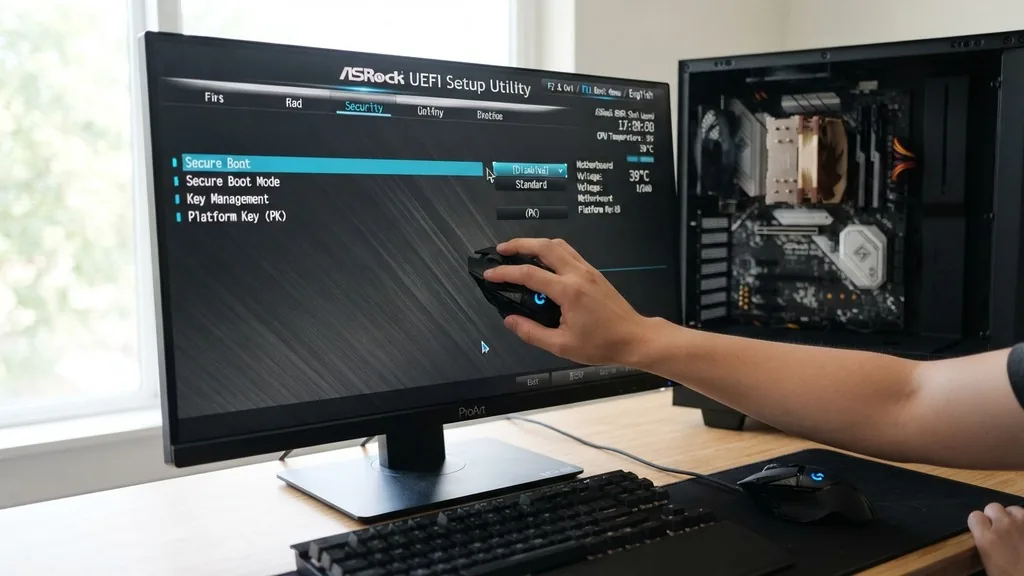
Enabling Secure Boot is a mandatory prerequisite for modern computing, especially if you are looking to upgrade or install Windows 11. If you are using an ASRock motherboard, the process involves navigating the UEFI BIOS to ensure your system meets the necessary security standards.
This feature acts as a hardware root of trust, ensuring that only trusted software—verified by the manufacturer—is allowed to execute during the boot process. By preventing unauthorized firmware or malicious bootloaders from loading, it creates a protected environment for your operating system.
Understanding the Role of UEFI and Secure Boot
Secure Boot is a security standard developed by members of the PC industry to help make sure that a device boots using only software that is trusted by the Original Equipment Manufacturer (OEM). When you learn how to enable Secure Boot on an ASRock motherboard, you are essentially activating a gatekeeper that checks the digital signature of every piece of boot software, including UEFI firmware drivers (also known as Option ROMs), EFI applications, and the operating system itself.
For ASRock users, this functionality is deeply integrated into the ASRock UEFI interface. Unlike the legacy BIOS systems of the past, the modern UEFI environment provides a graphical, mouse-driven interface that makes these technical adjustments much more accessible.
The core purpose of this feature is to protect the boot path from rootkits and bootkits, which are sophisticated types of malware that can infect your machine before your antivirus software even has a chance to load. By ensuring that your system is running in a verified state, you drastically reduce the attack surface of your computer.
Prerequisites Before Modifying BIOS Settings
Before you dive into the settings menu, you must verify that your system is configured to support the requirements of modern security protocols. One of the most common reasons why users cannot enable Secure Boot is that their primary boot drive is still formatted using the older MBR (Master Boot Record) partition style.
Secure Boot strictly requires the GPT partition style. If your drive is currently MBR, you will need to convert it to GPT before the motherboard will allow you to successfully toggle the Secure Boot setting to “Enabled.”
Additionally, you should check for the presence of a Trusted Platform Module (TPM 2.0). While Secure Boot and TPM 2.0 are distinct technologies, they work in tandem to satisfy the Windows 11 system requirements.
Most ASRock motherboards from the last few years include a firmware-based TPM, often referred to in the BIOS as “Intel PTT” or “AMD fTPM.” You should enable this alongside Secure Boot to ensure a smooth transition to the latest Windows operating system.
Accessing the ASRock UEFI BIOS
To start the configuration, you need to enter the BIOS setup utility. Power on your computer and repeatedly press the “F2” or “Delete” key on your keyboard as soon as the ASRock logo appears on the screen. If you miss the window, simply restart the machine and try again.
Once you have reached the main screen, you might be in “Easy Mode,” which displays basic hardware information. Press “F6” or click the “Advanced Mode” button to access the full range of settings required for security configuration.
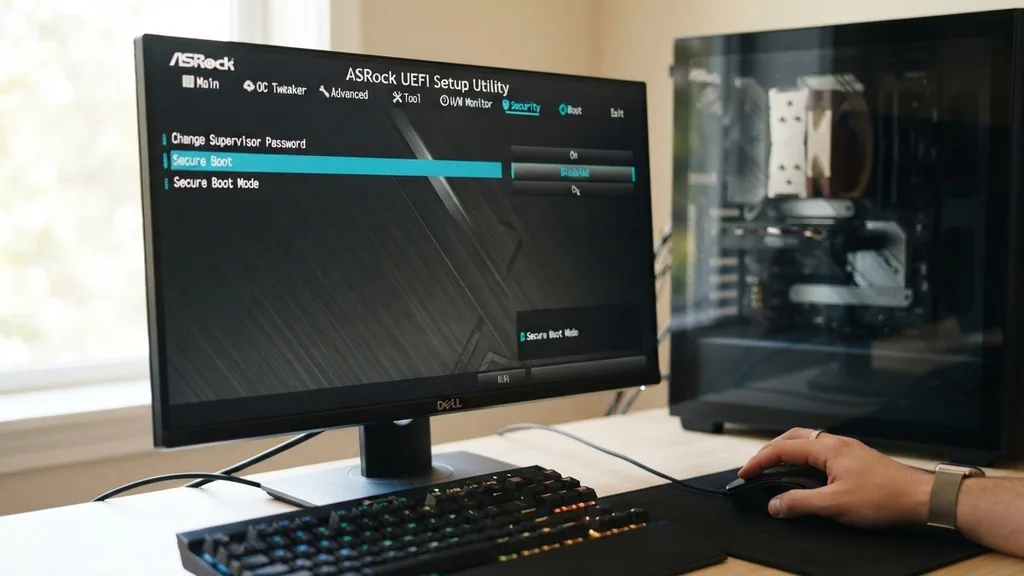
Within the Advanced Mode, you will find several tabs across the top, such as Main, OC Tweaker, Advanced, Tool, H/W Monitor, Security, and Boot. The settings we are looking for are typically hidden within the “Security” or “Boot” tabs, depending on your specific motherboard model and firmware version. It is important to remember that changing these settings incorrectly can prevent your system from booting, so take your time and follow the steps carefully.
Disabling the Compatibility Support Module (CSM)
The Compatibility Support Module (CSM) is a layer within the UEFI that allows modern motherboards to behave like a legacy BIOS. While this is helpful for running older operating systems or hardware, it is fundamentally incompatible with Secure Boot.
You must disable CSM for Secure Boot to function. If you try to enable Secure Boot while CSM is active, the system will often grey out the option, leaving you wondering why you cannot change it.
Navigate to the “Boot” tab in the ASRock UEFI and look for the “CSM” sub-menu. Inside, you will see a setting labeled “Launch CSM.” Set this to “Disabled.”
Once you have disabled CSM, you may need to save your changes and exit, then re-enter the BIOS to unlock the Secure Boot options. Disabling CSM forces the motherboard to operate in a pure UEFI mode, which is the native environment for modern Windows installations.
Configuring Secure Boot Mode and Keys
Once CSM is disabled, you can locate the “Secure Boot” section. You might notice that the setting is currently set to “Disabled” or that the “Secure Boot Mode” is set to “Standard.” If the status shows “Setup Mode,” it means the platform keys have not been installed.
To fix this, you need to engage in PK key management. Most users should select the option to “Install Default Secure Boot Keys.”
This process populates the UEFI firmware with the necessary certificates provided by the manufacturer. Once the keys are installed, you can toggle the “Secure Boot” setting to “Enabled.” It is vital to pay attention to the Secure Boot mode settings.
In most cases, keeping it in “Standard” mode is the safest and most reliable choice for a typical user. Only enthusiasts or developers working with custom kernels should consider “Custom” mode, as it requires manual management of the signature database.
Troubleshooting Common Boot Issues
If you encounter a black screen or a boot loop after enabling these settings, do not panic. This usually happens if your GPU or a connected peripheral does not support UEFI mode.
You can find detailed technical documentation on these standards at the official UEFI Specifications website. If your system refuses to boot, clear the CMOS by removing the coin-shaped battery from your motherboard for thirty seconds or using the clear CMOS jumper, which will reset your settings to factory defaults.
Comparison of Boot Security Settings
Understanding the difference between legacy boot methods and modern secure methods helps clarify why specific steps are necessary. The following table outlines the fundamental differences between the configurations required for standard operation versus those required for Secure Boot compliance.
| Feature | Legacy BIOS Mode | UEFI Secure Boot Mode |
|---|---|---|
| Partition Style | MBR (Master Boot Record) | GPT (GUID Partition Table) |
| Compatibility | CSM Enabled | CSM Disabled |
| Security | None (No signature checks) | Hardware Root of Trust |
| Boot Speed | Slower | Faster |
Addressing Topical Gaps in BIOS Configuration
A common point of confusion is the distinction between “User Mode” and “Setup Mode.” When you first access the BIOS, your system might be in Setup Mode. This is an unprovisioned state where the platform keys are not yet set.
To transition to User Mode, you must install the factory default keys as mentioned previously. Once the system is in User Mode, the firmware will actively enforce the signature checks against the loaded drivers and OS bootloader.
Another frequent issue is the “Secure Boot enabled but not Active” status. This often occurs because the system is still in Setup Mode or because a specific driver is unsigned.
If you have enabled the setting but the status remains inactive, ensure that your graphics card has a UEFI-compatible VBIOS. Most modern cards support this, but older models may require a firmware update from the manufacturer to support the security requirements of modern UEFI firmware.
Maintaining System Stability After Changes
After you have successfully enabled Secure Boot, your system will be more resistant to low-level threats. However, it is essential to monitor your system for stability.
Sometimes, enabling these features can reveal underlying issues with outdated hardware drivers that were previously masked by legacy compatibility modes. Always ensure that your ASRock motherboard firmware is updated to the latest version available on the manufacturer’s website.
Regularly checking for updates is a best practice. ASRock provides a utility called “App Shop” or “Live Update” that can simplify the process of flashing your BIOS firmware.
Keeping this firmware current ensures that your Secure Boot implementation remains compatible with the latest security patches and Windows requirements. If you ever need to add new hardware, such as a specialized PCIe card, keep in mind that the card must also support UEFI signing; otherwise, the system may refuse to boot until the card is removed or the Secure Boot setting is temporarily disabled.
Final Checklist for Secure Boot Activation
To summarize, the transition to a secure boot environment is a multi-step process that requires attention to detail. Below is a checklist to ensure you haven’t missed any critical steps during your configuration:
- Verify that your system disk is partitioned as GPT rather than MBR.
- Ensure your graphics card and other peripherals are UEFI-compatible.
- Enter the ASRock UEFI BIOS using the F2 or Delete key.
- Navigate to the Boot tab and ensure that Launch CSM is disabled.
- Go to the Security tab and select the option to install default Secure Boot keys.
- Set Secure Boot to Enabled and check that the status confirms it is active.
- Save your changes and exit the BIOS to boot into your operating system.
Following this sequence will minimize the risk of configuration errors. By taking control of your motherboard’s security settings, you are taking a proactive step toward a more secure computing experience. While the interface may seem daunting at first, the standardized nature of ASRock’s UEFI makes it straightforward once you understand the relationship between CSM, GPT, and the platform keys.
Frequently Asked Questions
Why is there no Secure Boot option in my ASRock BIOS?
If the option is missing, it is usually because the Compatibility Support Module (CSM) is currently enabled. You must disable CSM in the Boot menu, save and exit, and then re-enter the BIOS. Once CSM is disabled, the Secure Boot settings will typically appear under the Security or Boot tab.
Will enabling Secure Boot delete my data?
Enabling Secure Boot itself does not delete your data. However, if you need to convert your drive from MBR to GPT to satisfy the requirements for Secure Boot, that process can result in data loss if not done correctly. Always back up your important files before modifying partition structures.
What should I do if my PC fails to boot after enabling Secure Boot?
If your PC fails to boot, it likely indicates that your graphics card or another hardware component is not UEFI-compliant. You can reset the BIOS to default settings by clearing the CMOS using the motherboard jumper or by removing the coin-cell battery for a short period to restore access.
Is Secure Boot required for Windows 10 as well as Windows 11?
Secure Boot is highly recommended for Windows 10 for better security, but it is not strictly required for installation. In contrast, it is a hard requirement for Windows 11. Enabling it ensures your system is protected against modern boot-level malware and meets the latest security standards for Microsoft operating systems.


